---
title: "Build RAG and Text2SQL AI Applications with Amazon Bedrock"
version: "v2"
status: "GA"
description: "In this lab, you will learn how to: Use TiDB Cloud Serverless as a unified storage layer for AI applications; Generate and utilize Embeddings with Amazon Bedrock models; Perform Retrieval-Augmented Generation (RAG) to retrieve information from large datasets; Build a Text-to-SQL AI application that translates natural language into SQL queries and executes them on TiDB Cloud Serverless; Develop interactive AI applications with Streamlit, integrating database operations, vector search, and LLM capabilities to create practical tools."
---
# Build RAG and Text2SQL AI Applications with Amazon Bedrock
## Overview
> [!IMPORTANT]
> This lab will grant you temporary access to Amazon Bedrock for invoking necessary models. Please adhere strictly to the usage guidelines outlined in the lab materials and refrain from utilizing this access in any other contexts. We reserve the right to hold users legally accountable for any misuse of Amazon Bedrock permissions that results in financial loss.
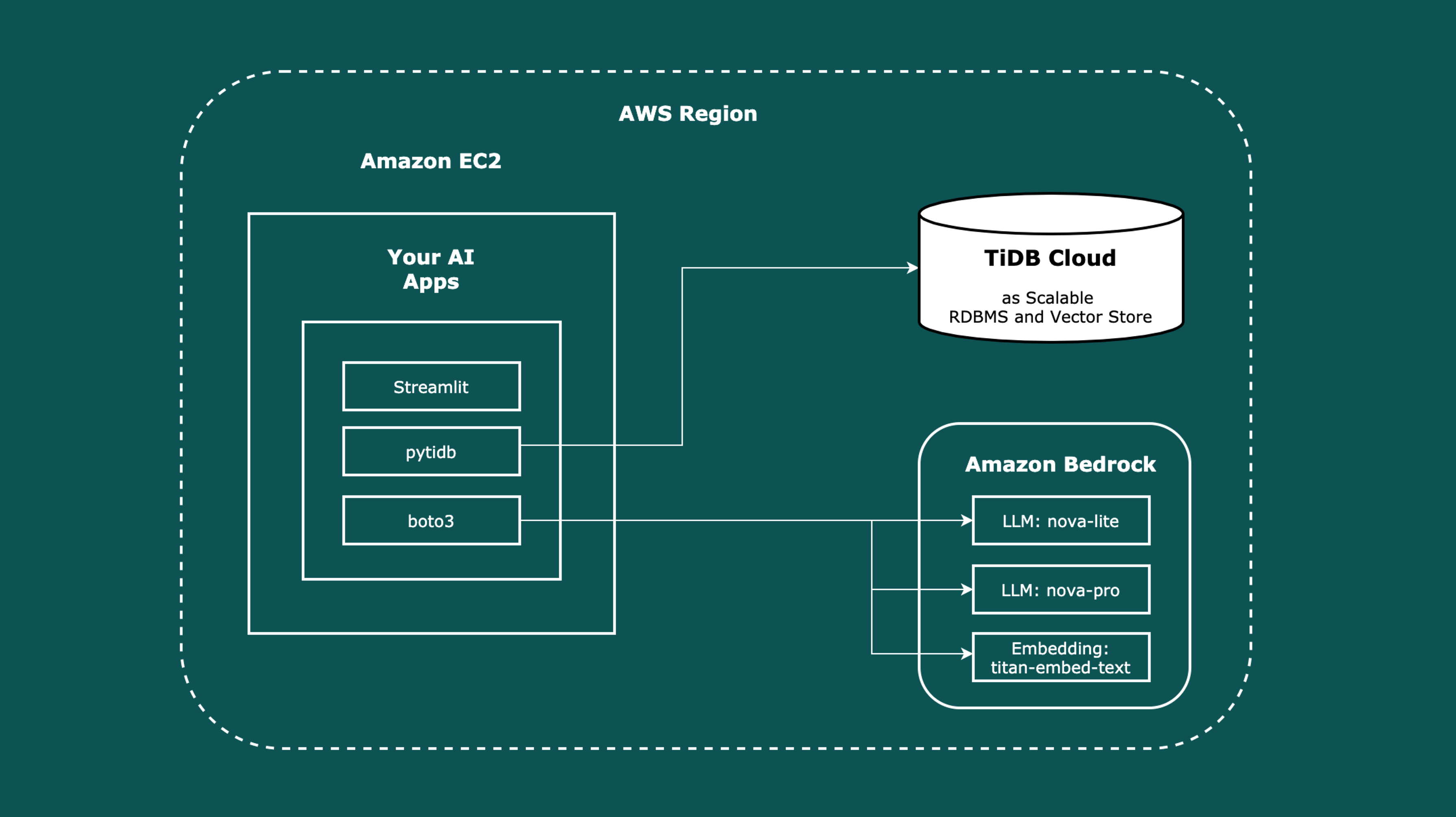
Generative AI is currently a cutting-edge field that has attracted many developers eager to explore it. However, several barriers often hinder their entry into this domain, such as:
- A lack of foundational AI knowledge, leaving them unsure where to begin.
- The absence of comprehensive, step-by-step, and interactive guides for building generative AI applications.
- Limited access to essential infrastructure needed for learning, such as databases and large model APIs.
To address these challenges, we developed a series of labs, including this one, through which you will learn:
- How to leverage pytidb and **TiDB Cloud Serverless** as a unified data storage layer for AI applications to streamline development.
- What Embedding is and its capabilities.
- How to utilize embedded vectors after they have been obtained.
- How to employ RAG (Retrieval-Augmented Generation) for information retrieval when dealing with large volumes of data, and working with LLM (Large Language Model).
- How to make a useful Text2SQL AI application to explore the dataset.
> [!NOTE]
> In this lab, we'll use Streamlit as a rapid application development framework to streamline and accelerate data application building.
> Whether you choose your own TiDB Cloud Serverless cluster or the sandbox TiDB Cloud Serverless option to start the lab, a dedicated database will be created for this hands-on lab.
### Tasks
- **Build your first RAG application**
- Save your embedding vector and the other data to TiDB Cloud Serverless cluster.
- Start a Streamlit webpage to test the performance of your RAG application.
- Read the code of RAG demo.
- **Build your first Text2SQL application**
- Use TiDB Cloud Serverless cluster as a SQL runner to correct LLM.
- Start a Streamlit webpage to use your Text2SQL application.
- Read the code of Text2SQL demo.
### Duration
- This lab should take you approximately 90 minutes to complete.
> [!TIP]
> Once the lab environment is deployed, click **Next** on the bottom bar to begin **Module 1**.
## Module 1: Prepare to Run the Python Code
### Step 1. Check the lab environment
- Click the `Resources` button on the left to view the lab environment set up for your hands-on practice. You will see:
- A server named **monitor1** running a VS Code server, which serves as both the development and application server.
- Connection details for a TiDB Cloud Serverless cluster — either from your own TiDB Cloud account or the lab’s sandbox environment, depending on your selection.
- Additionally, the database name for this hands-on lab is `${LAB:SERVERLESS_CLUSTER_DATABASE_NAME}`, it will be created on your behalf in the selected TiDB Cloud Serverless cluster.
- Close the `Resources` popup window.
### Step 2. Open a terminal in IDE
- Click [here](${LAB:SECURITY_ACCESS_PROXY_URL}?next=${LAB:"/vscode/?folder=/root/tidb-lab-ai"|urlencode}) to open the VS Code environment for this lab in a new browser window.
- Click `Yes, I trust the authors` in the popup window.

- Click on `≡`, `Terminal`, then `New Terminal` to open a new terminal in the VS Code.

### Step 3. Install Python dependencies
- Run the following commands in the VS Code terminal to install the required dependencies.
```bash
pip install --upgrade pip
pip install -r requirements.txt
```
```output
...
Collecting aiohappyeyeballs==2.6.1 (from -r requirements.txt (line 1))
Downloading aiohappyeyeballs-2.6.1-py3-none-any.whl.metadata (5.9 kB)
Collecting aiohttp==3.11.16 (from -r requirements.txt (line 2))
Downloading aiohttp-3.11.16-cp311-cp311-manylinux_2_17_x86_64.manylinux2014_x86_64.whl.metadata (7.7 kB)
Collecting aiosignal==1.3.2 (from -r requirements.txt (line 3))
Downloading aiosignal-1.3.2-py2.py3-none-any.whl.metadata (3.8 kB)
...
```
- Verify that the module which manages TiDB as a unified data store for your AI application was also installed.
```bash
pip list | grep -i pytidb
```
```output
pytidb 0.0.4
```
## Module 2: Run, Experience, and Study the RAG Demo Application
Run a RAG demo application that connects to TiDB Cloud Serverless, save your embeddings, retrieve related data, and generate the answer to your query.
### Step 1. Run the RAG Streamlit service
+ In the VS Code terminal, use `streamlit` command line tool to run the following script to start Streamlit service.
```bash
streamlit run bedrock/rag.py --server.port 8501
```
```output
Collecting usage statistics. To deactivate, set browser.gatherUsageStats to false.
You can now view your Streamlit app in your browser.
Local URL: http://localhost:8501
Network URL: http://172.17.0.2:8501
External URL: http://${LAB:HOST_MONITOR1_PUBLIC_IP}:8501
```

### Step 2. Use RAG demo web page
- Click to access your [RAG demo web page](http://${LAB:HOST_MONITOR1_PUBLIC_IP}:8501/). It will take around **5 minutes** to complete the initialization based on the lab environment setup.

- Open the folder of `All Chunks in the Database` to see the data currently in the TiDB Cloud Serverless cluster. We did not save any data yet, so it should be empty.

- Click `Save Data` to save the sample text data that we prepared for this demo. You can see the sample data in the next step, which is a list of string.
- After saving the data, you can see the data in the TiDB Cloud Serverless cluster is showing in the `All Chunks in the Database` folder. And we have 3 columns, which are `id`, `text`, and `text_vec`.

- If you want to retrieve the context only, you can click the `Retrieval Only` option. Then, enter your question.
- Say I want to ask a question:
```text
What is TiDB?
```
- Click the `Send` button to start to retrieve.

- As you can see, the `TiDB is a distributed SQL database with HTAP capabilities.` has the highest similarity score.
> [!NOTE]
> You can press the button and drag the head of column to change the order of the table.
> You can also download the data as a CSV table.

- At the end, let's try to make the RAG to give us the answer.
- Change the `Retrieval Limit` at the left-top corner to `1`, which means we will only retrieve the most similar text towords the question that you inputed.

- Change the option to `RAG Q&A`, then click `Send`.
- This time, the demo will give us the answer rather than a material list.

### Step 3. RAG demo code reading
Let's head back to [VS Code](http://${LAB:HOST_MONITOR1_PUBLIC_IP}:3000/?folder=/root/tidb-lab-ai) and click the code file `bedrock/rag.py`.
1. The script begins by importing necessary libraries: `os` for environment variables, `pandas` for data manipulation, `litellm` for interacting with LLMs, `streamlit` for the web interface, and components from `pytidb` for leveraging TiDB as a unified persistent data store.
```python
import os
import pandas as pd
from litellm import completion
import streamlit as st
from typing import Optional, Any
from pytidb import TiDBClient
from pytidb.schema import TableModel, Field
from pytidb.embeddings import EmbeddingFunction
```
2. A prompt template named `RAG_PROMPT_TEMPLATE` is defined. This template will be used to structure the input for the LLM, providing it with context and the user's question to generate an answer.
```python
# RAG prompt template
RAG_PROMPT_TEMPLATE = """Answer the question based on the following reference information.
Reference Information:
{context}
Question: {question}
Please answer:"""
```
3. A connection to the TiDB Cloud Serverless cluster is established using `TiDBClient.connect()`. Connection parameters such as host, port, username, password, and database name are retrieved from environment variables (e.g., `SERVERLESS_CLUSTER_HOST`). SSL is enabled for a secure connection.
```python
db = TiDBClient.connect(
host=os.getenv("SERVERLESS_CLUSTER_HOST"),
port=int(os.getenv("SERVERLESS_CLUSTER_PORT")),
username=os.getenv("SERVERLESS_CLUSTER_USERNAME"),
password=os.getenv("SERVERLESS_CLUSTER_PASSWORD"),
database=os.getenv("SERVERLESS_CLUSTER_DATABASE_NAME"),
enable_ssl=True,
)
```
4. The embedding model and the LLM are defined. For this lab, we use Amazon Bedrock models:
- `text_embed`: An `EmbeddingFunction` is initialized with `bedrock/amazon.titan-embed-text-v2:0` for generating text embeddings. A timeout of 60 seconds is set for the embedding process.
- `llm_model`: The variable `llm_model` is set to `bedrock/us.amazon.nova-lite-v1:0`, which will be used for generating answers.
```python
text_embed = EmbeddingFunction(
"bedrock/amazon.titan-embed-text-v2:0",
timeout=60
)
llm_model = "bedrock/us.amazon.nova-lite-v1:0"
```
5. A `Chunk` table schema is defined using `pytidb.schema.TableModel`. This table, named `chunks`, will store our data.
- `id`: An integer field serving as the primary key.
- `text`: A string field to store the raw text chunks.
- `text_vec`: A vector field that will automatically store the embeddings of the `text` field, generated by the `text_embed` function defined earlier.
```python
# Define the Chunk table
table_name = "chunks"
class Chunk(TableModel, table=True):
__tablename__ = table_name
__table_args__ = {"extend_existing": True}
id: int = Field(primary_key=True)
text: str = Field()
text_vec: Optional[Any] = text_embed.VectorField(
source_field="text",
)
```
6. A list of `sample_chunks` (strings) is provided. In a real-world application, these chunks would typically be derived from a larger document through a process called "chunking".
```python
sample_chunks = [
"Llamas are camelids known for their soft fur and use as pack animals.",
"Python's GIL ensures only one thread executes bytecode at a time.",
# ... (other sample chunks)
"Augmented reality overlays digital content on the real world.",
]
```
7. The script attempts to open the `chunks` table. If the table does not exist in the database (e.g., on the first run), it creates the table based on the `Chunk` schema defined previously. This ensures the table is ready for data operations.
```python
table = db.open_table(table_name)
if table is None:
table = db.create_table(schema=Chunk)
```
8. The Streamlit user interface is set up. The page title is set to `🔍 RAG Demo`, and a subheader `Database Operations` is added.
```python
st.title("🔍 RAG Demo")
st.subheader("Database Operations")
```
9. Two columns are created for database operation buttons:
- `Reset`: When clicked, this button truncates (clears all data from) the `chunks` table and reruns the Streamlit app to refresh the view. A warning message is displayed below it.
- `Save Data`: When clicked, this button inserts the `sample_chunks` into the table if the table is currently empty. `pytidb` automatically calls the Bedrock embedding model to vectorize the `text` data upon insertion, as defined in the `text_vec` field. The app then reruns.
```python
left, right = st.columns(2)
if left.button("Reset", type="primary"):
left.write("Resetting...")
table.truncate()
st.rerun()
left.markdown("This option will delete all data", unsafe_allow_html=True)
if right.button("Save Data"):
right.write("Saving...")
# insert sample chunks
if table.rows() == 0:
chunks = [Chunk(text=text) for text in sample_chunks]
table.bulk_insert(chunks)
st.rerun()
```
10. An expander section labeled `📁 All Chunks in the Database` is created. When expanded, it queries all rows from the `table`, converts the data into a Pandas DataFrame, and displays it. If the table is empty, an informational message is shown.
```python
with st.expander("📁 All Chunks in the Database", expanded=False):
chunks = table.query()
if chunks:
data = [{'id': chunk.id, 'text': chunk.text, 'text_vec': chunk.text_vec} for chunk in chunks]
df = pd.DataFrame(data)
st.dataframe(df)
else:
st.info("No data found in database.")
```
11. Instructional text and user input elements are added:
- A radio button (`mode`) allows the user to select the operation mode: `Retrieval Only` or `RAG Q&A`.
- A slider (`query_limit`) in the sidebar lets the user adjust the number of chunks to retrieve (default is 5, min 1, max 20).
- A text input box (`query`) prompts the user to enter their question.
```python
st.write(
"Enter your question, and the system will retrieve relevant knowledge and generate an answer"
)
mode = st.radio("Select Mode:", ["Retrieval Only", "RAG Q&A"])
query_limit = st.sidebar.slider("Retrieval Limit", min_value=1, max_value=20, value=5)
query = st.text_input("Enter your question:", "")
```
12. This block handles the logic when the user clicks the `Send` button and has entered a query:
- A spinner is shown while processing.
- The core operation `table.search(query).limit(query_limit)` performs a vector similarity search on the `text_vec` column using the user's query and retrieves the top `query_limit` most similar chunks.
```python
if st.button("Send") and query:
with st.spinner("Processing..."):
# Retrieve relevant chunks
res = table.search(query).limit(query_limit)
```
13. Based on the selected `mode` and if results (`res`) are found:
- If `Retrieval Only`: It displays the retrieved chunks (converted to a Pandas DataFrame) directly.
- If `RAG Q&A`:
- The `text` content is extracted from the retrieved chunks.
- The `context` is constructed by joining these texts.
- The `RAG_PROMPT_TEMPLATE` is formatted with this `context` and the user's `question`.
- The Bedrock LLM (specified by `llm_model`) is called via `litellm.completion` with the constructed prompt to generate an answer.
- The LLM's response is displayed using custom CSS for styling.
- An expander section (`📚 Retrieved Knowledge`) shows the chunks that were used to generate the answer.
- If the initial search returns no results, an informational message `No relevant information found` is displayed.
```python
if res:
if mode == "Retrieval Only":
st.write("### Retrieval Results:")
st.dataframe(res.to_pandas())
else:
text = [chunk.text for chunk in res.to_rows()]
# Build RAG prompt
context = "\n".join(text)
prompt = RAG_PROMPT_TEMPLATE.format(context=context, question=query)
# Call LLM to generate answer
response = completion(
model=llm_model,
messages=[{"content": prompt, "role": "user"}],
)
st.markdown(f"### 🤖 {llm_model}")
st.markdown(
"""
""",
unsafe_allow_html=True,
)
# show the response
st.markdown(
f'{response.choices[0].message.content}
',
unsafe_allow_html=True,
)
with st.expander("📚 Retrieved Knowledge", expanded=False):
st.dataframe(res.to_pandas())
else:
st.info("No relevant information found")
```
## Module 3: Run, Experience, and Study the Text2SQL Demo Application
Next demo, we will dive into another kind of GenAI application. It uses TiDB Cloud Serverless cluster as a SQL verifier. It will:
1. Generate SQL from your queries.
2. Run it on TiDB Cloud Serverless cluster.
3. Get the feedback or error message from TiDB Cloud Serverless cluster.
4. Correct itself until it finds a solid result.
### Step 1. Run the Text2SQL Streamlit service
Create a new terminal:

Then use `streamlit` command line tool to run this script:
```bash
streamlit run bedrock/text2sql.py --server.port 8502
```
```output
Collecting usage statistics. To deactivate, set browser.gatherUsageStats to false.
You can now view your Streamlit app in your browser.
Local URL: http://localhost:8502
Network URL: http://172.17.0.2:8502
External URL: http://${LAB:HOST_MONITOR1_PUBLIC_IP}:8502
```
### Step 2. Use Text2SQL demo web page
- Open your [Text2SQL demo webpage](http://${LAB:HOST_MONITOR1_PUBLIC_IP}:8502/).

- Then, we can ask a question about this dataset, e.g.:
```text
How many tables in the database?
```
- Click the Enter to generate SQL and run it on the TiDB Cloud Serverless cluster.

- Or, you can try another question like:
```text
What is the table name in the database?
```

- It is because we ran the Module 2, and we created `chunks` table at there.
- You can try some questions that you want to ask about this dataset.
### Step 3. Text2SQL demo code reading
Again, let's head back to [VS Code](http://${LAB:HOST_MONITOR1_PUBLIC_IP}:3000/?folder=/root/tidb-lab-ai) and click the code file `bedrock/text2sql.py`.
1. The script imports necessary libraries: `os` for environment variables, `boto3` to interact with AWS services (specifically Bedrock), `streamlit` for the UI, and `TiDBClient` from `pytidb` for database connection.
```python
#!/usr/bin/env python
# -*- coding: utf-8 -*-
import os
import boto3
import streamlit as st
from pytidb import TiDBClient
```
2. A title `## 📖 Text2SQL` is set for the Streamlit application page.
```python
st.markdown("## 📖 Text2SQL")
```
3. A `TiDBClient` connection is established to the TiDB Cloud Serverless cluster. Connection details (host, port, user, password, database) are read from environment variables. SSL is enabled for the connection.
```python
db = TiDBClient.connect(
host=os.getenv("SERVERLESS_CLUSTER_HOST"),
port=int(os.getenv("SERVERLESS_CLUSTER_PORT")),
username=os.getenv("SERVERLESS_CLUSTER_USERNAME"),
password=os.getenv("SERVERLESS_CLUSTER_PASSWORD"),
database=os.getenv("SERVERLESS_CLUSTER_DATABASE_NAME"),
enable_ssl=True,
)
```
4. A `boto3` client for the Amazon Bedrock runtime is initialized, specifically for the `us-west-2` region. This client will be used to invoke Bedrock models.
```python
client = boto3.client(
service_name="bedrock-runtime",
region_name="us-west-2"
)
```
5. Streamlit's session state is initialized to store chat history. Two lists, `generated` (for assistant's messages) and `past` (for user's messages), are created if they don't already exist.
```python
for item in ["generated", "past"]:
if item not in st.session_state:
st.session_state[item] = []
```
6. Table definitions are fetched from the connected TiDB database. The script iterates through all table names, executes `SHOW CREATE TABLE` for each, and stores the DDL statements in the `table_definitions` list. The `current_database` name is also retrieved. This information provides schema context to the LLM.
```python
table_definitions = []
current_database = db._db_engine.url.database
for table_name in db.table_names():
table_definitions.append(db.query(f"SHOW CREATE TABLE `{table_name}`").to_rows()[0])
```
7. A helper function `format_answer` is defined. This function cleans up the LLM's response by removing leading/trailing code block markers (like \`\`\`sql or \`\`\`) to ensure the SQL or markdown is clean.
```python
def format_answer(answer: str) -> str:
# Handle ```.* specifically
if answer.startswith("```"):
# Find the first newline after the opening ```
first_newline = answer.find("\n")
if first_newline != -1:
# Remove everything from start to the newline
answer = answer[first_newline:].strip()
# Remove closing ``` if present
if answer.endswith("```"):
answer = answer[:-len("```")].strip()
return answer
```
8. The `on_submit` function is defined. This function is called when the user submits their question.
- It retrieves the `user_input` from the session state.
- It calls the Amazon Bedrock model `us.amazon.nova-pro-v1:0` using `client.converse` to generate an SQL query. The system prompt instructs the model to act as a senior DBA, use the provided table definitions and database name, and respond directly with SQL without extra text.
- The generated SQL is extracted from the response and cleaned using `format_answer`.
- The user's input is added to the `st.session_state.past` list.
```python
def on_submit():
user_input = st.session_state.user_input
if user_input:
generated_sql = (
client.converse(
modelId="us.amazon.nova-pro-v1:0",
messages=[
{"role": "user", "content": [{"text": f"Question: {user_input}\n Respond in SQL directly, without any other text and format."}]},
],
system=[
{"text": f"""You are a very senior database administrator who can write SQL very well,
please write MySQL SQL to answer user question,
Use backticks to quote table names and column names,
here are some table definitions in database,
the database name is {current_database}\n\n"""
+ "\n".join("|".join(t) for t in table_definitions)}
],
)["output"]["message"]["content"][0]["text"]
)
generated_sql = format_answer(generated_sql)
st.session_state.past.append(user_input)
```
9. A safety check is performed on the `generated_sql`. If it contains `INSERT` or `UPDATE` (case-insensitive), an error message is displayed, and the script stops, preventing execution of potentially harmful DML statements.
```python
if "insert" in generated_sql.lower() or "update" in generated_sql.lower():
st.error(
"The generated SQL is not a SELECT statement, please check it carefully before running it."
)
st.stop()
```
10. The script attempts to execute the `generated_sql` against the TiDB database:
- A `try-except` block handles potential errors during query execution.
- If successful, the database query results (`rows`) are fetched and formatted into a string `sql_result`.
- Another call to the Bedrock model `us.amazon.nova-pro-v1:0` is made. This time, the LLM is prompted to act as a markdown formatter. It takes the original question, the generated SQL, and the `sql_result` as input and is asked to format them into a readable markdown response, including a markdown table for the data. It is also instructed to avoid extra formatting like code blocks.
- The LLM's formatted answer is cleaned using `format_answer` and appended to `st.session_state.generated`.
- If any exception occurs during this process, the error message is appended to `st.session_state.generated`.
```python
# Execute the SQL query and set the result
answer = None
try:
rows = db.query(generated_sql).to_rows()
sql_result = "\n".join(str(row) for row in rows)
answer = (
client.converse(
modelId="us.amazon.nova-pro-v1:0",
messages=[
{"role": "user", "content": [{"text": f"""
Question: {user_input}\n\n
SQL: {generated_sql}\n\n
Result: {sql_result}"""}]},
],
system=[
{"text": """You are a markdown formatter,
format the Question and SQL to markdown text,
format the data row into markdown tables.
NOTE: Without any other format like ``` etc.
"""}
],
)["output"]["message"]["content"][0]["text"]
)
answer = format_answer(answer)
st.session_state.generated.append(answer)
except Exception as e:
st.session_state.generated.append(f"Error: {e}")
```
11. The Streamlit UI for user interaction is set up:
- A subheader `##### User Query` is displayed.
- A `st.container` groups the chat input and the chat display area.
- `st.chat_input` creates a text input field for the user's question. The `key="user_input"` binds it to the session state, and `on_submit=on_submit` links it to the callback function.
- `st.empty()` creates a placeholder (`chat_placeholder`) where the chat history will be rendered.
```python
st.markdown("##### User Query")
with st.container():
st.chat_input(
"Input your question, e.g. how many tables in the database?",
key="user_input",
on_submit=on_submit,
)
chat_placeholder = st.empty()
```
12. The chat history is rendered within the `chat_placeholder` container:
- It iterates through the `st.session_state["generated"]` (assistant responses) and `st.session_state["past"]` (user inputs) lists in reverse chronological order (newest first).
- `st.chat_message("user")` and `st.chat_message("assistant")` are used to display each message with appropriate styling.
```python
with chat_placeholder.container():
for i in range(len(st.session_state["generated"]) - 1, -1, -1):
with st.chat_message("user"):
st.write(st.session_state["past"][i])
with st.chat_message("assistant"):
st.write(st.session_state["generated"][i])
```
### Step 4. Go to the TiDB Cloud Console to start your own journey
+ Creating your own AWS account and configuring Amazon Bedrock is out of the scope of this lab. For details, refer to the [Amazon Bedrock Documentation](https://docs.aws.amazon.com/bedrock/latest/userguide/what-is-bedrock.html).
+ TiDB and its companion GenAI SDK, `pytidb`, simplify development by providing a unified data store for GenAI applications. You can now start your TiDB Cloud journey [here](https://tidbcloud.com/clusters). If you had been using your own free-tier cluster for this lab, you'll find it listed on the same page, the cluster name is ${LAB:SERVERLESS_CLUSTER_NAME}.
## Conclusion
In this lab, you learned how to build two types of AI applications using Python, Amazon Bedrock, and TiDB Cloud Serverless as a unified data store:
- **Retrieval-Augmented Generation (RAG):** You learned how to connect to TiDB Cloud Serverless using `pytidb`, store text data along with its vector embeddings generated by Amazon Bedrock's `bedrock/amazon.titan-embed-text-v2:0` model, perform vector similarity searches to retrieve relevant context, and use a Large Language Model (LLM) like `bedrock/us.amazon.nova-lite-v1:0` to generate answers based on the retrieved context. You also built a Streamlit interface to interact with the RAG system.
- **Text-to-SQL:** You explored how to leverage an LLM (`bedrock/us.amazon.nova-pro-v1:0`) to translate natural language questions into SQL queries. You learned how to provide table schemas from TiDB as context to the LLM for accurate SQL generation, execute the generated queries against TiDB, and format the results using another LLM call. This application was also presented through a Streamlit interface.
```hbsptform
{
"ui": {
"titleLevel": 3
},
"portalId": "4466002",
"formId": "89fa8368-eba1-4b84-b91e-eb9eb6613ddf",
"region": "na1",
"sfdcCampaignId": "701RC00000VqCODYA3"
}
```