---
title: "Use TiDB as a Unified Storage for AI Applications"
version: "v2"
status: "GA"
description: "In the first four modules of this lab, you'll work with multiple heterogeneous data stores (such as MySQL, Milvus, and ElasticSearch) to address different requirements in a GenAI RAG application. This will require several Python packages, allowing you to experience the challenges of development and maintenance. In Module 5, you'll use just one Python package - pytidb - and one data store - TiDB - as the unified data storage for GenAI. Here, you'll see firsthand how much simpler and more efficient it is to power your GenAI applications with TiDB."
---
# Use TiDB as a Unified Storage for AI Applications
## Overview
In the first four modules of this lab, you'll work with multiple heterogeneous data stores (such as MySQL, Milvus, and ElasticSearch) to address different requirements in a GenAI application. This will require several Python packages, allowing you to experience the challenges of development and maintenance. In Module 5, you'll use just one Python package - pytidb - and one data store - TiDB - as the unified data storage for GenAI. Here, you'll see firsthand how much simpler and more efficient it is to power your GenAI applications with TiDB.
> [!IMPORTANT]
> This lab will grant you temporary access to Amazon Bedrock for invoking necessary models. Please adhere strictly to the usage guidelines outlined in the lab materials and refrain from utilizing this access in any other contexts. We reserve the right to hold users legally accountable for any misuse of Amazon Bedrock permissions that results in financial loss.
>
> Currently, TiDB Full-Text Search with SQL is only available in TiDB Serverless Frankfurt (eu-central-1) and Singapore (ap-southeast-1). If you use your own free-tier TiDB Cloud database for this lab, make sure your TiDB cluster is deployed in either Frankfurt or Singapore.
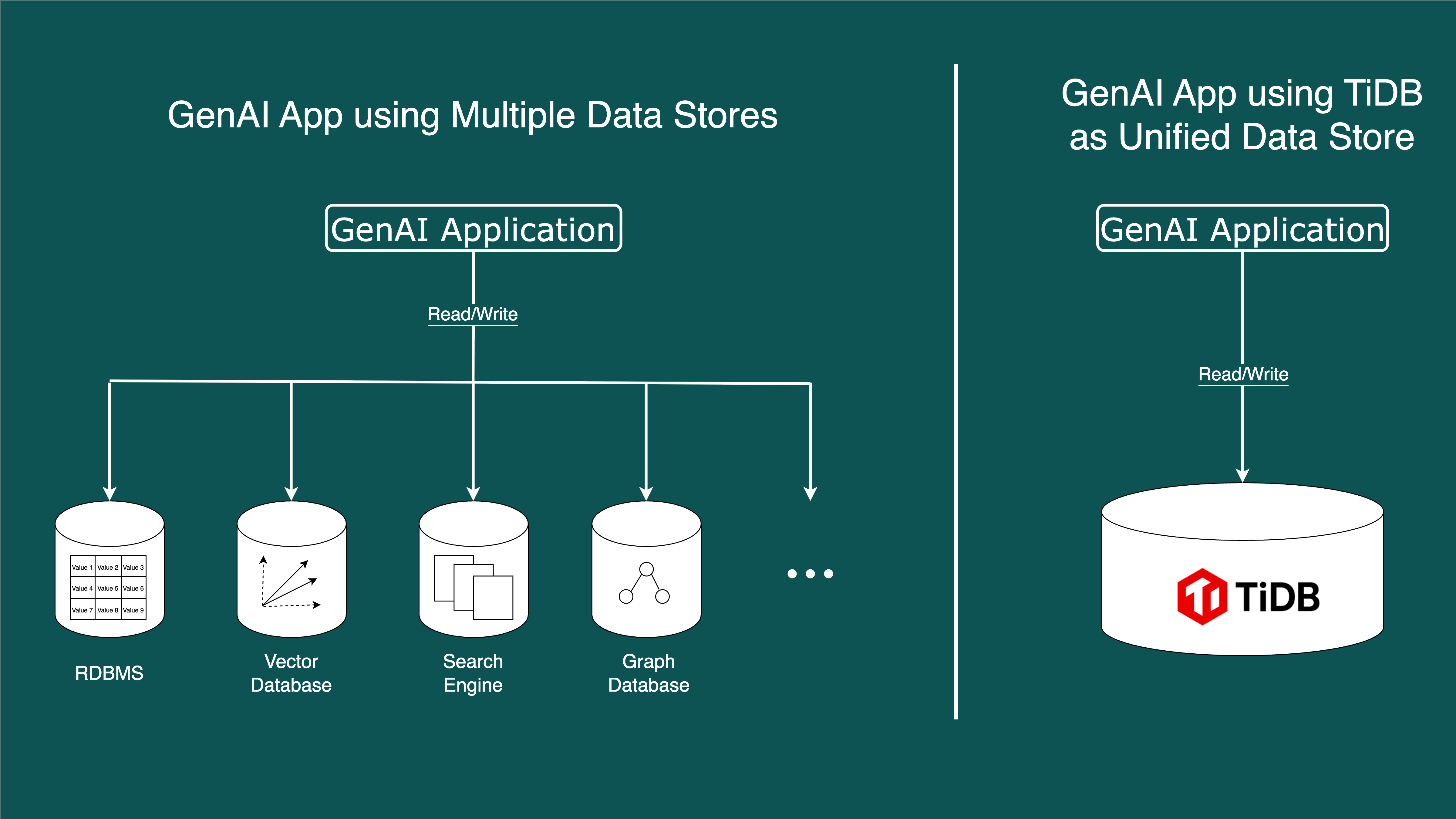
Generative AI is currently a cutting-edge field that has attracted many developers eager to explore it. However, several barriers often hinder their entry into this domain, such as:
- A lack of foundational AI knowledge, leaving them unsure where to begin.
- The absence of comprehensive, step-by-step, and interactive guides for building generative AI applications.
- Limited access to essential infrastructure needed for learning, such as databases and large model APIs.
To address these challenges, we developed a series of labs, including this one, through which you will learn:
- How to write an AI application in a traditional way, based on these storages below to build a full-featured application:
- Relational Database: e.g. `MySQL`
- Vector Database: e.g. `Milvus`
- Full-Text Search Engine: e.g. `ElasticSearch`
- How to use `pytidb` to leverage **TiDB Cloud Serverless** as a unified data storage layer to simplify your AI application.
> [!NOTE]
> In this lab, we'll use Streamlit as a rapid application development framework to streamline and accelerate data application building.
> Whether you choose your own TiDB Cloud Serverless cluster or the sandbox TiDB Cloud Serverless option to start the lab, a dedicated database will be created for this hands-on lab.
### Tasks
1. Build your first simple AI application: Call the LLM and provide an answer to a question.
2. Improve your AI application using RAG, giving your application a memory:
- Use MySQL as storage for text chunks.
- Use Milvus as a vector storage and search engine.
3. Enhance your AI application's performance by introducing an additional retrieval channel. Full-text search is a good choice, as it will provide your AI application with a different search perspective:
- Use ElasticSearch as the full-text search engine.
4. **Rewrite your application using TiDB to simplify your overall architecture.**
### Duration
- This exercise should take approximately 90 minutes to complete.
> [!TIP]
> Click **Start** to launch the lab. Once the lab environment is ready, click **Next** on the bottom bar to proceed to **Module 1**.
## Module 1: Prepare to Run Python Code
### Step 1. Check the Lab Environment
- Click the `Resources` button on the left to view the lab environment set up for your practice. You will see:
- A server named monitor1, running a VS Code server that acts as both a development and application server.
- Connection details for the TiDB Cloud Serverless cluster—which, depending on your choice, may be from your own TiDB Cloud account or the lab's sandbox environment.
- Additionally, the database name for this hands-on lab is `${LAB:SERVERLESS_CLUSTER_DATABASE_NAME}`, which will be created on your behalf in your chosen TiDB Cloud Serverless cluster.
- Close the `Resources` pop-up window.
### Step 2. Open a Terminal in the IDE
- Open [VS Code](${LAB:SECURITY_ACCESS_PROXY_URL}?next=${LAB:"/vscode/?folder=/root/tidb-lab-unify-storage"|urlencode}) in your browser.
- Click `Yes, I trust the authors` in the pop-up window.

- Click the `≡` icon in the upper-left corner, select `Terminal`, and then click `New Terminal` to open a new terminal window.

### Step 3. Install Python Dependencies
Run the following command in the VS Code terminal to install the required dependencies.
```bash
poetry install
```
```output
Creating virtualenv tidb-lab-unify-storage-wZek_onr-py3.11 in /root/.cache/pypoetry/virtualenvs
Installing dependencies from lock file
Package operations: 93 installs, 0 updates, 0 removals
- Installing attrs (25.3.0)
- Installing rpds-py (0.25.1)
- Installing typing-extensions (4.13.2)
- Installing certifi (2025.4.26)
...
```
## Module 2: Build Your First Simple AI Application
Let's start with the simplest AI application. In this step, we will call AWS's Nova model, which is a Large Language Model (LLM). It has already learned a lot of knowledge during its training. For information on how raw knowledge is converted into an LLM, please refer to the following materials. You can save them for your study later, let's go to Step 1.
- The foundational paper of Transformer: [Attention Is All You Need](https://arxiv.org/abs/1706.03762)
- YouTuber 3Blue1Brown's visualization of the Transformer: [Transformers (how LLMs work) explained visually](https://www.youtube.com/watch?v=wjZofJX0v4M)
### Step 1. Run the Simple AI Application's Streamlit Service
- In the VS Code terminal, use the `streamlit` command-line tool to run the following script to start the Streamlit service. You may have noticed that we added `poetry run` before `streamlit`. This allows us to use poetry to manage dependencies, rather than the default pip.
```bash
poetry run streamlit run vanilla_ai_app.py --server.port 8501
```
```output
Collecting usage statistics. To deactivate, set browser.gatherUsageStats to false.
You can now view your Streamlit app in your browser.
Local URL: http://localhost:8501
Network URL: http://172.18.0.7:8501
External URL: http://${LAB:HOST_MONITOR1_PUBLIC_IP}:8501
```

### Step 2. Use the Simple AI Application's Demo Web Page
- Click to visit your [RAG Demo Web Page](http://${LAB:HOST_MONITOR1_PUBLIC_IP}:8501/).

- Now, you can enter your question in the input box under `Enter your question:`, for example:
```txt
What is TiDB?
```
- Then, click the `Send` button. After a short wait, you will get the answer!

- Congratulations🎉! You have completed your first AI application. You can continue to ask the AI some questions you are curious about. You can even try more difficult questions to see the limits of our initial AI application's capabilities.
- Next, let's see what's happening inside the code.
### Step 3. Simple AI Application Code Reading
Let's go back to [VS Code](${LAB:SECURITY_ACCESS_PROXY_URL}?next=${LAB:"/vscode/?folder=/root/tidb-lab-unify-storage"|urlencode}) and click on the code file `vanilla_ai_app.py`.
1. The script first imports the necessary libraries: `litellm` for interacting with the LLM, and `streamlit` for building the web interface. Additionally, it imports `LLM_RESPONSE_STYLE` from the `common` module, which is a predefined CSS style for beautifying the LLM's response output.
```python
from litellm import completion
import streamlit as st
from common import LLM_RESPONSE_STYLE
```
2. The LLM to be used is defined. We set the model to `bedrock/us.amazon.nova-lite-v1:0`. The model name used by `litellm` has two-part: the part before the `/` is the provider, in this case, Amazon Bedrock, and the part after is the model name, defined internally by Amazon.
```python
llm_model = "bedrock/us.amazon.nova-lite-v1:0"
```
3. Set the title of the Streamlit page to "🔍 Vanilla AI Q&A Demo".
```python
st.title("🔍 Vanilla AI Q&A Demo")
```
4. Display an instructional text on the page to inform the user of the application's function: the user enters a question, and the system will answer it based on its built-in knowledge.
```python
st.write(
"Enter your question, and the system will answer it based on the built-in knowledge"
)
```
5. Use `st.text_input` to create a text input box that allows the user to enter their question. The entered question is stored in the `query` variable.
```python
query = st.text_input("Enter your question:", "")
```
6. This code block handles the logic for when the user clicks the "Send" button and the `query` (the user's entered question) is not empty:
- Use `with st.spinner("Processing...")` to display a loading animation, informing the user that the system is processing the request.
- Construct a simple prompt, which is "Answer the question: " plus the user's question `query`.
```python
if st.button("Send") and query:
with st.spinner("Processing..."):
prompt = f"Answer the question: {query}"
```
7. Call the `litellm.completion` function to interact with the LLM to generate an answer.
- The `model` parameter specifies the LLM to use (i.e., `llm_model`).
- The `messages` parameter is a list containing a dictionary that defines the message content (`prompt`) and role (`user`).
```python
# Call LLM to generate answer
response = completion(
model=llm_model,
messages=[{"content": prompt, "role": "user"}],
)
```
8. Display the LLM's model name and a robot icon on the page.
```python
st.markdown(f"### 🤖 {llm_model}")
```
9. Apply the predefined CSS style `LLM_RESPONSE_STYLE` to beautify the display of the LLM's response. The `unsafe_allow_html=True` parameter allows embedding HTML and CSS in Markdown.
```python
st.markdown(LLM_RESPONSE_STYLE, unsafe_allow_html=True)
```
10. Display the answer generated by the LLM. The answer is extracted from `response.choices[0].message.content` and wrapped in an HTML `div` tag with the `llm-response` class to apply the style.
```python
# show the response
st.markdown(
f'{response.choices[0].message.content}
',
unsafe_allow_html=True,
)
```
### Step 4. Summary of the Simple AI Application
We can see that the simple AI application is very straightforward. In summary, it simply calls the Amazon Bedrock API to get an answer. All the knowledge is based on what the LLM was fed during its training. For example, the sample question above:
```text
What is TiDB?
```
The reason the LLM can answer this question is that Amazon included relevant documents or introductions when training this model. This leads us to a question: what if the LLM didn't have this data during training? For example:
```text
Who is Cheese Wang at PingCAP?
```

As you can see, the LLM "fabricated" some information. This is because there was no similar information input when the LLM was trained. Therefore, it cannot correctly know the relationship between this employee and PingCAP. It can only "guess" that the person being asked about is the CEO, because a CEO's name is more closely associated with the company and more likely to be asked about.
And, the answer is wrong, because the lab author is ***Cheese Wang***, and he is not the CEO of PingCAP.
This behavior of LLMs is called **Hallucination**, which is a phenomenon we need to be particularly aware of when using LLMs. In the next module, we will improve our AI application to reduce the frequency of hallucinations and provide it with additional knowledge so that it can answer questions beyond its training data without changing the model itself.
## Module 3: Improve Your AI Application via RAG
In Module 1, we completed a preliminary AI application, but we encountered a serious hallucination problem when the LLM answered questions outside its training data. So how do we solve this? The answer is also simple.
We can pre-fetch the information for the LLM, place it in the input when calling the LLM, and use the LLM to summarize the content, rather than relying on the knowledge from its training set. By doing this, we can get the following benefits:
1. Reduce Hallucinations: Transformer-based LLMs use a multi-head attention model to make sequence-based predictions within a context window. If we put relevant knowledge into the context window, it will generate answers that are closer to the relevant knowledge. On the surface, it reduces the frequency or severity of hallucinations.
2. Provide External Knowledge: Again, because a Transformer-based LLM has a context window (reflected as a token size limit in the API), we cannot put all the information into the prompt. Therefore, we need to select the relevant content beforehand.
3. Reduce Costs: Even though LLMs' context windows are getting larger, we still need to consider costs and should not waste too many tokens on each question. Because most LLMs charge by the token (you can think of a token as a variable positively correlated with the length of the text; the longer your text, the more tokens).
So, the only problem we face now is:
**How to help the LLM retrieve relevant information?**
There is more than one way to achieve this. In Module 2, we will use one of them: the text Embedding vector method.
> [!NOTE]
> **Optional Reading**
>
> An Embedding vector is a vector that an Embedding model converts text into. An Embedding model is a type of model specially trained to distinguish semantics. Simply put, during contrastive learning training, it gets many sets of samples, and each set is divided into:
>
> - An anchor sample: a piece of text
> - A positive sample: a piece of text semantically similar to the anchor sample
> - A set of negative samples: many pieces of text semantically dissimilar to the anchor sample
>
> The task of the Embedding model is to:
>
> - Minimize the distance between the output vectors of the anchor sample and the positive sample
> - Maximize the distance between the output vectors of the anchor sample and the negative samples
>
> More correctly, the InfoNCE loss function is used here to train the model, performing the stochastic gradient descent algorithm to fit the samples.
If you don't understand the optional reading part, that's completely fine; it's just an explanation of the principle. You just need to know: the greater the cosine distance between the Embedding vectors of two texts, the less similar their semantics are. And the smaller the cosine distance between the Embedding vectors, the more similar their semantics are.
Therefore, we can use this feature to make this improvement. In Module 2, we will use Milvus as the vector search engine and MySQL as the relational database to store the original text.
> [!NOTE]
> **Why not use the metadata of a vector database to store the original text?**
>
> This is technically feasible, but due to the lack of capabilities in vector databases, such as transactions, complete data consistency cannot be guaranteed. In actual engineering, if you still use a separate architecture of a relational database and a vector database, it is recommended to use the relational database as the source of truth for the data. At the same time, the data pair of the original text ID and the Embedding vector should be updated to the vector database asynchronously.
### Step 1. Run the RAG AI Application's Streamlit Service
Create a new terminal:

Then run the new RAG AI application:
```bash
poetry run streamlit run rag.py --server.port 8502
```
```output
Collecting usage statistics. To deactivate, set browser.gatherUsageStats to false.
You can now view your Streamlit app in your browser.
Local URL: http://localhost:8502
Network URL: http://172.18.0.7:8502
External URL: http://${LAB:HOST_MONITOR1_PUBLIC_IP}:8502
```
### Step 2. Use the RAG AI Application's Demo Web Page
- Open your [RAG AI Application](http://${LAB:HOST_MONITOR1_PUBLIC_IP}:8502/).

- Open the folders named `All Employees in the MySQL` and `All Employees ID and Embedding Mapping in the Milvus` to view the current data in MySQL and Milvus. Since we haven't saved any data yet, they should be empty.

- Click `Save Data` to save the mock employee information data we prepared for this demo. You can see the original data in the next code reading step, which is a list of employee objects.
- After saving the data, you can see the data in MySQL in the `All Employees in the MySQL` folder. We have 3 columns: `id`, `name`, and `intro`. And in `All Employees ID and Embedding Mapping in the Milvus`, you can see that we have saved the relationship between `id` and `embedding`. At this time, the `id` in Milvus and the `id` in MySQL are one-to-one mapped.

- If you only want to retrieve the context, you can click the `Retrieval Only` option. Then, enter your question.
- Let's try if the RAG AI application can select relevant information through Embedding. Enter the question:
```text
Who is Cheese Wang at PingCAP?
```
- Click the `Send` button to start the retrieval.

- As you can see, we got the relevant information about `Cheese Wang`.
- Next, the moment of truth, let's test if the RAG AI application can now answer the question that the simple AI application couldn't. Change the `Select Mode` option to `RAG Q&A`, and then click `Send`.
- This time, the RAG AI application will give us an answer, not a list of information.

- As you can see, because we provided the information that the LLM did not get during its training phase, the LLM no longer thinks I am the CEO of PingCAP, but answers my information truthfully.
### Step 3. RAG AI Application Code Reading
Let's go back to [VS Code](${LAB:SECURITY_ACCESS_PROXY_URL}?next=${LAB:"/vscode/?folder=/root/tidb-lab-unify-storage"|urlencode}) and click on the code file `rag.py`.
1. The script first imports the many libraries needed to build the RAG application:
- `os`, `dotenv`: Used to load and read environment variables, such as database passwords and host addresses.
- `pandas`: Used for data processing and displaying tables in Streamlit.
- `sqlalchemy`, `sqlmodel`: Used to connect to a relational database (in this case, MySQL) and define the data model. `SQLModel` provides the convenience of combining SQLAlchemy and Pydantic.
- `pymilvus`: The Python client for Milvus, used to connect and operate the Milvus vector database.
- `litellm`: A library for standardized interaction with various Large Language Models (LLMs) and Embedding models.
- `streamlit`: Used to create and run the web user interface.
- `common`: Imports predefined RAG prompt templates and CSS styles from a common module.
```python
import os
import pandas as pd
from sqlalchemy import func
from sqlmodel import Field, SQLModel, Session, create_engine, select, delete
from pymilvus import MilvusClient, DataType
from litellm import completion, embedding
import streamlit as st
from typing import List, Optional, Any
from pydantic_core import MultiHostUrl
from common import LLM_RESPONSE_STYLE, RAG_PROMPT_TEMPLATE
from dotenv import load_dotenv
load_dotenv()
```
2. Initialization and configuration:
- `create_engine`: Creates a connection engine to the MySQL database using configurations read from environment variables (host, port, password, etc.).
- `embedding_model`, `llm_model`: Defines the names of the Embedding model and LLM to be used.
- `MilvusClient`: Initializes the Milvus client to connect to the Milvus service running at the specified URI.
- `milvus_collection_name`: Names the collection to be created in Milvus.
```python
engine = create_engine(
str(
MultiHostUrl.build(
scheme="mysql+pymysql",
username="root",
password=os.getenv("MYSQL_ROOT_PASSWORD"),
host=os.getenv("MYSQL_HOST"),
port=int(os.getenv("MYSQL_PORT", "4000")),
path=os.getenv("MYSQL_DATABASE")
)
)
)
embedding_model = "bedrock/amazon.titan-embed-text-v2:0"
embedding_dimensions = 1024
llm_model = "bedrock/us.amazon.nova-lite-v1:0"
milvus_client = MilvusClient(
uri=f"http://{os.getenv('MILVUS_HOST')}:{os.getenv('MILVUS_GRPC_PORT')}",
token="root:Milvus"
)
milvus_collection_name = "employee_id_mapping"
```
3. Defines a helper function `get_embedding`, which takes a text string, calls the `litellm.embedding` API to convert the text into a 1024-dimension vector, and returns the vector.
```python
def get_embedding(text: str) -> List[float]:
response = embedding(
model=embedding_model,
input=[text],
dimensions=embedding_dimensions
)
return response.data[0]['embedding']
```
4. Uses `SQLModel` to define the structure of the `Employee` table, which will be created in MySQL to store the original employee information (ID, name, and intro). `SQLModel.metadata.create_all(engine)` ensures that this table is created in the database.
```python
class Employee(SQLModel, table=True):
__table_args__ = {"extend_existing": True}
id: int | None = Field(default=None, primary_key=True)
name: str
intro: str
SQLModel.metadata.create_all(engine)
```
5. Creates a list `employees` containing information for three employees as sample data for the demo.
```python
employees = [
Employee(id=1, name="Cheese Wang", intro="Cheese is a Senior Software Engineer of AI Application at PingCAP, the company behind TiDB"),
Employee(id=2, name="Hao Huo", intro="Hao Huo is an engineer of PingCAP, the company behind TiDB | Build pingcap/autoflow / OSSInsight.io"),
Employee(id=3, name="Humble BGL", intro="Humble BGL is the Head of Engagement Innovation at PingCAP, the company behind TiDB")
]
```
6. Defines the data schema and index for Milvus.
- `MilvusClient.create_schema`: Defines the structure of the collection, containing a primary key `id` (to associate with the `Employee` record in MySQL) and an `embedding` vector field.
- `milvus_client.prepare_index_params`: Prepares the index parameters for the `embedding` field, using `AUTOINDEX` to let Milvus automatically select the best index type.
- `milvus_client.create_collection`: Creates a new collection in Milvus using the defined schema and index. This allows us to perform efficient vector similarity searches.
```python
schema = MilvusClient.create_schema(auto_id=False, enable_dynamic_field=True)
schema.add_field(field_name="id", datatype=DataType.INT64, is_primary=True)
schema.add_field(field_name="embedding", datatype=DataType.FLOAT_VECTOR, dim=embedding_dimensions)
index_params = milvus_client.prepare_index_params()
index_params.add_index(field_name="embedding", index_type="AUTOINDEX")
milvus_client.create_collection(
collection_name=milvus_collection_name,
schema=schema,
index_params=index_params
)
```
7. Sets up the Streamlit interface, providing database operation buttons.
- **Reset button**: When clicked, it will clear all related data from the `Employee` table in MySQL and the Milvus collection, used to reset the demo environment.
- **Save Data button**: When clicked, it checks if data already exists in MySQL. If not, it will:
a. Iterate through the `employees` list to generate an Embedding vector for each employee's `intro`.
b. Save the complete employee information (id, name, intro) into MySQL.
c. Save the employee's ID and its corresponding Embedding vector into Milvus.
This process demonstrates how to write structured metadata and vector data into an RDB and a vector database, respectively.
```python
st.title("🔍 RAG Demo")
st.subheader("Database Operations")
left, right = st.columns(2)
if left.button("Reset", type="primary"):
left.write("Resetting...")
with Session(engine) as session:
session.exec(delete(Employee))
session.commit()
# Delete the employee id mapping data from Milvus
milvus_client.delete(
collection_name=milvus_collection_name,
ids=[employee.id for employee in employees]
)
st.rerun()
left.markdown("This option will delete all data", unsafe_allow_html=True)
if right.button("Save Data"):
right.write("Saving...")
# Prepare RDB data
with Session(engine) as session:
count = session.exec(select(func.count()).select_from(Employee)).one()
if count == 0:
employee_intro_embedding = [
{
"id": employee.id,
"embedding": get_embedding(employee.intro)
} for employee in employees
]
session.add_all(employees)
session.commit()
# Insert the employee id mapping data into Milvus
milvus_client.insert(
collection_name=milvus_collection_name,
data=employee_intro_embedding
)
st.rerun()
else:
st.error("Data already exists")
```
8. Creates two expandable sections (`st.expander`) to display the data currently stored in MySQL and Milvus, respectively. This helps users intuitively see the results of data operations.
```python
with st.expander("📁 All Employees in the MySQL", expanded=False):
with Session(engine) as session:
employees = session.exec(select(Employee)).all()
if employees:
data = [{'id': employee.id, 'name': employee.name, 'intro': employee.intro} for employee in employees]
df = pd.DataFrame(data)
st.dataframe(df)
else:
st.info("No data found in MySQL.")
with st.expander("📁 All Employees ID and Embedding Mapping in the Milvus", expanded=False):
employees = milvus_client.get(
collection_name=milvus_collection_name,
ids=[employee.id for employee in employees],
output_fields=["id", "embedding"]
)
if employees:
data = [{'id': employee['id'], 'embedding': employee['embedding']} for employee in employees]
df = pd.DataFrame(data)
st.dataframe(df)
else:
st.info("No data found in Milvus.")
```
9. This part is the core interaction logic of the RAG application. When the user enters a question and clicks "Send":
- **Vectorize Query**: First, use the `get_embedding` function to convert the user's question text into a query vector.
- **Vector Retrieval**: Use `milvus_client.search` to perform a vector similarity search (using cosine distance) in the Milvus collection to find the most similar record and get its `id`.
- **Data Fetch**: Use the `id` obtained from Milvus to query the `Employee` table in MySQL and fetch the corresponding complete employee information (name, intro, etc.).
- **Generation**:
- If the mode is `Retrieval Only`, directly display the raw data retrieved from Milvus and MySQL.
- If the mode is `RAG Q&A`, use the employee intro (`intro`) fetched from MySQL as the context, along with the user's original question, to fill in the `RAG_PROMPT_TEMPLATE`.
- Finally, call `litellm.completion` to send the constructed prompt to the LLM, generate the final answer, and display it on the interface in a beautified style. At the same time, provide an expandable section to show the "knowledge source" used to generate the answer.
- If the vector search finds no relevant information, inform the user.
```python
st.write(
"Enter your question, and the system will retrieve relevant knowledge and generate an answer"
)
mode = st.radio("Select Mode:", ["Retrieval Only", "RAG Q&A"])
query = st.text_input("Enter your question:", "")
if st.button("Send") and query:
with st.spinner("Processing..."):
# Retrieve relevant chunks
query_embedding = get_embedding(query)
res = milvus_client.search(
collection_name=milvus_collection_name,
anns_field="embedding",
data=[query_embedding],
limit=1,
search_params={"metric_type": "COSINE"},
output_fields=["id", "embedding"]
)
retrieved_milvus = [{"id": item.entity.id, "embedding": item.entity.embedding} for item in res[0]]
ids = [item.entity.id for item in res[0]]
retrieved_mysql = []
with Session(engine) as session:
employees = session.exec(select(Employee).where(Employee.id.in_(ids))).all()
retrieved_mysql = [{'id': employee.id, 'name': employee.name, 'intro': employee.intro} for employee in employees]
if retrieved_milvus and retrieved_mysql:
if mode == "Retrieval Only":
st.write("### Retrieved Embedding and ID in Milvus:")
st.dataframe(pd.DataFrame(retrieved_milvus))
st.write("### Retrieved Data in MySQL:")
st.dataframe(pd.DataFrame(retrieved_mysql))
else:
intro = [employee['intro'] for employee in retrieved_mysql]
# Build RAG prompt
context = "\n".join(intro)
prompt = RAG_PROMPT_TEMPLATE.format(context=context, question=query)
# Call LLM to generate answer
response = completion(
model=llm_model,
messages=[{"content": prompt, "role": "user"}],
)
st.markdown(f"### 🤖 {llm_model}")
st.markdown(LLM_RESPONSE_STYLE, unsafe_allow_html=True)
# show the response
st.markdown(
f'{response.choices[0].message.content}
',
unsafe_allow_html=True,
)
with st.expander("📚 Retrieved Knowledge", expanded=False):
st.write("### Retrieved Embedding and ID in Milvus:")
st.dataframe(pd.DataFrame(retrieved_milvus))
st.write("### Retrieved Data in MySQL:")
st.dataframe(pd.DataFrame(retrieved_mysql))
else:
st.info("No relevant information found")
```
### Step 4. Summary of the RAG AI Application
We can clearly compare the pros and cons of the simple AI application and the RAG AI application. The simple AI application is straightforward, but its background knowledge is all built into the training set. If a question is outside the training set, it is likely to produce hallucinations. The RAG AI application solves this well and brings a series of advantages that we proposed at the beginning of Module 2, but even in the simplest demo application, it also brings considerable complexity.
Next, we need to optimize the RAG application to further improve its accuracy.
## Module 4: Improve Your RAG AI Application with Multi-channel Retrieval
At the beginning of Module 2, we mentioned that RAG can use more than just Embedding vectors as our retrieval channel. You can use methods like:
- BoW
- TF-IDF
- Word2Vec
to generate text vectors, and then still calculate semantic similarity.
At the same time, you can introduce a graph database, extract the text to a graph. Then searching the graph. i.e. GraphRAG.
Of course, you can also use the method described below, using Full-text Search as a second retrieval channel. This will give your RAG another angle for retrieval, enriching the retrieved content.
Full-text search is a type of technology that allows you to quickly search for text chunks in a large amount of text using keywords. It is often used in businesses like search engines and advertising. A common implementation of full-text search is using an inverted index. Its core process is:
1. When storing text, use a tokenizer to split it into individual words.
2. Create an index with the words as keys and the text IDs as values.
3. When searching for keywords, use this index to quickly retrieve a list of text IDs.
Fortunately, we don't have to implement this process ourselves. In the traditional approach, we can introduce a search engine. ElasticSearch is a commonly used search engine, and we can use it as the underlying storage for our multi-channel retrieval.
### Step 1. Run the Multi-channel RAG AI Application's Streamlit Service
Create a new terminal again:

Then run the new multi-channel RAG AI application:
```bash
poetry run streamlit run improved_rag.py --server.port 8503
```
```output
Collecting usage statistics. To deactivate, set browser.gatherUsageStats to false.
You can now view your Streamlit app in your browser.
Local URL: http://localhost:8503
Network URL: http://172.18.0.7:8503
External URL: http://${LAB:HOST_MONITOR1_PUBLIC_IP}:8503
```
### Step 2. Use the Multi-channel RAG AI Application's Demo Web Page
- Open your [RAG AI Application](http://${LAB:HOST_MONITOR1_PUBLIC_IP}:8503/).

- Open the folders named `All Employees in the MySQL`, `All Employees ID and Embedding Mapping in the Milvus`, and `All Employees in the Elasticsearch` to view the current data in MySQL, Milvus, and ElasticSearch. Since we saved data in MySQL and Milvus in Module 2, there should be no data in ElasticSearch currently, while data exists in MySQL and Milvus.

- Click `Reset` to delete the data.
- You can then see that the folders `All Employees in the MySQL` and `All Employees ID and Embedding Mapping in the Milvus` are empty.

- Click `Save Data` to save the data. This will save data to MySQL, Milvus, and ElasticSearch.

- Click `Retrieval Only` for context retrieval.
- Enter the question:
```text
Who is Cheese Wang at PingCAP?
```
- Click the `Send` button to start the retrieval.

- For this retrieval, we used two different retrieval channels, so we have both the retrieved ID from Milvus's Embedding Vector and the score from ElasticSearch. ElasticSearch uses the BM25 algorithm based on TF-IDF by default to calculate similarity scores. You can consider that the higher the score, the more similar the text.
- Next, change the `Select Mode` option to `RAG Q&A`, and then click `Send`.

> [!NOTE]
> In this Demo, the information from multi-channel retrieval is the same as from single-channel retrieval, which is due to the lack of complexity in this example. Due to space constraints, a proof will not be given here, but you can refer to the following:
>
> - Microsoft: [Doing RAG? Vector search is *not* enough](https://techcommunity.microsoft.com/blog/azuredevcommunityblog/doing-rag-vector-search-is-not-enough/4161073)
> - DataStax: [How to Implement Hybrid Search in RAG Pipelines for LLMs](https://www.datastax.com/guides/hybrid-search-rag-pipelines) (This article suggests that hybrid search improves answer accuracy by up to 35% compared to traditional vector-only retrieval)
### Step 3. Multi-channel RAG AI Application Code Reading
Let's go back to [VS Code](${LAB:SECURITY_ACCESS_PROXY_URL}?next=${LAB:"/vscode/?folder=/root/tidb-lab-unify-storage"|urlencode}) and click on the code file `improved_rag.py`.
1. Compared to the previous RAG application, the main change in the script's import section is the addition of the `elasticsearch` library for interacting with the Elasticsearch service.
```python
import os
import pandas as pd
from pydantic_core import MultiHostUrl
from sqlalchemy import func
from sqlmodel import Field, SQLModel, Session, create_engine, select, delete
from pymilvus import MilvusClient, DataType
from elasticsearch import Elasticsearch
from litellm import completion, embedding
import streamlit as st
from typing import List
from common import LLM_RESPONSE_STYLE, RAG_PROMPT_TEMPLATE
```
2. In the configuration and initialization section, in addition to the existing clients for MySQL (RDB) and Milvus (vector database), the initialization of the Elasticsearch client is added. Also, the index name `ES_INDEX_NAME` and mapping for Elasticsearch are defined, specifying the structure of the documents to be stored, including fields like `id`, `name`, `intro` and their types.
```python
# Elasticsearch
es = Elasticsearch(f"http://{os.getenv('ELASTICSEARCH_HOST')}:{os.getenv('ELASTICSEARCH_PORT')}")
ES_INDEX_NAME = "employee_id_mapping"
es_mapping = {
"mappings": {
"properties": {
"id": {"type": "integer"},
"name": {"type": "text"},
"intro": {"type": "text"}
}
}
}
```
3. This code block ensures that the required index exists in Elasticsearch. If the index does not exist, it creates a new one using the predefined `es_mapping`.
```python
if not es.indices.exists(index=ES_INDEX_NAME):
es.indices.create(index=ES_INDEX_NAME, body=es_mapping)
```
4. The database operation logic has also been extended.
- **Reset button**: In addition to clearing data from MySQL and Milvus, it now also deletes and recreates the index in Elasticsearch, ensuring a complete reset of the environment.
- **Save Data button**: After saving data to MySQL and Milvus, it iterates through the `employees` list and indexes each employee's information as a document in Elasticsearch. This makes the employee's intro content available for full-text search.
```python
if left.button("Reset", type="primary"):
left.write("Resetting...")
with Session(engine) as session:
session.exec(delete(Employee))
session.commit()
# Delete the employee id mapping data from Milvus
milvus_client.delete(
collection_name=milvus_collection_name,
ids=[employee.id for employee in employees]
)
if es.indices.exists(index=ES_INDEX_NAME):
es.indices.delete(index=ES_INDEX_NAME)
es.indices.create(index=ES_INDEX_NAME, body=es_mapping)
st.rerun()
if right.button("Save Data"):
right.write("Saving...")
# Prepare RDB data
with Session(engine) as session:
count = session.exec(select(func.count()).select_from(Employee)).one()
if count == 0:
employee_intro_embedding = [
{
"id": employee.id,
"embedding": get_embedding(employee.intro)
} for employee in employees
]
session.add_all(employees)
session.commit()
# Insert the employee id mapping data into Milvus
milvus_client.insert(
collection_name=milvus_collection_name,
data=employee_intro_embedding
)
for employee in employees:
es.index(
index=ES_INDEX_NAME,
id=employee.id,
document={"id": employee.id, "name": employee.name, "intro": employee.intro}
)
st.rerun()
else:
st.error("Data already exists")
```
5. To demonstrate the effect of multi-channel retrieval, a new expandable section is added to the UI to display all employee data stored in Elasticsearch.
```python
with st.expander("📁 All Employees in the Elasticsearch", expanded=False):
response = es.search(index=ES_INDEX_NAME, body={"query": {"match_all": {}}})
employees = [{"id": item["_id"], "name": item["_source"]["name"], "intro": item["_source"]["intro"]} for item in response["hits"]["hits"]]
st.dataframe(pd.DataFrame(employees))
```
6. This is the core logic of the multi-channel RAG application, which combines two different retrieval methods:
- **Vector Retrieval (Milvus)**: As before, the user's question is converted into an embedding, and then a semantic similarity search is performed in Milvus to get the first batch of candidate IDs (`milvus_ids`).
- **Full-text Retrieval (Elasticsearch)**: The user's original question is used as a keyword to perform a `match` query on the `intro` field in Elasticsearch, conducting a full-text search to get the second batch of candidate IDs (`es_ids`) and relevance scores.
- **Result Merging**: The ID lists from both Milvus and Elasticsearch are merged, and `set` is used for deduplication to get a more comprehensive set of candidate document IDs.
- **Data Fetching and Generation**: The merged `ids` are used to fetch the complete employee information from MySQL, then a prompt is constructed, and the LLM is called to generate an answer. This process is the same as the previous RAG application, but now it is based on a richer context.
```python
if st.button("Send") and query:
with st.spinner("Processing..."):
# Retrieve relevant chunks in Milvus
query_embedding = get_embedding(query)
res = milvus_client.search(
collection_name=milvus_collection_name,
anns_field="embedding",
data=[query_embedding],
limit=1,
search_params={"metric_type": "COSINE"},
output_fields=["id", "embedding"]
)
retrieved_milvus = [{"id": item.entity.id, "embedding": item.entity.embedding} for item in res[0]]
milvus_ids = [item.entity.id for item in res[0]]
# Retrieve relevant chunks in Elasticsearch
es_query = {
"query": {
"match": {
"intro": query
}
},
"size": 1
}
res = es.search(index=ES_INDEX_NAME, body=es_query)
retrieved_es = [{"id": item["_id"], "score": item["_score"]} for item in res["hits"]["hits"]]
es_ids = [int(item["_id"]) for item in res["hits"]["hits"]]
# Merge the ids from Milvus and Elasticsearch
ids = list(set(milvus_ids + es_ids))
# Retrieve relevant chunks in RDB
retrieved_mysql = []
with Session(engine) as session:
employees = session.exec(select(Employee).where(Employee.id.in_(ids))).all()
retrieved_mysql = [{'id': employee.id, 'name': employee.name, 'intro': employee.intro} for employee in employees]
if retrieved_milvus and retrieved_mysql:
if mode == "Retrieval Only":
st.write("### Retrieved Embedding and ID in Milvus:")
st.dataframe(pd.DataFrame(retrieved_milvus))
st.write("### Retrieved ID and Score in Elasticsearch:")
st.dataframe(pd.DataFrame(retrieved_es))
st.write("### Retrieved Data in MySQL:")
st.dataframe(pd.DataFrame(retrieved_mysql))
else:
intro = [employee['intro'] for employee in retrieved_mysql]
# Build RAG prompt
context = "\n".join(intro)
prompt = RAG_PROMPT_TEMPLATE.format(context=context, question=query)
# Call LLM to generate answer
response = completion(
model=llm_model,
messages=[{"content": prompt, "role": "user"}],
)
st.markdown(f"### 🤖 {llm_model}")
st.markdown(LLM_RESPONSE_STYLE, unsafe_allow_html=True)
# show the response
st.markdown(
f'{response.choices[0].message.content}
',
unsafe_allow_html=True,
)
with st.expander("📚 Retrieved Knowledge", expanded=False):
st.write("### Retrieved Embedding and ID in Milvus:")
st.dataframe(pd.DataFrame(retrieved_milvus))
st.write("### Retrieved ID and Score in Elasticsearch:")
st.dataframe(pd.DataFrame(retrieved_es))
st.write("### Retrieved Data in MySQL:")
st.dataframe(pd.DataFrame(retrieved_mysql))
else:
st.info("No relevant information found")
```
### Step 4. Summary of the Multi-channel RAG AI Application
We have improved the capability of the RAG application and further enhanced its accuracy! However, the shortcomings are also obvious. We now have three data stores, and the code has become extremely complex. Every data update requires writing code in three places, and data synchronization and error handling have become incredibly complicated. Yes, we made the AI application better, but at what cost? We sacrificed the application's maintainability in exchange for improved service capability.
So, is there a way to improve service capability without sacrificing application maintainability? Yes! In the next step, we will use TiDB as our storage to simplify our service.
## Module 5: Use TiDB to Simplify Your AI Application
So far, we have completed a multi-channel RAG application. Its accuracy is quite satisfactory. However, its complexity and maintainability are far from ideal. This is because, in traditional solutions, we have to introduce many databases as the underlying storage. Let's recall which databases we used:
- MySQL
- Milvus
- ElasticSearch
But now there is a better solution: TiDB Serverless! TiDB Serverless is compatible with MySQL syntax and supports vectors as well as full-text search.
In this module, we will rewrite our multi-channel RAG application using the `pytidb` library. Let's see to what extent we can simplify our service.
### Step 1. Run the TiDB AI Application's Streamlit Service
Create a new terminal again:

Then run the new TiDB AI application:
```bash
poetry run streamlit run tidb_rag.py --server.port 8504
```
```output
Collecting usage statistics. To deactivate, set browser.gatherUsageStats to false.
You can now view your Streamlit app in your browser.
Local URL: http://localhost:8504
Network URL: http://172.18.0.7:8504
External URL: http://${LAB:HOST_MONITOR1_PUBLIC_IP}:8504
```
### Step 2. Use the TiDB AI Application's Demo Web Page
- Open your [TiDB AI Application](http://${LAB:HOST_MONITOR1_PUBLIC_IP}:8504/). Since TiDB Serverless is not on this server and needs to initialize, the total initialization time is about 5 minutes. Please be patient. The page after initialization is as follows:

- Open the folder named `All Employees in the Database` to view the current data in TiDB. Since we haven't saved any data yet, it should be empty.

- Click `Save Data` to save the data.
- After saving the data, you can see the data in TiDB in the `All Employees in the Database` folder. We have 4 columns: `id`, `name`, `intro`, and `intro_vec`. TiDB has one more column than MySQL, `intro_vec`, because TiDB supports vector types. We can store vectors directly in TiDB.

- Click `Retrieval Only`, and enter the question:
```text
Who is Cheese Wang at PingCAP?
```
- Click the `Send` button to start the retrieval.

- As you can see, the retrieved information includes some metrics in addition to the information itself: `_distance`, `_score`, and `_match_score`. `pytidb` uses these metrics to calculate text similarity.
- Change the `Select Mode` option to `RAG Q&A`, and then click `Send` to provide an answer.

- We have perfectly replicated the multi-channel RAG. Now let's look at the code complexity.
### Step 3. TiDB AI Application Code Reading
Let's go back to [VS Code](${LAB:SECURITY_ACCESS_PROXY_URL}?next=${LAB:"/vscode/?folder=/root/tidb-lab-unify-storage"|urlencode}) and click on the code file `tidb_rag.py`.
1. The most significant change is the imported libraries. We no longer need clients for multiple databases like `sqlalchemy`, `pymilvus`, `elasticsearch`. Now, we only need the `pytidb` library, which will serve as a unified interface for interacting with TiDB.
```python
import os
import pandas as pd
from litellm import completion
import streamlit as st
from typing import Optional, Any
from pytidb import TiDBClient
from pytidb.schema import TableModel, Field
from pytidb.embeddings import EmbeddingFunction
from common import LLM_RESPONSE_STYLE, RAG_PROMPT_TEMPLATE
```
2. The initialization part is also greatly simplified. We only need to create a `TiDBClient` instance to connect to TiDB Serverless. `EmbeddingFunction` is a helper class from `pytidb` that helps us seamlessly integrate the Embedding model calls with the data table schema.
```python
db = TiDBClient.connect(
host=os.getenv("SERVERLESS_CLUSTER_HOST"),
port=int(os.getenv("SERVERLESS_CLUSTER_PORT")),
username=os.getenv("SERVERLESS_CLUSTER_USERNAME"),
password=os.getenv("SERVERLESS_CLUSTER_PASSWORD"),
database=os.getenv("SERVERLESS_CLUSTER_DATABASE_NAME"),
enable_ssl=True,
)
embedding_model = "bedrock/amazon.titan-embed-text-v2:0"
llm_model = "bedrock/us.amazon.nova-lite-v1:0"
text_embedding_function = EmbeddingFunction(
embedding_model,
timeout=60
)
```
3. This is the core of the application's simplification. We use `pytidb.schema.TableModel` to define a table named `Employee`.
- `id`, `name`, `intro` are standard text and numeric fields.
- `intro_vec`: This is the most critical part. We define it as `text_embedding_function.VectorField` and specify `source_field="intro"`. This tells `pytidb`: when inserting or updating data, automatically fetch the content of the `intro` field, call the predefined Embedding model to convert it into a vector, and then store the result in the `intro_vec` column. The definition of this single field replaces all the logic of manually generating vectors and storing them in Milvus.
```python
table_name = "employees"
class Employee(TableModel, table=True):
__tablename__ = table_name
__table_args__ = {"extend_existing": True}
id: int | None = Field(default=None, primary_key=True)
name: str
intro: str
intro_vec: Optional[Any] = text_embedding_function.VectorField(
source_field="intro",
)
```
4. Data and index preparation has also become very simple.
- `db.open_table` and `db.create_table` ensure the table's existence.
- `table.create_fts_index("intro")`: **This single line of code replaces the entire Elasticsearch setup**. It creates a full-text search index on the `intro` column, enabling us to perform keyword searches.
```python
table = db.open_table(table_name)
if table is None:
table = db.create_table(schema=Employee)
if not table.has_fts_index("intro"):
table.create_fts_index("intro")
```
5. Data operations are simplified to single commands.
- **Reset button**: `table.truncate()` clears all data with a single command. There is no longer a need to coordinate delete operations across multiple databases.
- **Save Data button**: `table.bulk_insert(employees)` saves all data with a single command. `pytidb` automatically handles the process in the background: generating a vector for each `employee` record's `intro`, and then writing the complete data, including the vector, into the same table in TiDB. The full-text index is also updated automatically.
```python
if left.button("Reset", type="primary"):
left.write("Resetting...")
table.truncate()
st.rerun()
if right.button("Save Data"):
right.write("Saving...")
if table.rows() == 0:
table.bulk_insert(employees)
st.rerun()
```
6. This is the most amazing simplification. The entire complex logic of multi-channel retrieval is now condensed into a single line of code.
- `table.search(query, search_type="hybrid").text_column("intro").limit(1)`: This one line of code accomplishes what previously required multiple steps:
1. It uses the user query `query` for both **vector similarity search** (on the `intro_vec` column) and **full-text search** (on the `intro` column).
2. The `search_type="hybrid"` parameter instructs `pytidb` to automatically perform both searches and use a built-in fusion algorithm to rank and merge the results from both channels.
3. It returns a unified, most relevant list of results.
- We no longer need to manually call the embedding model, query Milvus and Elasticsearch separately, merge the IDs, and finally query MySQL. All of this is elegantly handled by `pytidb` in a single step.
```python
if st.button("Send") and query:
with st.spinner("Processing..."):
# Retrieve relevant employees
results = table.search(query, search_type="hybrid").text_column("intro").limit(1)
if results:
if mode == "Retrieval Only":
st.write("### Hybrid Search Results:")
st.dataframe(results.to_pandas())
else:
intro = [employee.intro for employee in results.to_rows()]
# Build RAG prompt
context = "\n".join(intro)
prompt = RAG_PROMPT_TEMPLATE.format(context=context, question=query)
# Call LLM to generate answer
response = completion(
model=llm_model,
messages=[{"content": prompt, "role": "user"}],
)
st.markdown(f"### 🤖 {llm_model}")
st.markdown(LLM_RESPONSE_STYLE, unsafe_allow_html=True)
# show the response
st.markdown(
f'{response.choices[0].message.content}
',
unsafe_allow_html=True,
)
with st.expander("📚 Hybrid Search Retrieved Knowledge", expanded=False):
st.dataframe(results.to_pandas())
else:
st.info("No relevant information found")
```
### Step 4. Summary of the TiDB AI Application
It is clear to see that, by using TiDB to meet the same requirements, the code implementation has been greatly simplified.
## Conclusion
In the development of AI applications, relational databases, vector computation, and full-text indexing have become frequently used features. Due to the lack of unified solutions on the market, we need to introduce relational databases, vector databases, and search engines. This makes our solutions extremely complex. This complexity is actually caused by the lack of capabilities in databases.

TiDB solves this problem by making the code simpler and more maintainable. Developers no longer need to use multiple data stores and move data between them. Instead, they can store and access data in a unified way, all in one place. This significantly lowers the barrier to developing applications in the field of AI.
```hbsptform
{
"ui": {
"titleLevel": 3
},
"portalId": "4466002",
"formId": "89fa8368-eba1-4b84-b91e-eb9eb6613ddf",
"region": "na1",
"sfdcCampaignId": "701RC00000VqCODYA3"
}
```