# README
### Sections
1. [Introduction](#introduction)
2. [Configuration](#configuration)
3. [Running Demo](#running-demo)
4. [Prerequisites](#prerequisites)
## Introduction
This project contains all the scripts and configuration files to deploy a TiKV node failure and/or TiUP upgrade demonstration on GCP. Locally, three scripts are deployed as follows:
**deploy_gcp.sh** - This script will build the GCP infrastructure required by the demo:
1. VPC Network and associated firewall rules allowing inbound traffic only by the calling host's IP address. *See route_gcp.sh to update firewall rules if calling IP address changes*
2. VMs for TiUP, PD, TiDB, TiKV, and Monitor nodes and, optionally, TiFlash, and Pump and Drainer nodes for TiCDC. *Note that TiFlash and Pump and Drainer nodes are not required (nor recommended) for this demo but are included for use in other demos.*
3. TiUP topography file. This file is built using the internal IP addresses of all the nodes as configured and should not need to be modified.
4. Local VM disks. These are configured on a per-node type basis and *should* only be required for TiKV and optional TiFlash nodes *(see configuration section below).* These disks will automatically be formatted and mounted to the /data directory and configured in the TiUP topography file.
5. All prerequisite services will be installed and enabled on VMs
6. TiUP and mysql clients will be deployed to the TiUP VM.
7. An SSH key will be generated on the TiUP host and copied to all other VMs.
8. Demo scripts (documented below) will be installed on the TiUP VM.
9. Finally, TiUP will apply final settings to all VMs and TiDB will be installed, configured, and started.
This should all complete in about 10-20 minutes depending on the number of VMs (see configuration section below). Once the deploy_gcp script completes, you can log on to the TiUP host and run the demo *(see **Running Demo** section below)*.
**route_gcp.sh** - This script allows you to update the ingress firewall rule in case your client IP address changes (or if you want to open up to a range of IPs). By default, the script will update the rule with the current client IP but allows this to be overridden. If only one cluster is deployed within the GCP project, its network firewall rule will automatically be updated. If multiple clusters are found, they will be displayed and the user must type (or copy & paste) the name for update.
**destroy_gcp.sh** - This script requests user input for the GCP project and cluster name. It will then find all associated resources (VPC, VMs, Disks, etc) and delete them.
## CONFIGURATION
Many settings are dynamic and can be overridden when running the script through user prompts. However, node size and count as well as local disk type and size currently must be edited within the file by updating variables such as:
CLUSTER_PD_COUNT=3
CLUSTER_PD_MACHINE_TYPE="e2-standard-4"
CLUSTER_PD_DISK_SIZE=0
CLUSTER_PD_DISK_TYPE=pd-balanced
These settings are available for PD, DB, KV, FLASH, MONITOR, PUMP, and DRAINER nodes.
**COUNT**: Setting COUNT=0 will disable generation of this type of node and should only be used for TiFLASH, Drainer, and Pump node types.
**MACHINE_TYPE**: These instance types can be customised depending on node type. Instance types can be found by running the below command or by visiting [GCP's compute engine page](https://cloud.google.com/compute/docs/general-purpose-machines)
gcloud compute machine-types list --filter="zone:( us-west1-a ) AND deprecated.state != \"DEPRECATED\""
**DISK_SIZE**: This is the size in GB. Setting size to 0 will not create local storage. Local storage **is strongly** recommended for TiKV and TiFlash node types.
**DISK_TYPE**: pd-balanced is good for general use. pd-ssd is *strongly recommended* for TiKV and TiFlash for performance reasons, although for the purposes of this demo pd-balanced *should* be sufficient and will result in a cost savings. This setting is ignored if DISK_SIZE=0.
## RUNNING DEMO
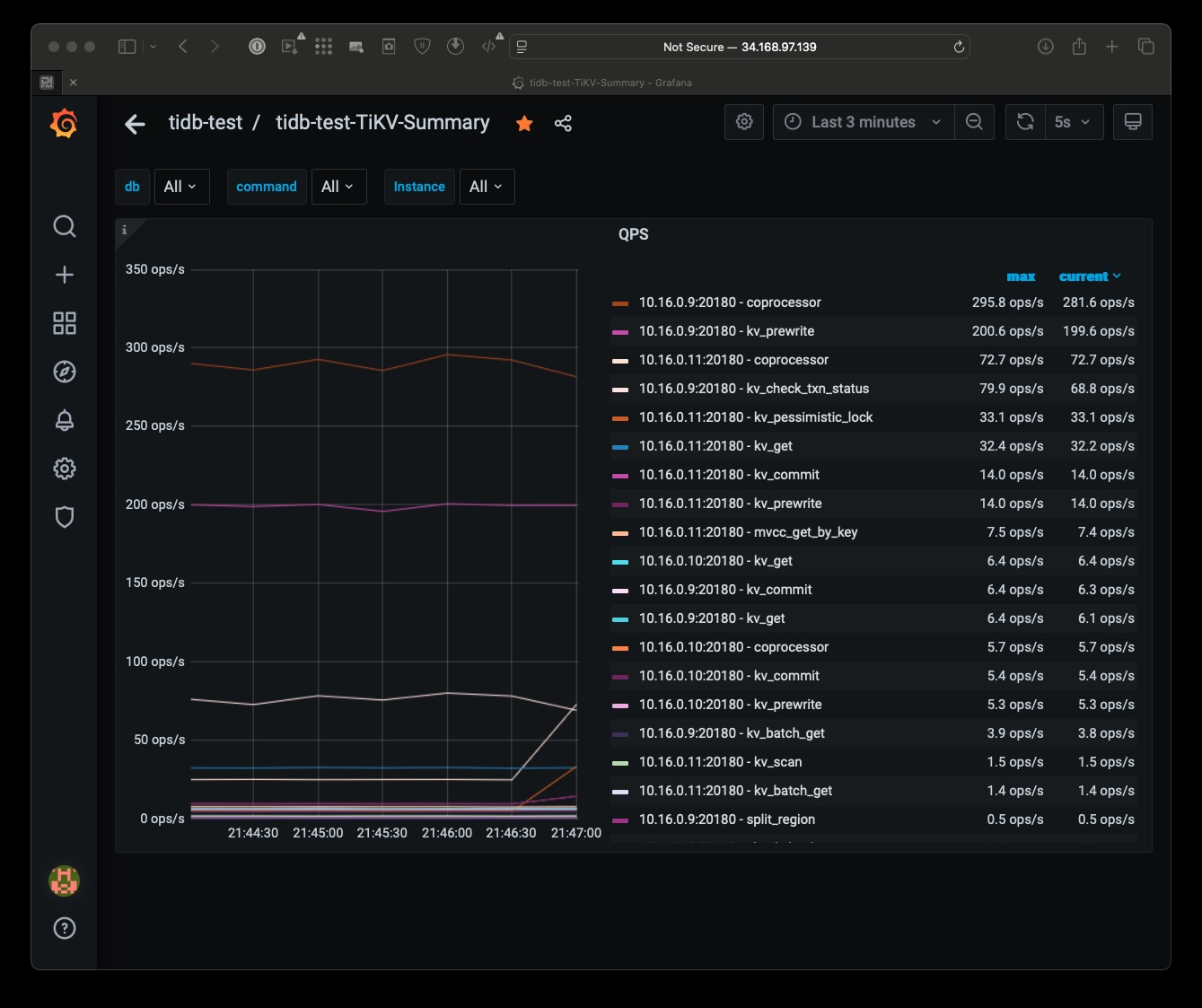
Open a terminal window to the Grafana dashboard using the URL provided when the deploy script completes. From there navigate to **Dashboards -> Manage -> tidb-test -> tidb-test-TiKV-Summary and scroll down to QPS. Select the down arrow next to this metric and select View. This will show the overall QPS metrics for the cluster. Set the display to be "last 5m" and the refresh to "5s". Once traffic is being sent to the cluster, the Grafana dashboard should look something like this:
Open two terminal sessions and connect both to the tiup VM using the gcloud command output once the deploy script completes. It should look like the following:
gcloud compute ssh [CLUSTER_NAME]-tiup-vm-1 --zone=[CLUSTER_ZONE]-a
In one terminal window, run the following commands to continuously display the status of the cluster's nodes:
cd ~/scripts && chmod 755 *.sh && ./monitor.sh
In the other terminal window, run the following command to generate traffic against the cluster:
cd ~/scripts ; ./slap.sh &
This script will send a small amount of traffic to the cluster using mysqlslap, a tool that is part of the standard mysql client distribution. After a minute or two you should see the QPS in the Grafana dashboard stabilise around 300. Once that occurs, you can begin demonstrating the effect of killing a TiKV node using the command below:
cd ~/scripts ; ./down.sh
After a moment you should see the refreshing node status show one TiKV node as disconnected: 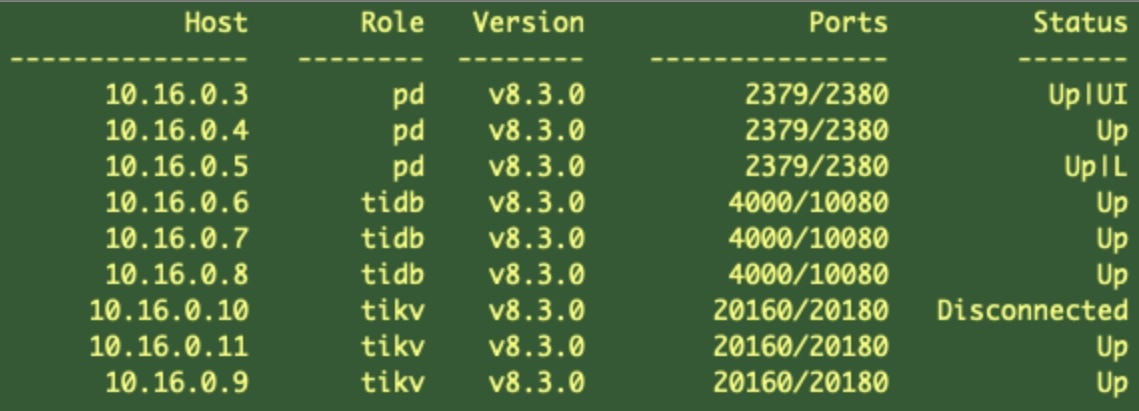 Within a minute or two, you *may* see a small dip in QPS that shouldn't last more than about 60 seconds, after which the QPS will stabilise again at a rate close to the performance as before the node was killed. To restore the node, use the following command:
cd ~/scripts ; ./up.sh
When the node has recovered, you could demonstrate a rolling upgrade using the following command:
tiup cluster upgrade tidb-test v8.3.0 --yes
During the upgrade, note that Grafana should continue to show active traffic on the cluster. The output from tiup will also show leader regions transferring, and you may also occasionally see (very briefly) the status display show nodes disconnected or down while they're upgraded and restarted: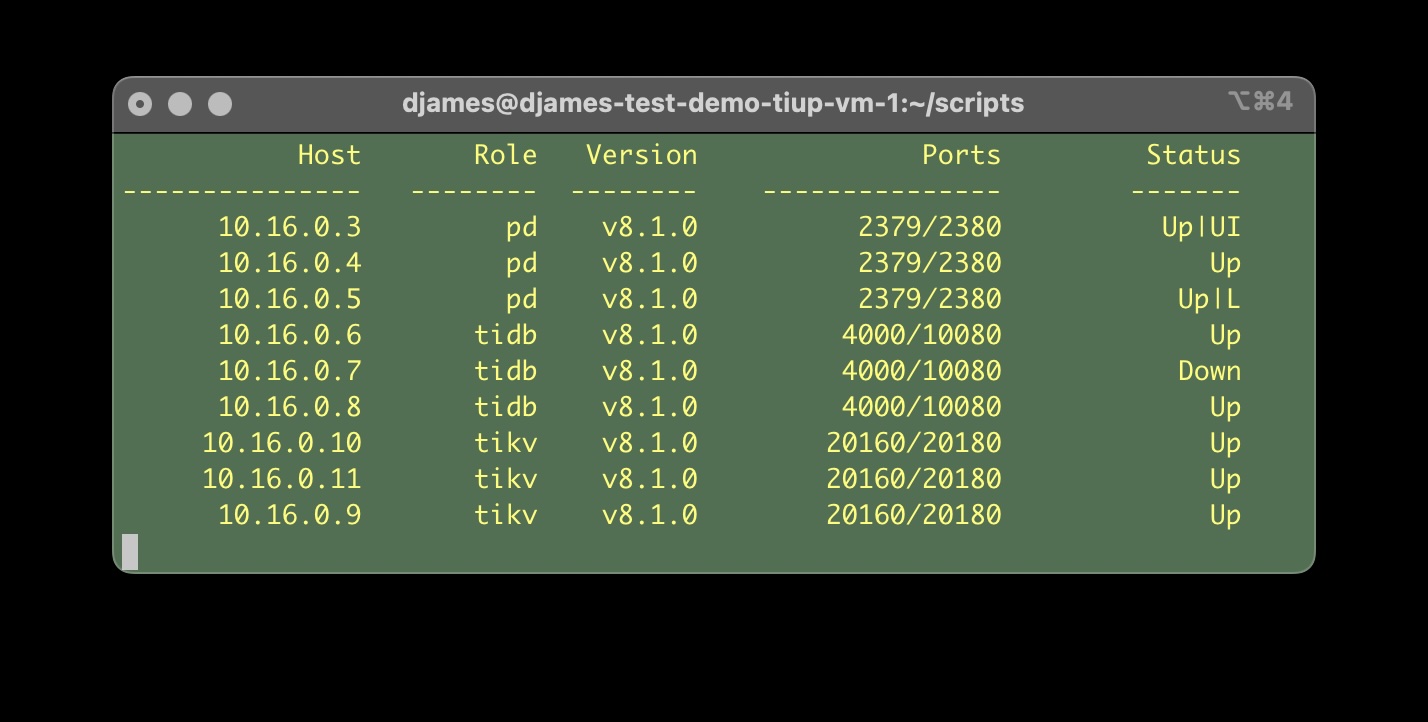
Also note that none of the nodes will show as being at the new version until **all** nodes have been upgraded: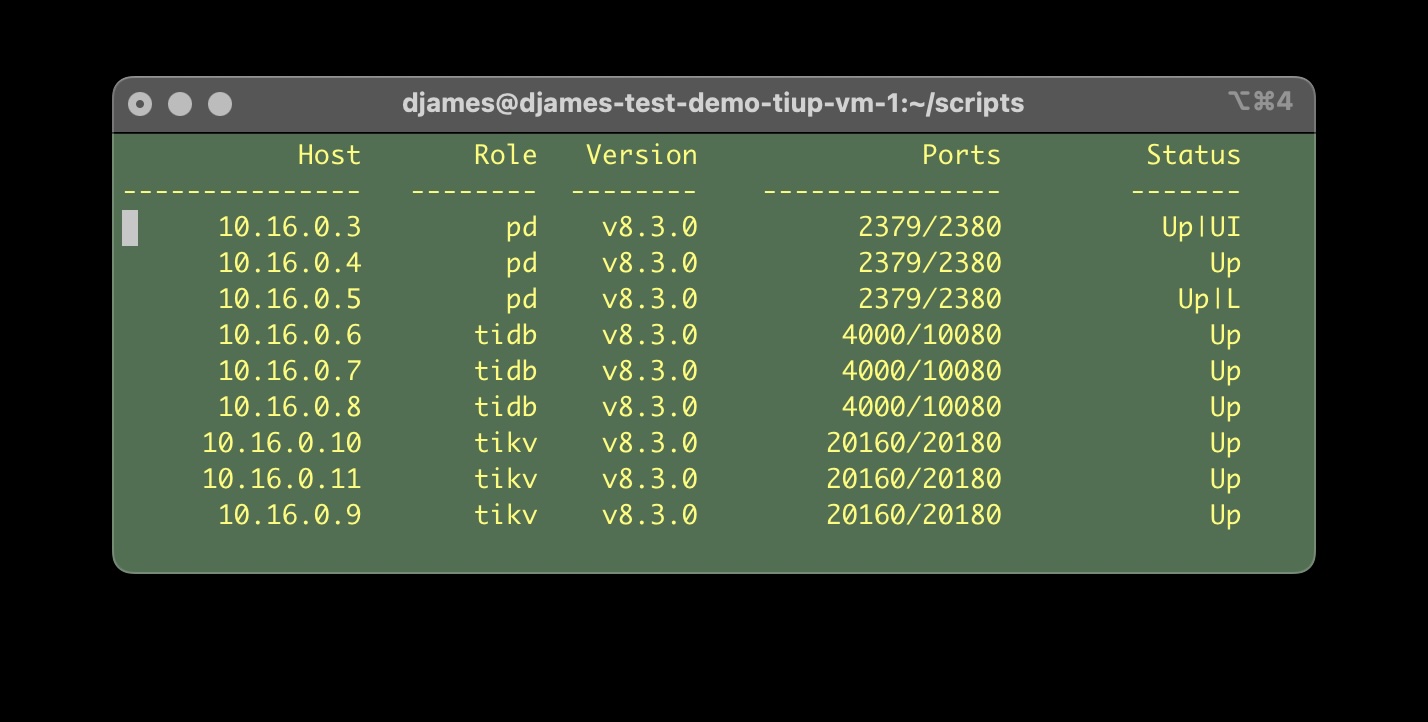
## PREREQUISITES
**TiUP** must be installed on the calling machine using the following command:
curl --proto '=https' --tlsv1.2 -sSf https://tiup-mirrors.pingcap.com/install.sh | sh
Once tiup is installed, ensure you source your profile as output by the "Shell profile" output from the installer before proceeding. You can also open a new terminal session.
You must also have a ssh key of type rsa created without a passphrase. To check to see if you already have one, run the following:
ls -c ~/.ssh/id_rsa*
You should see two files. If you do not see these files, then run the following command:
ssh-keygen -t rsa
Accept the default location and press enter when asked for the passphrase (you will need to press it a second time to confirm the empty passphrase)
You will also need the **jq** utility installed. This tool is used for formatting JSON output and for selecting specific JSON properties. The easiest way to install **jq** is by using a package manager such as **[Homebrew](https://brew.sh)**. Homebrew can be installed using the following command:
/bin/bash -c "$(curl -fsSL https://raw.githubusercontent.com/Homebrew/install/HEAD/install.sh)"
You will need to enter your MacOS login password as the installation requires root/superuser permission. Once Homebrew is installed (which will take some time), follow the instructions to add the brew command into your path. You will likely need to source your profile (or start a new terminal session). Once Homebrew is installed, install jq with the following command:
brew install jq
The **gcloud** command-line tool must be installed, _and_ authenticated prior to running any of these scripts by following GCP's [Install the Google Cloud CLI](https://cloud.google.com/sdk/docs/install-sdk) documentation.
There *is* an experimental (and untested) tool as part of this package that may be used to install tiup, Homebrew, and jq. If gcloud is not installed then the script will open the link above in a browser but will not install nor configure the binaries. For security reasons it will also not create the ssh key for you. To run this tool, use the following command and follow any prompts:
./prereqs.sh