# TiDB Course 201 Exercises Environment Management Guide (for Trainer)
***CAUTION: Always keep the cost in mind. This guide will spin up multiple on-demand EC2 instances.***
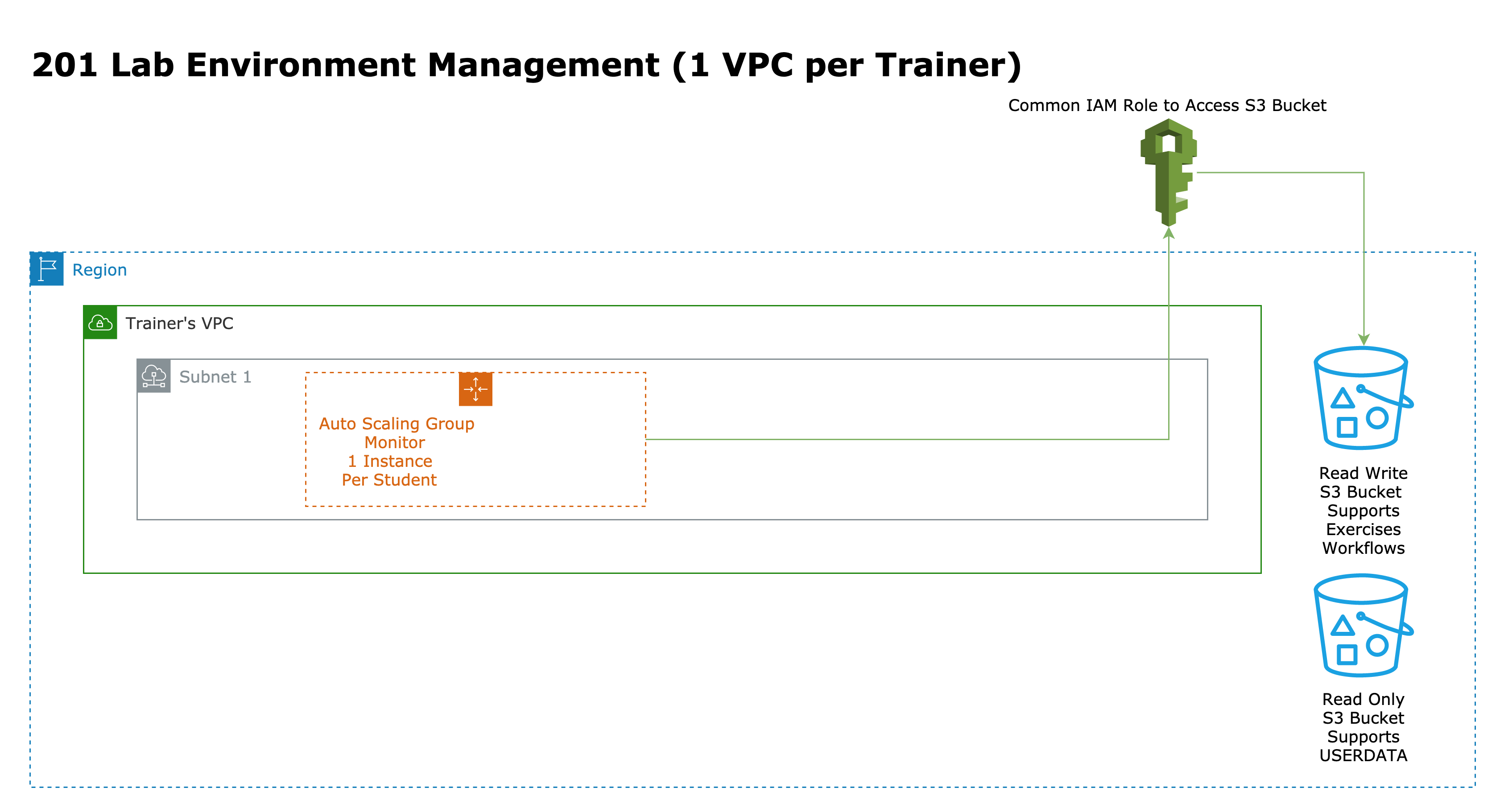
## Lab Environment Diagram
 ## Notes
1. This lab setup prepares 1 EC2 node (C5.xlarge) per student.
2. **DO NOT** deploy the PingCAP Education classroom CloudFormation stacks in any PingCAP production environment.
3. In order to execute all the classroom environment setup steps listed in this guide, it requires you install **Python3**, **boto3** and **awscli** on your local `macOS` machine in advance.
4. You need an active AWS account in order to run these setups. And, your IAM user or role should have the permissions to create various AWS resources, it should be an admin IAM user/role or a power user/role. The identity you use must have the permissions to manage following services or resources (not limited to): IAM roles, VPC, EC2, IAM roles, Auto Scaling Group, and CloudFormation stacks.
5. **MAKE SURE** you follow the instructions to tear down the classroom environment on the end of training class everyday, otherwise AWS will keep charging our team.
## One-off environment setup
1. Clone the [TiDB course 201 repo](https://github.com/pingcap-inc/tidb-course-201) from Github.
2. EC2 key pair and S3 bucket management:
+ For PingCAP Education Cost Center
+ Place the private key `pe-class-key.pem` under `~/.ssh` on your macOS, with permission `400`. You will also share it with your students during the training.
+ Add the private key identity to the OpenSSH authentication agent by executing `ssh-add ~/.ssh/pe-class-key.pem`. In order to avoid executing this command each time you need to initialize the classroom, you can add it to your shell initialization script, such as `~/.bashrc` or `~/.bash_profile`.
+ For PingCAP Education APAC Cost Center
+ Place the private key `pe-class-key-singapore.pem` under `~/.ssh` on your macOS, with permission `400`. You will also share it with your students during the training.
+ Add the private key identity to the OpenSSH authentication agent by executing `ssh-add ~/.ssh/pe-class-key-singapore.pem`. In order to avoid executing this command each time you need to initialize the classroom, you can add it to your shell initialization script, such as `~/.bashrc` or `~/.bash_profile`.
+ For PingCAP Education Japan Cost Center
+ Place the private key `pe-class-key-japan.pem` under `~/.ssh` on your macOS, with permission `400`. You will also share it with your students during the training.
+ Add the private key identity to the OpenSSH authentication agent by executing `ssh-add ~/.ssh/pe-class-key-japan.pem`. In order to avoid executing this command each time you need to initialize the classroom, you can add it to your shell initialization script, such as `~/.bashrc` or `~/.bash_profile`.
+ *Contact Todd (guanglei.bao@pingcap.com) for the the private keys if you don't already have them.*
+ *There are several private keys available, they are used to connect to different AWS account EC2 instances for different cost centers, contact Todd (guanglei.bao@pingcap.com) for details.*
## Routines for each class
### Before the class, create a CloudFormation stack to allocate the required resources
1. Set AWS credentials environment variables for command line and programmatic access from Global Education Team AWS portal - https://pingcap.awsapps.com/start#/.
2. Setup AWS credentials for yourself.
a. If you use permanent IAM power user, follow the [instructions](https://docs.aws.amazon.com/cli/latest/userguide/getting-started-quickstart.html) to set up the **default** awscli profile.
b. If you use temporary IAM power user or IAM role, set your credentials to following environment variables in your local terminal:
```
$ export AWS_ACCESS_KEY_ID=""
$ export AWS_SECRET_ACCESS_KEY=""
$ export AWS_SESSION_TOKEN=""
```
3. Create the class CloudFormation stack. Provide your name and your email as input parameters (for resource tagging purpose, otherwise the demo steps will fail):
```
$ cd tidb-course-201/lab-guide/env_v2/setup__cost_center/
$ ./01_deploy_classroom_by_trainer_name_and_email.sh
```
```
$ ./01_deploy_classroom_by_trainer_name_and_email.sh guanglei guanglei.bao@pingcap.com
{
"StackId": "arn:aws:cloudformation::XXXXXXXXXX:stack/guanglei-class/1aa6baa0-ee42-11ed-a1b9-06ee049f6e4d"
}
```
4. Wait the Cloud Formation stack run to completion. Run following script to check the status, until you get the `COMPLETION` status on `StackStatus` attribute in the output. It will create 1 VPC, 4 subnets, 5 auto scaling groups:
```
$ ./show_classroom_by_trainer_name.sh
```
```
$ ./show_classroom_by_trainer_name.sh guanglei
{
"Stacks": [
{
"StackId": "arn:aws:cloudformation::XXXXXXXXXX:stack/guanglei-class/63795c40-efcf-11ed-907c-02430e44aec7",
"StackName": "guanglei-class",
"Parameters": [
{
"ParameterKey": "TrainerEmail",
"ParameterValue": "guanglei.bao@pingcap.com"
},
{
"ParameterKey": "TrainerName",
"ParameterValue": "guanglei"
}
],
"CreationTime": "2023-05-11T07:42:32.581Z",
"RollbackConfiguration": {},
"StackStatus": "CREATE_COMPLETE",
"DisableRollback": false,
"NotificationARNs": [],
"Capabilities": [
"CAPABILITY_IAM"
],
"Tags": [],
"EnableTerminationProtection": false,
"DriftInformation": {
"StackDriftStatus": "NOT_CHECKED"
}
}
]
}
```
### IMPORTANT - At the class end, tear down the class CloudFormation to clean up all resources
1. On your local machine, under `setup__cost_center` directory, run `remove-classroom-stack-by-trainer-name.sh`:
```
$ cd setup__cost_center/
$ ./remove_classroom_by_trainer_name.sh guanglei
$ ./show_classroom_by_trainer_name.sh guanglei
{
"Stacks": [
{
...
"StackStatus": "DELETE_IN_PROGRESS",
...
}
]
}
```
2. Verify that the Cloud Formation stack had been dropped successfully. Run `show-classroom-stack-by-trainer-name.sh` until you get a `Stack with id -class does not exist` error message:
```
$ ./show_classroom_by_trainer_name.sh guanglei
An error occurred (ValidationError) when calling the DescribeStacks operation: Stack with id guanglei-class does not exist
```
## Routines for each training day
1. Before the class begin, start EC2 instances for your class according to the number of students in the class.
```
$ ./02_start_classroom_by_students_count_and_trainer_name.sh
```
For example, for trainer guanglei with 1 students (note that the total students count should be 2, one for guanglei himself, one for the student):
```
$ ./02_start_classroom_by_students_count_and_trainer_name.sh 2 guanglei
##################################################
# Waiting for 150 seconds for nodes starting up. #
##################################################
2 students with 2 monitor node(s).
Tagging i-0d893bf8c6966e773 with class-user1:monitor1
Tagging i-0058d5f94c9d9279c with class-user2:monitor1
Tagging monitor nodes completed.
...
```
2. We use `monitor1` node as the Control Machine during the training, that is, the public IP address of the node which `Role` is `monitor1`. Run following script `03_prepare_classroom_by_students_count_and_trainer_name.sh` to prepare `monitor1` node for all students automatically:
Note: Make sure that you have completed the instructions for private key portion outlined in the previous step titled [One-off environment setup] before proceeding with this step.
```
$ ./03_prepare_classroom_by_students_count_and_trainer_name.sh
```
+ For example, for trainer Guanglei with 1 students (note that the total students count should be 2, 1 for guanglei himself, 1 for the student):
```
$ ./03_prepare_classroom_by_students_count_and_trainer_name.sh 2 guanglei
Warning: Permanently added '3.112.172.29' (ED25519) to the list of known hosts.
Current node is prepared for user user1 and trainer guanglei.
...
Current node is prepared for user user2 and trainer guanglei.
...
# Running Nodes
| Instance ID | Public IP | Private IP | Name | Instructor | Student | Role | Up Time (mins) |
| :------------------ | :----------- | :--------- | :------ | :--------- | :------ | :------- | :------------- |
| i-0d893bf8c6966e773 | 3.112.172.29 | 10.90.1.34 | monitor | guanglei | user1 | monitor1 | 5 |
| Instance ID | Public IP | Private IP | Name | Instructor | Student | Role | Up Time (mins) |
| :------------------ | :------------ | :---------- | :------ | :--------- | :------ | :------- | :------------- |
| i-0058d5f94c9d9279c | 52.195.12.228 | 10.90.1.136 | monitor | guanglei | user2 | monitor1 | 5 |
# Monitor Nodes
| Instance ID | Public IP | Private IP | Name | Instructor | Student | Role | Up Time (mins) |
| :------------------ | :------------ | :---------- | :------ | :--------- | :------ | :------- | :------------- |
| i-0d893bf8c6966e773 | 3.112.172.29 | 10.90.1.34 | monitor | guanglei | user1 | monitor1 | 5 |
| i-0058d5f94c9d9279c | 52.195.12.228 | 10.90.1.136 | monitor | guanglei | user2 | monitor1 | 5 |
# Class Total Cost: 0.04 (USD)
# Reporting End - 2023-06-25 19:15:48.385398 with 2 nodes.
```
3. Check nodes status.
```
$ ./check_nodes_by_trainer_name.sh
```
+ For example, for Guanglei with 1 students, **user1** is reserved for Guanglei himself, **user2** is for the student:
```
$ ./check_nodes_by_trainer_name.sh guanglei
# Running Nodes
| Instance ID | Public IP | Private IP | Name | Instructor | Student | Role | Up Time (mins) |
| :------------------ | :----------- | :--------- | :------ | :--------- | :------ | :------- | :------------- |
| i-0d893bf8c6966e773 | 3.112.172.29 | 10.90.1.34 | monitor | guanglei | user1 | monitor1 | 7 |
| Instance ID | Public IP | Private IP | Name | Instructor | Student | Role | Up Time (mins) |
| :------------------ | :------------ | :---------- | :------ | :--------- | :------ | :------- | :------------- |
| i-0058d5f94c9d9279c | 52.195.12.228 | 10.90.1.136 | monitor | guanglei | user2 | monitor1 | 7 |
# Monitor Nodes
| Instance ID | Public IP | Private IP | Name | Instructor | Student | Role | Up Time (mins) |
| :------------------ | :------------ | :---------- | :------ | :--------- | :------ | :------- | :------------- |
| i-0d893bf8c6966e773 | 3.112.172.29 | 10.90.1.34 | monitor | guanglei | user1 | monitor1 | 7 |
| i-0058d5f94c9d9279c | 52.195.12.228 | 10.90.1.136 | monitor | guanglei | user2 | monitor1 | 7 |
# Class Total Cost: 0.06 (USD)
# Reporting End - 2023-06-25 19:17:59.800413 with 2 nodes.
```
4. (optional) Open the AWS console, stay at EC2 page, customize the instances table to display three additional tag columns, they are `trainer`, `role`, `student`. You will find it's handy. Your EC2 console instances page should look like the following screenshot:
## Notes
1. This lab setup prepares 1 EC2 node (C5.xlarge) per student.
2. **DO NOT** deploy the PingCAP Education classroom CloudFormation stacks in any PingCAP production environment.
3. In order to execute all the classroom environment setup steps listed in this guide, it requires you install **Python3**, **boto3** and **awscli** on your local `macOS` machine in advance.
4. You need an active AWS account in order to run these setups. And, your IAM user or role should have the permissions to create various AWS resources, it should be an admin IAM user/role or a power user/role. The identity you use must have the permissions to manage following services or resources (not limited to): IAM roles, VPC, EC2, IAM roles, Auto Scaling Group, and CloudFormation stacks.
5. **MAKE SURE** you follow the instructions to tear down the classroom environment on the end of training class everyday, otherwise AWS will keep charging our team.
## One-off environment setup
1. Clone the [TiDB course 201 repo](https://github.com/pingcap-inc/tidb-course-201) from Github.
2. EC2 key pair and S3 bucket management:
+ For PingCAP Education Cost Center
+ Place the private key `pe-class-key.pem` under `~/.ssh` on your macOS, with permission `400`. You will also share it with your students during the training.
+ Add the private key identity to the OpenSSH authentication agent by executing `ssh-add ~/.ssh/pe-class-key.pem`. In order to avoid executing this command each time you need to initialize the classroom, you can add it to your shell initialization script, such as `~/.bashrc` or `~/.bash_profile`.
+ For PingCAP Education APAC Cost Center
+ Place the private key `pe-class-key-singapore.pem` under `~/.ssh` on your macOS, with permission `400`. You will also share it with your students during the training.
+ Add the private key identity to the OpenSSH authentication agent by executing `ssh-add ~/.ssh/pe-class-key-singapore.pem`. In order to avoid executing this command each time you need to initialize the classroom, you can add it to your shell initialization script, such as `~/.bashrc` or `~/.bash_profile`.
+ For PingCAP Education Japan Cost Center
+ Place the private key `pe-class-key-japan.pem` under `~/.ssh` on your macOS, with permission `400`. You will also share it with your students during the training.
+ Add the private key identity to the OpenSSH authentication agent by executing `ssh-add ~/.ssh/pe-class-key-japan.pem`. In order to avoid executing this command each time you need to initialize the classroom, you can add it to your shell initialization script, such as `~/.bashrc` or `~/.bash_profile`.
+ *Contact Todd (guanglei.bao@pingcap.com) for the the private keys if you don't already have them.*
+ *There are several private keys available, they are used to connect to different AWS account EC2 instances for different cost centers, contact Todd (guanglei.bao@pingcap.com) for details.*
## Routines for each class
### Before the class, create a CloudFormation stack to allocate the required resources
1. Set AWS credentials environment variables for command line and programmatic access from Global Education Team AWS portal - https://pingcap.awsapps.com/start#/.
2. Setup AWS credentials for yourself.
a. If you use permanent IAM power user, follow the [instructions](https://docs.aws.amazon.com/cli/latest/userguide/getting-started-quickstart.html) to set up the **default** awscli profile.
b. If you use temporary IAM power user or IAM role, set your credentials to following environment variables in your local terminal:
```
$ export AWS_ACCESS_KEY_ID=""
$ export AWS_SECRET_ACCESS_KEY=""
$ export AWS_SESSION_TOKEN=""
```
3. Create the class CloudFormation stack. Provide your name and your email as input parameters (for resource tagging purpose, otherwise the demo steps will fail):
```
$ cd tidb-course-201/lab-guide/env_v2/setup__cost_center/
$ ./01_deploy_classroom_by_trainer_name_and_email.sh
```
```
$ ./01_deploy_classroom_by_trainer_name_and_email.sh guanglei guanglei.bao@pingcap.com
{
"StackId": "arn:aws:cloudformation::XXXXXXXXXX:stack/guanglei-class/1aa6baa0-ee42-11ed-a1b9-06ee049f6e4d"
}
```
4. Wait the Cloud Formation stack run to completion. Run following script to check the status, until you get the `COMPLETION` status on `StackStatus` attribute in the output. It will create 1 VPC, 4 subnets, 5 auto scaling groups:
```
$ ./show_classroom_by_trainer_name.sh
```
```
$ ./show_classroom_by_trainer_name.sh guanglei
{
"Stacks": [
{
"StackId": "arn:aws:cloudformation::XXXXXXXXXX:stack/guanglei-class/63795c40-efcf-11ed-907c-02430e44aec7",
"StackName": "guanglei-class",
"Parameters": [
{
"ParameterKey": "TrainerEmail",
"ParameterValue": "guanglei.bao@pingcap.com"
},
{
"ParameterKey": "TrainerName",
"ParameterValue": "guanglei"
}
],
"CreationTime": "2023-05-11T07:42:32.581Z",
"RollbackConfiguration": {},
"StackStatus": "CREATE_COMPLETE",
"DisableRollback": false,
"NotificationARNs": [],
"Capabilities": [
"CAPABILITY_IAM"
],
"Tags": [],
"EnableTerminationProtection": false,
"DriftInformation": {
"StackDriftStatus": "NOT_CHECKED"
}
}
]
}
```
### IMPORTANT - At the class end, tear down the class CloudFormation to clean up all resources
1. On your local machine, under `setup__cost_center` directory, run `remove-classroom-stack-by-trainer-name.sh`:
```
$ cd setup__cost_center/
$ ./remove_classroom_by_trainer_name.sh guanglei
$ ./show_classroom_by_trainer_name.sh guanglei
{
"Stacks": [
{
...
"StackStatus": "DELETE_IN_PROGRESS",
...
}
]
}
```
2. Verify that the Cloud Formation stack had been dropped successfully. Run `show-classroom-stack-by-trainer-name.sh` until you get a `Stack with id -class does not exist` error message:
```
$ ./show_classroom_by_trainer_name.sh guanglei
An error occurred (ValidationError) when calling the DescribeStacks operation: Stack with id guanglei-class does not exist
```
## Routines for each training day
1. Before the class begin, start EC2 instances for your class according to the number of students in the class.
```
$ ./02_start_classroom_by_students_count_and_trainer_name.sh
```
For example, for trainer guanglei with 1 students (note that the total students count should be 2, one for guanglei himself, one for the student):
```
$ ./02_start_classroom_by_students_count_and_trainer_name.sh 2 guanglei
##################################################
# Waiting for 150 seconds for nodes starting up. #
##################################################
2 students with 2 monitor node(s).
Tagging i-0d893bf8c6966e773 with class-user1:monitor1
Tagging i-0058d5f94c9d9279c with class-user2:monitor1
Tagging monitor nodes completed.
...
```
2. We use `monitor1` node as the Control Machine during the training, that is, the public IP address of the node which `Role` is `monitor1`. Run following script `03_prepare_classroom_by_students_count_and_trainer_name.sh` to prepare `monitor1` node for all students automatically:
Note: Make sure that you have completed the instructions for private key portion outlined in the previous step titled [One-off environment setup] before proceeding with this step.
```
$ ./03_prepare_classroom_by_students_count_and_trainer_name.sh
```
+ For example, for trainer Guanglei with 1 students (note that the total students count should be 2, 1 for guanglei himself, 1 for the student):
```
$ ./03_prepare_classroom_by_students_count_and_trainer_name.sh 2 guanglei
Warning: Permanently added '3.112.172.29' (ED25519) to the list of known hosts.
Current node is prepared for user user1 and trainer guanglei.
...
Current node is prepared for user user2 and trainer guanglei.
...
# Running Nodes
| Instance ID | Public IP | Private IP | Name | Instructor | Student | Role | Up Time (mins) |
| :------------------ | :----------- | :--------- | :------ | :--------- | :------ | :------- | :------------- |
| i-0d893bf8c6966e773 | 3.112.172.29 | 10.90.1.34 | monitor | guanglei | user1 | monitor1 | 5 |
| Instance ID | Public IP | Private IP | Name | Instructor | Student | Role | Up Time (mins) |
| :------------------ | :------------ | :---------- | :------ | :--------- | :------ | :------- | :------------- |
| i-0058d5f94c9d9279c | 52.195.12.228 | 10.90.1.136 | monitor | guanglei | user2 | monitor1 | 5 |
# Monitor Nodes
| Instance ID | Public IP | Private IP | Name | Instructor | Student | Role | Up Time (mins) |
| :------------------ | :------------ | :---------- | :------ | :--------- | :------ | :------- | :------------- |
| i-0d893bf8c6966e773 | 3.112.172.29 | 10.90.1.34 | monitor | guanglei | user1 | monitor1 | 5 |
| i-0058d5f94c9d9279c | 52.195.12.228 | 10.90.1.136 | monitor | guanglei | user2 | monitor1 | 5 |
# Class Total Cost: 0.04 (USD)
# Reporting End - 2023-06-25 19:15:48.385398 with 2 nodes.
```
3. Check nodes status.
```
$ ./check_nodes_by_trainer_name.sh
```
+ For example, for Guanglei with 1 students, **user1** is reserved for Guanglei himself, **user2** is for the student:
```
$ ./check_nodes_by_trainer_name.sh guanglei
# Running Nodes
| Instance ID | Public IP | Private IP | Name | Instructor | Student | Role | Up Time (mins) |
| :------------------ | :----------- | :--------- | :------ | :--------- | :------ | :------- | :------------- |
| i-0d893bf8c6966e773 | 3.112.172.29 | 10.90.1.34 | monitor | guanglei | user1 | monitor1 | 7 |
| Instance ID | Public IP | Private IP | Name | Instructor | Student | Role | Up Time (mins) |
| :------------------ | :------------ | :---------- | :------ | :--------- | :------ | :------- | :------------- |
| i-0058d5f94c9d9279c | 52.195.12.228 | 10.90.1.136 | monitor | guanglei | user2 | monitor1 | 7 |
# Monitor Nodes
| Instance ID | Public IP | Private IP | Name | Instructor | Student | Role | Up Time (mins) |
| :------------------ | :------------ | :---------- | :------ | :--------- | :------ | :------- | :------------- |
| i-0d893bf8c6966e773 | 3.112.172.29 | 10.90.1.34 | monitor | guanglei | user1 | monitor1 | 7 |
| i-0058d5f94c9d9279c | 52.195.12.228 | 10.90.1.136 | monitor | guanglei | user2 | monitor1 | 7 |
# Class Total Cost: 0.06 (USD)
# Reporting End - 2023-06-25 19:17:59.800413 with 2 nodes.
```
4. (optional) Open the AWS console, stay at EC2 page, customize the instances table to display three additional tag columns, they are `trainer`, `role`, `student`. You will find it's handy. Your EC2 console instances page should look like the following screenshot:
 5. Provide the private key `pe-class-key.pem` and the above table (with relevant information only, for example, user2 information to user2 only) to all students.
+ For example, distribute following information belongs to user2 to the student who you map to user2:
```
| Instance ID | Public IP | Private IP | Name | Instructor | Student | Role | Up Time (mins) |
| :------------------ | :------------ | :---------- | :------ | :--------- | :------ | :------- | :------------- |
| i-0058d5f94c9d9279c | 52.195.12.228 | 10.90.1.136 | monitor | guanglei | user2 | monitor1 | 7 |
```
6. If you would like to `SSH` to a student's machine, you can use the following command for example (there are several private keys available, they are used to connect to different AWS account EC2 instances from different cost centers, contact Todd for details.):
Note: Make sure that you have completed the instructions for private key portion outlined in the previous step titled [One-off environment setup] before proceeding with this step. `SSH` login in to node `monitor1`. The option `-A` is crucial as it enables the forwarding of connections from an authentication agent. As an instructor, it is important to inform your students about the significance of using `-A` as it is necessary to support passwordless hands-on steps throughout the exercise workflows.
```
$ ssh -A ec2-user@
[ec2-user@ip-10-90-1-34 ~]$ ls -lF
total 92
-rwxr-xr-x. 1 ec2-user ec2-user 3292 Jun 25 11:11 00-prepare-node-roles-for-user.sh*
-rwxr-xr-x. 1 ec2-user ec2-user 128 Jun 25 11:11 01-install-tiup.sh*
-rwxr-xr-x. 1 ec2-user ec2-user 457 Jun 25 11:11 02-precheck-and-fix-node.sh*
-rwxr-xr-x. 1 ec2-user ec2-user 102 Jun 25 11:11 03-create-cluster.sh*
-rwxr-xr-x. 1 ec2-user ec2-user 54 Jun 25 11:11 check-cluster.sh*
-rwxr-xr-x. 1 ec2-user ec2-user 34 Jun 25 11:11 cloud-env.sh*
-rwxr-xr-x. 1 ec2-user ec2-user 128 Jun 25 11:11 connect-db1.sh*
-rwxr-xr-x. 1 ec2-user ec2-user 128 Jun 25 11:11 connect-db2.sh*
-rwxr-xr-x. 1 ec2-user ec2-user 114 Jun 25 11:11 destroy-all.sh*
-rwxrwxr-x. 1 ec2-user ec2-user 557 Jun 25 11:15 hosts-env.sh*
-rwxr-xr-x. 1 ec2-user ec2-user 134 Jun 25 11:11 self-hosted-quick-start-v650.sh*
-rwxr-xr-x. 1 ec2-user ec2-user 68 Jun 25 11:11 show-mysql-password.sh*
-rw-r--r--. 1 ec2-user ec2-user 1358 Jun 25 11:15 solution-topology-single-node.yaml
-rwxrwxr-x. 1 ec2-user ec2-user 18 Jun 25 11:15 ssh-to-cm.sh*
-rwxrwxr-x. 1 ec2-user ec2-user 18 Jun 25 11:15 ssh-to-db1.sh*
-rwxrwxr-x. 1 ec2-user ec2-user 18 Jun 25 11:15 ssh-to-db2.sh*
-rwxrwxr-x. 1 ec2-user ec2-user 18 Jun 25 11:15 ssh-to-kv1.sh*
-rwxrwxr-x. 1 ec2-user ec2-user 18 Jun 25 11:15 ssh-to-monitor1.sh*
-rwxrwxr-x. 1 ec2-user ec2-user 18 Jun 25 11:15 ssh-to-pd1.sh*
-rwxrwxr-x. 1 ec2-user ec2-user 18 Jun 25 11:15 ssh-to-tiflash1.sh*
drwxr-xr-x. 3 ec2-user ec2-user 63 Jun 25 11:11 stage/
-rwxr-xr-x. 1 ec2-user ec2-user 52 Jun 25 11:11 start-cluster.sh*
-rwxr-xr-x. 1 ec2-user ec2-user 58 Jun 25 11:11 stop-cluster.sh*
-rw-r--r--. 1 ec2-user ec2-user 1466 Jun 25 11:11 template-single-node-hybrid.yaml
```
Script `self-hosted-quick-start-v650.sh` can create a hybrid TiDB cluster on single node.
```
$ ./self-hosted-quick-start-v650.sh
...
Started cluster `tidb-test` successfully
tiup is checking updates for component cluster ...
Starting component `cluster`: /home/ec2-user/.tiup/components/cluster/v1.12.3/tiup-cluster display tidb-test
Cluster type: tidb
Cluster name: tidb-test
Cluster version: v6.5.0
Deploy user: tidb
SSH type: builtin
Dashboard URL: http://10.90.1.34:2379/dashboard
Grafana URL: http://10.90.1.34:3000
ID Role Host Ports OS/Arch Status Data Dir Deploy Dir
-- ---- ---- ----- ------- ------ -------- ----------
10.90.1.34:9093 alertmanager 10.90.1.34 9093/9094 linux/x86_64 Up /tidb-data/alertmanager-9093 /tidb-deploy/alertmanager-9093
10.90.1.34:3000 grafana 10.90.1.34 3000 linux/x86_64 Up - /tidb-deploy/grafana-3000
10.90.1.34:2379 pd 10.90.1.34 2379/2380 linux/x86_64 Up|L|UI /tidb-data/pd-2379 /tidb-deploy/pd-2379
10.90.1.34:9090 prometheus 10.90.1.34 9090/12020 linux/x86_64 Up /tidb-data/prometheus-9090 /tidb-deploy/prometheus-9090
10.90.1.34:4000 tidb 10.90.1.34 4000/10080 linux/x86_64 Up - /tidb-deploy/tidb-4000
10.90.1.34:4001 tidb 10.90.1.34 4001/10081 linux/x86_64 Up - /tidb-deploy/tidb-4001
10.90.1.34:9000 tiflash 10.90.1.34 9000/8123/3930/20170/20292/8234 linux/x86_64 Up /tidb-data/tiflash-9000 /tidb-deploy/tiflash-9000
10.90.1.34:20160 tikv 10.90.1.34 20160/20180 linux/x86_64 Up /tidb-data/tikv-20160 /tidb-deploy/tikv-20160
Total nodes: 8
```
7. (Optional) If student nodes are replaced during the hands-on practice, those nodes need to be re-tagged. Do it by executing following script:
```
$ ./retag_and_prepare_by_student_name_and_trainer_name.sh
```
+ For example, if trainer Guanglei need to re-tag nodes for student user2:
```
$ ./retag_and_prepare_by_student_name_and_trainer_name.sh user2 guanglei
```
8. **IMPORTANT:** When the class is over for the day. Run following script as soon as possible to terminate all EC2 instances:
```
$ ./stop_classroom_by_trainer_name.sh
```
For example:
```
$ ./stop_classroom_by_trainer_name.sh guanglei
# Terminating all nodes for trainer guanglei.
```
Wait for a few minutes, run check again, make sure it returns an empty list under your name:
```
$ ./check_nodes_by_trainer_name.sh guanglei
# Running Instances
| Instance ID | Public IP | Private IP | Name | Instructor | Student | Type | Up Time (mins) | Cost (USD) |
| :---------- | :-------- | :--------- | :--- | :--------- | :------ | :--- | :------------- | :--------- |
# Class Total Cost: 0.0 (USD)
```
5. Provide the private key `pe-class-key.pem` and the above table (with relevant information only, for example, user2 information to user2 only) to all students.
+ For example, distribute following information belongs to user2 to the student who you map to user2:
```
| Instance ID | Public IP | Private IP | Name | Instructor | Student | Role | Up Time (mins) |
| :------------------ | :------------ | :---------- | :------ | :--------- | :------ | :------- | :------------- |
| i-0058d5f94c9d9279c | 52.195.12.228 | 10.90.1.136 | monitor | guanglei | user2 | monitor1 | 7 |
```
6. If you would like to `SSH` to a student's machine, you can use the following command for example (there are several private keys available, they are used to connect to different AWS account EC2 instances from different cost centers, contact Todd for details.):
Note: Make sure that you have completed the instructions for private key portion outlined in the previous step titled [One-off environment setup] before proceeding with this step. `SSH` login in to node `monitor1`. The option `-A` is crucial as it enables the forwarding of connections from an authentication agent. As an instructor, it is important to inform your students about the significance of using `-A` as it is necessary to support passwordless hands-on steps throughout the exercise workflows.
```
$ ssh -A ec2-user@
[ec2-user@ip-10-90-1-34 ~]$ ls -lF
total 92
-rwxr-xr-x. 1 ec2-user ec2-user 3292 Jun 25 11:11 00-prepare-node-roles-for-user.sh*
-rwxr-xr-x. 1 ec2-user ec2-user 128 Jun 25 11:11 01-install-tiup.sh*
-rwxr-xr-x. 1 ec2-user ec2-user 457 Jun 25 11:11 02-precheck-and-fix-node.sh*
-rwxr-xr-x. 1 ec2-user ec2-user 102 Jun 25 11:11 03-create-cluster.sh*
-rwxr-xr-x. 1 ec2-user ec2-user 54 Jun 25 11:11 check-cluster.sh*
-rwxr-xr-x. 1 ec2-user ec2-user 34 Jun 25 11:11 cloud-env.sh*
-rwxr-xr-x. 1 ec2-user ec2-user 128 Jun 25 11:11 connect-db1.sh*
-rwxr-xr-x. 1 ec2-user ec2-user 128 Jun 25 11:11 connect-db2.sh*
-rwxr-xr-x. 1 ec2-user ec2-user 114 Jun 25 11:11 destroy-all.sh*
-rwxrwxr-x. 1 ec2-user ec2-user 557 Jun 25 11:15 hosts-env.sh*
-rwxr-xr-x. 1 ec2-user ec2-user 134 Jun 25 11:11 self-hosted-quick-start-v650.sh*
-rwxr-xr-x. 1 ec2-user ec2-user 68 Jun 25 11:11 show-mysql-password.sh*
-rw-r--r--. 1 ec2-user ec2-user 1358 Jun 25 11:15 solution-topology-single-node.yaml
-rwxrwxr-x. 1 ec2-user ec2-user 18 Jun 25 11:15 ssh-to-cm.sh*
-rwxrwxr-x. 1 ec2-user ec2-user 18 Jun 25 11:15 ssh-to-db1.sh*
-rwxrwxr-x. 1 ec2-user ec2-user 18 Jun 25 11:15 ssh-to-db2.sh*
-rwxrwxr-x. 1 ec2-user ec2-user 18 Jun 25 11:15 ssh-to-kv1.sh*
-rwxrwxr-x. 1 ec2-user ec2-user 18 Jun 25 11:15 ssh-to-monitor1.sh*
-rwxrwxr-x. 1 ec2-user ec2-user 18 Jun 25 11:15 ssh-to-pd1.sh*
-rwxrwxr-x. 1 ec2-user ec2-user 18 Jun 25 11:15 ssh-to-tiflash1.sh*
drwxr-xr-x. 3 ec2-user ec2-user 63 Jun 25 11:11 stage/
-rwxr-xr-x. 1 ec2-user ec2-user 52 Jun 25 11:11 start-cluster.sh*
-rwxr-xr-x. 1 ec2-user ec2-user 58 Jun 25 11:11 stop-cluster.sh*
-rw-r--r--. 1 ec2-user ec2-user 1466 Jun 25 11:11 template-single-node-hybrid.yaml
```
Script `self-hosted-quick-start-v650.sh` can create a hybrid TiDB cluster on single node.
```
$ ./self-hosted-quick-start-v650.sh
...
Started cluster `tidb-test` successfully
tiup is checking updates for component cluster ...
Starting component `cluster`: /home/ec2-user/.tiup/components/cluster/v1.12.3/tiup-cluster display tidb-test
Cluster type: tidb
Cluster name: tidb-test
Cluster version: v6.5.0
Deploy user: tidb
SSH type: builtin
Dashboard URL: http://10.90.1.34:2379/dashboard
Grafana URL: http://10.90.1.34:3000
ID Role Host Ports OS/Arch Status Data Dir Deploy Dir
-- ---- ---- ----- ------- ------ -------- ----------
10.90.1.34:9093 alertmanager 10.90.1.34 9093/9094 linux/x86_64 Up /tidb-data/alertmanager-9093 /tidb-deploy/alertmanager-9093
10.90.1.34:3000 grafana 10.90.1.34 3000 linux/x86_64 Up - /tidb-deploy/grafana-3000
10.90.1.34:2379 pd 10.90.1.34 2379/2380 linux/x86_64 Up|L|UI /tidb-data/pd-2379 /tidb-deploy/pd-2379
10.90.1.34:9090 prometheus 10.90.1.34 9090/12020 linux/x86_64 Up /tidb-data/prometheus-9090 /tidb-deploy/prometheus-9090
10.90.1.34:4000 tidb 10.90.1.34 4000/10080 linux/x86_64 Up - /tidb-deploy/tidb-4000
10.90.1.34:4001 tidb 10.90.1.34 4001/10081 linux/x86_64 Up - /tidb-deploy/tidb-4001
10.90.1.34:9000 tiflash 10.90.1.34 9000/8123/3930/20170/20292/8234 linux/x86_64 Up /tidb-data/tiflash-9000 /tidb-deploy/tiflash-9000
10.90.1.34:20160 tikv 10.90.1.34 20160/20180 linux/x86_64 Up /tidb-data/tikv-20160 /tidb-deploy/tikv-20160
Total nodes: 8
```
7. (Optional) If student nodes are replaced during the hands-on practice, those nodes need to be re-tagged. Do it by executing following script:
```
$ ./retag_and_prepare_by_student_name_and_trainer_name.sh
```
+ For example, if trainer Guanglei need to re-tag nodes for student user2:
```
$ ./retag_and_prepare_by_student_name_and_trainer_name.sh user2 guanglei
```
8. **IMPORTANT:** When the class is over for the day. Run following script as soon as possible to terminate all EC2 instances:
```
$ ./stop_classroom_by_trainer_name.sh
```
For example:
```
$ ./stop_classroom_by_trainer_name.sh guanglei
# Terminating all nodes for trainer guanglei.
```
Wait for a few minutes, run check again, make sure it returns an empty list under your name:
```
$ ./check_nodes_by_trainer_name.sh guanglei
# Running Instances
| Instance ID | Public IP | Private IP | Name | Instructor | Student | Type | Up Time (mins) | Cost (USD) |
| :---------- | :-------- | :--------- | :--- | :--------- | :------ | :--- | :------------- | :--------- |
# Class Total Cost: 0.0 (USD)
```