# Creating a TiDB Cluster for Testing Purposes
### Overview
+ In these exercises, you create a TiDB cluster using either the TiDB Playground cluster on your laptop or the TiDB Serverless.
+ Both cluster types are designed for testing purposes and are helpful in enabling developers to better understand the TiDB interfaces at no additional cost.
### Notes
+ Some of the steps require that you type commands in two different terminal windows. You might find it convenient to launch two terminals and keep them open for the duration of the exercises.
+ Your environment may be different with these exercises, including but not limited to `IP`, `port`, `username`, `password` and `directory`.
+ The "`$`" in your terminal window is an OS prompt.
+ The "`tidb>`" or "`mysql>`" in your terminal window is SQL command prompt.
+ These exercises can be run on a single machine, such as your laptop.
+ These exercises are designed for TiDB Playground cluster and TiDB Serverless. It is crucial to note that the TiDB Playground cluster is not designed for production purposes.
### Assumptions
+ You are using macOS or Linux.
+ You have [Git command line client](https://git-scm.com/) installed.
+ You have [MySQL command line client](https://www.google.com/search?q=how+to+install+mysql+command+line+client) installed.
## Exercise 1: Creating a TiDB Playground Cluster Using `tiup playground` Command
 ### Overview
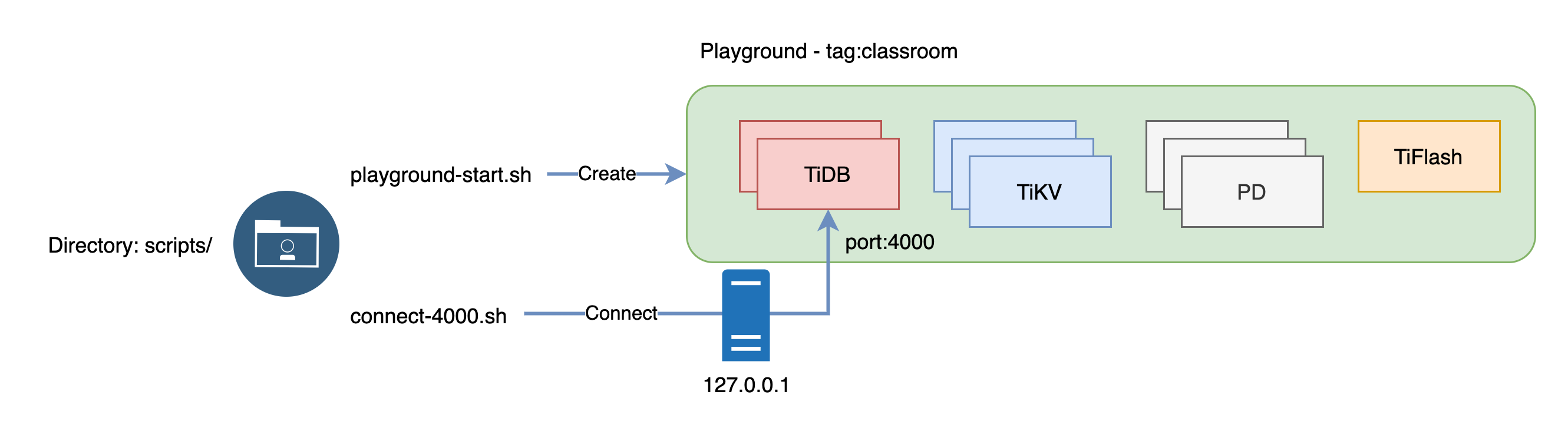
+ In this exercise, you create a TiDB Playground cluster.
### Duration
+ This exercise should take you approximately 10 minutes to complete.
### Tasks
1. Clone the workshop scripts repository.
2. Check and understand the demo scripts.
3. Create a TiDB Playground Cluster cluster.
4. Understand how to clean up the TiDB Playground cluster data.
### Solution
1. Clone the demo repository from `GitHub`, and receive the results shown.
```
$ git clone https://github.com/pingcap/tidb-course-201-lab.git
Cloning into 'tidb-course-201-lab'...
...
```
2. Change the current working directory to `scripts/` and verify two scripts.
Change the working directory to `tidb-course-201-lab/scripts`.
```
$ cd tidb-course-201-lab/scripts
```
Review the script `playground-start.sh`, as running it will initiate a TiDB Playground cluster with 10 instances (3 PD server instances, 3 TiKV server instances, 2 TiDB server instances, and 1 TiFlash server instance). And, the directory tag for the Playground is `classroom`.
```
$ cat playground-start.sh
#!/bin/bash
~/.tiup/bin/tiup playground v6.5.1 --tag classroom --db 2 --pd 3 --kv 3 --tiflash 1
```
Review the script `playground-check.sh`, which displays the simplified status of instances for the TiDB Playground cluster.
```
$ cat playground-check.sh
#!/bin/bash
~/.tiup/bin/tiup playground display
```
3. Launch a TiDB Playground cluster and establish a connection to the TiDB server instance within the cluster.
Download and install TiUP utility, and receive the results shown.
```
$ curl --proto '=https' --tlsv1.2 -sSf https://tiup-mirrors.pingcap.com/install.sh | sh
...
Shell profile: /Users/username/.zshrc
Installed path: /Users/username/.tiup/bin/tiup
===============================================
Have a try: tiup playground
===============================================
```
Launch a local TiDB Playground cluster using the provided script and view the results. If you enter `Ctrl-C`, your TiDB Playground cluster exits.
```
$ ./playground-start.sh
...
Connect TiDB: mysql --host 127.0.0.1 --port 4000 -u root
Connect TiDB: mysql --host 127.0.0.1 --port 4001 -u root
TiDB Dashboard: http://127.0.0.1:2379/dashboard
Grafana: http://127.0.0.1:51362
```
Open a new terminal window to verify the status of the TiDB Playground cluster and display the resulting information.
```
$ cd tidb-course-201-lab/scripts
$ ./playground-check.sh
tiup is checking updates for component playground ...
Starting component `playground`: /Users/username/.tiup/components/playground/v1.11.0/tiup-playground display
Pid Role Uptime
--- ---- ------
11473 pd 3m4.584159125s
11474 pd 3m4.563855125s
11475 pd 3m4.550561s
11476 tikv 3m3.560119667s
11477 tikv 3m3.540240667s
11478 tikv 3m3.52733175s
11480 tidb 3m2.545229042s
11481 tidb 3m2.533429333s
11502 tiflash 2m54.914668834s
```
Establish the connection to TiDB server instance on port 4000 as user `root`.
```
$ cat connect-4000.sh
#!/bin/bash
export MYSQL_PS1="tidb:4000> "
mysql -h 127.0.0.1 -P 4000 -u root --connect-timeout 1 --verbose
```
```
$ ./connect-4000.sh
...
Type 'help;' or '\h' for help. Type '\c' to clear the current input statement.
tidb:4000>
```
Run a simple query and exit, the result you obtain may differ from the output.
```sql
SELECT TIDB_VERSION()\G
EXIT;
```
```
--------------
SELECT TIDB_VERSION()
--------------
*************************** 1. row ***************************
TIDB_VERSION(): Release Version: v6.5.1
Edition: Community
Git Commit Hash: 4084b077d615f9dc0a41cf2e30bc6e1a02332df2
Git Branch: heads/refs/tags/v6.5.1
UTC Build Time: 2023-03-07 16:04:47
GoVersion: go1.19.5
Race Enabled: false
TiKV Min Version: 6.2.0-alpha
Check Table Before Drop: false
Store: tikv
1 row in set (0.00 sec)
tidb:4000> EXIT;
Writing history-file /Users/username/.mysql_history
Bye
```
Verify the `classroom` directory as it contains the complete file structure of your TiDB Playground cluster.
```
$ find ~/.tiup/data/classroom -maxdepth 1
/Users/username/.tiup/data/classroom
/Users/username/.tiup/data/classroom/tikv-0
/Users/username/.tiup/data/classroom/tikv-1
/Users/username/.tiup/data/classroom/pd-1
/Users/username/.tiup/data/classroom/pd-0
/Users/username/.tiup/data/classroom/grafana
/Users/username/.tiup/data/classroom/dsn
/Users/username/.tiup/data/classroom/tiup_process_meta
/Users/username/.tiup/data/classroom/tikv-2
/Users/username/.tiup/data/classroom/pd-2
/Users/username/.tiup/data/classroom/prometheus
/Users/username/.tiup/data/classroom/port
/Users/username/.tiup/data/classroom/tidb-1
/Users/username/.tiup/data/classroom/tiflash-0
/Users/username/.tiup/data/classroom/tidb-0
```
4. (optional) If you need to clean up the TiDB Playground cluster, you can do so.
Go to the terminal where you previously ran `playground-start.sh`. The screen might look like this.
```
...
To view the dashboard: http://127.0.0.1:2379/dashboard
PD client endpoints: [127.0.0.1:2379 127.0.0.1:2382 127.0.0.1:2384]
To view the Prometheus: http://127.0.0.1:9090
To view the Grafana: http://127.0.0.1:3000
```
Press `Ctrl-C` once to abort the TiDB Playground cluster. All PD, TiKV, TiDB, and TiFlash server instances will be terminated.
```
^CPlayground receive signal: interrupt
tikv quit
```
To delete all the Playground files that have a prefix of `classroom` in their tag, execute the command `tiup clean classroom`.
```
$ ~/.tiup/bin/tiup clean classroom
Clean instance of `playground`, directory: /Users/username/.tiup/data/classroom
```
## Exercise 2: Creating a TiDB Serverless Cluster
### Overview
+ In this exercise, you create a TiDB Playground cluster.
### Duration
+ This exercise should take you approximately 10 minutes to complete.
### Tasks
1. Clone the workshop scripts repository.
2. Check and understand the demo scripts.
3. Create a TiDB Playground Cluster cluster.
4. Understand how to clean up the TiDB Playground cluster data.
### Solution
1. Clone the demo repository from `GitHub`, and receive the results shown.
```
$ git clone https://github.com/pingcap/tidb-course-201-lab.git
Cloning into 'tidb-course-201-lab'...
...
```
2. Change the current working directory to `scripts/` and verify two scripts.
Change the working directory to `tidb-course-201-lab/scripts`.
```
$ cd tidb-course-201-lab/scripts
```
Review the script `playground-start.sh`, as running it will initiate a TiDB Playground cluster with 10 instances (3 PD server instances, 3 TiKV server instances, 2 TiDB server instances, and 1 TiFlash server instance). And, the directory tag for the Playground is `classroom`.
```
$ cat playground-start.sh
#!/bin/bash
~/.tiup/bin/tiup playground v6.5.1 --tag classroom --db 2 --pd 3 --kv 3 --tiflash 1
```
Review the script `playground-check.sh`, which displays the simplified status of instances for the TiDB Playground cluster.
```
$ cat playground-check.sh
#!/bin/bash
~/.tiup/bin/tiup playground display
```
3. Launch a TiDB Playground cluster and establish a connection to the TiDB server instance within the cluster.
Download and install TiUP utility, and receive the results shown.
```
$ curl --proto '=https' --tlsv1.2 -sSf https://tiup-mirrors.pingcap.com/install.sh | sh
...
Shell profile: /Users/username/.zshrc
Installed path: /Users/username/.tiup/bin/tiup
===============================================
Have a try: tiup playground
===============================================
```
Launch a local TiDB Playground cluster using the provided script and view the results. If you enter `Ctrl-C`, your TiDB Playground cluster exits.
```
$ ./playground-start.sh
...
Connect TiDB: mysql --host 127.0.0.1 --port 4000 -u root
Connect TiDB: mysql --host 127.0.0.1 --port 4001 -u root
TiDB Dashboard: http://127.0.0.1:2379/dashboard
Grafana: http://127.0.0.1:51362
```
Open a new terminal window to verify the status of the TiDB Playground cluster and display the resulting information.
```
$ cd tidb-course-201-lab/scripts
$ ./playground-check.sh
tiup is checking updates for component playground ...
Starting component `playground`: /Users/username/.tiup/components/playground/v1.11.0/tiup-playground display
Pid Role Uptime
--- ---- ------
11473 pd 3m4.584159125s
11474 pd 3m4.563855125s
11475 pd 3m4.550561s
11476 tikv 3m3.560119667s
11477 tikv 3m3.540240667s
11478 tikv 3m3.52733175s
11480 tidb 3m2.545229042s
11481 tidb 3m2.533429333s
11502 tiflash 2m54.914668834s
```
Establish the connection to TiDB server instance on port 4000 as user `root`.
```
$ cat connect-4000.sh
#!/bin/bash
export MYSQL_PS1="tidb:4000> "
mysql -h 127.0.0.1 -P 4000 -u root --connect-timeout 1 --verbose
```
```
$ ./connect-4000.sh
...
Type 'help;' or '\h' for help. Type '\c' to clear the current input statement.
tidb:4000>
```
Run a simple query and exit, the result you obtain may differ from the output.
```sql
SELECT TIDB_VERSION()\G
EXIT;
```
```
--------------
SELECT TIDB_VERSION()
--------------
*************************** 1. row ***************************
TIDB_VERSION(): Release Version: v6.5.1
Edition: Community
Git Commit Hash: 4084b077d615f9dc0a41cf2e30bc6e1a02332df2
Git Branch: heads/refs/tags/v6.5.1
UTC Build Time: 2023-03-07 16:04:47
GoVersion: go1.19.5
Race Enabled: false
TiKV Min Version: 6.2.0-alpha
Check Table Before Drop: false
Store: tikv
1 row in set (0.00 sec)
tidb:4000> EXIT;
Writing history-file /Users/username/.mysql_history
Bye
```
Verify the `classroom` directory as it contains the complete file structure of your TiDB Playground cluster.
```
$ find ~/.tiup/data/classroom -maxdepth 1
/Users/username/.tiup/data/classroom
/Users/username/.tiup/data/classroom/tikv-0
/Users/username/.tiup/data/classroom/tikv-1
/Users/username/.tiup/data/classroom/pd-1
/Users/username/.tiup/data/classroom/pd-0
/Users/username/.tiup/data/classroom/grafana
/Users/username/.tiup/data/classroom/dsn
/Users/username/.tiup/data/classroom/tiup_process_meta
/Users/username/.tiup/data/classroom/tikv-2
/Users/username/.tiup/data/classroom/pd-2
/Users/username/.tiup/data/classroom/prometheus
/Users/username/.tiup/data/classroom/port
/Users/username/.tiup/data/classroom/tidb-1
/Users/username/.tiup/data/classroom/tiflash-0
/Users/username/.tiup/data/classroom/tidb-0
```
4. (optional) If you need to clean up the TiDB Playground cluster, you can do so.
Go to the terminal where you previously ran `playground-start.sh`. The screen might look like this.
```
...
To view the dashboard: http://127.0.0.1:2379/dashboard
PD client endpoints: [127.0.0.1:2379 127.0.0.1:2382 127.0.0.1:2384]
To view the Prometheus: http://127.0.0.1:9090
To view the Grafana: http://127.0.0.1:3000
```
Press `Ctrl-C` once to abort the TiDB Playground cluster. All PD, TiKV, TiDB, and TiFlash server instances will be terminated.
```
^CPlayground receive signal: interrupt
tikv quit
```
To delete all the Playground files that have a prefix of `classroom` in their tag, execute the command `tiup clean classroom`.
```
$ ~/.tiup/bin/tiup clean classroom
Clean instance of `playground`, directory: /Users/username/.tiup/data/classroom
```
## Exercise 2: Creating a TiDB Serverless Cluster
 ### Overview
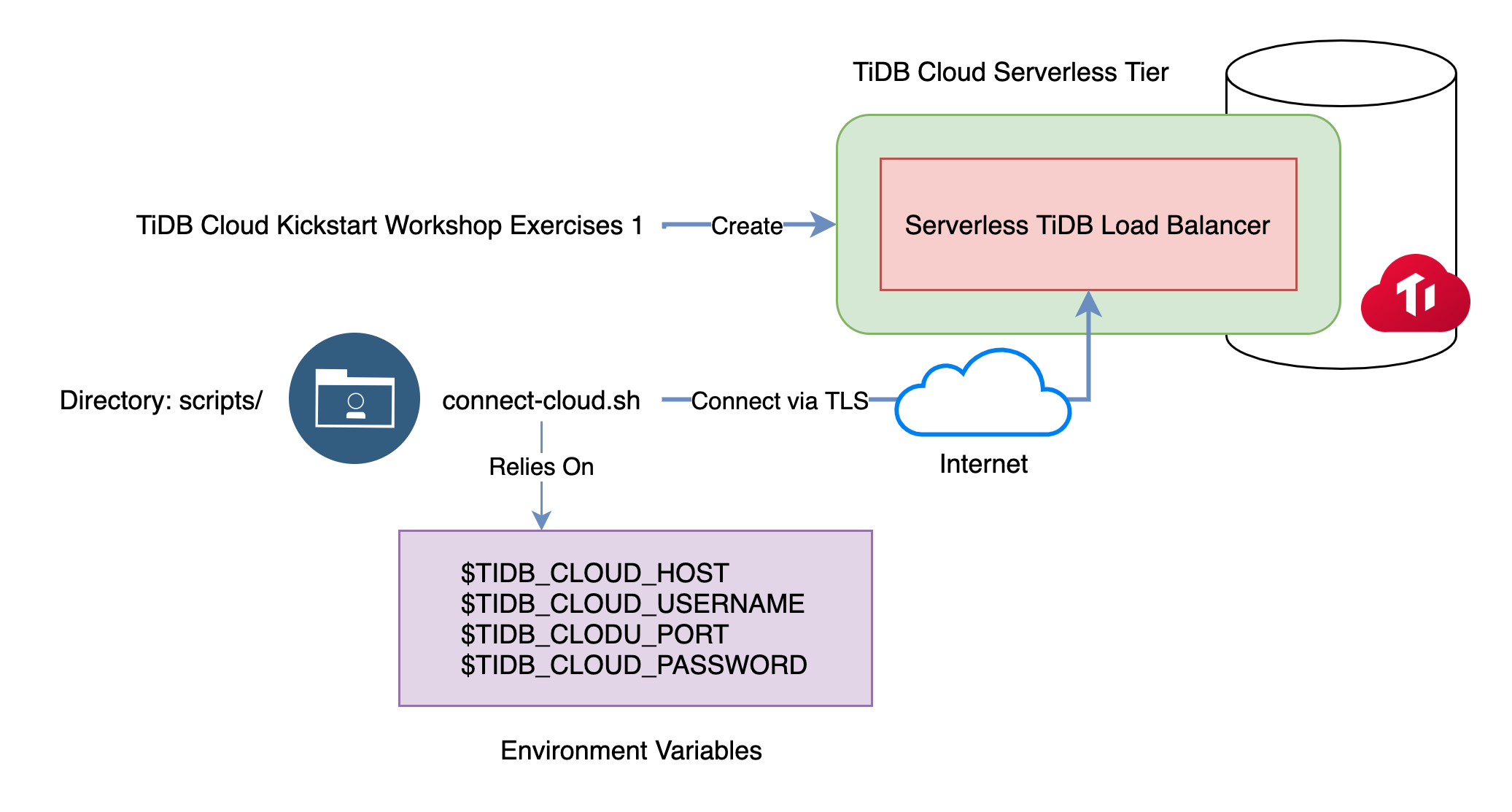
+ In this exercise, you will create a TiDB Serverless cluster.
### Duration
+ This exercise should take you approximately 10 minutes to complete.
### Tasks
1. Create a TiDB Serverless cluster.
### Solution
1. Create a TiDB Serverless cluster.
Create TiDB Serverless cluster by following the instructions in Exercises 1 from [TiDB Cloud Kickstart Workshop](https://eng.edu.pingcap.com/catalog/info/id:204).
2. Connect to TiDB Serverless cluster.
Change the working directory to `scripts/`.
```
$ cd tidb-course-201-lab/scripts
```
Obtain the following details from the TiDB Cloud console: `HOST`, `USERNAME`, `PORT`, and `PASSWORD`. To retrieve this information, click the `Connect` button on the `Overview` page of the cluster you want to connect to, then locate the `Connect to {cluster_name}` popup window. If you are unaware of your password, click on the `Reset Password` button located below and copy the newly generated password by clicking `Copy password`.
### Overview
+ In this exercise, you will create a TiDB Serverless cluster.
### Duration
+ This exercise should take you approximately 10 minutes to complete.
### Tasks
1. Create a TiDB Serverless cluster.
### Solution
1. Create a TiDB Serverless cluster.
Create TiDB Serverless cluster by following the instructions in Exercises 1 from [TiDB Cloud Kickstart Workshop](https://eng.edu.pingcap.com/catalog/info/id:204).
2. Connect to TiDB Serverless cluster.
Change the working directory to `scripts/`.
```
$ cd tidb-course-201-lab/scripts
```
Obtain the following details from the TiDB Cloud console: `HOST`, `USERNAME`, `PORT`, and `PASSWORD`. To retrieve this information, click the `Connect` button on the `Overview` page of the cluster you want to connect to, then locate the `Connect to {cluster_name}` popup window. If you are unaware of your password, click on the `Reset Password` button located below and copy the newly generated password by clicking `Copy password`.
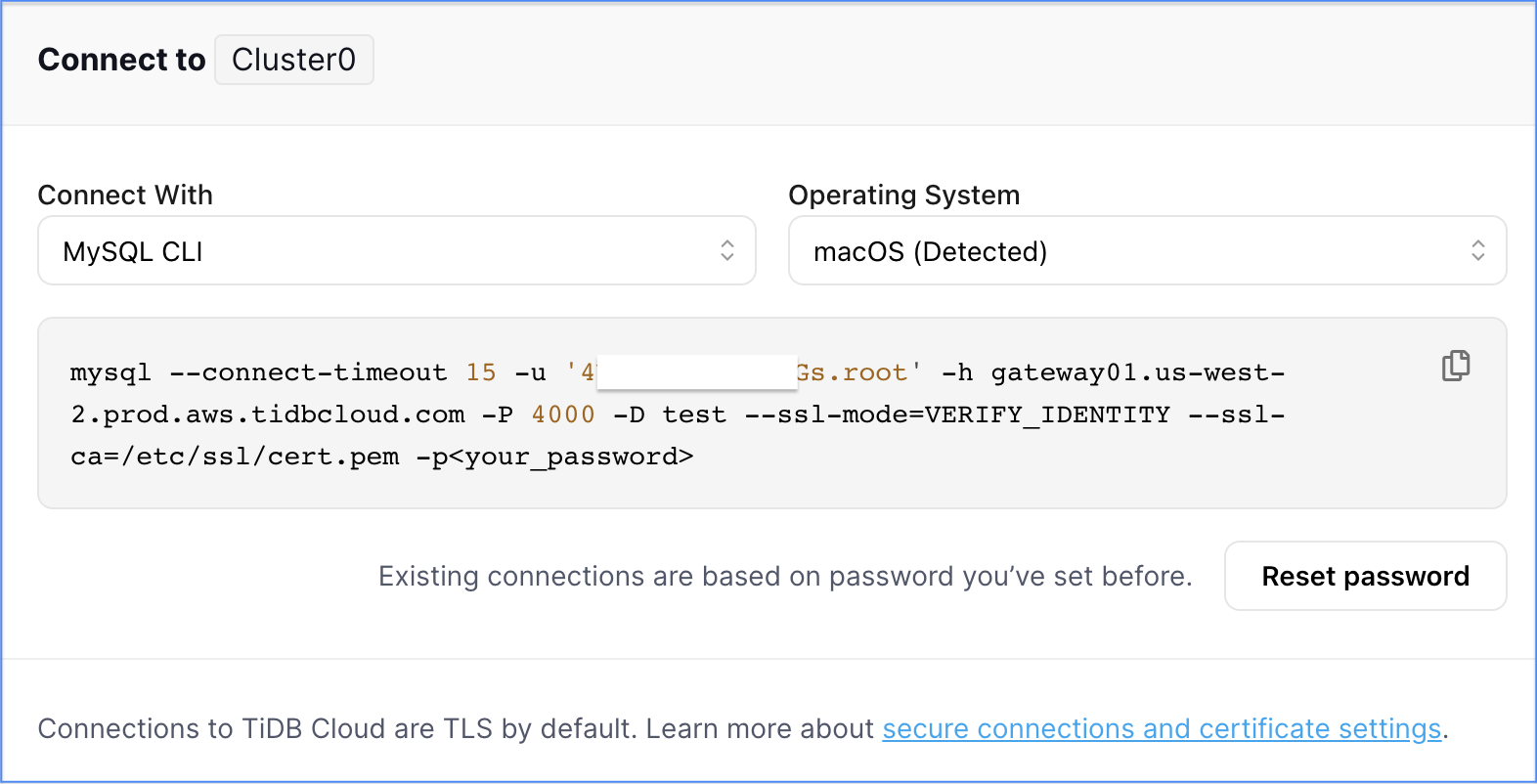 | Options On Screenshot | Placeholders In The Guide | Mapping To Variables for this Step |
| :-------------------- | :------------------------ | :--------------------------------- |
| `-h` | `` | `TIDB_CLOUD_HOST` |
| `-u` | `` | `TIDB_CLOUD_USERNAME` |
| `-P` | `` | `TIDB_CLOUD_PORT` |
| `-p` | `` | `TIDB_CLOUD_PASSWORD` |
To use TiDB Serverless in subsequent steps and exercises, set the environment variables in your terminal window, which will be required by subsequent steps.
```
$ export TIDB_CLOUD_HOST=
$ export TIDB_CLOUD_USERNAME=
$ export TIDB_CLOUD_PASSWORD=
$ export TIDB_CLOUD_PORT=
```
Verify that the four required environment variables for the exercise have been set in the current terminal. If any of these variables were not properly set, you may need to review the previous step.
```
$ echo $TIDB_CLOUD_HOST; echo $TIDB_CLOUD_USERNAME; echo $TIDB_CLOUD_PASSWORD; echo $TIDB_CLOUD_PORT;
gateway01.us-west-2.prod.aws.tidbcloud.com
4▧▧▧▧▧▧▧▧▧▧▧▧▧▧.root
U▧▧▧▧▧▧▧▧▧▧▧▧▧▧E
4000
```
Review the connection script, taking note that TiDB Cloud only accepts `TLS` connections. Ensure that the `--ssl-ca` option is functional on your operating system. The script includes comment lines that display multiple standard paths for popular platforms.
```
$ cat connect-cloud.sh
#!/bin/bash
export MYSQL_PS1="tidb-cloud> "
# Default `--ssl-ca` option is for macOS/Alpine. For other system, modify the `--ssl-ca` option respectively.
# Debian/Unbuntu/Arch: --ssl-ca=/etc/ssl/certs/ca-certificates.crt
# CentOS/RedHat/Fedora: --ssl-ca=/etc/pki/tls/certs/ca-bundle.crt
# OpenSUSE: --ssl-ca=/etc/ssl/ca-bundle.pem
mysql --connect-timeout 15 \
-u $TIDB_CLOUD_USERNAME \
-h $TIDB_CLOUD_HOST \
-P 4000 \
--ssl-mode=VERIFY_IDENTITY \
--ssl-ca=/etc/ssl/cert.pem \
-p$TIDB_CLOUD_PASSWORD
```
To connect to the TiDB Serverless, execute the `connect-cloud.sh` script.
```
$ ./connect-cloud.sh
mysql: [Warning] Using a password on the command line interface can be insecure.
...
tidb-cloud>
```
Run a simple query and exit, the result you obtain may differ from the output.
```sql
SELECT TIDB_VERSION()\G
EXIT;
```
```
--------------
SELECT TIDB_VERSION()
--------------
*************************** 1. row ***************************
TIDB_VERSION(): Release Version: v6.6.0-serverless
Edition: Community
Git Commit Hash: 5dd35327816b464e127ab74577d611ae889083a3
Git Branch: release-6.6-serverless
UTC Build Time: 2023-05-04 14:33:38
GoVersion: go1.19.4
Race Enabled: false
TiKV Min Version: 6.1.0
Check Table Before Drop: false
Store: tikv
1 row in set (0.16 sec)
tidb-cloud> EXIT;
Writing history-file /Users/username/.mysql_history
Bye
```
## End of Exercises
| Options On Screenshot | Placeholders In The Guide | Mapping To Variables for this Step |
| :-------------------- | :------------------------ | :--------------------------------- |
| `-h` | `` | `TIDB_CLOUD_HOST` |
| `-u` | `` | `TIDB_CLOUD_USERNAME` |
| `-P` | `` | `TIDB_CLOUD_PORT` |
| `-p` | `` | `TIDB_CLOUD_PASSWORD` |
To use TiDB Serverless in subsequent steps and exercises, set the environment variables in your terminal window, which will be required by subsequent steps.
```
$ export TIDB_CLOUD_HOST=
$ export TIDB_CLOUD_USERNAME=
$ export TIDB_CLOUD_PASSWORD=
$ export TIDB_CLOUD_PORT=
```
Verify that the four required environment variables for the exercise have been set in the current terminal. If any of these variables were not properly set, you may need to review the previous step.
```
$ echo $TIDB_CLOUD_HOST; echo $TIDB_CLOUD_USERNAME; echo $TIDB_CLOUD_PASSWORD; echo $TIDB_CLOUD_PORT;
gateway01.us-west-2.prod.aws.tidbcloud.com
4▧▧▧▧▧▧▧▧▧▧▧▧▧▧.root
U▧▧▧▧▧▧▧▧▧▧▧▧▧▧E
4000
```
Review the connection script, taking note that TiDB Cloud only accepts `TLS` connections. Ensure that the `--ssl-ca` option is functional on your operating system. The script includes comment lines that display multiple standard paths for popular platforms.
```
$ cat connect-cloud.sh
#!/bin/bash
export MYSQL_PS1="tidb-cloud> "
# Default `--ssl-ca` option is for macOS/Alpine. For other system, modify the `--ssl-ca` option respectively.
# Debian/Unbuntu/Arch: --ssl-ca=/etc/ssl/certs/ca-certificates.crt
# CentOS/RedHat/Fedora: --ssl-ca=/etc/pki/tls/certs/ca-bundle.crt
# OpenSUSE: --ssl-ca=/etc/ssl/ca-bundle.pem
mysql --connect-timeout 15 \
-u $TIDB_CLOUD_USERNAME \
-h $TIDB_CLOUD_HOST \
-P 4000 \
--ssl-mode=VERIFY_IDENTITY \
--ssl-ca=/etc/ssl/cert.pem \
-p$TIDB_CLOUD_PASSWORD
```
To connect to the TiDB Serverless, execute the `connect-cloud.sh` script.
```
$ ./connect-cloud.sh
mysql: [Warning] Using a password on the command line interface can be insecure.
...
tidb-cloud>
```
Run a simple query and exit, the result you obtain may differ from the output.
```sql
SELECT TIDB_VERSION()\G
EXIT;
```
```
--------------
SELECT TIDB_VERSION()
--------------
*************************** 1. row ***************************
TIDB_VERSION(): Release Version: v6.6.0-serverless
Edition: Community
Git Commit Hash: 5dd35327816b464e127ab74577d611ae889083a3
Git Branch: release-6.6-serverless
UTC Build Time: 2023-05-04 14:33:38
GoVersion: go1.19.4
Race Enabled: false
TiKV Min Version: 6.1.0
Check Table Before Drop: false
Store: tikv
1 row in set (0.16 sec)
tidb-cloud> EXIT;
Writing history-file /Users/username/.mysql_history
Bye
```
## End of Exercises