# **实验 1d: 注册并使用 `TiDB Cloud Developer Tier` 作为实验环境**
## 目的
部署测试目的 TiDB 集群,作为本课程的实验基础。
## 适用场景
+ 在 TiDB Cloud 中部署一个免费的测试集群。
+ 操作系统上已经安装了 [mysql client](https://cn.bing.com/search?q=MacOS+mysql+client+%E5%AE%89%E8%A3%85) (推荐) 或 [MySQL Workbench (注意选择版本: 6.3.10,页面默认为最新高版本)](https://downloads.mysql.com/archives/workbench/) (备用)
+ 具备互联网连接。
## 步骤
****************************
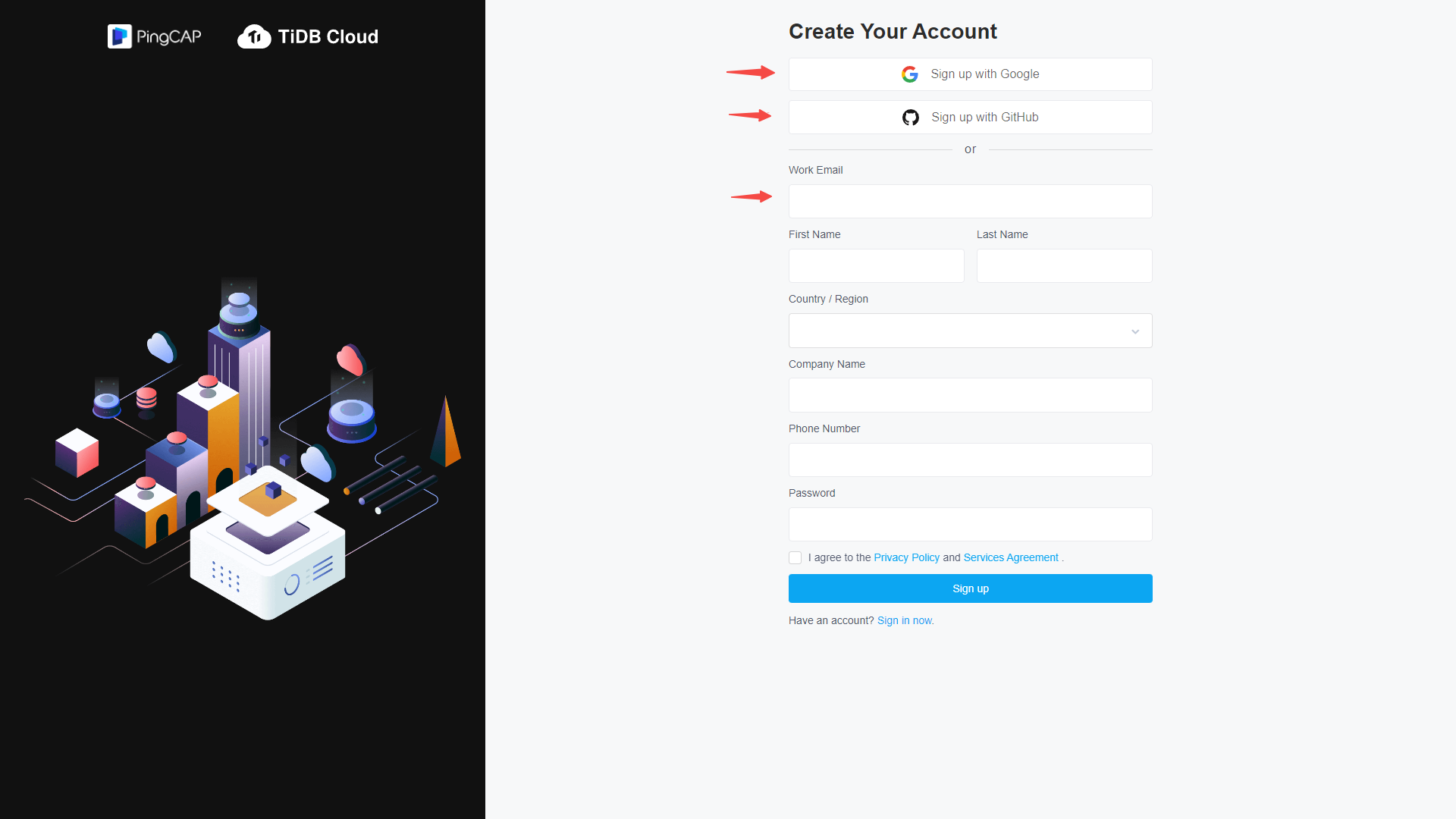
#### 1. 注册 TiDB Cloud: 打开浏览器,访问 `https://tidbcloud.com`,点击 `Sign up` 完成注册并登录
 ****************************
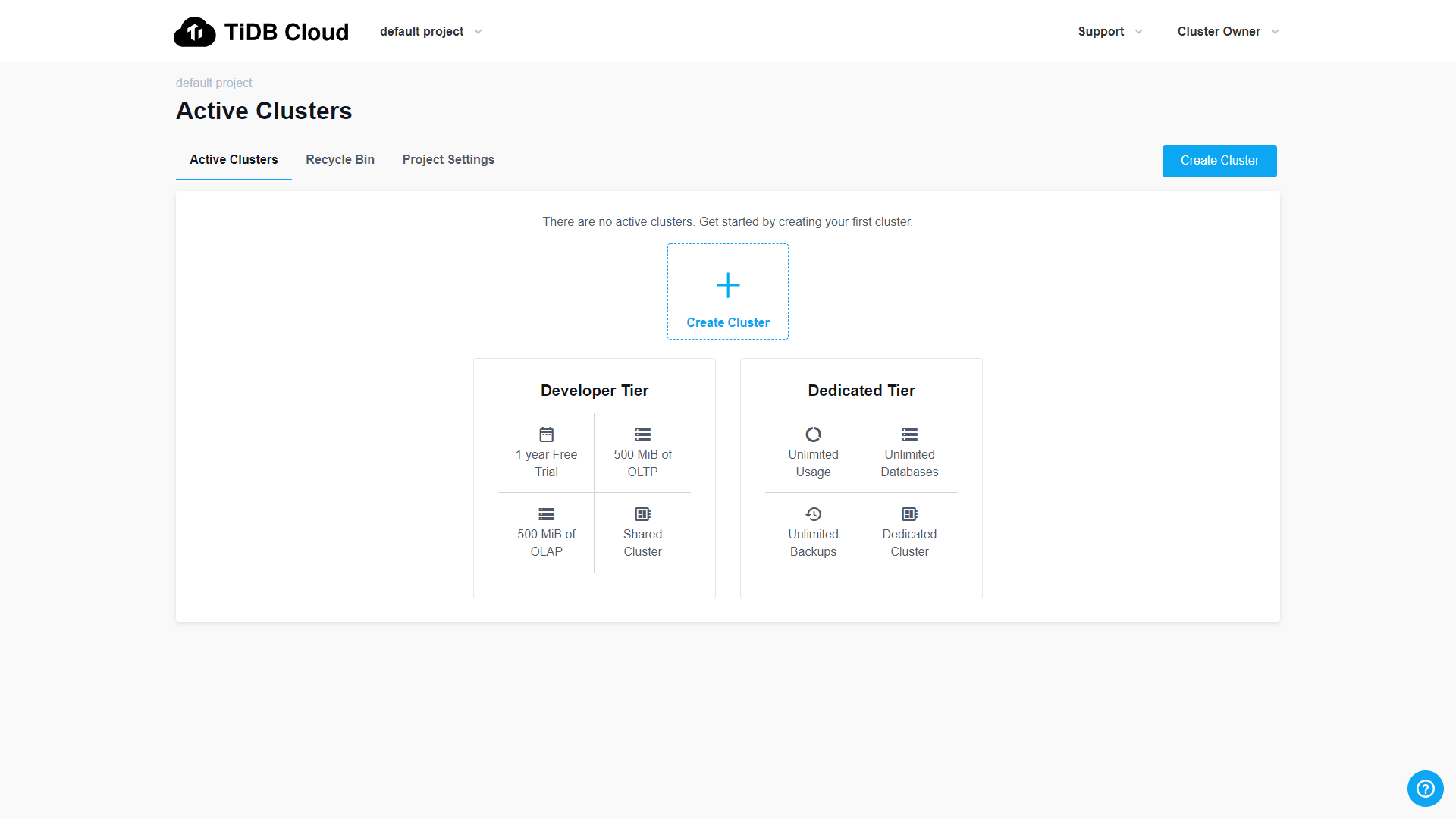
#### 2. 选择 Free Developer Tier: 点击 `Developer Tier`
****************************
#### 2. 选择 Free Developer Tier: 点击 `Developer Tier`
 ****************************
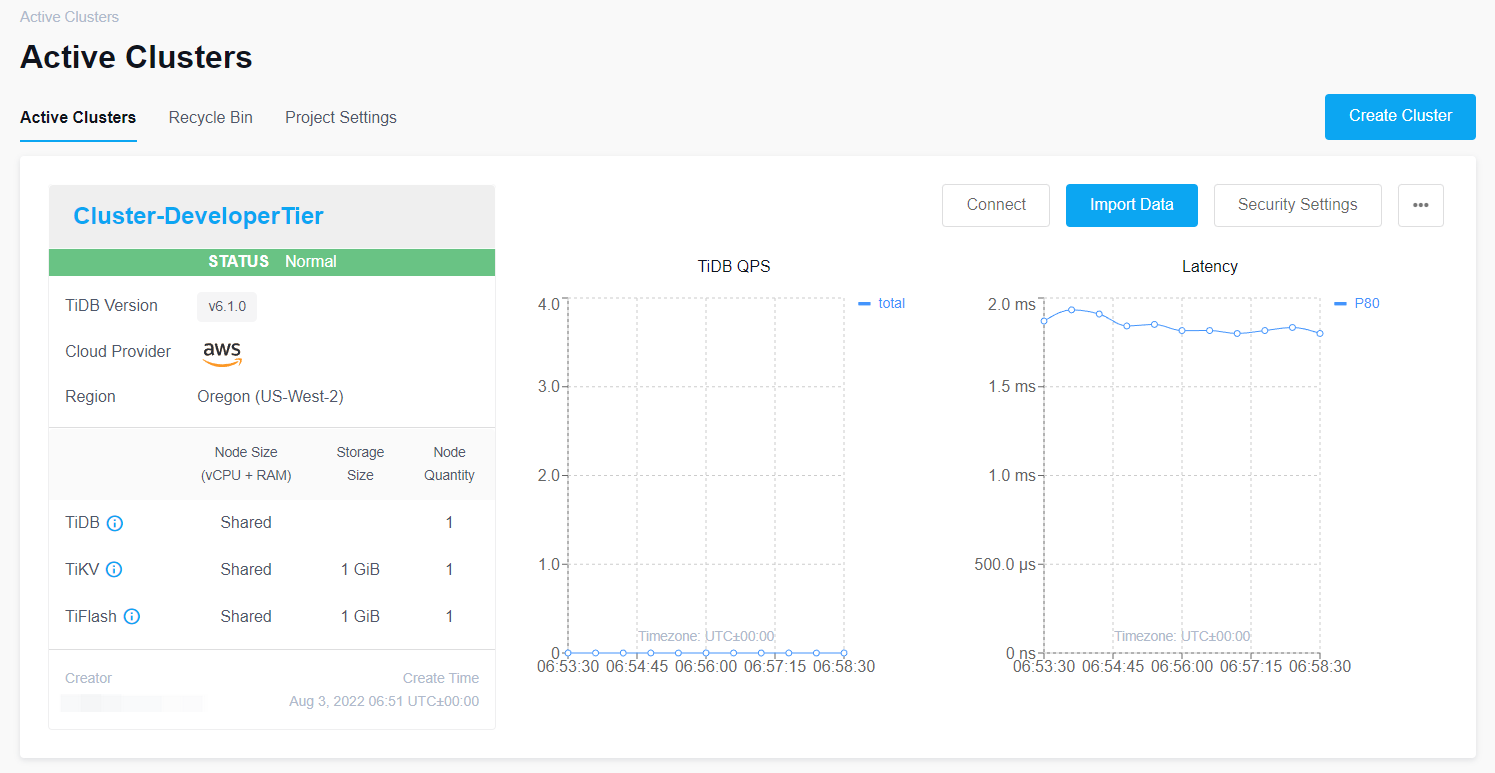
#### 3. 创建测试集群: 为 Cluster 取名、设置密码、选择云供应商、选择区域,点击下方的 `Submit`,观察创建步骤,等待大约 5-15 分钟,直到 `Status` 从 `Creating` 变为 `Normal`
****************************
#### 3. 创建测试集群: 为 Cluster 取名、设置密码、选择云供应商、选择区域,点击下方的 `Submit`,观察创建步骤,等待大约 5-15 分钟,直到 `Status` 从 `Creating` 变为 `Normal`
 ****************************
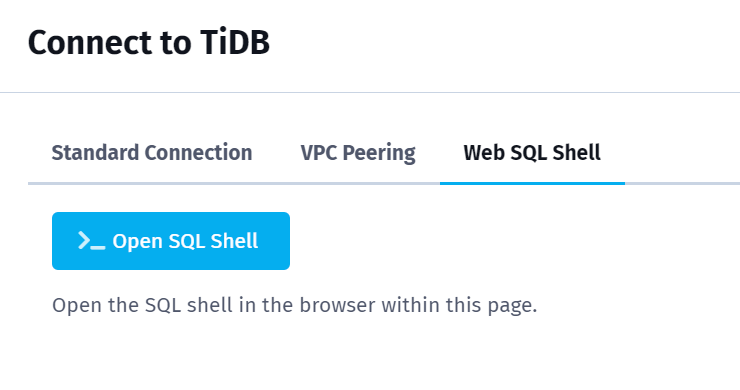
#### 4. 点击右侧的 `Connect`,选择 `Web SQL Shell`,然后点击 `>_ Open SQL Shell`
****************************
#### 4. 点击右侧的 `Connect`,选择 `Web SQL Shell`,然后点击 `>_ Open SQL Shell`
 ****************************
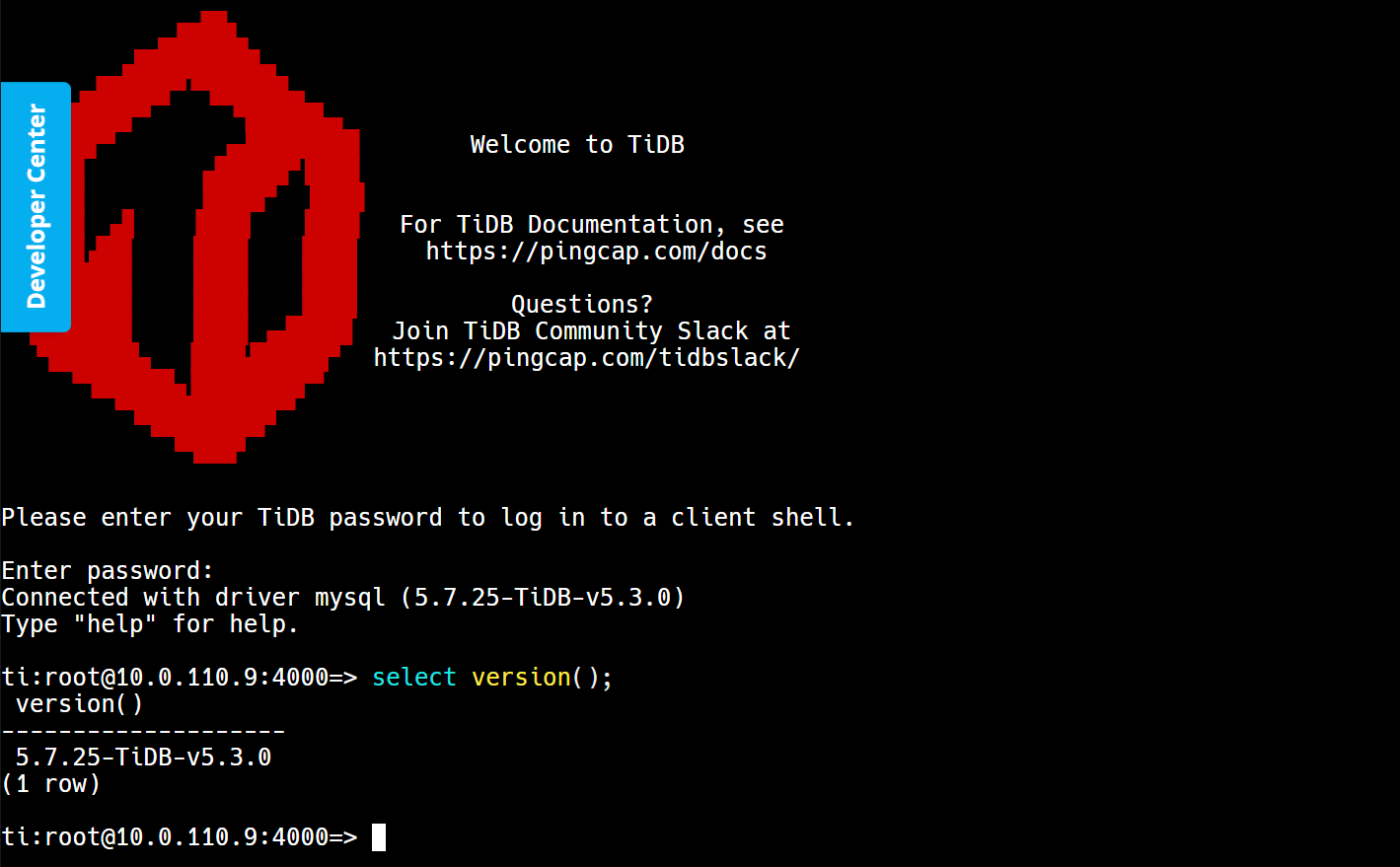
#### 5. 输入在步骤3设置的密码登录,查看数据库版本,并保留会话
****************************
#### 5. 输入在步骤3设置的密码登录,查看数据库版本,并保留会话
 ****************************
#### 6. 从本地终端新开启一个 session 以访问 TiDB Cloud 中的 TiDB:
+ 点击 TiDB Cloud 集群页面上的 `Connect`
+ 在 `Connect to TiDB` 页面里的 `Standard Connection` 中,点击 `Add Your Current IP Address`
+ 复制列在 `Step 2: Connect with a SQL client` 下的命令,并执行 (确认 已被替换为实际 DNS 名)
```
mysql --connect-timeout 15 -uroot -h -P 4000 -p
```
****************************
#### 7. 查看数据库版本:
```sql
tidb> select version();
```
****************************
#### 8. 退出数据库会话 (如有必要)
```
tidb> exit
```
****************************
#### 6. 从本地终端新开启一个 session 以访问 TiDB Cloud 中的 TiDB:
+ 点击 TiDB Cloud 集群页面上的 `Connect`
+ 在 `Connect to TiDB` 页面里的 `Standard Connection` 中,点击 `Add Your Current IP Address`
+ 复制列在 `Step 2: Connect with a SQL client` 下的命令,并执行 (确认 已被替换为实际 DNS 名)
```
mysql --connect-timeout 15 -uroot -h -P 4000 -p
```
****************************
#### 7. 查看数据库版本:
```sql
tidb> select version();
```
****************************
#### 8. 退出数据库会话 (如有必要)
```
tidb> exit
```