# Accessibility Guide
## View Course in Wider Screen
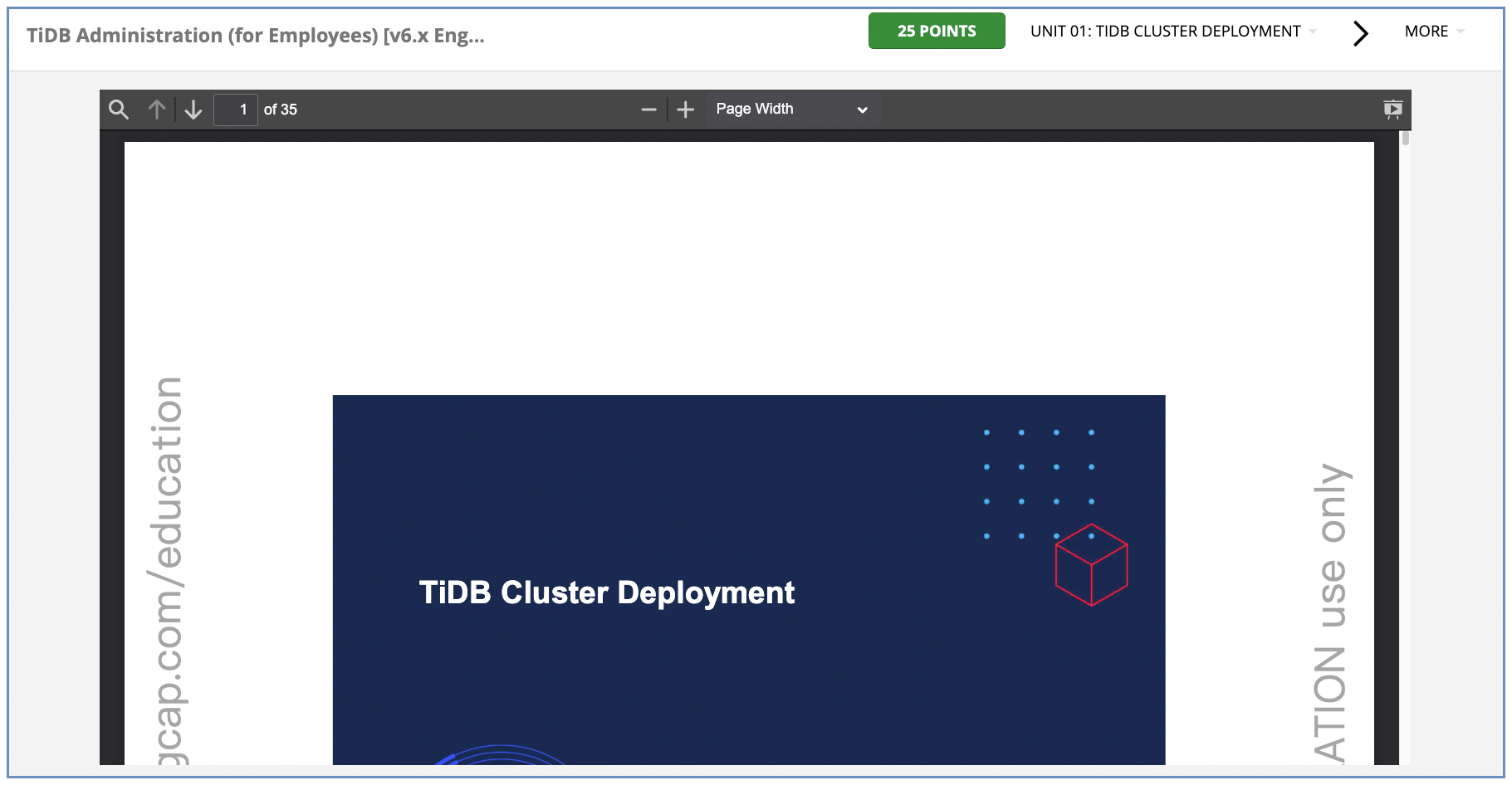
1. If you think the fonts in the course page are too small, click the drop-down menu on the top of the reader.
2. From the drop-down menu, select `Page Width`.
3. If you need to further expand the reading area, focus on the browser by clicking outside the reader, and press the Command and + keys to increase page zoom. (CTRL and + keys for Windows)
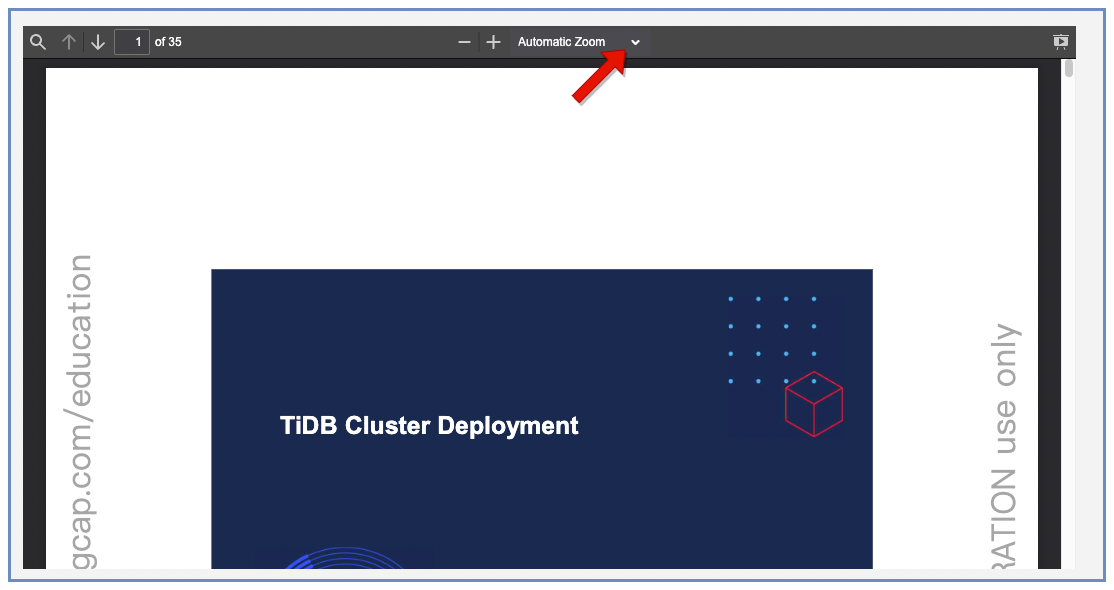 2. From the drop-down menu, select `Page Width`.
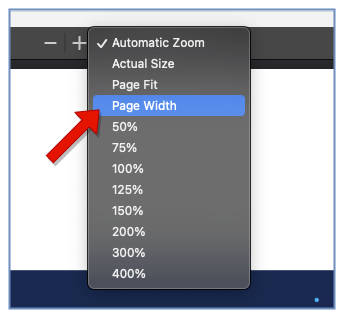 3. If you need to further expand the reading area, focus on the browser by clicking outside the reader, and press the Command and + keys to increase page zoom. (CTRL and + keys for Windows)