# Deploying a TiDB Cluster Using TiUP
### Overview
+ In these exercises, you install the TiUP utility, deploy a TiDB cluster using TiUP, verify the running status of the TiDB cluster, connect to the TiDB server, start/stop the TiDB cluster and then view the configuration files.
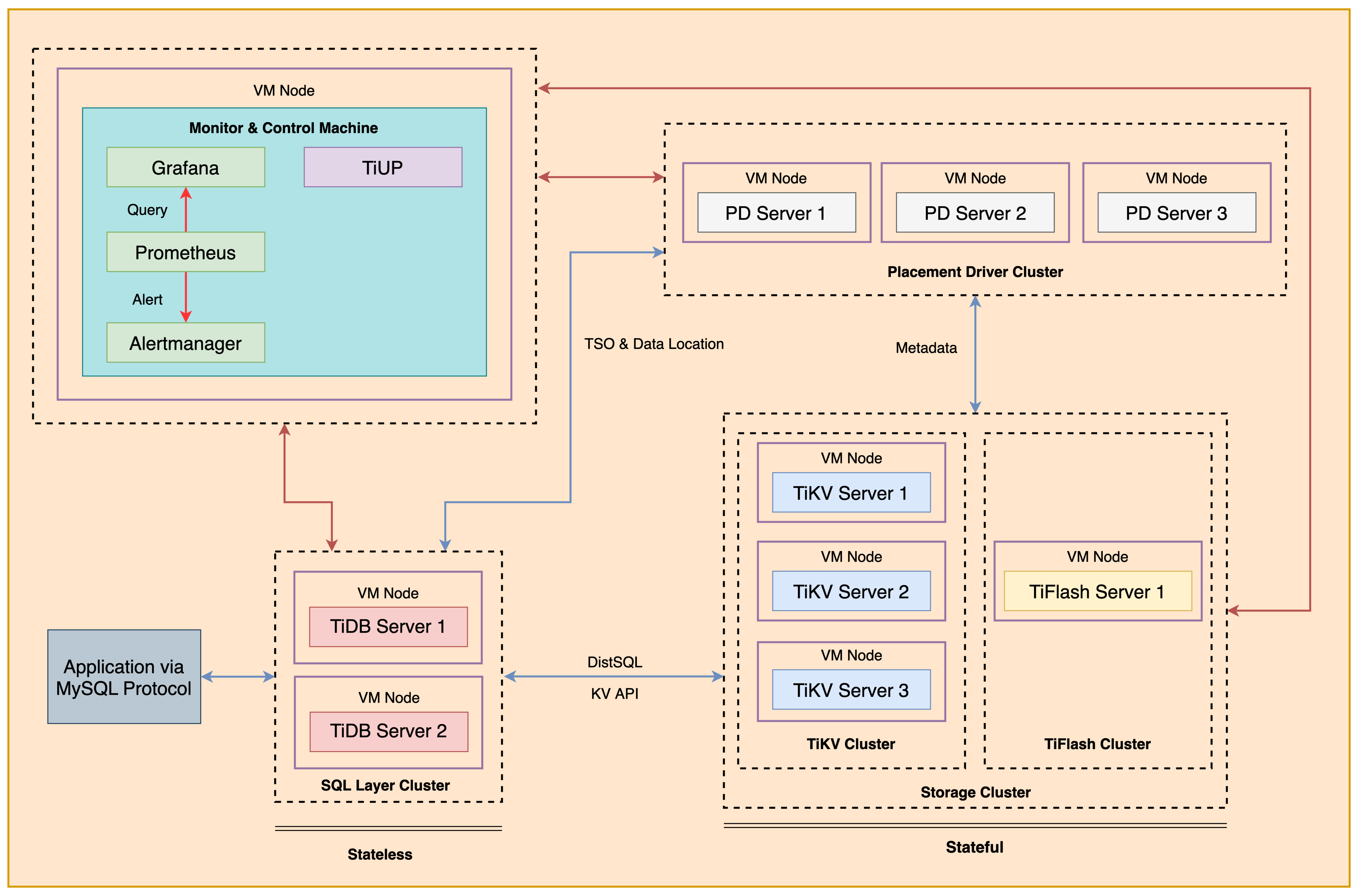
+ The following shows the deployment topology diagram of TiDB cluster.
 ### Notes
+ Completing *Exercises 1: Deploying a TiDB Cluster Using TiUP* is necessary for subsequent exercises to complete successfully.
+ Many of the steps require that you type commands in a terminal window. You might find it convenient to launch a terminal window and keep it open for the duration of the exercises.
+ Your environment may be different with these exercises, including but not limited to `IP`, `port`, `username`, `password` and `directory`.
+ The `$` in your terminal window is an OS prompt.
+ The "`tidb>`" or "`mysql>`" in your terminal window is SQL command prompt.
+ In these exercises, we need 10 machines connected in the network. The `Role` and `IP Address` (represented by environment variables) are as follows:
| `Node Role` | `IP Address` |
| :----------------- | :-------------------------------------------------------- |
| `Monitor 1` | `${HOST_MONITOR1_PRIVATE_IP}, ${HOST_MONITOR1_PUBLIC_IP}` |
| `Control Machine` | `${HOST_CM_PRIVATE_IP}, ${HOST_CM_PUBLIC_IP}` |
| `TiDB server 1` | `${HOST_DB1_PRIVATE_IP}, ${HOST_DB1_PUBLIC_IP}` |
| `TiDB server 2` | `${HOST_DB2_PRIVATE_IP}, ${HOST_DB2_PUBLIC_IP}` |
| `TiKV server 1` | `${HOST_KV1_PRIVATE_IP}, ${HOST_KV1_PUBLIC_IP}` |
| `TiKV server 2` | `${HOST_KV2_PRIVATE_IP}, ${HOST_KV2_PUBLIC_IP}` |
| `TiKV server 3` | `${HOST_KV3_PRIVATE_IP}, ${HOST_KV3_PUBLIC_IP}` |
| `PD server 1` | `${HOST_PD1_PRIVATE_IP}, ${HOST_PD1_PUBLIC_IP}` |
| `PD server 2` | `${HOST_PD2_PRIVATE_IP}, ${HOST_PD2_PUBLIC_IP}` |
| `PD server 3` | `${HOST_PD3_PRIVATE_IP}, ${HOST_PD3_PUBLIC_IP}` |
| `TiFlash server 1` | `${HOST_TIFLASH1_PRIVATE_IP}, ${HOST_TIFLASH1_PUBLIC_IP}` |
| `Alertmanager` | `${HOST_MONITOR1_PRIVATE_IP}, ${HOST_MONITOR1_PUBLIC_IP}` |
| `Grafana` | `${HOST_MONITOR1_PRIVATE_IP}, ${HOST_MONITOR1_PUBLIC_IP}` |
| `Prometheus` | `${HOST_MONITOR1_PRIVATE_IP}, ${HOST_MONITOR1_PUBLIC_IP}` |
+ The node identified as `Monitor 1` is identical to the node identified as `Control Machine`.
### Assumptions
+ You have read the following documents:
+ [Software and Hardware Recommendations](https://docs.pingcap.com/tidb/stable/hardware-and-software-requirements)
+ [TiDB Environment and System Configuration Check](https://docs.pingcap.com/tidb/stable/check-before-deployment)
+ You are given the user credentials (for example: the private key) of the exercise environment.
+ You are given access to 10 machines that have been set up.
+ You should first get familiar with the experiment environment using [this guide](https://github.com/pingcap/tidb-course-201-lab/blob/master/README_303_v65_en_class_setup_guide_for_student.md).
## Exercise 1: Installing TiUP
### Overview
+ In this exercise, you install the TiUP utility and TiUP cluster component. You will perform all tasks on `Monitor 1`, the `Control Machine`.
### Duration
+ This exercise should take you approximately 10 minutes to complete.
### Tasks
1. Login as user `ec2-user` on `Control Machine` (`${HOST_MONITOR1_PUBLIC_IP}`).
2. Check the contents of the `hosts-env.sh` file for IP address information of the nodes that have been assigned to you.
3. Install TiUP.
4. Setup TiUP environment variables.
5. Install the TiUP cluster component.
### Solution Steps
1. Login as user `ec2-user` on `Control Machine` (`${HOST_MONITOR1_PUBLIC_IP}`). Enter the following command at the terminal prompt and receive the results shown:
```
$ ssh -A ec2-user@
__| __|_ )
_| ( / Amazon Linux 2 AMI
___|\___|___|
https://aws.amazon.com/amazon-linux-2/
```
The returned message may be slightly different from what is displayed here.
2. Stay in the `~ec2-user` home directory, check the contents of the `hosts-env.sh` file for IP address information. The output might be different:
```
$ cd
$ cat hosts-env.sh
export HOST_MONITOR1_PRIVATE_IP=10.90.4.19
export HOST_MONITOR1_PUBLIC_IP=44.234.33.106
export HOST_CM_PRIVATE_IP=10.90.4.19
export HOST_CM_PUBLIC_IP=44.234.33.106
export HOST_PD1_PRIVATE_IP=10.90.1.197
export HOST_PD1_PUBLIC_IP=18.236.76.37
export HOST_PD2_PRIVATE_IP=10.90.3.218
export HOST_PD2_PUBLIC_IP=18.237.226.109
export HOST_PD3_PRIVATE_IP=10.90.2.84
export HOST_PD3_PUBLIC_IP=18.237.105.199
export HOST_DB1_PRIVATE_IP=10.90.3.216
export HOST_DB1_PUBLIC_IP=34.222.212.46
export HOST_DB2_PRIVATE_IP=10.90.2.245
export HOST_DB2_PUBLIC_IP=54.188.31.139
export HOST_KV1_PRIVATE_IP=10.90.1.94
export HOST_KV1_PUBLIC_IP=35.87.137.198
export HOST_KV2_PRIVATE_IP=10.90.2.38
export HOST_KV2_PUBLIC_IP=35.91.214.228
export HOST_KV3_PRIVATE_IP=10.90.3.112
export HOST_KV3_PUBLIC_IP=54.184.160.176
export HOST_TIFLASH1_PRIVATE_IP=10.90.4.28
export HOST_TIFLASH1_PUBLIC_IP=34.223.94.92
```
3. Set the node IP address variables in your terminal environment.
```
$ source ./hosts-env.sh
```
4. Install TiUP. Enter the following command at the terminal prompt and receive the results shown:
```
$ curl --proto '=https' --tlsv1.2 -sSf https://tiup-mirrors.pingcap.com/install.sh | sh
% Total % Received % Xferd Average Speed Time Time Time Current
Dload Upload Total Spent Left Speed
100 7085k 100 7085k 0 0 3221k 0 0:00:02 0:00:02 --:--:-- 3222k
WARN: adding root certificate via internet: https://tiup-mirrors.pingcap.com/root.json
You can revoke this by remove /home/ec2-user/.tiup/bin/7b8e153f2e2d0928.root.json
Successfully set mirror to https://tiup-mirrors.pingcap.com
Detected shell: bash
Shell profile: /home/ec2-user/.bash_profile
/home/ec2-user/.bash_profile has been modified to add tiup to PATH
open a new terminal or source /home/ec2-user/.bash_profile to use it
Installed path: /home/ec2-user/.tiup/bin/tiup
===============================================
Have a try: tiup playground
===============================================
```
5. Setup TiUP environment variables. Enter the following command at the terminal prompt:
```
$ source .bash_profile
```
6. Install the TiUP cluster component. Enter the following command at the terminal prompt and receive the results shown:
```
$ tiup cluster
The component `cluster` version is not installed; downloading from the repository.
download https://tiup-mirrors.pingcap.com/cluster-v1.11.0-linux-amd64.tar.gz 8.44 MiB / 8.44 MiB 100.00% 1.83 MiB/s
Starting component `cluster`: /home/ec2-user/.tiup/components/cluster/v1.11.0/tiup-cluster
Deploy a TiDB cluster for production
```
## Exercise 2: Deploying a TiDB Cluster
### Overview
+ In this exercise, you create and edit the `topology-ten-nodes.yaml` file, and then deploy a TiDB cluster using TiUP. You will perform all tasks on `Monitor 1`, the `Control Machine`.
### Duration
+ This exercise should take you approximately 20 minutes to complete.
### Tasks
1. Create a cluster topology file.
2. Use a text editor to edit the `topology-ten-nodes.yaml` file.
3. Install `numactl` on all machines, and then return to the `Control Machine`.
4. Check for potential risks.
5. Enable automatic repair.
6. Deploy a TiDB cluster.
### Solution
1. On `Control Machine`, create a cluster topology file. You may use `tiup cluster template > topology-ten-nodes.yaml` to generate a template. But for this lab, we have provided you a template. See step 2.
2. Use a text editor to edit the `topology-ten-nodes.yaml` file. Modify `topology-ten-nodes.yaml` file to contain settings similar to those that follow (replace the IP addresses with the correct ones assigned to you, if you feel lost from the steps, you can refer to the solution `yaml` file at `~/solution-topology-ten-nodes.yaml`):
```
$ vi topology-ten-nodes.yaml
```
```
global:
user: "ec2-user"
ssh_port: 22
deploy_dir: "/tidb-deploy"
data_dir: "/tidb-data"
arch: "amd64"
server_configs:
pd:
replication.location-labels: ["region","zone","storage-performance"]
replication.max-replicas: 3
pd_servers:
- host:
client_port: 2379
peer_port: 2380
config:
server.labels:
region: oregon
zone: az1
- host:
client_port: 2379
peer_port: 2380
config:
server.labels:
region: oregon
zone: az2
- host:
client_port: 2379
peer_port: 2380
config:
server.labels:
region: oregon
zone: az3
tidb_servers:
- host:
port: 4000
status_port: 10080
deploy_dir: /tidb-deploy/tidb-4000
log_dir: /tidb-deploy/tidb-4000/log
- host:
port: 4000
status_port: 10080
deploy_dir: /tidb-deploy/tidb-4000
log_dir: /tidb-deploy/tidb-4000/log
tikv_servers:
- host:
port: 20160
status_port: 20180
config:
server.labels:
region: oregon
zone: az1
storage-performance: high
- host:
port: 20160
status_port: 20180
config:
server.labels:
region: oregon
zone: az2
storage-performance: high
- host:
port: 20160
status_port: 20180
config:
server.labels:
region: oregon
zone: az3
storage-performance: high
tiflash_servers:
- host:
tcp_port: 9000
flash_service_port: 3930
deploy_dir: /tidb-deploy/tiflash-9000
data_dir: /tidb-data/tiflash-9000
log_dir: /tidb-deploy/tiflash-9000/log
monitoring_servers:
- host:
grafana_servers:
- host:
alertmanager_servers:
- host:
```
If you would like to have your TiDB Dashboard accessible from a public IP address, you can use `advertise_client_addr` in the configuration of PD Servers. Our `~/solution-topology-ten-nodes.yaml` use this. Please take extra cautious when using this in production environment, as it may violates security best practices.
3. Make sure to install `numactl` on all cluster nodes (the task should be already completed in the classroom environment, so there is no need to actually execute the installation on all nodes, if you don't know how to get the `${HOST_KV1_PRIVATE_IP}` please ask your instructor for help). Enter the following command at the terminal prompt to install `numactl` on `TiKV server 1` for example (type `yes` if prompt for `SSH`):
```
$ ssh $HOST_KV1_PRIVATE_IP
...
__| __|_ )
_| ( / Amazon Linux 2 AMI
___|\___|___|
...
$ sudo yum -y install numactl
...
```
Remember to return to the control machine:
```
$ exit
logout
...
```
4. Check system settings for cluster deployment prerequisites. Enter the following command at the terminal prompt and receive the results shown:
```
$ tiup cluster check ./topology-ten-nodes.yaml
Node Check Result Message
---- ----- ------ -------
172.31.0.215 exist Fail /tidb-deploy/tikv-20160 already exists
172.31.0.215 exist Fail /tidb-data/tikv-20160 already exists
172.31.0.215 exist Fail /tidb-deploy/tikv-20160/log already exists
172.31.0.215 cpu-governor Warn Unable to determine current CPU frequency governor policy
172.31.0.215 memory Pass memory size is 8192MB
172.31.0.215 command Pass numactl: policy: default
172.31.0.215 timezone Fail invalid character 'S' looking for beginning of value
172.31.0.215 selinux Pass SELinux is disabled
172.31.0.215 thp Pass THP is disabled
172.31.0.215 os-version Pass OS is CentOS Linux 7 (Core) 7.6.1810
172.31.0.215 cpu-cores Pass number of CPU cores / threads: 4
172.31.0.215 disk Fail mount point / does not have 'nodelalloc' option set
172.31.0.215 disk Warn mount point / does not have 'noatime' option set
...
```
5. Enable automatic repair for the failed checks. Enter the following command at the terminal prompt and receive the results shown:
```
$ tiup cluster check ./topology-ten-nodes.yaml --apply
tiup is checking updates for component cluster ...
Starting component `cluster`: /home/ec2-user/.tiup/components/cluster/v1.11.0/tiup-cluster check ./topology-ten-nodes.yaml --apply --user root -p
Input SSH password:
+ Detect CPU Arch Name
- Detecting node 172.31.0.250 Arch info ... ⠙ Shell: host=172.31.0.250, sudo=false, command=`uname -m`
- Detecting node 172.31.0.112 Arch info ... ⠙ Shell: host=172.31.0.112, sudo=false, command=`uname -m`
+ Detect CPU Arch Name
- Detecting node 172.31.0.253 Arch info ... Done
...
+ Try to apply changes to fix failed checks
- Applying changes on 172.31.0.250 ... Done
- Applying changes on 172.31.0.112 ... Done
- Applying changes on 172.31.0.253 ... Done
- Applying changes on 172.31.0.34 ... Done
- Applying changes on 172.31.0.215 ... Done
- Applying changes on 172.31.0.85 ... Done
- Applying changes on 172.31.0.106 ... Done
- Applying changes on 172.31.0.45 ... Done
```
6. Deploy a TiDB cluster named `tidb-test`. Enter the following command at the terminal prompt and receive the results shown. We include `--yes` in the command. Without `--yes`, you will be prompted to check the cluster topology during the deployment.
```
$ tiup cluster deploy tidb-test v6.5.0 ./topology-ten-nodes.yaml --yes
tiup is checking updates for component cluster ...
...
Cluster `tidb-test` deployed successfully, you can start it with command: `tiup cluster start tidb-test --init`
```
## Exercise 3: Checking the Status of the Deployed TiDB Cluster
### Overview
+ In this exercise, you check the cluster status and start the deployed TiDB cluster, and then verify the running status of the TiDB cluster using TiUP command line and `TiDB Dashboard` or `Grafana`. You complete the majority tasks on the `Control Machine`, node `monitor1`.
### Duration
+ This exercise should take you approximately 15 minutes to complete.
### Tasks
1. Check the clusters managed by TiUP.
2. Check the status of the deployed TiDB cluster.
3. Start the deployed TiDB cluster.
4. Verify the running status of the TiDB cluster.
### Solution
1. On `Control Machine`, check the clusters managed by TiUP. Enter the following command at the terminal prompt and receive the results shown:
```
$ tiup cluster list
tiup is checking updates for component cluster ...
Starting component `cluster`: /home/ec2-user/.tiup/components/cluster/v1.10.1/tiup-cluster list
Name User Version Path PrivateKey
---- ---- ------- ---- ----------
tidb-test tidb v6.5.0 /home/ec2-user/.tiup/storage/cluster/clusters/tidb-test /home/ec2-user/.tiup/storage/cluster/clusters/tidb-test/ssh/id_rsa
```
2. Check the status of the deployed TiDB cluster. Enter the following command at the terminal prompt and receive the results shown:
```
$ tiup cluster display tidb-test
tiup is checking updates for component cluster ...
Starting component `cluster`: /home/ec2-user/.tiup/components/cluster/v1.12.1/tiup-cluster display tidb-test
Cluster type: tidb
Cluster name: tidb-test
Cluster version: v6.5.0
Deploy user: tidb
SSH type: builtin
Dashboard URL: http://10.90.1.157:2379/dashboard
Grafana URL: http://10.90.4.229:3000
ID Role Host Ports OS/Arch Status Data Dir Deploy Dir
-- ---- ---- ----- ------- ------ -------- ----------
10.90.4.229:9093 alertmanager 10.90.4.229 9093/9094 linux/x86_64 Down /tidb-data/alertmanager-9093 /tidb-deploy/alertmanager-9093
10.90.4.229:3000 grafana 10.90.4.229 3000 linux/x86_64 Down - /tidb-deploy/grafana-3000
10.90.1.157:2379 pd 10.90.1.157 2379/2380 linux/x86_64 Down /tidb-data/pd-2379 /tidb-deploy/pd-2379
10.90.2.207:2379 pd 10.90.2.207 2379/2380 linux/x86_64 Down /tidb-data/pd-2379 /tidb-deploy/pd-2379
10.90.3.169:2379 pd 10.90.3.169 2379/2380 linux/x86_64 Down /tidb-data/pd-2379 /tidb-deploy/pd-2379
10.90.4.229:9090 prometheus 10.90.4.229 9090/12020 linux/x86_64 Down /tidb-data/prometheus-9090 /tidb-deploy/prometheus-9090
10.90.1.127:4000 tidb 10.90.1.127 4000/10080 linux/x86_64 Down - /tidb-deploy/tidb-4000
10.90.2.227:4000 tidb 10.90.2.227 4000/10080 linux/x86_64 Down - /tidb-deploy/tidb-4000
10.90.4.33:9000 tiflash 10.90.4.33 9000/8123/3930/20170/20292/8234 linux/x86_64 N/A /tidb-data/tiflash-9000 /tidb-deploy/tiflash-9000
10.90.1.137:20160 tikv 10.90.1.137 20160/20180 linux/x86_64 N/A /tidb-data/tikv-20160 /tidb-deploy/tikv-20160
10.90.2.24:20160 tikv 10.90.2.24 20160/20180 linux/x86_64 N/A /tidb-data/tikv-20160 /tidb-deploy/tikv-20160
10.90.3.198:20160 tikv 10.90.3.198 20160/20180 linux/x86_64 N/A /tidb-data/tikv-20160 /tidb-deploy/tikv-20160
Total nodes: 12
```
3. Start the TiDB cluster with standard startup mode (`root` user with empty password). Enter the following command at the terminal prompt and receive the results shown:
```
$ tiup cluster start tidb-test
...
Started cluster `tidb-test` successfully
```
+ (optional) Start the TiDB cluster with safe startup mode (a random password will be generated for `root` user).
```
$ tiup cluster start tidb-test --init
tiup is checking updates for component cluster ...
Starting component `cluster`: /home/ec2-user/.tiup/components/cluster/v1.11.0/tiup-cluster start tidb-test --init
Starting cluster tidb-test...
...
Starting component blackbox_exporter
Starting instance 172.31.0.106
Starting instance 172.31.0.253
Starting instance 172.31.0.45
Starting instance 172.31.0.34
Starting instance 172.31.0.250
Starting instance 172.31.0.112
Starting instance 172.31.0.215
Starting instance 172.31.0.85
Start 172.31.0.85 success
Start 172.31.0.250 success
Start 172.31.0.106 success
Start 172.31.0.215 success
Start 172.31.0.34 success
Start 172.31.0.45 success
Start 172.31.0.112 success
Start 172.31.0.253 success
+ [ Serial ] - UpdateTopology: cluster=tidb-test
Started cluster `tidb-test` successfully
The root password of TiDB database has been changed.
The new password is: 'sB5&t1%n=bz2y4_9g0'.
Copy and record it to somewhere safe, it is only displayed once, and will not be stored.
The generated password can NOT be get and shown again.
```
4. Check the status of the started TiDB cluster. Enter the following command at the terminal prompt and receive the results shown:
```
$ tiup cluster display tidb-test
tiup is checking updates for component cluster ...
Starting component `cluster`: /home/ec2-user/.tiup/components/cluster/v1.12.1/tiup-cluster display tidb-test
Cluster type: tidb
Cluster name: tidb-test
Cluster version: v6.5.0
Deploy user: tidb
SSH type: builtin
Dashboard URL: http://10.90.1.157:2379/dashboard
Grafana URL: http://10.90.4.229:3000
ID Role Host Ports OS/Arch Status Data Dir Deploy Dir
-- ---- ---- ----- ------- ------ -------- ----------
10.90.4.229:9093 alertmanager 10.90.4.229 9093/9094 linux/x86_64 Up /tidb-data/alertmanager-9093 /tidb-deploy/alertmanager-9093
10.90.4.229:3000 grafana 10.90.4.229 3000 linux/x86_64 Up - /tidb-deploy/grafana-3000
10.90.1.157:2379 pd 10.90.1.157 2379/2380 linux/x86_64 Up|UI /tidb-data/pd-2379 /tidb-deploy/pd-2379
10.90.2.207:2379 pd 10.90.2.207 2379/2380 linux/x86_64 Up|L /tidb-data/pd-2379 /tidb-deploy/pd-2379
10.90.3.169:2379 pd 10.90.3.169 2379/2380 linux/x86_64 Up /tidb-data/pd-2379 /tidb-deploy/pd-2379
10.90.4.229:9090 prometheus 10.90.4.229 9090/12020 linux/x86_64 Up /tidb-data/prometheus-9090 /tidb-deploy/prometheus-9090
10.90.1.127:4000 tidb 10.90.1.127 4000/10080 linux/x86_64 Up - /tidb-deploy/tidb-4000
10.90.2.227:4000 tidb 10.90.2.227 4000/10080 linux/x86_64 Up - /tidb-deploy/tidb-4000
10.90.4.33:9000 tiflash 10.90.4.33 9000/8123/3930/20170/20292/8234 linux/x86_64 Up /tidb-data/tiflash-9000 /tidb-deploy/tiflash-9000
10.90.1.137:20160 tikv 10.90.1.137 20160/20180 linux/x86_64 Up /tidb-data/tikv-20160 /tidb-deploy/tikv-20160
10.90.2.24:20160 tikv 10.90.2.24 20160/20180 linux/x86_64 Up /tidb-data/tikv-20160 /tidb-deploy/tikv-20160
10.90.3.198:20160 tikv 10.90.3.198 20160/20180 linux/x86_64 Up /tidb-data/tikv-20160 /tidb-deploy/tikv-20160
Total nodes: 12
```
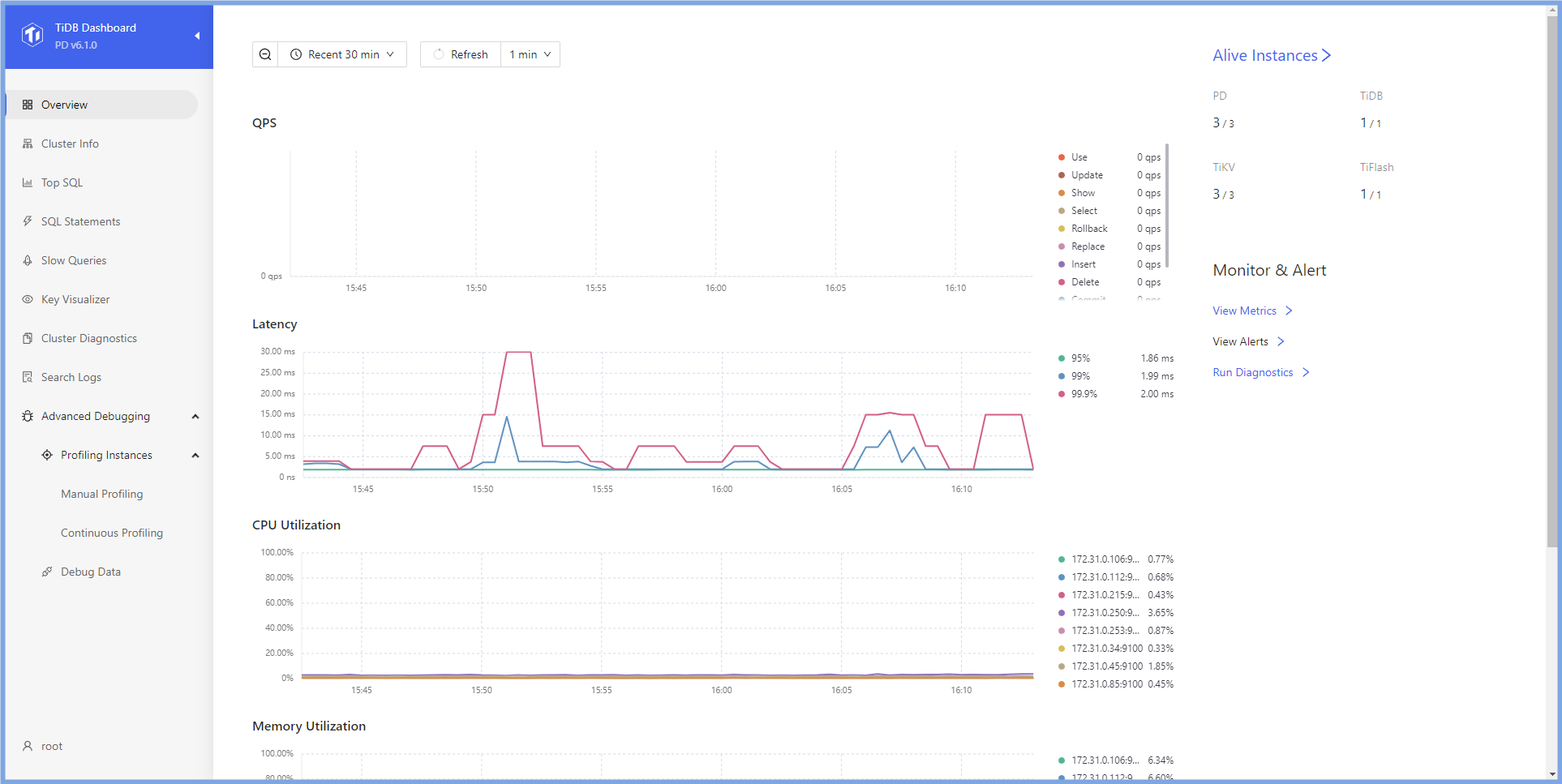
5. Check cluster status with `TiDB Dashboard`. Open your browser, log in to `TiDB Dashboard` according to the `Dashboard URL` shown in the previous step. The username and password is the same as that of the TiDB `root` user. The password is empty if you choose the standard startup in step `3`. The home page displays the node information for the TiDB cluster.
### Notes
+ Completing *Exercises 1: Deploying a TiDB Cluster Using TiUP* is necessary for subsequent exercises to complete successfully.
+ Many of the steps require that you type commands in a terminal window. You might find it convenient to launch a terminal window and keep it open for the duration of the exercises.
+ Your environment may be different with these exercises, including but not limited to `IP`, `port`, `username`, `password` and `directory`.
+ The `$` in your terminal window is an OS prompt.
+ The "`tidb>`" or "`mysql>`" in your terminal window is SQL command prompt.
+ In these exercises, we need 10 machines connected in the network. The `Role` and `IP Address` (represented by environment variables) are as follows:
| `Node Role` | `IP Address` |
| :----------------- | :-------------------------------------------------------- |
| `Monitor 1` | `${HOST_MONITOR1_PRIVATE_IP}, ${HOST_MONITOR1_PUBLIC_IP}` |
| `Control Machine` | `${HOST_CM_PRIVATE_IP}, ${HOST_CM_PUBLIC_IP}` |
| `TiDB server 1` | `${HOST_DB1_PRIVATE_IP}, ${HOST_DB1_PUBLIC_IP}` |
| `TiDB server 2` | `${HOST_DB2_PRIVATE_IP}, ${HOST_DB2_PUBLIC_IP}` |
| `TiKV server 1` | `${HOST_KV1_PRIVATE_IP}, ${HOST_KV1_PUBLIC_IP}` |
| `TiKV server 2` | `${HOST_KV2_PRIVATE_IP}, ${HOST_KV2_PUBLIC_IP}` |
| `TiKV server 3` | `${HOST_KV3_PRIVATE_IP}, ${HOST_KV3_PUBLIC_IP}` |
| `PD server 1` | `${HOST_PD1_PRIVATE_IP}, ${HOST_PD1_PUBLIC_IP}` |
| `PD server 2` | `${HOST_PD2_PRIVATE_IP}, ${HOST_PD2_PUBLIC_IP}` |
| `PD server 3` | `${HOST_PD3_PRIVATE_IP}, ${HOST_PD3_PUBLIC_IP}` |
| `TiFlash server 1` | `${HOST_TIFLASH1_PRIVATE_IP}, ${HOST_TIFLASH1_PUBLIC_IP}` |
| `Alertmanager` | `${HOST_MONITOR1_PRIVATE_IP}, ${HOST_MONITOR1_PUBLIC_IP}` |
| `Grafana` | `${HOST_MONITOR1_PRIVATE_IP}, ${HOST_MONITOR1_PUBLIC_IP}` |
| `Prometheus` | `${HOST_MONITOR1_PRIVATE_IP}, ${HOST_MONITOR1_PUBLIC_IP}` |
+ The node identified as `Monitor 1` is identical to the node identified as `Control Machine`.
### Assumptions
+ You have read the following documents:
+ [Software and Hardware Recommendations](https://docs.pingcap.com/tidb/stable/hardware-and-software-requirements)
+ [TiDB Environment and System Configuration Check](https://docs.pingcap.com/tidb/stable/check-before-deployment)
+ You are given the user credentials (for example: the private key) of the exercise environment.
+ You are given access to 10 machines that have been set up.
+ You should first get familiar with the experiment environment using [this guide](https://github.com/pingcap/tidb-course-201-lab/blob/master/README_303_v65_en_class_setup_guide_for_student.md).
## Exercise 1: Installing TiUP
### Overview
+ In this exercise, you install the TiUP utility and TiUP cluster component. You will perform all tasks on `Monitor 1`, the `Control Machine`.
### Duration
+ This exercise should take you approximately 10 minutes to complete.
### Tasks
1. Login as user `ec2-user` on `Control Machine` (`${HOST_MONITOR1_PUBLIC_IP}`).
2. Check the contents of the `hosts-env.sh` file for IP address information of the nodes that have been assigned to you.
3. Install TiUP.
4. Setup TiUP environment variables.
5. Install the TiUP cluster component.
### Solution Steps
1. Login as user `ec2-user` on `Control Machine` (`${HOST_MONITOR1_PUBLIC_IP}`). Enter the following command at the terminal prompt and receive the results shown:
```
$ ssh -A ec2-user@
__| __|_ )
_| ( / Amazon Linux 2 AMI
___|\___|___|
https://aws.amazon.com/amazon-linux-2/
```
The returned message may be slightly different from what is displayed here.
2. Stay in the `~ec2-user` home directory, check the contents of the `hosts-env.sh` file for IP address information. The output might be different:
```
$ cd
$ cat hosts-env.sh
export HOST_MONITOR1_PRIVATE_IP=10.90.4.19
export HOST_MONITOR1_PUBLIC_IP=44.234.33.106
export HOST_CM_PRIVATE_IP=10.90.4.19
export HOST_CM_PUBLIC_IP=44.234.33.106
export HOST_PD1_PRIVATE_IP=10.90.1.197
export HOST_PD1_PUBLIC_IP=18.236.76.37
export HOST_PD2_PRIVATE_IP=10.90.3.218
export HOST_PD2_PUBLIC_IP=18.237.226.109
export HOST_PD3_PRIVATE_IP=10.90.2.84
export HOST_PD3_PUBLIC_IP=18.237.105.199
export HOST_DB1_PRIVATE_IP=10.90.3.216
export HOST_DB1_PUBLIC_IP=34.222.212.46
export HOST_DB2_PRIVATE_IP=10.90.2.245
export HOST_DB2_PUBLIC_IP=54.188.31.139
export HOST_KV1_PRIVATE_IP=10.90.1.94
export HOST_KV1_PUBLIC_IP=35.87.137.198
export HOST_KV2_PRIVATE_IP=10.90.2.38
export HOST_KV2_PUBLIC_IP=35.91.214.228
export HOST_KV3_PRIVATE_IP=10.90.3.112
export HOST_KV3_PUBLIC_IP=54.184.160.176
export HOST_TIFLASH1_PRIVATE_IP=10.90.4.28
export HOST_TIFLASH1_PUBLIC_IP=34.223.94.92
```
3. Set the node IP address variables in your terminal environment.
```
$ source ./hosts-env.sh
```
4. Install TiUP. Enter the following command at the terminal prompt and receive the results shown:
```
$ curl --proto '=https' --tlsv1.2 -sSf https://tiup-mirrors.pingcap.com/install.sh | sh
% Total % Received % Xferd Average Speed Time Time Time Current
Dload Upload Total Spent Left Speed
100 7085k 100 7085k 0 0 3221k 0 0:00:02 0:00:02 --:--:-- 3222k
WARN: adding root certificate via internet: https://tiup-mirrors.pingcap.com/root.json
You can revoke this by remove /home/ec2-user/.tiup/bin/7b8e153f2e2d0928.root.json
Successfully set mirror to https://tiup-mirrors.pingcap.com
Detected shell: bash
Shell profile: /home/ec2-user/.bash_profile
/home/ec2-user/.bash_profile has been modified to add tiup to PATH
open a new terminal or source /home/ec2-user/.bash_profile to use it
Installed path: /home/ec2-user/.tiup/bin/tiup
===============================================
Have a try: tiup playground
===============================================
```
5. Setup TiUP environment variables. Enter the following command at the terminal prompt:
```
$ source .bash_profile
```
6. Install the TiUP cluster component. Enter the following command at the terminal prompt and receive the results shown:
```
$ tiup cluster
The component `cluster` version is not installed; downloading from the repository.
download https://tiup-mirrors.pingcap.com/cluster-v1.11.0-linux-amd64.tar.gz 8.44 MiB / 8.44 MiB 100.00% 1.83 MiB/s
Starting component `cluster`: /home/ec2-user/.tiup/components/cluster/v1.11.0/tiup-cluster
Deploy a TiDB cluster for production
```
## Exercise 2: Deploying a TiDB Cluster
### Overview
+ In this exercise, you create and edit the `topology-ten-nodes.yaml` file, and then deploy a TiDB cluster using TiUP. You will perform all tasks on `Monitor 1`, the `Control Machine`.
### Duration
+ This exercise should take you approximately 20 minutes to complete.
### Tasks
1. Create a cluster topology file.
2. Use a text editor to edit the `topology-ten-nodes.yaml` file.
3. Install `numactl` on all machines, and then return to the `Control Machine`.
4. Check for potential risks.
5. Enable automatic repair.
6. Deploy a TiDB cluster.
### Solution
1. On `Control Machine`, create a cluster topology file. You may use `tiup cluster template > topology-ten-nodes.yaml` to generate a template. But for this lab, we have provided you a template. See step 2.
2. Use a text editor to edit the `topology-ten-nodes.yaml` file. Modify `topology-ten-nodes.yaml` file to contain settings similar to those that follow (replace the IP addresses with the correct ones assigned to you, if you feel lost from the steps, you can refer to the solution `yaml` file at `~/solution-topology-ten-nodes.yaml`):
```
$ vi topology-ten-nodes.yaml
```
```
global:
user: "ec2-user"
ssh_port: 22
deploy_dir: "/tidb-deploy"
data_dir: "/tidb-data"
arch: "amd64"
server_configs:
pd:
replication.location-labels: ["region","zone","storage-performance"]
replication.max-replicas: 3
pd_servers:
- host:
client_port: 2379
peer_port: 2380
config:
server.labels:
region: oregon
zone: az1
- host:
client_port: 2379
peer_port: 2380
config:
server.labels:
region: oregon
zone: az2
- host:
client_port: 2379
peer_port: 2380
config:
server.labels:
region: oregon
zone: az3
tidb_servers:
- host:
port: 4000
status_port: 10080
deploy_dir: /tidb-deploy/tidb-4000
log_dir: /tidb-deploy/tidb-4000/log
- host:
port: 4000
status_port: 10080
deploy_dir: /tidb-deploy/tidb-4000
log_dir: /tidb-deploy/tidb-4000/log
tikv_servers:
- host:
port: 20160
status_port: 20180
config:
server.labels:
region: oregon
zone: az1
storage-performance: high
- host:
port: 20160
status_port: 20180
config:
server.labels:
region: oregon
zone: az2
storage-performance: high
- host:
port: 20160
status_port: 20180
config:
server.labels:
region: oregon
zone: az3
storage-performance: high
tiflash_servers:
- host:
tcp_port: 9000
flash_service_port: 3930
deploy_dir: /tidb-deploy/tiflash-9000
data_dir: /tidb-data/tiflash-9000
log_dir: /tidb-deploy/tiflash-9000/log
monitoring_servers:
- host:
grafana_servers:
- host:
alertmanager_servers:
- host:
```
If you would like to have your TiDB Dashboard accessible from a public IP address, you can use `advertise_client_addr` in the configuration of PD Servers. Our `~/solution-topology-ten-nodes.yaml` use this. Please take extra cautious when using this in production environment, as it may violates security best practices.
3. Make sure to install `numactl` on all cluster nodes (the task should be already completed in the classroom environment, so there is no need to actually execute the installation on all nodes, if you don't know how to get the `${HOST_KV1_PRIVATE_IP}` please ask your instructor for help). Enter the following command at the terminal prompt to install `numactl` on `TiKV server 1` for example (type `yes` if prompt for `SSH`):
```
$ ssh $HOST_KV1_PRIVATE_IP
...
__| __|_ )
_| ( / Amazon Linux 2 AMI
___|\___|___|
...
$ sudo yum -y install numactl
...
```
Remember to return to the control machine:
```
$ exit
logout
...
```
4. Check system settings for cluster deployment prerequisites. Enter the following command at the terminal prompt and receive the results shown:
```
$ tiup cluster check ./topology-ten-nodes.yaml
Node Check Result Message
---- ----- ------ -------
172.31.0.215 exist Fail /tidb-deploy/tikv-20160 already exists
172.31.0.215 exist Fail /tidb-data/tikv-20160 already exists
172.31.0.215 exist Fail /tidb-deploy/tikv-20160/log already exists
172.31.0.215 cpu-governor Warn Unable to determine current CPU frequency governor policy
172.31.0.215 memory Pass memory size is 8192MB
172.31.0.215 command Pass numactl: policy: default
172.31.0.215 timezone Fail invalid character 'S' looking for beginning of value
172.31.0.215 selinux Pass SELinux is disabled
172.31.0.215 thp Pass THP is disabled
172.31.0.215 os-version Pass OS is CentOS Linux 7 (Core) 7.6.1810
172.31.0.215 cpu-cores Pass number of CPU cores / threads: 4
172.31.0.215 disk Fail mount point / does not have 'nodelalloc' option set
172.31.0.215 disk Warn mount point / does not have 'noatime' option set
...
```
5. Enable automatic repair for the failed checks. Enter the following command at the terminal prompt and receive the results shown:
```
$ tiup cluster check ./topology-ten-nodes.yaml --apply
tiup is checking updates for component cluster ...
Starting component `cluster`: /home/ec2-user/.tiup/components/cluster/v1.11.0/tiup-cluster check ./topology-ten-nodes.yaml --apply --user root -p
Input SSH password:
+ Detect CPU Arch Name
- Detecting node 172.31.0.250 Arch info ... ⠙ Shell: host=172.31.0.250, sudo=false, command=`uname -m`
- Detecting node 172.31.0.112 Arch info ... ⠙ Shell: host=172.31.0.112, sudo=false, command=`uname -m`
+ Detect CPU Arch Name
- Detecting node 172.31.0.253 Arch info ... Done
...
+ Try to apply changes to fix failed checks
- Applying changes on 172.31.0.250 ... Done
- Applying changes on 172.31.0.112 ... Done
- Applying changes on 172.31.0.253 ... Done
- Applying changes on 172.31.0.34 ... Done
- Applying changes on 172.31.0.215 ... Done
- Applying changes on 172.31.0.85 ... Done
- Applying changes on 172.31.0.106 ... Done
- Applying changes on 172.31.0.45 ... Done
```
6. Deploy a TiDB cluster named `tidb-test`. Enter the following command at the terminal prompt and receive the results shown. We include `--yes` in the command. Without `--yes`, you will be prompted to check the cluster topology during the deployment.
```
$ tiup cluster deploy tidb-test v6.5.0 ./topology-ten-nodes.yaml --yes
tiup is checking updates for component cluster ...
...
Cluster `tidb-test` deployed successfully, you can start it with command: `tiup cluster start tidb-test --init`
```
## Exercise 3: Checking the Status of the Deployed TiDB Cluster
### Overview
+ In this exercise, you check the cluster status and start the deployed TiDB cluster, and then verify the running status of the TiDB cluster using TiUP command line and `TiDB Dashboard` or `Grafana`. You complete the majority tasks on the `Control Machine`, node `monitor1`.
### Duration
+ This exercise should take you approximately 15 minutes to complete.
### Tasks
1. Check the clusters managed by TiUP.
2. Check the status of the deployed TiDB cluster.
3. Start the deployed TiDB cluster.
4. Verify the running status of the TiDB cluster.
### Solution
1. On `Control Machine`, check the clusters managed by TiUP. Enter the following command at the terminal prompt and receive the results shown:
```
$ tiup cluster list
tiup is checking updates for component cluster ...
Starting component `cluster`: /home/ec2-user/.tiup/components/cluster/v1.10.1/tiup-cluster list
Name User Version Path PrivateKey
---- ---- ------- ---- ----------
tidb-test tidb v6.5.0 /home/ec2-user/.tiup/storage/cluster/clusters/tidb-test /home/ec2-user/.tiup/storage/cluster/clusters/tidb-test/ssh/id_rsa
```
2. Check the status of the deployed TiDB cluster. Enter the following command at the terminal prompt and receive the results shown:
```
$ tiup cluster display tidb-test
tiup is checking updates for component cluster ...
Starting component `cluster`: /home/ec2-user/.tiup/components/cluster/v1.12.1/tiup-cluster display tidb-test
Cluster type: tidb
Cluster name: tidb-test
Cluster version: v6.5.0
Deploy user: tidb
SSH type: builtin
Dashboard URL: http://10.90.1.157:2379/dashboard
Grafana URL: http://10.90.4.229:3000
ID Role Host Ports OS/Arch Status Data Dir Deploy Dir
-- ---- ---- ----- ------- ------ -------- ----------
10.90.4.229:9093 alertmanager 10.90.4.229 9093/9094 linux/x86_64 Down /tidb-data/alertmanager-9093 /tidb-deploy/alertmanager-9093
10.90.4.229:3000 grafana 10.90.4.229 3000 linux/x86_64 Down - /tidb-deploy/grafana-3000
10.90.1.157:2379 pd 10.90.1.157 2379/2380 linux/x86_64 Down /tidb-data/pd-2379 /tidb-deploy/pd-2379
10.90.2.207:2379 pd 10.90.2.207 2379/2380 linux/x86_64 Down /tidb-data/pd-2379 /tidb-deploy/pd-2379
10.90.3.169:2379 pd 10.90.3.169 2379/2380 linux/x86_64 Down /tidb-data/pd-2379 /tidb-deploy/pd-2379
10.90.4.229:9090 prometheus 10.90.4.229 9090/12020 linux/x86_64 Down /tidb-data/prometheus-9090 /tidb-deploy/prometheus-9090
10.90.1.127:4000 tidb 10.90.1.127 4000/10080 linux/x86_64 Down - /tidb-deploy/tidb-4000
10.90.2.227:4000 tidb 10.90.2.227 4000/10080 linux/x86_64 Down - /tidb-deploy/tidb-4000
10.90.4.33:9000 tiflash 10.90.4.33 9000/8123/3930/20170/20292/8234 linux/x86_64 N/A /tidb-data/tiflash-9000 /tidb-deploy/tiflash-9000
10.90.1.137:20160 tikv 10.90.1.137 20160/20180 linux/x86_64 N/A /tidb-data/tikv-20160 /tidb-deploy/tikv-20160
10.90.2.24:20160 tikv 10.90.2.24 20160/20180 linux/x86_64 N/A /tidb-data/tikv-20160 /tidb-deploy/tikv-20160
10.90.3.198:20160 tikv 10.90.3.198 20160/20180 linux/x86_64 N/A /tidb-data/tikv-20160 /tidb-deploy/tikv-20160
Total nodes: 12
```
3. Start the TiDB cluster with standard startup mode (`root` user with empty password). Enter the following command at the terminal prompt and receive the results shown:
```
$ tiup cluster start tidb-test
...
Started cluster `tidb-test` successfully
```
+ (optional) Start the TiDB cluster with safe startup mode (a random password will be generated for `root` user).
```
$ tiup cluster start tidb-test --init
tiup is checking updates for component cluster ...
Starting component `cluster`: /home/ec2-user/.tiup/components/cluster/v1.11.0/tiup-cluster start tidb-test --init
Starting cluster tidb-test...
...
Starting component blackbox_exporter
Starting instance 172.31.0.106
Starting instance 172.31.0.253
Starting instance 172.31.0.45
Starting instance 172.31.0.34
Starting instance 172.31.0.250
Starting instance 172.31.0.112
Starting instance 172.31.0.215
Starting instance 172.31.0.85
Start 172.31.0.85 success
Start 172.31.0.250 success
Start 172.31.0.106 success
Start 172.31.0.215 success
Start 172.31.0.34 success
Start 172.31.0.45 success
Start 172.31.0.112 success
Start 172.31.0.253 success
+ [ Serial ] - UpdateTopology: cluster=tidb-test
Started cluster `tidb-test` successfully
The root password of TiDB database has been changed.
The new password is: 'sB5&t1%n=bz2y4_9g0'.
Copy and record it to somewhere safe, it is only displayed once, and will not be stored.
The generated password can NOT be get and shown again.
```
4. Check the status of the started TiDB cluster. Enter the following command at the terminal prompt and receive the results shown:
```
$ tiup cluster display tidb-test
tiup is checking updates for component cluster ...
Starting component `cluster`: /home/ec2-user/.tiup/components/cluster/v1.12.1/tiup-cluster display tidb-test
Cluster type: tidb
Cluster name: tidb-test
Cluster version: v6.5.0
Deploy user: tidb
SSH type: builtin
Dashboard URL: http://10.90.1.157:2379/dashboard
Grafana URL: http://10.90.4.229:3000
ID Role Host Ports OS/Arch Status Data Dir Deploy Dir
-- ---- ---- ----- ------- ------ -------- ----------
10.90.4.229:9093 alertmanager 10.90.4.229 9093/9094 linux/x86_64 Up /tidb-data/alertmanager-9093 /tidb-deploy/alertmanager-9093
10.90.4.229:3000 grafana 10.90.4.229 3000 linux/x86_64 Up - /tidb-deploy/grafana-3000
10.90.1.157:2379 pd 10.90.1.157 2379/2380 linux/x86_64 Up|UI /tidb-data/pd-2379 /tidb-deploy/pd-2379
10.90.2.207:2379 pd 10.90.2.207 2379/2380 linux/x86_64 Up|L /tidb-data/pd-2379 /tidb-deploy/pd-2379
10.90.3.169:2379 pd 10.90.3.169 2379/2380 linux/x86_64 Up /tidb-data/pd-2379 /tidb-deploy/pd-2379
10.90.4.229:9090 prometheus 10.90.4.229 9090/12020 linux/x86_64 Up /tidb-data/prometheus-9090 /tidb-deploy/prometheus-9090
10.90.1.127:4000 tidb 10.90.1.127 4000/10080 linux/x86_64 Up - /tidb-deploy/tidb-4000
10.90.2.227:4000 tidb 10.90.2.227 4000/10080 linux/x86_64 Up - /tidb-deploy/tidb-4000
10.90.4.33:9000 tiflash 10.90.4.33 9000/8123/3930/20170/20292/8234 linux/x86_64 Up /tidb-data/tiflash-9000 /tidb-deploy/tiflash-9000
10.90.1.137:20160 tikv 10.90.1.137 20160/20180 linux/x86_64 Up /tidb-data/tikv-20160 /tidb-deploy/tikv-20160
10.90.2.24:20160 tikv 10.90.2.24 20160/20180 linux/x86_64 Up /tidb-data/tikv-20160 /tidb-deploy/tikv-20160
10.90.3.198:20160 tikv 10.90.3.198 20160/20180 linux/x86_64 Up /tidb-data/tikv-20160 /tidb-deploy/tikv-20160
Total nodes: 12
```
5. Check cluster status with `TiDB Dashboard`. Open your browser, log in to `TiDB Dashboard` according to the `Dashboard URL` shown in the previous step. The username and password is the same as that of the TiDB `root` user. The password is empty if you choose the standard startup in step `3`. The home page displays the node information for the TiDB cluster.
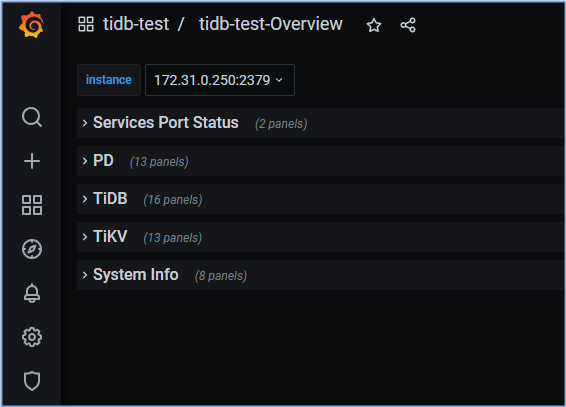
 6. Check cluster status with `Grafana`. Open your browser, log in to `Grafana` according to the `Grafana URL` shown in the previous step. Note that the URL displayed contains the private IP address, and you need to change that one to the corresponding public IP address. The default username and password are both `admin`. To check the TiDB port status and load monitoring information, click `Overview`.
 ## Exercise 4: Connecting to TiDB Server
### Overview
+ In this exercise, you connect to TiDB. You can perform the task on any node, the `Control Machine` is preferred.
### Duration
+ This exercise should take you approximately 10 minutes to complete.
### Tasks
1. Connect to TiDB.
### Solution
1. Connect to TiDB. You should provide option `-p` if `root` has a password, otherwise you can omit the `-p` option. (if you don't know how to get the `${HOST_DB1_PRIVATE_IP}` please ask your instructor for help).
```
$ mysql -h ${HOST_DB1_PRIVATE_IP} --port 4000 -u root
```
## Exercise 5: Stopping TiDB Cluster
### Overview
+ In this exercise, you practice stopping the TiDB cluster. You complete all tasks on the `Control Machine`.
### Duration
+ This exercise should take you approximately 10 minutes to complete.
### Tasks
1. Stop the TiDB cluster.
### Solution Steps
1. Stop the TiDB cluster. Enter the following command at the terminal prompt and receive the results shown:
```
$ tiup cluster stop tidb-test
tiup is checking updates for component cluster ...
Starting component `cluster`: /home/ec2-user/.tiup/components/cluster/v1.11.0/tiup-cluster stop tidb-test
Will stop the cluster tidb-test with nodes: , roles: .
Do you want to continue? [y/N]:(default=N) y
+ [ Serial ] - SSHKeySet: privateKey=/home/ec2-user/.tiup/storage/cluster/clusters/tidb-test/ssh/id_rsa, publicKey=/home/ec2-user/.tiup/storage/cluster/clusters/tidb-test/ssh/id_rsa.pub
...
Stopping component blackbox_exporter
Stopping instance 172.31.0.154
Stopping instance 172.31.0.50
Stopping instance 172.31.0.172
Stopping instance 172.31.0.184
Stopping instance 172.31.0.80
Stopping instance 172.31.0.47
Stopping instance 172.31.0.31
Stopping instance 172.31.0.63
Stop 172.31.0.31 success
Stop 172.31.0.154 success
Stop 172.31.0.50 success
Stop 172.31.0.63 success
Stop 172.31.0.184 success
Stop 172.31.0.47 success
Stop 172.31.0.172 success
Stop 172.31.0.80 success
Stopped cluster `tidb-test` successfully
```
## Exercise 6: Viewing Configuration Files
### Overview
+ In this exercise, you view the contents of the configuration files directory.
### Duration
+ This exercise should take you approximately 20 minutes to complete.
### Tasks
1. On `Control Machine`, check the cluster configuration by using `tiup`.
2. On `TiDB server 1`, view the contents of the `TiDB server` configuration files directories.
3. On `TiKV server 1`, view the contents of the `TiKV server` configuration and data files directories.
4. On `PD server 1`, view the contents of the `PD server` configuration and data files directories.
### Solution Steps
1. On `Control Machine`, view the contents of the configuration files directory. Enter the following command at the terminal prompt and receive the results shown, and type `:q!` to quit to the terminal:
```
$ tiup cluster edit-config tidb-test
global:
user: tidb
ssh_port: 22
ssh_type: builtin
deploy_dir: /tidb-deploy
data_dir: /tidb-data
os: linux arch: amd64
.......
alertmanager_servers:
- host: 172.16.6.157
ssh_port: 22
web_port: 9093
cluster_port: 9094
deploy_dir: /tidb-deploy/alertmanager-9093
data_dir: /tidb-data/alertmanager-9093
arch: amd64
os: linux
```
2. On `TiDB server 1`, check `TiDB server` configuration directories. Enter `yes` if prompted by `ssh`:
```
$ ssh ${HOST_DB1_PRIVATE_IP} ls -l /tidb-deploy/tidb-4000/
total 0
drwxr-xr-x 2 tidb tidb 25 Dec 1 12:37 bin
drwxr-xr-x 2 tidb tidb 23 Dec 1 12:37 conf
drwxr-xr-x 2 tidb tidb 45 Dec 1 12:38 log
drwxr-xr-x 2 tidb tidb 25 Dec 1 12:37 scripts
```
3. On `TiKV server 1`, view the contents of the `TiKV server` configuration files directory. Enter `yes` if prompted by `ssh`:
```
$ ssh ${HOST_KV1_PRIVATE_IP} ls -l /tidb-deploy/
total 0
drwxr-xr-x 6 tidb tidb 55 Dec 1 12:37 monitor-9100
drwxr-xr-x 6 tidb tidb 55 Dec 1 12:37 tikv-20160
$ ssh ${HOST_KV1_PRIVATE_IP} ls -l /tidb-deploy/tikv-20160/
total 0
drwxr-xr-x 2 tidb tidb 25 Dec 1 12:37 bin
drwxr-xr-x 2 tidb tidb 23 Dec 1 12:37 conf
drwxr-xr-x 2 tidb tidb 45 Dec 1 12:38 log
drwxr-xr-x 2 tidb tidb 25 Dec 1 12:37 scripts
```
4. On `TiKV server 1`, view the contents of the `TiKV server` data files directory.
```
$ ssh ${HOST_KV1_PRIVATE_IP} ls -l /tidb-data/
total 0
drwxr-xr-x 2 tidb tidb 6 Dec 1 12:37 monitor-9100
drwxr-xr-x 6 tidb tidb 164 Dec 1 12:38 tikv-20160
$ ssh ${HOST_KV1_PRIVATE_IP} ls -l /tidb-data/tikv-20160/
total 1048676
drwxr-xr-x 2 tidb tidb 283 Dec 1 12:39 db
drwxr-xr-x 4 tidb tidb 33 Dec 1 12:38 import
-rw-r--r-- 1 tidb tidb 19175 Dec 1 12:38 last_tikv.toml
-rw-r--r-- 1 tidb tidb 0 Dec 1 12:38 LOCK
-rw-r--r-- 1 tidb tidb 0 Dec 1 12:38 raftdb.info
drwxr-xr-x 2 tidb tidb 82 Dec 1 12:38 raft-engine
-rw-r--r-- 1 tidb tidb 79157 Dec 1 12:48 rocksdb.info
drwxr-xr-x 2 tidb tidb 6 Dec 1 12:39 snap
-rw-r--r-- 1 tidb tidb 1073741824 Dec 1 12:38 space_placeholder_file
```
5. On `PD server 1`, view the contents of the `PD server` configuration files directory. Enter `yes` if prompted by `ssh`:
```
$ ssh ${HOST_PD1_PRIVATE_IP} ls -l /tidb-deploy/
total 0
drwxr-xr-x 6 tidb tidb 55 Dec 1 12:37 monitor-9100
drwxr-xr-x 6 tidb tidb 55 Dec 1 12:37 pd-2379
$ ssh ${HOST_PD1_PRIVATE_IP} ls -l /tidb-deploy/pd-2379/
total 0
drwxr-xr-x 2 tidb tidb 23 Dec 1 12:37 bin
drwxr-xr-x 2 tidb tidb 21 Dec 1 12:37 conf
drwxr-xr-x 2 tidb tidb 41 Dec 1 12:38 log
drwxr-xr-x 2 tidb tidb 23 Dec 1 12:37 scripts
```
6. On `PD server 1`, view the contents of the `PD server` data files directory.
```
$ ssh ${HOST_PD1_PRIVATE_IP} ls -l /tidb-data/
total 0
drwxr-xr-x 2 tidb tidb 6 Dec 1 12:37 monitor-9100
drwxr-xr-x 5 tidb tidb 57 Dec 1 12:38 pd-2379
$ ssh ${HOST_PD1_PRIVATE_IP} ls -l /tidb-data/pd-2379/
total 0
drwxr-xr-x 2 tidb tidb 85 Dec 1 12:38 hot-region
drwx------ 4 tidb tidb 29 Dec 1 12:38 member
drwxr-xr-x 2 tidb tidb 85 Dec 1 12:38 region-meta
```
7. Close all open terminal windows.
## End of Exercises
## Exercise 4: Connecting to TiDB Server
### Overview
+ In this exercise, you connect to TiDB. You can perform the task on any node, the `Control Machine` is preferred.
### Duration
+ This exercise should take you approximately 10 minutes to complete.
### Tasks
1. Connect to TiDB.
### Solution
1. Connect to TiDB. You should provide option `-p` if `root` has a password, otherwise you can omit the `-p` option. (if you don't know how to get the `${HOST_DB1_PRIVATE_IP}` please ask your instructor for help).
```
$ mysql -h ${HOST_DB1_PRIVATE_IP} --port 4000 -u root
```
## Exercise 5: Stopping TiDB Cluster
### Overview
+ In this exercise, you practice stopping the TiDB cluster. You complete all tasks on the `Control Machine`.
### Duration
+ This exercise should take you approximately 10 minutes to complete.
### Tasks
1. Stop the TiDB cluster.
### Solution Steps
1. Stop the TiDB cluster. Enter the following command at the terminal prompt and receive the results shown:
```
$ tiup cluster stop tidb-test
tiup is checking updates for component cluster ...
Starting component `cluster`: /home/ec2-user/.tiup/components/cluster/v1.11.0/tiup-cluster stop tidb-test
Will stop the cluster tidb-test with nodes: , roles: .
Do you want to continue? [y/N]:(default=N) y
+ [ Serial ] - SSHKeySet: privateKey=/home/ec2-user/.tiup/storage/cluster/clusters/tidb-test/ssh/id_rsa, publicKey=/home/ec2-user/.tiup/storage/cluster/clusters/tidb-test/ssh/id_rsa.pub
...
Stopping component blackbox_exporter
Stopping instance 172.31.0.154
Stopping instance 172.31.0.50
Stopping instance 172.31.0.172
Stopping instance 172.31.0.184
Stopping instance 172.31.0.80
Stopping instance 172.31.0.47
Stopping instance 172.31.0.31
Stopping instance 172.31.0.63
Stop 172.31.0.31 success
Stop 172.31.0.154 success
Stop 172.31.0.50 success
Stop 172.31.0.63 success
Stop 172.31.0.184 success
Stop 172.31.0.47 success
Stop 172.31.0.172 success
Stop 172.31.0.80 success
Stopped cluster `tidb-test` successfully
```
## Exercise 6: Viewing Configuration Files
### Overview
+ In this exercise, you view the contents of the configuration files directory.
### Duration
+ This exercise should take you approximately 20 minutes to complete.
### Tasks
1. On `Control Machine`, check the cluster configuration by using `tiup`.
2. On `TiDB server 1`, view the contents of the `TiDB server` configuration files directories.
3. On `TiKV server 1`, view the contents of the `TiKV server` configuration and data files directories.
4. On `PD server 1`, view the contents of the `PD server` configuration and data files directories.
### Solution Steps
1. On `Control Machine`, view the contents of the configuration files directory. Enter the following command at the terminal prompt and receive the results shown, and type `:q!` to quit to the terminal:
```
$ tiup cluster edit-config tidb-test
global:
user: tidb
ssh_port: 22
ssh_type: builtin
deploy_dir: /tidb-deploy
data_dir: /tidb-data
os: linux arch: amd64
.......
alertmanager_servers:
- host: 172.16.6.157
ssh_port: 22
web_port: 9093
cluster_port: 9094
deploy_dir: /tidb-deploy/alertmanager-9093
data_dir: /tidb-data/alertmanager-9093
arch: amd64
os: linux
```
2. On `TiDB server 1`, check `TiDB server` configuration directories. Enter `yes` if prompted by `ssh`:
```
$ ssh ${HOST_DB1_PRIVATE_IP} ls -l /tidb-deploy/tidb-4000/
total 0
drwxr-xr-x 2 tidb tidb 25 Dec 1 12:37 bin
drwxr-xr-x 2 tidb tidb 23 Dec 1 12:37 conf
drwxr-xr-x 2 tidb tidb 45 Dec 1 12:38 log
drwxr-xr-x 2 tidb tidb 25 Dec 1 12:37 scripts
```
3. On `TiKV server 1`, view the contents of the `TiKV server` configuration files directory. Enter `yes` if prompted by `ssh`:
```
$ ssh ${HOST_KV1_PRIVATE_IP} ls -l /tidb-deploy/
total 0
drwxr-xr-x 6 tidb tidb 55 Dec 1 12:37 monitor-9100
drwxr-xr-x 6 tidb tidb 55 Dec 1 12:37 tikv-20160
$ ssh ${HOST_KV1_PRIVATE_IP} ls -l /tidb-deploy/tikv-20160/
total 0
drwxr-xr-x 2 tidb tidb 25 Dec 1 12:37 bin
drwxr-xr-x 2 tidb tidb 23 Dec 1 12:37 conf
drwxr-xr-x 2 tidb tidb 45 Dec 1 12:38 log
drwxr-xr-x 2 tidb tidb 25 Dec 1 12:37 scripts
```
4. On `TiKV server 1`, view the contents of the `TiKV server` data files directory.
```
$ ssh ${HOST_KV1_PRIVATE_IP} ls -l /tidb-data/
total 0
drwxr-xr-x 2 tidb tidb 6 Dec 1 12:37 monitor-9100
drwxr-xr-x 6 tidb tidb 164 Dec 1 12:38 tikv-20160
$ ssh ${HOST_KV1_PRIVATE_IP} ls -l /tidb-data/tikv-20160/
total 1048676
drwxr-xr-x 2 tidb tidb 283 Dec 1 12:39 db
drwxr-xr-x 4 tidb tidb 33 Dec 1 12:38 import
-rw-r--r-- 1 tidb tidb 19175 Dec 1 12:38 last_tikv.toml
-rw-r--r-- 1 tidb tidb 0 Dec 1 12:38 LOCK
-rw-r--r-- 1 tidb tidb 0 Dec 1 12:38 raftdb.info
drwxr-xr-x 2 tidb tidb 82 Dec 1 12:38 raft-engine
-rw-r--r-- 1 tidb tidb 79157 Dec 1 12:48 rocksdb.info
drwxr-xr-x 2 tidb tidb 6 Dec 1 12:39 snap
-rw-r--r-- 1 tidb tidb 1073741824 Dec 1 12:38 space_placeholder_file
```
5. On `PD server 1`, view the contents of the `PD server` configuration files directory. Enter `yes` if prompted by `ssh`:
```
$ ssh ${HOST_PD1_PRIVATE_IP} ls -l /tidb-deploy/
total 0
drwxr-xr-x 6 tidb tidb 55 Dec 1 12:37 monitor-9100
drwxr-xr-x 6 tidb tidb 55 Dec 1 12:37 pd-2379
$ ssh ${HOST_PD1_PRIVATE_IP} ls -l /tidb-deploy/pd-2379/
total 0
drwxr-xr-x 2 tidb tidb 23 Dec 1 12:37 bin
drwxr-xr-x 2 tidb tidb 21 Dec 1 12:37 conf
drwxr-xr-x 2 tidb tidb 41 Dec 1 12:38 log
drwxr-xr-x 2 tidb tidb 23 Dec 1 12:37 scripts
```
6. On `PD server 1`, view the contents of the `PD server` data files directory.
```
$ ssh ${HOST_PD1_PRIVATE_IP} ls -l /tidb-data/
total 0
drwxr-xr-x 2 tidb tidb 6 Dec 1 12:37 monitor-9100
drwxr-xr-x 5 tidb tidb 57 Dec 1 12:38 pd-2379
$ ssh ${HOST_PD1_PRIVATE_IP} ls -l /tidb-data/pd-2379/
total 0
drwxr-xr-x 2 tidb tidb 85 Dec 1 12:38 hot-region
drwx------ 4 tidb tidb 29 Dec 1 12:38 member
drwxr-xr-x 2 tidb tidb 85 Dec 1 12:38 region-meta
```
7. Close all open terminal windows.
## End of Exercises