# Connecting to TiDB
### Overview
+ In these exercises, you connect to TiDB using MySQL client and GUI tool, and execute SQL statements on TiDB, and then check the connection status of the current database.
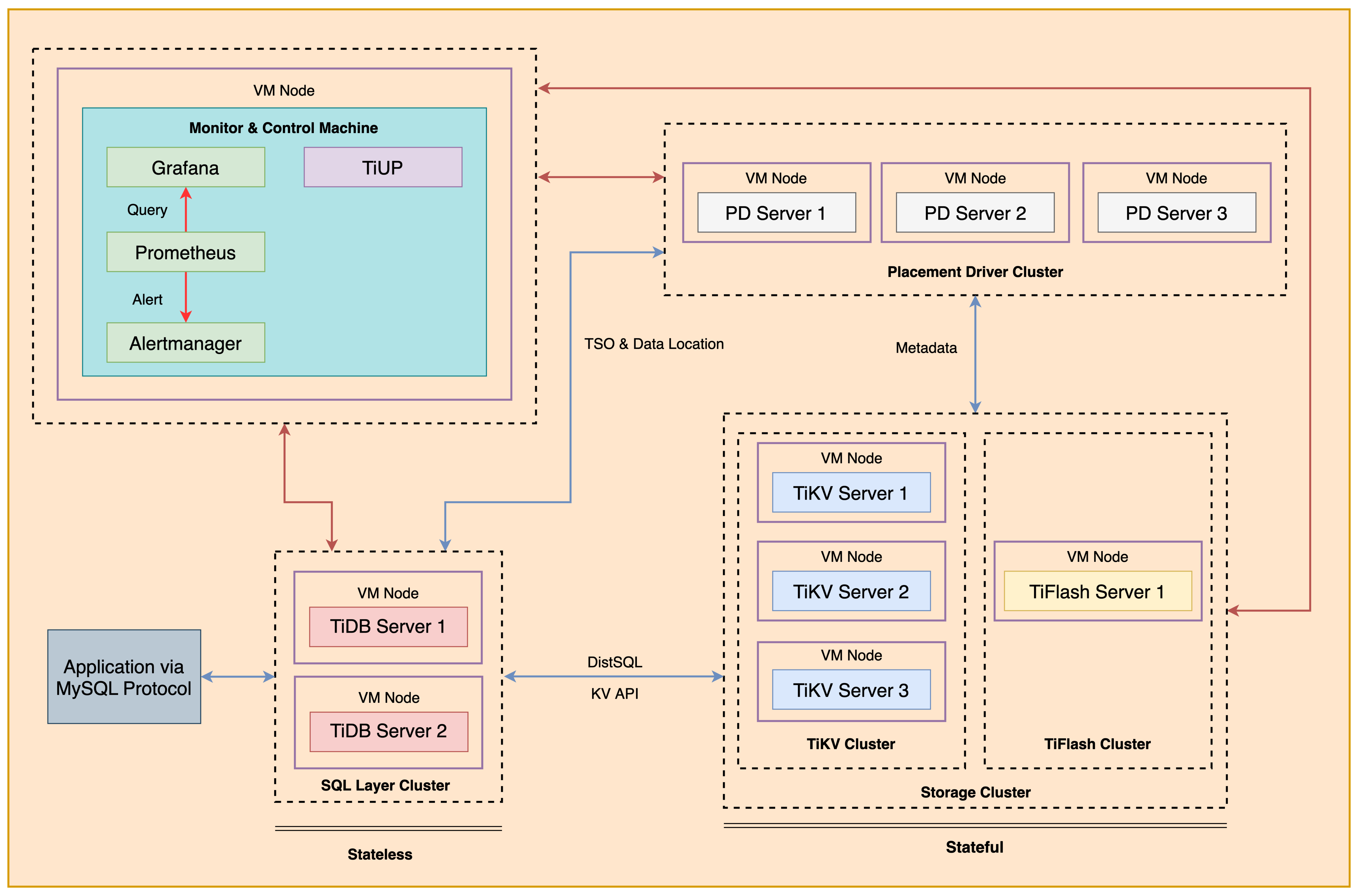
+ The following shows the deployment topology diagram of TiDB cluster.
 ### Notes
+ Completing *Exercises 1: Deploying a TiDB Cluster Using TiUP* is necessary for subsequent exercises to complete successfully.
+ It may be convenient to launch a terminal window and keep it open throughout the exercises, as many of the steps require you to type commands in it.
+ Your environment may be different with these exercises, including but not limited to `IP`, `port`, `username`, `password` and `directory`.
+ The `$` in your terminal window is an OS prompt.
+ The "`tidb>`" or "`mysql>`" in your terminal window is SQL command prompt.
+ In these exercises, we need 10 machines connected in the network. The `Role` and `IP Address` (represented by environment variables) are as follows:
| `Node Role` | `IP Address` |
| :----------------- | :-------------------------------------------------------- |
| `Monitor 1` | `${HOST_MONITOR1_PRIVATE_IP}, ${HOST_MONITOR1_PUBLIC_IP}` |
| `Control Machine` | `${HOST_CM_PRIVATE_IP}, ${HOST_CM_PUBLIC_IP}` |
| `TiDB server 1` | `${HOST_DB1_PRIVATE_IP}, ${HOST_DB1_PUBLIC_IP}` |
| `TiDB server 2` | `${HOST_DB2_PRIVATE_IP}, ${HOST_DB2_PUBLIC_IP}` |
| `TiKV server 1` | `${HOST_KV1_PRIVATE_IP}, ${HOST_KV1_PUBLIC_IP}` |
| `TiKV server 2` | `${HOST_KV2_PRIVATE_IP}, ${HOST_KV2_PUBLIC_IP}` |
| `TiKV server 3` | `${HOST_KV3_PRIVATE_IP}, ${HOST_KV3_PUBLIC_IP}` |
| `PD server 1` | `${HOST_PD1_PRIVATE_IP}, ${HOST_PD1_PUBLIC_IP}` |
| `PD server 2` | `${HOST_PD2_PRIVATE_IP}, ${HOST_PD2_PUBLIC_IP}` |
| `PD server 3` | `${HOST_PD3_PRIVATE_IP}, ${HOST_PD3_PUBLIC_IP}` |
| `TiFlash server 1` | `${HOST_TIFLASH1_PRIVATE_IP}, ${HOST_TIFLASH1_PUBLIC_IP}` |
| `Alertmanager` | `${HOST_MONITOR1_PRIVATE_IP}, ${HOST_MONITOR1_PUBLIC_IP}` |
| `Grafana` | `${HOST_MONITOR1_PRIVATE_IP}, ${HOST_MONITOR1_PUBLIC_IP}` |
| `Prometheus` | `${HOST_MONITOR1_PRIVATE_IP}, ${HOST_MONITOR1_PUBLIC_IP}` |
### Assumptions
+ You are given the user credentials (for example: the private key) of the exercise environment.
+ You are given access to 10 machines that have been set up.
+ You have completed the activities in the exercise titled "*Exercises 1: Deploying a TiDB Cluster Using TiUP*" and have a terminal window open.
+ Your environment has TiDB cluster deployed and running.
## Exercise 1: Connecting to TiDB Using MySQL Client and Executing SQL Statements
### Overview
+ In this exercise, you connect to TiDB and execute SQL statements. You will perform all tasks on `Control Machine`.
### Duration
+ This exercise should take you approximately 20 minutes to complete.
### Tasks
1. Start a TiDB cluster and connect to it.
2. Create a new database called `tidb`.
3. Create a table called `tab_tidb`. The `tab_tidb` table should have an auto-incrementing primary key column called `id`, a varchar(20) column called `name`, an int(11) column called `age` and a varchar(20) column called `version`.
4. Insert some data into the `tab_tidb` table and query the data.
5. Execute the `SHOW PROCESSLIST` statement to view the session state.
### Solution
1. Log in as user `ec2-user` on node `monitor1`. Enter the following command at the terminal prompt and receive the results shown:
```
$ ssh -A ec2-user@
__| __|_ )
_| ( / Amazon Linux 2 AMI
___|\___|___|
https://aws.amazon.com/amazon-linux-2/
```
2. If you have stopped your cluster in the previous lab, start your TiDB cluster. If you are not clear about the status of your cluster, you may use the command `./check-cluster.sh` to check it.
```
$ ./start-cluster.sh
tiup is checking updates for component cluster ..
...
+ [ Serial ] - UpdateTopology: cluster=tidb-test
Started cluster `tidb-test` successfully
```
3. Connect to TiDB using MySQL client. You should provide option `-p` if `root` has a password, otherwise you can omit the `-p` option. (if you don't know how to get the `${HOST_DB1_PRIVATE_IP}` please ask your instructor for help). Enter the following command at the terminal prompt and receive the results shown:
```
$ mysql -h ${HOST_DB1_PRIVATE_IP} --port 4000 -u root -p
```
4. Query database version. Enter the following command at the terminal prompt and receive the results shown:
```sql
SELECT TIDB_VERSION()\G
```
```
tidb> SELECT TIDB_VERSION()\G
*************************** 1. row ***************************
TIDB_VERSION(): Release Version: v6.5.0
Edition: Community
Git Commit Hash: 1a89decdb192cbdce6a7b0020d71128bc964d30f
Git Branch: heads/refs/tags/v6.5.0
UTC Build Time: 2022-06-05 05:15:11
GoVersion: go1.18.2
Race Enabled: false
TiKV Min Version: v3.0.0-60965b006877ca7234adaced7890d7b029ed1306
Check Table Before Drop: false
1 row in set (0.00 sec)
```
5. Display the databases on TiDB. Enter the following command at the terminal prompt and receive the results shown:
```sql
SHOW DATABASES;
```
```
tidb> SHOW DATABASES;
+--------------------+
| Database |
+--------------------+
| INFORMATION_SCHEMA |
| METRICS_SCHEMA |
| PERFORMANCE_SCHEMA |
| mysql |
| test |
+--------------------+
5 rows in set (0.00 sec)
```
6. Create a new database called `tidb`. Enter the following command at the terminal prompt and receive the results shown:
```sql
CREATE DATABASE tidb;
```
```
tidb> CREATE DATABASE tidb;
Query OK, 0 rows affected (0.08 sec)
```
7. Change the current database to `tidb`. Enter the following command at the terminal prompt and receive the results shown:
```sql
USE tidb;
```
```
tidb> USE tidb;
Database changed
```
8. Create a table called `tab_tidb`. The `tab_tidb` table should have an auto-incrementing primary key column called `id`, a `VARCHAR(20)` column called `name`, an `int(11)` column called `age` and a `VARCHAR(20)` column called `version`. Enter the following command at the terminal prompt and receive the results shown:
```sql
CREATE TABLE `tab_tidb` (
`id` INT(11) NOT NULL AUTO_INCREMENT,
`name` VARCHAR(20) NOT NULL DEFAULT '',
`age` INT(11) NOT NULL DEFAULT 0,
`version` VARCHAR(20) NOT NULL DEFAULT '',
PRIMARY KEY (`id`),
KEY `idx_age` (`age`));
```
```
tidb> CREATE TABLE `tab_tidb` (
`id` INT(11) NOT NULL AUTO_INCREMENT,
`name` VARCHAR(20) NOT NULL DEFAULT '',
`age` INT(11) NOT NULL DEFAULT 0,
`version` VARCHAR(20) NOT NULL DEFAULT '',
PRIMARY KEY (`id`),
KEY `idx_age` (`age`));
Query OK, 0 rows affected (0.09 sec)
```
9. Insert a row into the `tab_tidb` table with `1` as the value for the `id` column, `TiDB` as the value for the `name` column, `6` as the value for the `age` column, `TiDB-v6.5.0` as the value for the `version` column. Enter the following command at the terminal prompt and receive the results shown:
```sql
INSERT INTO `tab_tidb` VALUES (1,'TiDB',6,'TiDB-v6.5.0');
```
```
tidb> INSERT INTO `tab_tidb` VALUES (1,'TiDB',6,'TiDB-v6.5.0');
Query OK, 1 row affected (0.01 sec)
```
10. Query the data of the `tab_tidb` table. Enter the following command at the terminal prompt and receive the results shown:
```sql
SELECT * FROM tab_tidb;
```
```
tidb> SELECT * FROM tab_tidb;
+----+------+-----+-------------+
| id | name | age | version |
+----+------+-----+-------------+
| 1 | TiDB | 6 | TiDB-v6.5.0 |
+----+------+-----+-------------+
1 row in set (0.00 sec)
```
11. Execute the `SHOW PROCESSLIST` statement to view the session state. Enter the following command at the terminal prompt and receive the results shown:
```sql
SHOW PROCESSLIST;
```
```
tidb> SHOW PROCESSLIST;
+---------------------+------+-------------------+------+---------+------+------------+------------------+
| Id | User | Host | db | Command | Time | State | Info |
+---------------------+------+-------------------+------+---------+------+------------+------------------+
| 6156387705266635215 | root | 172.31.0.106:4208 | tidb | Query | 0 | autocommit | show processlist |
+---------------------+------+-------------------+------+---------+------+------------+------------------+
1 row in set (0.00 sec)
```
12. Log out of the client and close all open terminal windows.
## Exercise 2: Connecting to TiDB Using GUI Tool
### Overview
+ In this exercise, you connect to the TiDB using the `MySQL Workbench` on macOS.
### Note
+ If your operating system is Windows or Linux, etc., the *Solution* may be different with this exercise.
### Duration
+ This exercise should take you approximately 10 minutes to complete.
### Tasks
1. Go to https://dev.mysql.com/downloads/workbench/, download `Workbench`, and install it on your local machine.
2. Connect to TiDB using `Workbench`.
### Solution
1. GO to https://dev.mysql.com/downloads/workbench/. Select your operating system and choose an installation package, then click `Download`.
### Notes
+ Completing *Exercises 1: Deploying a TiDB Cluster Using TiUP* is necessary for subsequent exercises to complete successfully.
+ It may be convenient to launch a terminal window and keep it open throughout the exercises, as many of the steps require you to type commands in it.
+ Your environment may be different with these exercises, including but not limited to `IP`, `port`, `username`, `password` and `directory`.
+ The `$` in your terminal window is an OS prompt.
+ The "`tidb>`" or "`mysql>`" in your terminal window is SQL command prompt.
+ In these exercises, we need 10 machines connected in the network. The `Role` and `IP Address` (represented by environment variables) are as follows:
| `Node Role` | `IP Address` |
| :----------------- | :-------------------------------------------------------- |
| `Monitor 1` | `${HOST_MONITOR1_PRIVATE_IP}, ${HOST_MONITOR1_PUBLIC_IP}` |
| `Control Machine` | `${HOST_CM_PRIVATE_IP}, ${HOST_CM_PUBLIC_IP}` |
| `TiDB server 1` | `${HOST_DB1_PRIVATE_IP}, ${HOST_DB1_PUBLIC_IP}` |
| `TiDB server 2` | `${HOST_DB2_PRIVATE_IP}, ${HOST_DB2_PUBLIC_IP}` |
| `TiKV server 1` | `${HOST_KV1_PRIVATE_IP}, ${HOST_KV1_PUBLIC_IP}` |
| `TiKV server 2` | `${HOST_KV2_PRIVATE_IP}, ${HOST_KV2_PUBLIC_IP}` |
| `TiKV server 3` | `${HOST_KV3_PRIVATE_IP}, ${HOST_KV3_PUBLIC_IP}` |
| `PD server 1` | `${HOST_PD1_PRIVATE_IP}, ${HOST_PD1_PUBLIC_IP}` |
| `PD server 2` | `${HOST_PD2_PRIVATE_IP}, ${HOST_PD2_PUBLIC_IP}` |
| `PD server 3` | `${HOST_PD3_PRIVATE_IP}, ${HOST_PD3_PUBLIC_IP}` |
| `TiFlash server 1` | `${HOST_TIFLASH1_PRIVATE_IP}, ${HOST_TIFLASH1_PUBLIC_IP}` |
| `Alertmanager` | `${HOST_MONITOR1_PRIVATE_IP}, ${HOST_MONITOR1_PUBLIC_IP}` |
| `Grafana` | `${HOST_MONITOR1_PRIVATE_IP}, ${HOST_MONITOR1_PUBLIC_IP}` |
| `Prometheus` | `${HOST_MONITOR1_PRIVATE_IP}, ${HOST_MONITOR1_PUBLIC_IP}` |
### Assumptions
+ You are given the user credentials (for example: the private key) of the exercise environment.
+ You are given access to 10 machines that have been set up.
+ You have completed the activities in the exercise titled "*Exercises 1: Deploying a TiDB Cluster Using TiUP*" and have a terminal window open.
+ Your environment has TiDB cluster deployed and running.
## Exercise 1: Connecting to TiDB Using MySQL Client and Executing SQL Statements
### Overview
+ In this exercise, you connect to TiDB and execute SQL statements. You will perform all tasks on `Control Machine`.
### Duration
+ This exercise should take you approximately 20 minutes to complete.
### Tasks
1. Start a TiDB cluster and connect to it.
2. Create a new database called `tidb`.
3. Create a table called `tab_tidb`. The `tab_tidb` table should have an auto-incrementing primary key column called `id`, a varchar(20) column called `name`, an int(11) column called `age` and a varchar(20) column called `version`.
4. Insert some data into the `tab_tidb` table and query the data.
5. Execute the `SHOW PROCESSLIST` statement to view the session state.
### Solution
1. Log in as user `ec2-user` on node `monitor1`. Enter the following command at the terminal prompt and receive the results shown:
```
$ ssh -A ec2-user@
__| __|_ )
_| ( / Amazon Linux 2 AMI
___|\___|___|
https://aws.amazon.com/amazon-linux-2/
```
2. If you have stopped your cluster in the previous lab, start your TiDB cluster. If you are not clear about the status of your cluster, you may use the command `./check-cluster.sh` to check it.
```
$ ./start-cluster.sh
tiup is checking updates for component cluster ..
...
+ [ Serial ] - UpdateTopology: cluster=tidb-test
Started cluster `tidb-test` successfully
```
3. Connect to TiDB using MySQL client. You should provide option `-p` if `root` has a password, otherwise you can omit the `-p` option. (if you don't know how to get the `${HOST_DB1_PRIVATE_IP}` please ask your instructor for help). Enter the following command at the terminal prompt and receive the results shown:
```
$ mysql -h ${HOST_DB1_PRIVATE_IP} --port 4000 -u root -p
```
4. Query database version. Enter the following command at the terminal prompt and receive the results shown:
```sql
SELECT TIDB_VERSION()\G
```
```
tidb> SELECT TIDB_VERSION()\G
*************************** 1. row ***************************
TIDB_VERSION(): Release Version: v6.5.0
Edition: Community
Git Commit Hash: 1a89decdb192cbdce6a7b0020d71128bc964d30f
Git Branch: heads/refs/tags/v6.5.0
UTC Build Time: 2022-06-05 05:15:11
GoVersion: go1.18.2
Race Enabled: false
TiKV Min Version: v3.0.0-60965b006877ca7234adaced7890d7b029ed1306
Check Table Before Drop: false
1 row in set (0.00 sec)
```
5. Display the databases on TiDB. Enter the following command at the terminal prompt and receive the results shown:
```sql
SHOW DATABASES;
```
```
tidb> SHOW DATABASES;
+--------------------+
| Database |
+--------------------+
| INFORMATION_SCHEMA |
| METRICS_SCHEMA |
| PERFORMANCE_SCHEMA |
| mysql |
| test |
+--------------------+
5 rows in set (0.00 sec)
```
6. Create a new database called `tidb`. Enter the following command at the terminal prompt and receive the results shown:
```sql
CREATE DATABASE tidb;
```
```
tidb> CREATE DATABASE tidb;
Query OK, 0 rows affected (0.08 sec)
```
7. Change the current database to `tidb`. Enter the following command at the terminal prompt and receive the results shown:
```sql
USE tidb;
```
```
tidb> USE tidb;
Database changed
```
8. Create a table called `tab_tidb`. The `tab_tidb` table should have an auto-incrementing primary key column called `id`, a `VARCHAR(20)` column called `name`, an `int(11)` column called `age` and a `VARCHAR(20)` column called `version`. Enter the following command at the terminal prompt and receive the results shown:
```sql
CREATE TABLE `tab_tidb` (
`id` INT(11) NOT NULL AUTO_INCREMENT,
`name` VARCHAR(20) NOT NULL DEFAULT '',
`age` INT(11) NOT NULL DEFAULT 0,
`version` VARCHAR(20) NOT NULL DEFAULT '',
PRIMARY KEY (`id`),
KEY `idx_age` (`age`));
```
```
tidb> CREATE TABLE `tab_tidb` (
`id` INT(11) NOT NULL AUTO_INCREMENT,
`name` VARCHAR(20) NOT NULL DEFAULT '',
`age` INT(11) NOT NULL DEFAULT 0,
`version` VARCHAR(20) NOT NULL DEFAULT '',
PRIMARY KEY (`id`),
KEY `idx_age` (`age`));
Query OK, 0 rows affected (0.09 sec)
```
9. Insert a row into the `tab_tidb` table with `1` as the value for the `id` column, `TiDB` as the value for the `name` column, `6` as the value for the `age` column, `TiDB-v6.5.0` as the value for the `version` column. Enter the following command at the terminal prompt and receive the results shown:
```sql
INSERT INTO `tab_tidb` VALUES (1,'TiDB',6,'TiDB-v6.5.0');
```
```
tidb> INSERT INTO `tab_tidb` VALUES (1,'TiDB',6,'TiDB-v6.5.0');
Query OK, 1 row affected (0.01 sec)
```
10. Query the data of the `tab_tidb` table. Enter the following command at the terminal prompt and receive the results shown:
```sql
SELECT * FROM tab_tidb;
```
```
tidb> SELECT * FROM tab_tidb;
+----+------+-----+-------------+
| id | name | age | version |
+----+------+-----+-------------+
| 1 | TiDB | 6 | TiDB-v6.5.0 |
+----+------+-----+-------------+
1 row in set (0.00 sec)
```
11. Execute the `SHOW PROCESSLIST` statement to view the session state. Enter the following command at the terminal prompt and receive the results shown:
```sql
SHOW PROCESSLIST;
```
```
tidb> SHOW PROCESSLIST;
+---------------------+------+-------------------+------+---------+------+------------+------------------+
| Id | User | Host | db | Command | Time | State | Info |
+---------------------+------+-------------------+------+---------+------+------------+------------------+
| 6156387705266635215 | root | 172.31.0.106:4208 | tidb | Query | 0 | autocommit | show processlist |
+---------------------+------+-------------------+------+---------+------+------------+------------------+
1 row in set (0.00 sec)
```
12. Log out of the client and close all open terminal windows.
## Exercise 2: Connecting to TiDB Using GUI Tool
### Overview
+ In this exercise, you connect to the TiDB using the `MySQL Workbench` on macOS.
### Note
+ If your operating system is Windows or Linux, etc., the *Solution* may be different with this exercise.
### Duration
+ This exercise should take you approximately 10 minutes to complete.
### Tasks
1. Go to https://dev.mysql.com/downloads/workbench/, download `Workbench`, and install it on your local machine.
2. Connect to TiDB using `Workbench`.
### Solution
1. GO to https://dev.mysql.com/downloads/workbench/. Select your operating system and choose an installation package, then click `Download`.
 2. On the next page, you can create a new account or login to an existing one or skip this by clicking the `No thanks, just start my download` button at the bottom.
 3. After downloading the installation package, install `MySQL Workbench`.
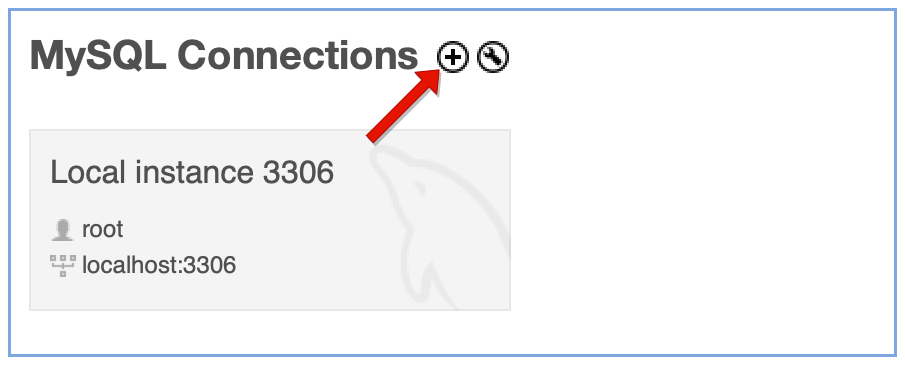
 4. Open `MySQL Workbench`, then click `+` in the `MySQL Workbench` home window.
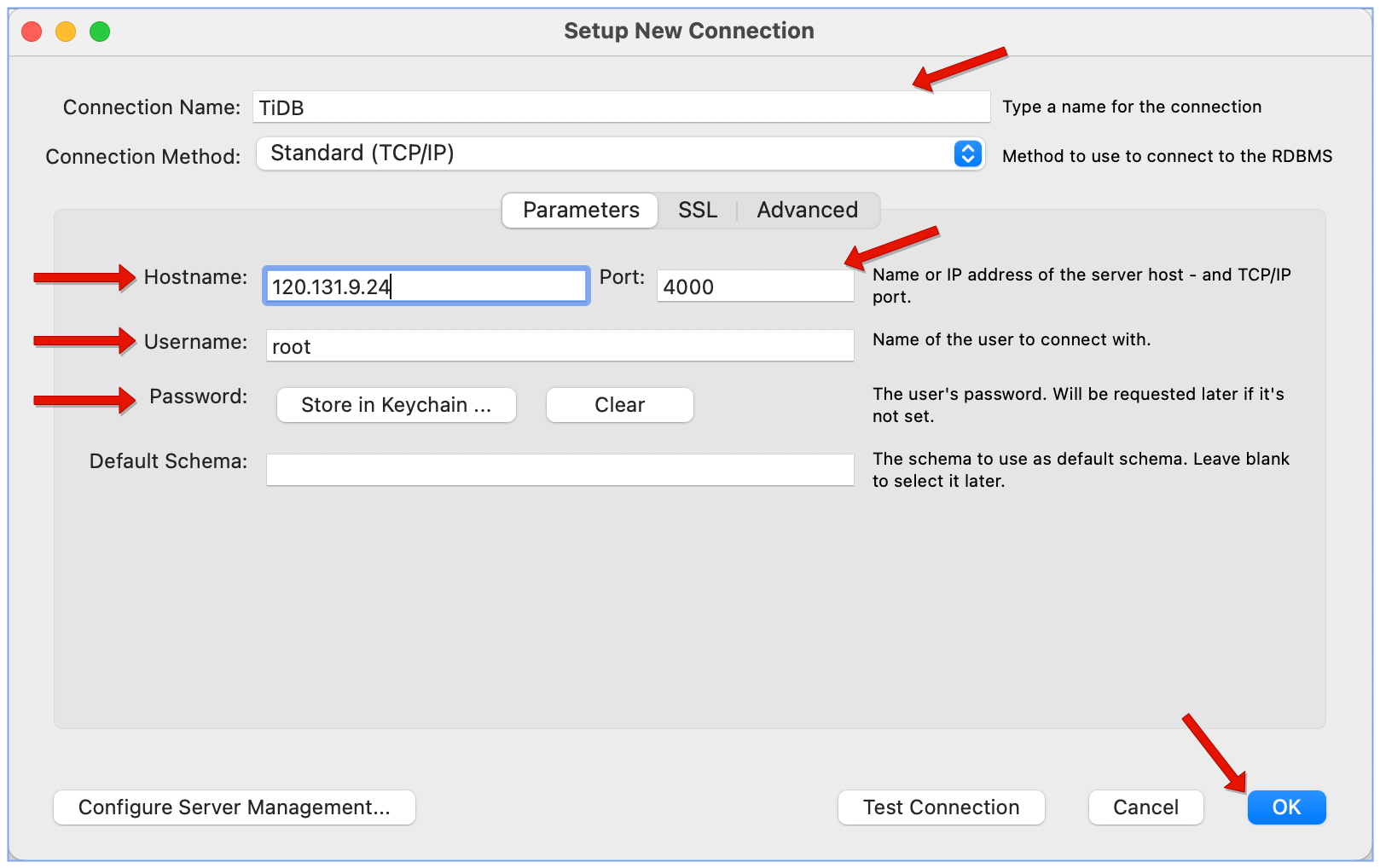
 5. On the `Setup New Connection` windows, add the `Connection Name`. In the `Parameters` section, enter `${HOST_DB1_PUBLIC_IP}` in the `Hostname` field, and configure `Port`, `Username` and `Password` of `tidb` user. Then click `OK`.
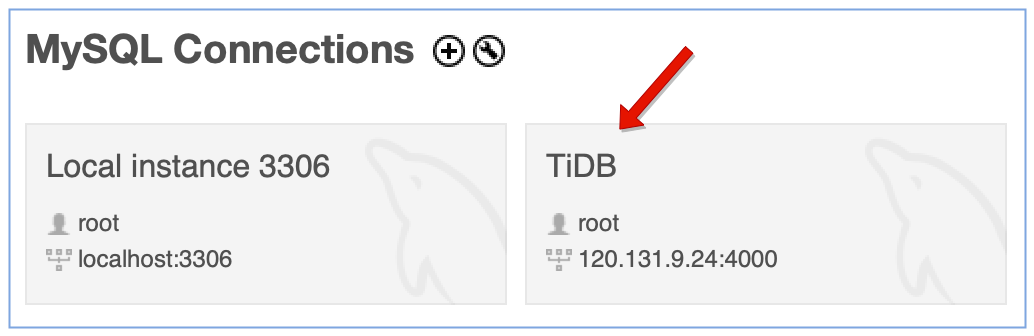
 6. In the `MySQL Workbench` home window, click the new instance to connect to TiDB.
 ## End of Exercises