# Monitoring TiDB
### Overview
+ In these exercises, you monitor a running TiDB instance by `Prometheus` and `Grafana` monitoring and `TiDB Dashboard`.
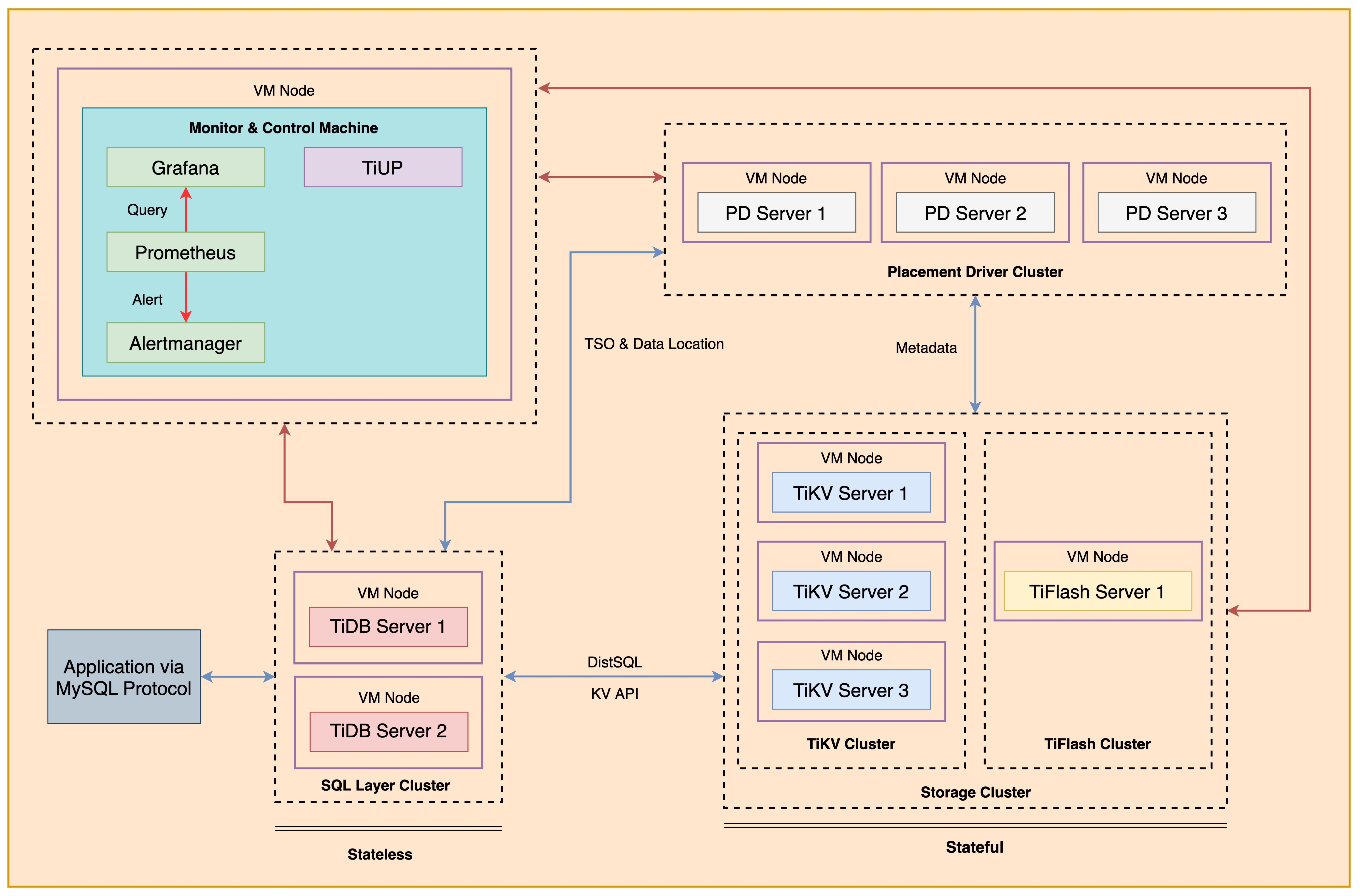
+ The following shows the deployment topology diagram of TiDB cluster.
 ### Notes
+ Completing *Exercises 1: Deploying a TiDB Cluster Using TiUP* is necessary for subsequent exercises to complete successfully.
+ Many of the steps require that you type commands in a terminal window. You might find it convenient to launch a terminal window and keep it open for the duration of the exercises.
+ Your environment may be different with these exercises, including but not limited to `IP`, `port`, `username`, `password` and `directory`.
+ The `$` in your terminal window is an OS prompt.
+ The "`tidb>`" or "`mysql>`" in your terminal window is SQL command prompt.
+ In these exercises, we need 10 machines connected in the network. The `Role` and `IP Address` (represented by environment variables) are as follows:
| `Node Role` | `IP Address` |
| :----------------- | :-------------------------------------------------------- |
| `Monitor 1` | `${HOST_MONITOR1_PRIVATE_IP}, ${HOST_MONITOR1_PUBLIC_IP}` |
| `Control Machine` | `${HOST_CM_PRIVATE_IP}, ${HOST_CM_PUBLIC_IP}` |
| `TiDB server 1` | `${HOST_DB1_PRIVATE_IP}, ${HOST_DB1_PUBLIC_IP}` |
| `TiDB server 2` | `${HOST_DB2_PRIVATE_IP}, ${HOST_DB2_PUBLIC_IP}` |
| `TiKV server 1` | `${HOST_KV1_PRIVATE_IP}, ${HOST_KV1_PUBLIC_IP}` |
| `TiKV server 2` | `${HOST_KV2_PRIVATE_IP}, ${HOST_KV2_PUBLIC_IP}` |
| `TiKV server 3` | `${HOST_KV3_PRIVATE_IP}, ${HOST_KV3_PUBLIC_IP}` |
| `PD server 1` | `${HOST_PD1_PRIVATE_IP}, ${HOST_PD1_PUBLIC_IP}` |
| `PD server 2` | `${HOST_PD2_PRIVATE_IP}, ${HOST_PD2_PUBLIC_IP}` |
| `PD server 3` | `${HOST_PD3_PRIVATE_IP}, ${HOST_PD3_PUBLIC_IP}` |
| `TiFlash server 1` | `${HOST_TIFLASH1_PRIVATE_IP}, ${HOST_TIFLASH1_PUBLIC_IP}` |
| `Alertmanager` | `${HOST_MONITOR1_PRIVATE_IP}, ${HOST_MONITOR1_PUBLIC_IP}` |
| `Grafana` | `${HOST_MONITOR1_PRIVATE_IP}, ${HOST_MONITOR1_PUBLIC_IP}` |
| `Prometheus` | `${HOST_MONITOR1_PRIVATE_IP}, ${HOST_MONITOR1_PUBLIC_IP}` |
### Assumptions
+ You are given the user credentials (for example: the private key) of the exercise environment.
+ You are given access to 10 machines that have been set up.
+ You have completed the activities in the exercise titled "*Exercises 1: Deploying a TiDB Cluster Using TiUP*" and have a terminal window open.
+ Your environment has TiDB cluster deployed and running.
## Exercise 1: Monitoring TiDB by `Prometheus` + `Grafana` Monitoring
### Overview
+ In this exercise, you monitor a running TiDB instance by `Prometheus` and `Grafana` monitoring.
### Duration
+ This exercise should take you approximately 25 minutes to complete.
### Tasks
1. Open a browser and go to the webpage for `Grafana`.
2. Check CPU, memory, IO, and network usage for each node under the `System-Info` menu of `tidb-test-Overview`.
3. Check the number of online nodes under the `Service Port Status` of `tidb-test-Overview`.
4. Check the PD status from the PD dashboard under `tidb-test-Overview`.
5. Check the QPS, TPS, response delay, which serves as the monitoring information under the PD monitoring page of `tidb-test-Overview`.
6. Check the status of TiKV under the TiKV monitoring page of `tidb-test-Overview`.
### Solution Steps
1. Login as user `ec2-user` on `Control Machine` (`${HOST_MONITOR1_PUBLIC_IP}`).
```
$ ssh -A ec2-user@
__| __|_ )
_| ( / Amazon Linux 2 AMI
___|\___|___|
https://aws.amazon.com/amazon-linux-2/
```
2. Check the status of the deployed TiDB cluster and view the node ID information. Enter the following command at the terminal prompt and receive the results shown:
```
$ tiup cluster display tidb-test
tiup is checking updates for component cluster ...
Starting component `cluster`: /home/ec2-user/.tiup/components/cluster/v1.12.1/tiup-cluster display tidb-test
Cluster type: tidb
Cluster name: tidb-test
Cluster version: v6.5.0
Deploy user: tidb
SSH type: builtin
Dashboard URL: http://10.90.1.157:2379/dashboard
Grafana URL: http://10.90.4.229:3000
ID Role Host Ports OS/Arch Status Data Dir Deploy Dir
-- ---- ---- ----- ------- ------ -------- ----------
10.90.4.229:9093 alertmanager 10.90.4.229 9093/9094 linux/x86_64 Up /tidb-data/alertmanager-9093 /tidb-deploy/alertmanager-9093
10.90.4.229:3000 grafana 10.90.4.229 3000 linux/x86_64 Up - /tidb-deploy/grafana-3000
10.90.1.157:2379 pd 10.90.1.157 2379/2380 linux/x86_64 Up|UI /tidb-data/pd-2379 /tidb-deploy/pd-2379
10.90.2.207:2379 pd 10.90.2.207 2379/2380 linux/x86_64 Up|L /tidb-data/pd-2379 /tidb-deploy/pd-2379
10.90.3.169:2379 pd 10.90.3.169 2379/2380 linux/x86_64 Up /tidb-data/pd-2379 /tidb-deploy/pd-2379
10.90.4.229:9090 prometheus 10.90.4.229 9090/12020 linux/x86_64 Up /tidb-data/prometheus-9090 /tidb-deploy/prometheus-9090
10.90.1.127:4000 tidb 10.90.1.127 4000/10080 linux/x86_64 Up - /tidb-deploy/tidb-4000
10.90.2.227:4000 tidb 10.90.2.227 4000/10080 linux/x86_64 Up - /tidb-deploy/tidb-4000
10.90.4.33:9000 tiflash 10.90.4.33 9000/8123/3930/20170/20292/8234 linux/x86_64 Up /tidb-data/tiflash-9000 /tidb-deploy/tiflash-9000
10.90.1.137:20160 tikv 10.90.1.137 20160/20180 linux/x86_64 Up /tidb-data/tikv-20160 /tidb-deploy/tikv-20160
10.90.2.24:20160 tikv 10.90.2.24 20160/20180 linux/x86_64 Up /tidb-data/tikv-20160 /tidb-deploy/tikv-20160
10.90.3.198:20160 tikv 10.90.3.198 20160/20180 linux/x86_64 Up /tidb-data/tikv-20160 /tidb-deploy/tikv-20160
Total nodes: 12
```
3. Launch a browser and enter the following URL for `Prometheus` and `Grafana` monitoring: `http://${HOST_MONITOR1_PUBLIC_IP}:3000`. (if you don't know how to get the `${HOST_MONITOR1_PUBLIC_IP}` please ask your instructor for help). Enter `admin` in the `Email or username` field. Enter `admin` in the `Password` field.
### Notes
+ Completing *Exercises 1: Deploying a TiDB Cluster Using TiUP* is necessary for subsequent exercises to complete successfully.
+ Many of the steps require that you type commands in a terminal window. You might find it convenient to launch a terminal window and keep it open for the duration of the exercises.
+ Your environment may be different with these exercises, including but not limited to `IP`, `port`, `username`, `password` and `directory`.
+ The `$` in your terminal window is an OS prompt.
+ The "`tidb>`" or "`mysql>`" in your terminal window is SQL command prompt.
+ In these exercises, we need 10 machines connected in the network. The `Role` and `IP Address` (represented by environment variables) are as follows:
| `Node Role` | `IP Address` |
| :----------------- | :-------------------------------------------------------- |
| `Monitor 1` | `${HOST_MONITOR1_PRIVATE_IP}, ${HOST_MONITOR1_PUBLIC_IP}` |
| `Control Machine` | `${HOST_CM_PRIVATE_IP}, ${HOST_CM_PUBLIC_IP}` |
| `TiDB server 1` | `${HOST_DB1_PRIVATE_IP}, ${HOST_DB1_PUBLIC_IP}` |
| `TiDB server 2` | `${HOST_DB2_PRIVATE_IP}, ${HOST_DB2_PUBLIC_IP}` |
| `TiKV server 1` | `${HOST_KV1_PRIVATE_IP}, ${HOST_KV1_PUBLIC_IP}` |
| `TiKV server 2` | `${HOST_KV2_PRIVATE_IP}, ${HOST_KV2_PUBLIC_IP}` |
| `TiKV server 3` | `${HOST_KV3_PRIVATE_IP}, ${HOST_KV3_PUBLIC_IP}` |
| `PD server 1` | `${HOST_PD1_PRIVATE_IP}, ${HOST_PD1_PUBLIC_IP}` |
| `PD server 2` | `${HOST_PD2_PRIVATE_IP}, ${HOST_PD2_PUBLIC_IP}` |
| `PD server 3` | `${HOST_PD3_PRIVATE_IP}, ${HOST_PD3_PUBLIC_IP}` |
| `TiFlash server 1` | `${HOST_TIFLASH1_PRIVATE_IP}, ${HOST_TIFLASH1_PUBLIC_IP}` |
| `Alertmanager` | `${HOST_MONITOR1_PRIVATE_IP}, ${HOST_MONITOR1_PUBLIC_IP}` |
| `Grafana` | `${HOST_MONITOR1_PRIVATE_IP}, ${HOST_MONITOR1_PUBLIC_IP}` |
| `Prometheus` | `${HOST_MONITOR1_PRIVATE_IP}, ${HOST_MONITOR1_PUBLIC_IP}` |
### Assumptions
+ You are given the user credentials (for example: the private key) of the exercise environment.
+ You are given access to 10 machines that have been set up.
+ You have completed the activities in the exercise titled "*Exercises 1: Deploying a TiDB Cluster Using TiUP*" and have a terminal window open.
+ Your environment has TiDB cluster deployed and running.
## Exercise 1: Monitoring TiDB by `Prometheus` + `Grafana` Monitoring
### Overview
+ In this exercise, you monitor a running TiDB instance by `Prometheus` and `Grafana` monitoring.
### Duration
+ This exercise should take you approximately 25 minutes to complete.
### Tasks
1. Open a browser and go to the webpage for `Grafana`.
2. Check CPU, memory, IO, and network usage for each node under the `System-Info` menu of `tidb-test-Overview`.
3. Check the number of online nodes under the `Service Port Status` of `tidb-test-Overview`.
4. Check the PD status from the PD dashboard under `tidb-test-Overview`.
5. Check the QPS, TPS, response delay, which serves as the monitoring information under the PD monitoring page of `tidb-test-Overview`.
6. Check the status of TiKV under the TiKV monitoring page of `tidb-test-Overview`.
### Solution Steps
1. Login as user `ec2-user` on `Control Machine` (`${HOST_MONITOR1_PUBLIC_IP}`).
```
$ ssh -A ec2-user@
__| __|_ )
_| ( / Amazon Linux 2 AMI
___|\___|___|
https://aws.amazon.com/amazon-linux-2/
```
2. Check the status of the deployed TiDB cluster and view the node ID information. Enter the following command at the terminal prompt and receive the results shown:
```
$ tiup cluster display tidb-test
tiup is checking updates for component cluster ...
Starting component `cluster`: /home/ec2-user/.tiup/components/cluster/v1.12.1/tiup-cluster display tidb-test
Cluster type: tidb
Cluster name: tidb-test
Cluster version: v6.5.0
Deploy user: tidb
SSH type: builtin
Dashboard URL: http://10.90.1.157:2379/dashboard
Grafana URL: http://10.90.4.229:3000
ID Role Host Ports OS/Arch Status Data Dir Deploy Dir
-- ---- ---- ----- ------- ------ -------- ----------
10.90.4.229:9093 alertmanager 10.90.4.229 9093/9094 linux/x86_64 Up /tidb-data/alertmanager-9093 /tidb-deploy/alertmanager-9093
10.90.4.229:3000 grafana 10.90.4.229 3000 linux/x86_64 Up - /tidb-deploy/grafana-3000
10.90.1.157:2379 pd 10.90.1.157 2379/2380 linux/x86_64 Up|UI /tidb-data/pd-2379 /tidb-deploy/pd-2379
10.90.2.207:2379 pd 10.90.2.207 2379/2380 linux/x86_64 Up|L /tidb-data/pd-2379 /tidb-deploy/pd-2379
10.90.3.169:2379 pd 10.90.3.169 2379/2380 linux/x86_64 Up /tidb-data/pd-2379 /tidb-deploy/pd-2379
10.90.4.229:9090 prometheus 10.90.4.229 9090/12020 linux/x86_64 Up /tidb-data/prometheus-9090 /tidb-deploy/prometheus-9090
10.90.1.127:4000 tidb 10.90.1.127 4000/10080 linux/x86_64 Up - /tidb-deploy/tidb-4000
10.90.2.227:4000 tidb 10.90.2.227 4000/10080 linux/x86_64 Up - /tidb-deploy/tidb-4000
10.90.4.33:9000 tiflash 10.90.4.33 9000/8123/3930/20170/20292/8234 linux/x86_64 Up /tidb-data/tiflash-9000 /tidb-deploy/tiflash-9000
10.90.1.137:20160 tikv 10.90.1.137 20160/20180 linux/x86_64 Up /tidb-data/tikv-20160 /tidb-deploy/tikv-20160
10.90.2.24:20160 tikv 10.90.2.24 20160/20180 linux/x86_64 Up /tidb-data/tikv-20160 /tidb-deploy/tikv-20160
10.90.3.198:20160 tikv 10.90.3.198 20160/20180 linux/x86_64 Up /tidb-data/tikv-20160 /tidb-deploy/tikv-20160
Total nodes: 12
```
3. Launch a browser and enter the following URL for `Prometheus` and `Grafana` monitoring: `http://${HOST_MONITOR1_PUBLIC_IP}:3000`. (if you don't know how to get the `${HOST_MONITOR1_PUBLIC_IP}` please ask your instructor for help). Enter `admin` in the `Email or username` field. Enter `admin` in the `Password` field.
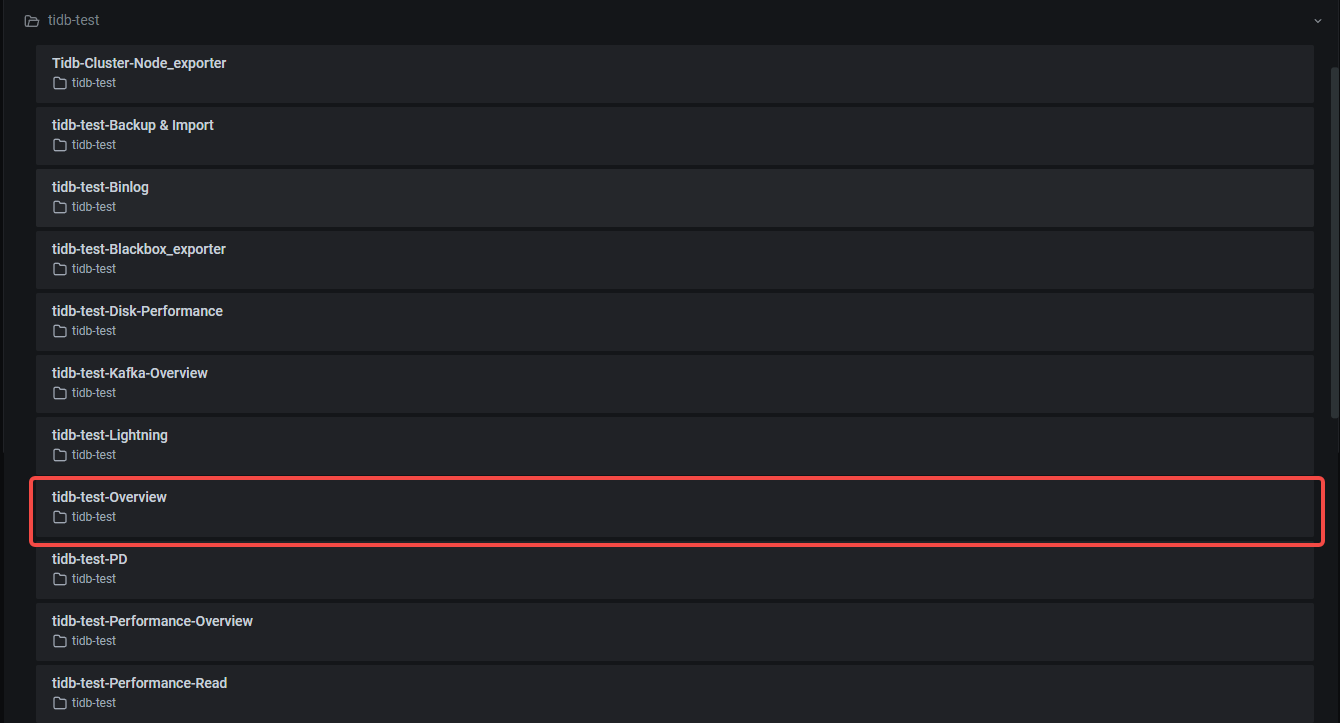
 4. On the `Search` page, expand the menu with the name as the `tidb-test`, and then click `tidb-test-Overview`.
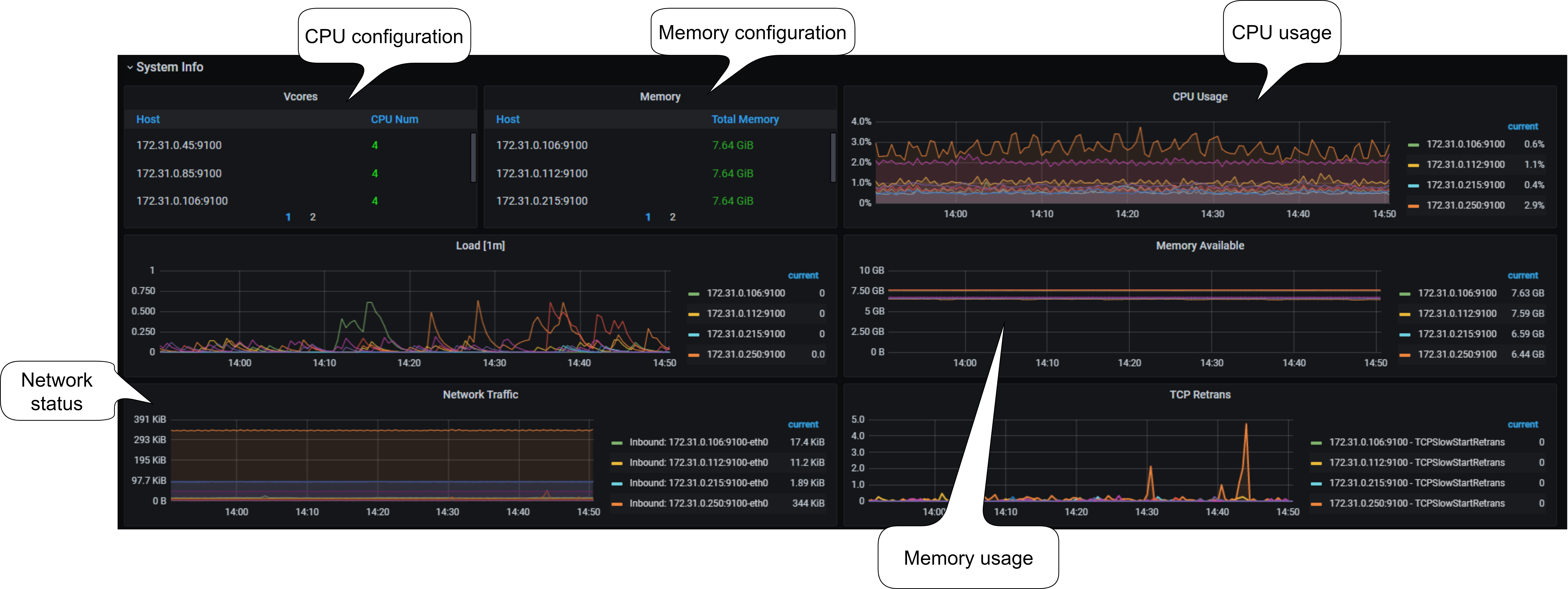
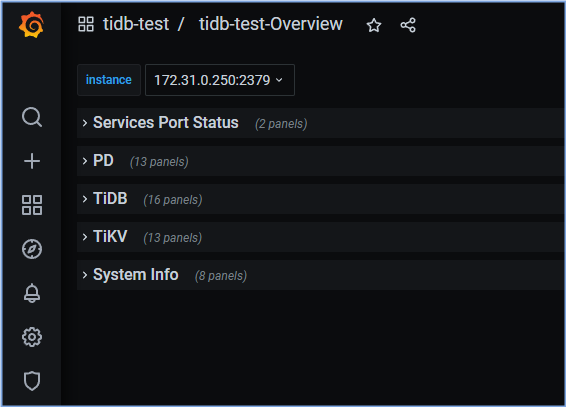 5. Expand the `System-Info` menu of `tidb-test-Overview`, you can view the CPU and memory configuration, CPU, memory, IO, and network usage for each node, etc.
 6. Expand the `Service Port Status` of `tidb-test-Overview`, you can view the online nodes number of each service.
 7. Expand the PD monitoring page of `tidb-test-Overview`, you can get an overview of the component PD status from the PD dashboard, where the key metrics are displayed.
 8. Expand the TiDB monitoring page of `tidb-test-Overview`, you can get an overview of the QPS, TPS, response delay, which serves as the monitoring information to be displayed or reported.
 9. Expand the TiKV monitoring page of `tidb-test-Overview`, you can get an overview of the component TiKV status, where the key metrics are displayed. According to the Performance Map, you can check whether the status of the cluster is as expected.
 ## Exercise 2: Monitoring TiDB by `TiDB Dashboard`
### Overview
+ In this exercise, you monitor a running TiDB instance by `TiDB Dashboard`.
### Duration
+ This exercise should take you approximately 15 minutes to complete.
### Tasks
1. Launch a browser and go to the webpage for `TiDB Dashboard`.
2. Check QPS, execution time, and the types of SQL statements that consume the most resources under the `Overview` page of `TiDB Dashboard`.
3. Check the running status of TiDB, TiKV, PD, and TiFlash under the `Cluster Info` page of `TiDB Dashboard`.
### Solution Steps
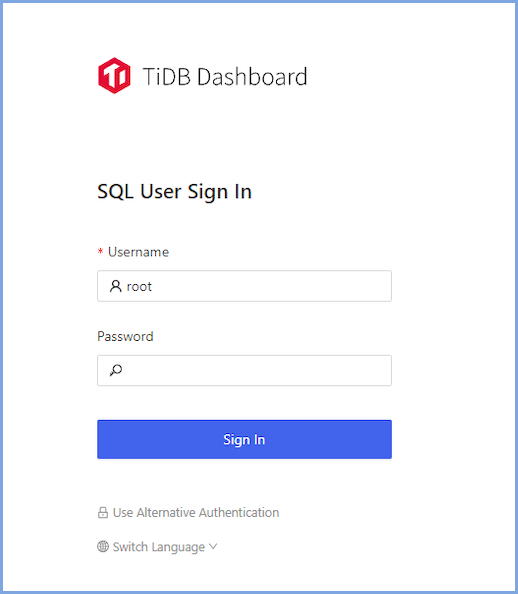
1. Launch a browser and enter the following URL for `TiDB Dashboard`: `http://${HOST_PD1_PUBLIC_IP}:2379/dashboard`. (if you don't know how to get the `${HOST_PD1_PUBLIC_IP}` please ask your instructor for help). Enter `root` in the `Username`. This is also the `root` user of TiDB.
## Exercise 2: Monitoring TiDB by `TiDB Dashboard`
### Overview
+ In this exercise, you monitor a running TiDB instance by `TiDB Dashboard`.
### Duration
+ This exercise should take you approximately 15 minutes to complete.
### Tasks
1. Launch a browser and go to the webpage for `TiDB Dashboard`.
2. Check QPS, execution time, and the types of SQL statements that consume the most resources under the `Overview` page of `TiDB Dashboard`.
3. Check the running status of TiDB, TiKV, PD, and TiFlash under the `Cluster Info` page of `TiDB Dashboard`.
### Solution Steps
1. Launch a browser and enter the following URL for `TiDB Dashboard`: `http://${HOST_PD1_PUBLIC_IP}:2379/dashboard`. (if you don't know how to get the `${HOST_PD1_PUBLIC_IP}` please ask your instructor for help). Enter `root` in the `Username`. This is also the `root` user of TiDB.
 2. Expand the `Overview` page of `TiDB Dashboard`, you can get an overview of the TiDB cluster's queries per second (QPS), execution time, the types of SQL statements that consume the most resources, and other overview information.
 3. Expand the `Cluster Info` page of `TiDB Dashboard`, you can get an overview of the running status of TiDB, TiKV, PD, TiFlash components in the entire cluster and the running status of the host on which these components are located.
 ## End of Exercises