# Exercise 1-4: Pausing and Resuming a Cluster
## Overview
+ In this exercise, you pause your TiDB Cloud cluster and then resume.
## Notes
+ Pause a TiDB cluster is for `TiDB Dedicated` cluster only.
+ You can pause your cluster only when it is in the `AVAILABLE` state.
## Duration
+ This exercise should take you approximately 15 minutes to complete.
## Tasks
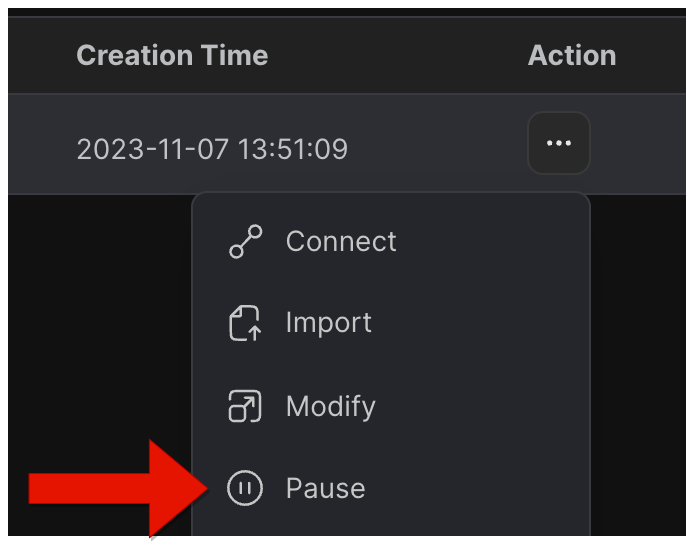
1. Click drop-down menu in the upper-right corner, and then click `Pause`.
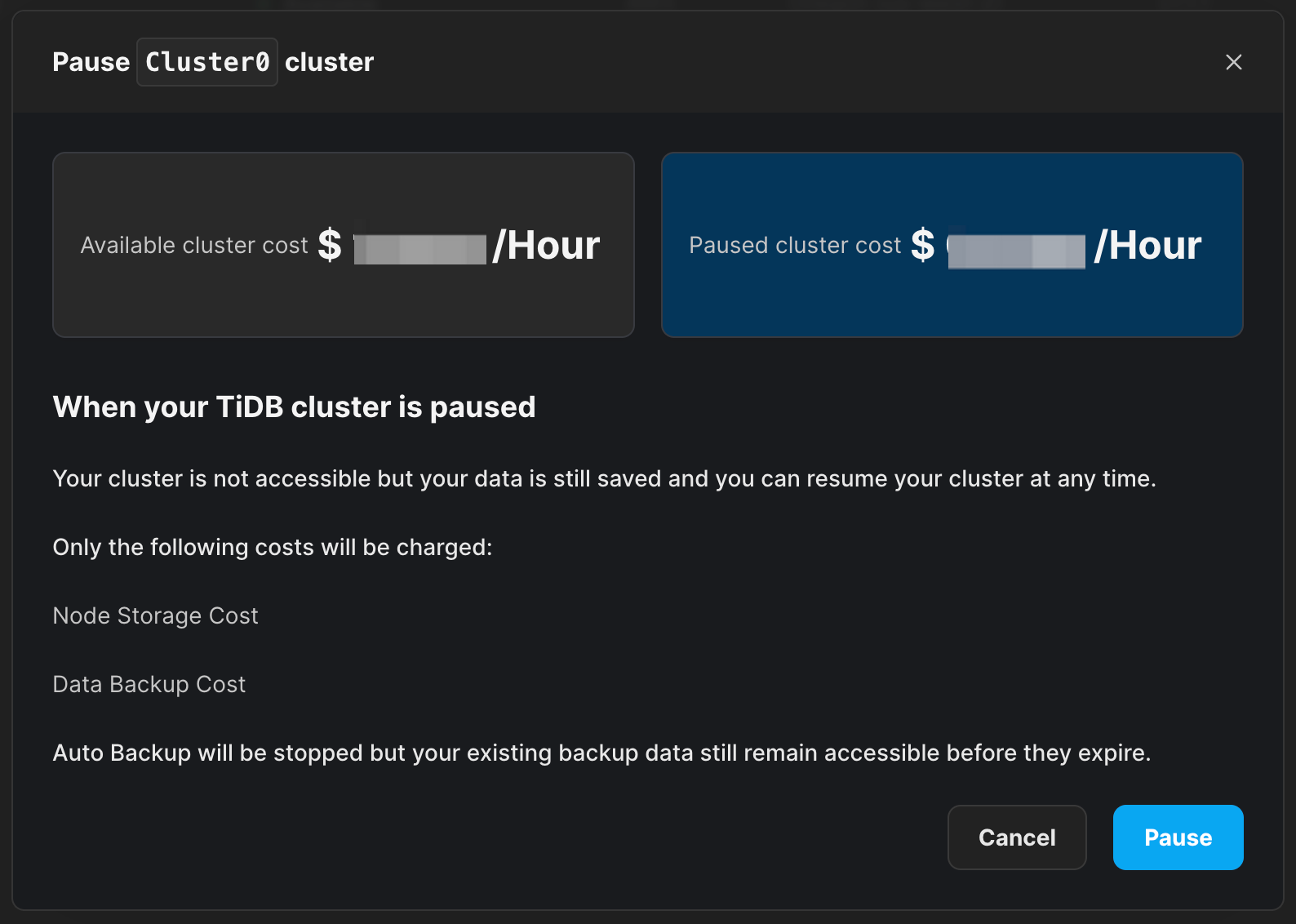
2. In the `Pause your cluster` window, click `Pause`.
3. The cluster state changes from `AVAILABLE` to `PAUSED`.
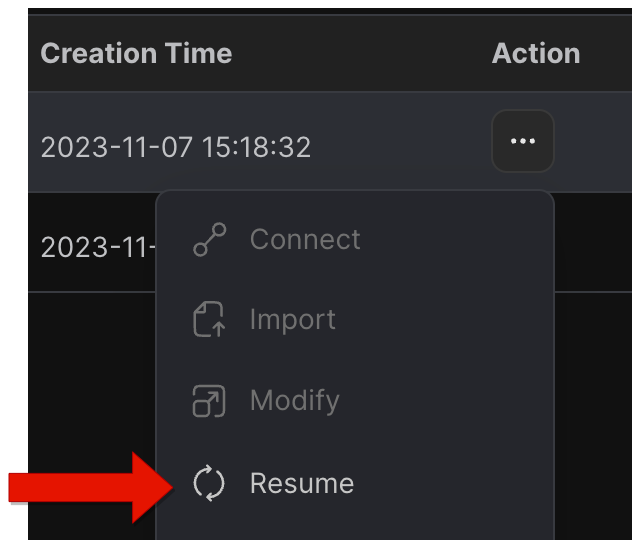
4. Click drop-down menu in the upper-right corner, and then click `Resume`.
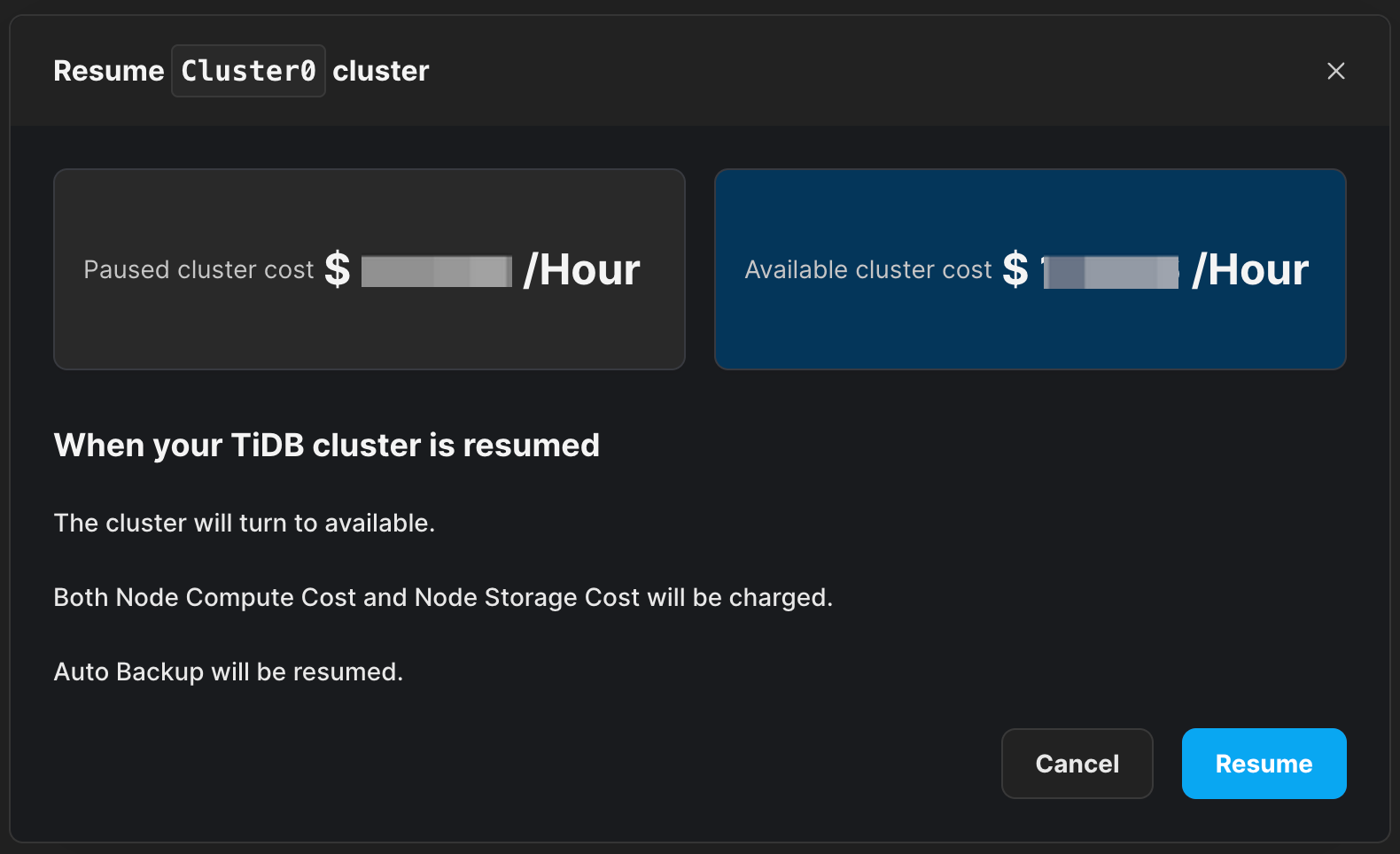
5. In the `Resume your cluster` window, click `Resume`.
6. Wait for your TiDB Cloud cluster to be resumed.
## Solution Steps
1. Click drop-down menu in the upper-right corner, and then click `Pause`.
 2. In the `Pause your cluster` window, you can view the changes in cost and cluster functionality when a cluster is paused, and then click `Pause`.
 3. The cluster state changes from `AVAILABLE` to `PAUSED`.
 4. Click drop-down menu in the upper-right corner, and then click `Resume`.
 5. In the `Resume your cluster` window, click `Resume`.
 6. Wait for your TiDB Cloud cluster to be resumed.