# Exercise 2-1: Connecting to TiDB Cloud Cluster by Standard Connection
## Overview
+ In this exercise, you connect to TiDB Cloud cluster through `Standard Connection`
## Duration
+ This exercise should take you approximately 10 minutes to complete.
## Tasks
1. On the `Clusters` page, click the name of the cluster to enter the `Overview` page of the cluster.
2. On the `Overview` page, click `Connect` in the upper-right corner.
3. Choose a connection method, and then connect to your cluster with the connection string.
## Solution Steps
(a) For `TiDB Serverless` cluster
1. On the `Clusters` page, click the name of the cluster to enter the `Overview` page of the cluster.
 2. On the `Overview` page, click `Connect` in the upper-right corner.
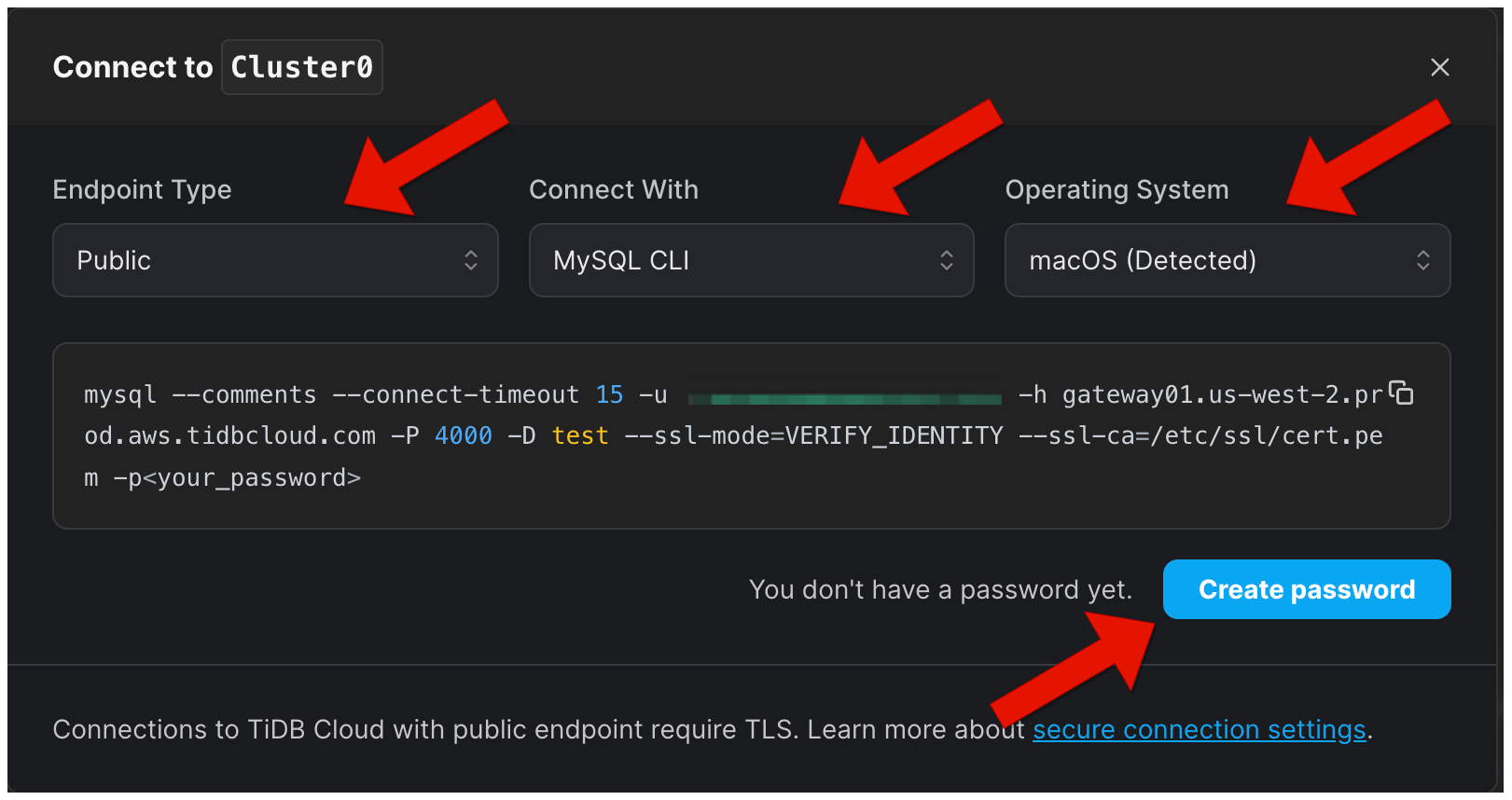
3. In the dialog, keep the default setting of the endpoint type as Public, and choose a connection method and Operating System, then click `Create Password`. You can click `Copy password` to save your password, or you can reset it when connecting next time.
2. On the `Overview` page, click `Connect` in the upper-right corner.
3. In the dialog, keep the default setting of the endpoint type as Public, and choose a connection method and Operating System, then click `Create Password`. You can click `Copy password` to save your password, or you can reset it when connecting next time.
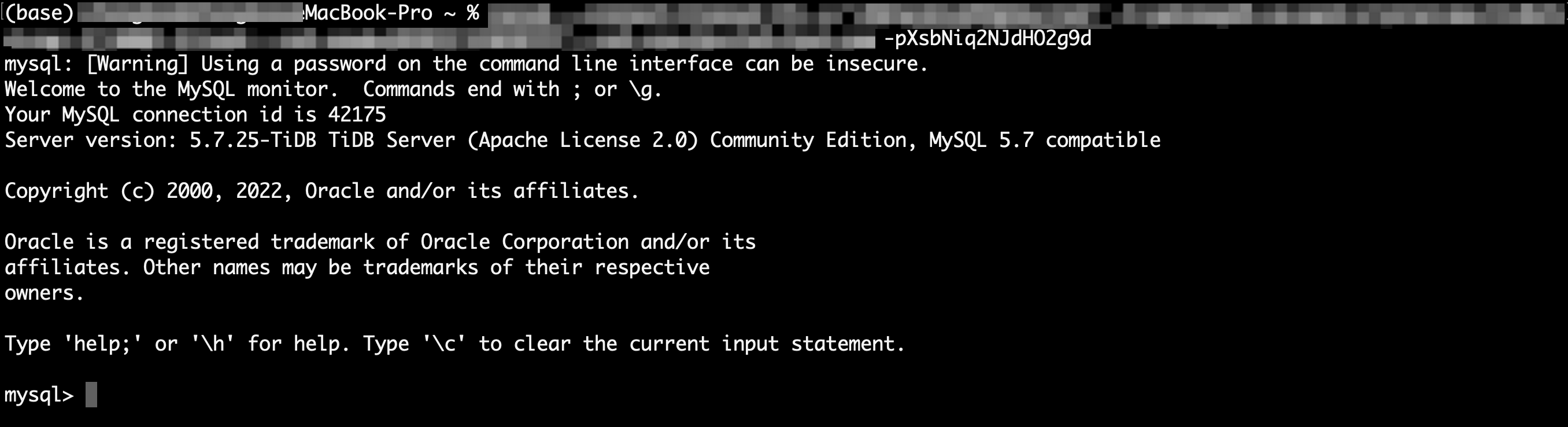
 4. Connect to your cluster with the connection string.
 (b) For `TiDB Dedicated` cluster
1. On the `Clusters` page, click the name of the cluster to enter the `Overview` page of the cluster.
(b) For `TiDB Dedicated` cluster
1. On the `Clusters` page, click the name of the cluster to enter the `Overview` page of the cluster.
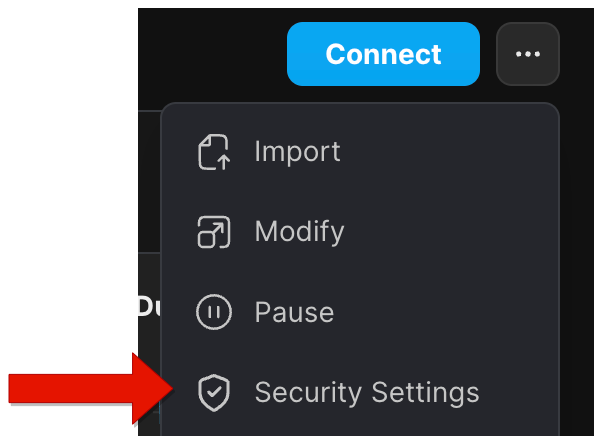
 2. On the `Overview` page, Click drop-down menu in the upper-right corner, and then click `Security Settings`.
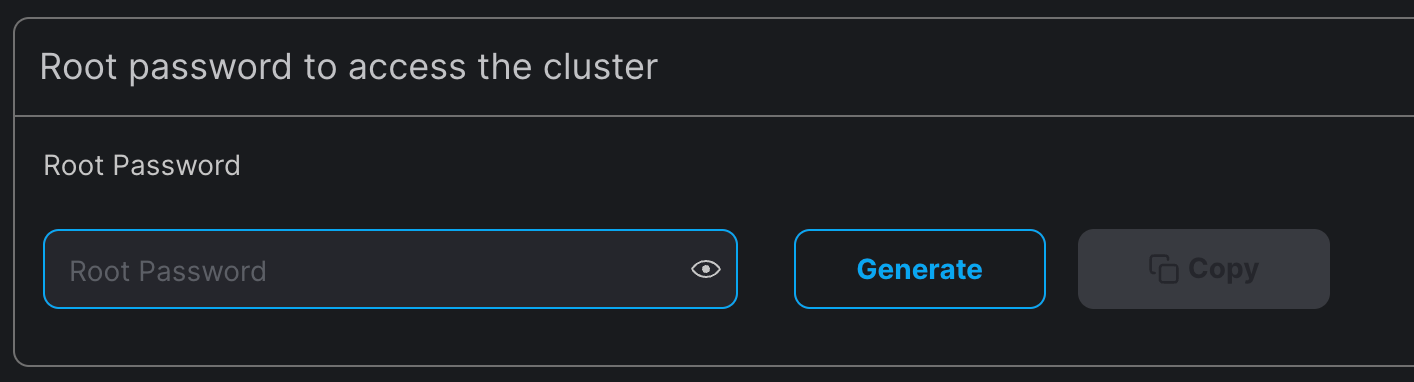
 3. In `Security Settings` window, set your `Root Password`, then click `Apply`.
 4. Back to the `Overview` page, click `Connect` in the upper-right corner.
5. In the Connect setting window, click one of the buttons to add some rules, then set the `IP Address` and `Description(Optional)`, and then click `Update Filter` to confirm the changes.
If the `traffic filter` is already set, you can edit it or skip this step.
4. Back to the `Overview` page, click `Connect` in the upper-right corner.
5. In the Connect setting window, click one of the buttons to add some rules, then set the `IP Address` and `Description(Optional)`, and then click `Update Filter` to confirm the changes.
If the `traffic filter` is already set, you can edit it or skip this step.

 6. Click `Download TiDB cluster CA` for TLS connection to TiDB clusters. The TiDB cluster CA supports TLS 1.2 version by default.
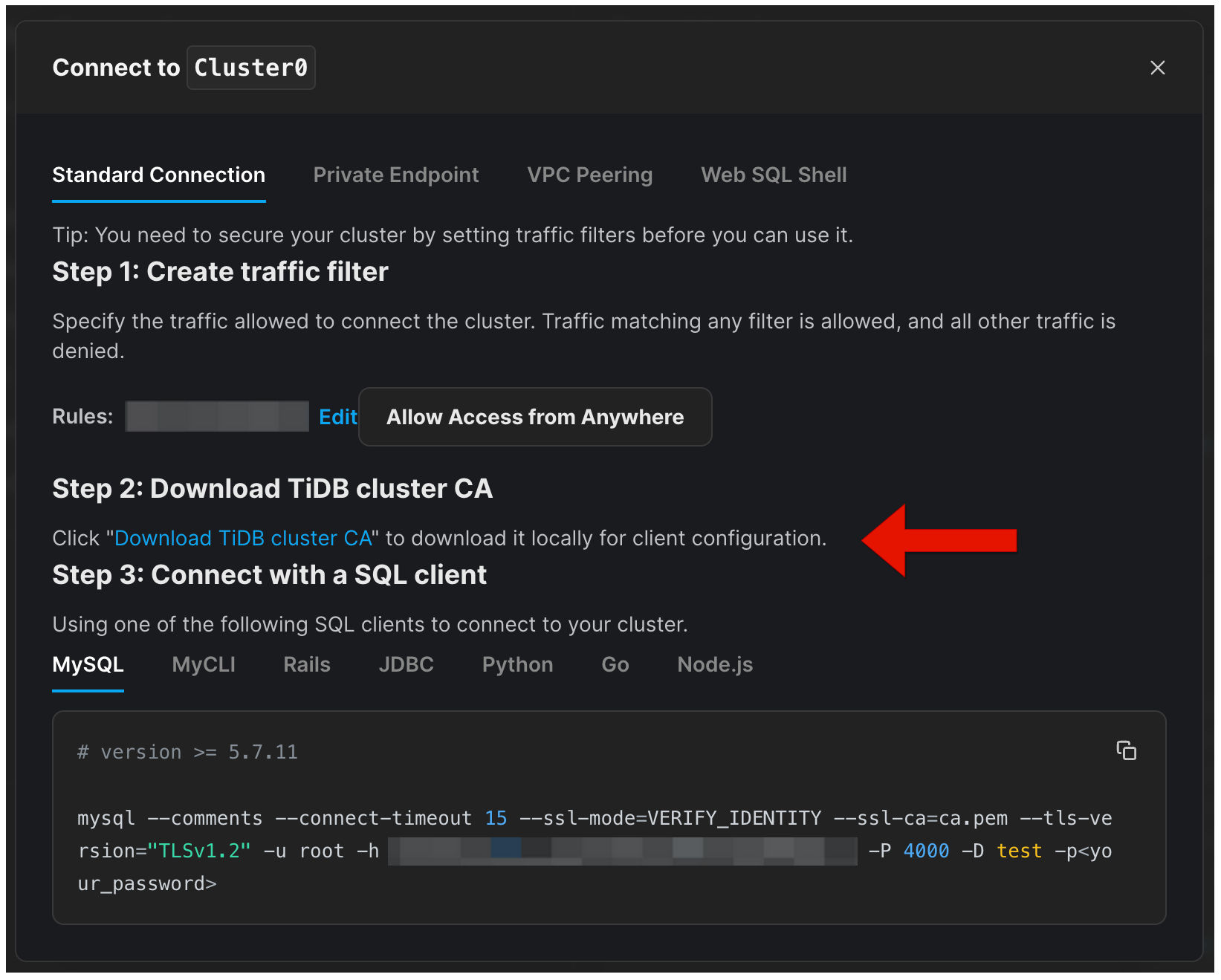 7. Choose a connection method, and then connect to your cluster with the connection string. Note that you need to use the path of the downloaded CA file as the argument of the `--ssl-ca` option in the connection string.
