# Exercise 2-2: Connecting to `TiDB Dedicated` Cluster by VPC Peering
## Overview
+ In this exercise, you connect to `TiDB Dedicated` cluster through `VPC Peering`
## Duration
+ This exercise should take you approximately 10 minutes to complete.
## Notes
+ This task is for `TiDB Dedicated` cluster only.
### Assumptions
+ This task requires an active AWS account, and you are aware of the 12-digits of AWS account ID.
### Tasks
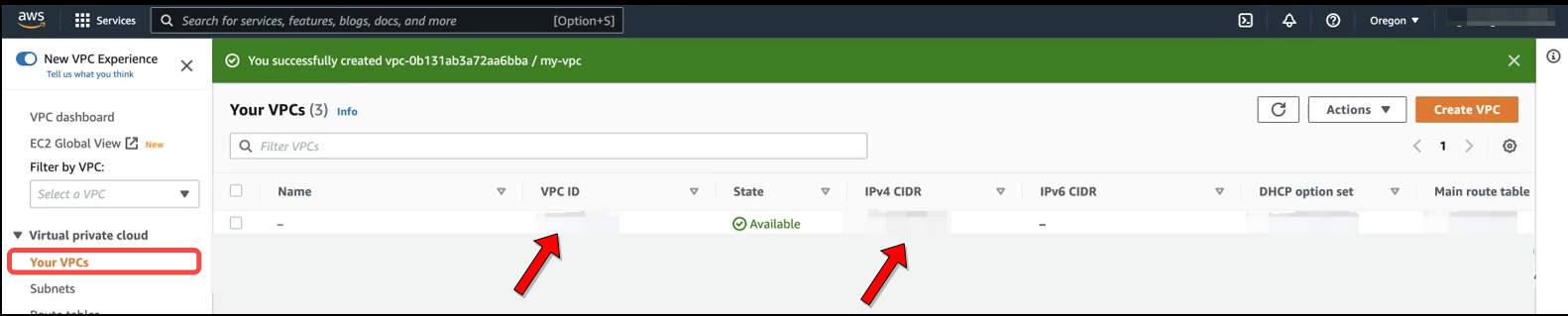
1. Get the `VPC ID`、`VPC CIDR` from the VPC dashboard.
2. Choose a TiDB cluster
3. Check the service endpoint region
4. Create an AWS interface endpoint
5. Accept the endpoint connection
6. Enable private DNS
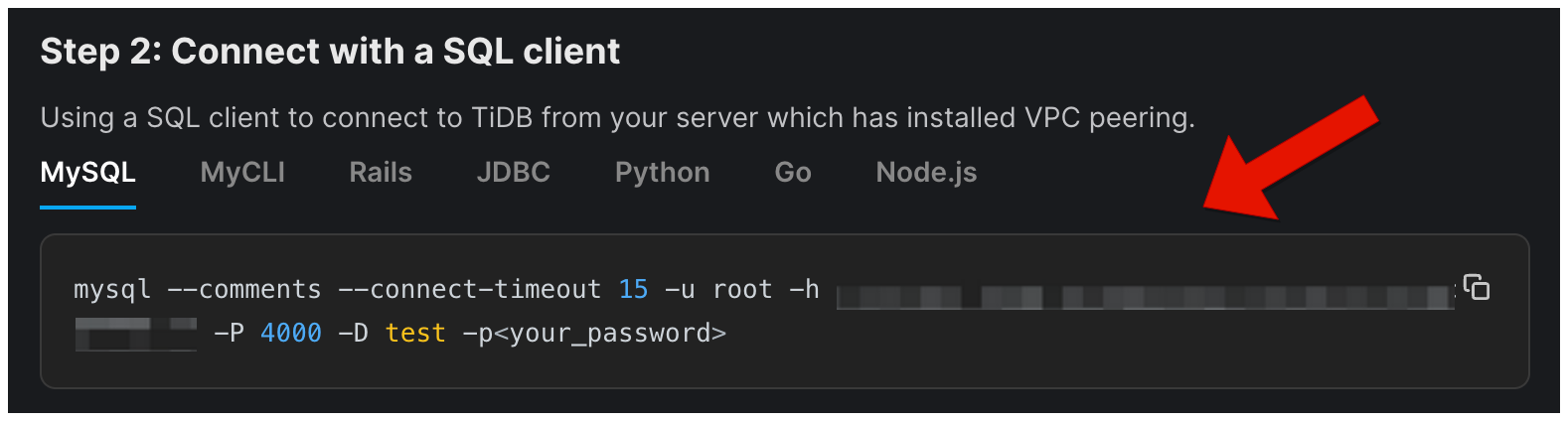
7. Connect to your TiDB cluster
### Solution Steps
1. Get the `VPC ID`、`VPC CIDR` from the VPC dashboard.
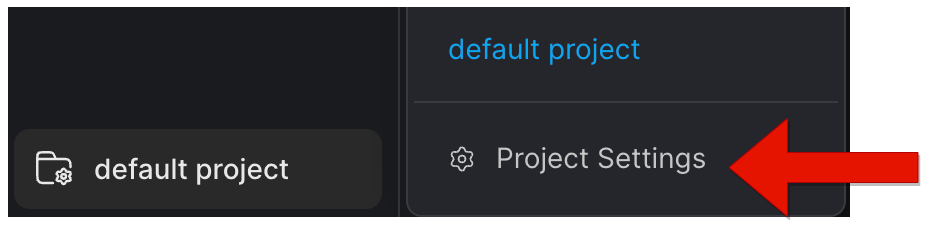
 2. In the lower-left of the web console, click your project name (`default project` in our case), then switch to your target project, and click `Project Settings`.
 3. On the `Project Settings` page of your project, click `Network Access` in the left navigation pane, and then click the `Project CIDR` tab,then click `Add`.
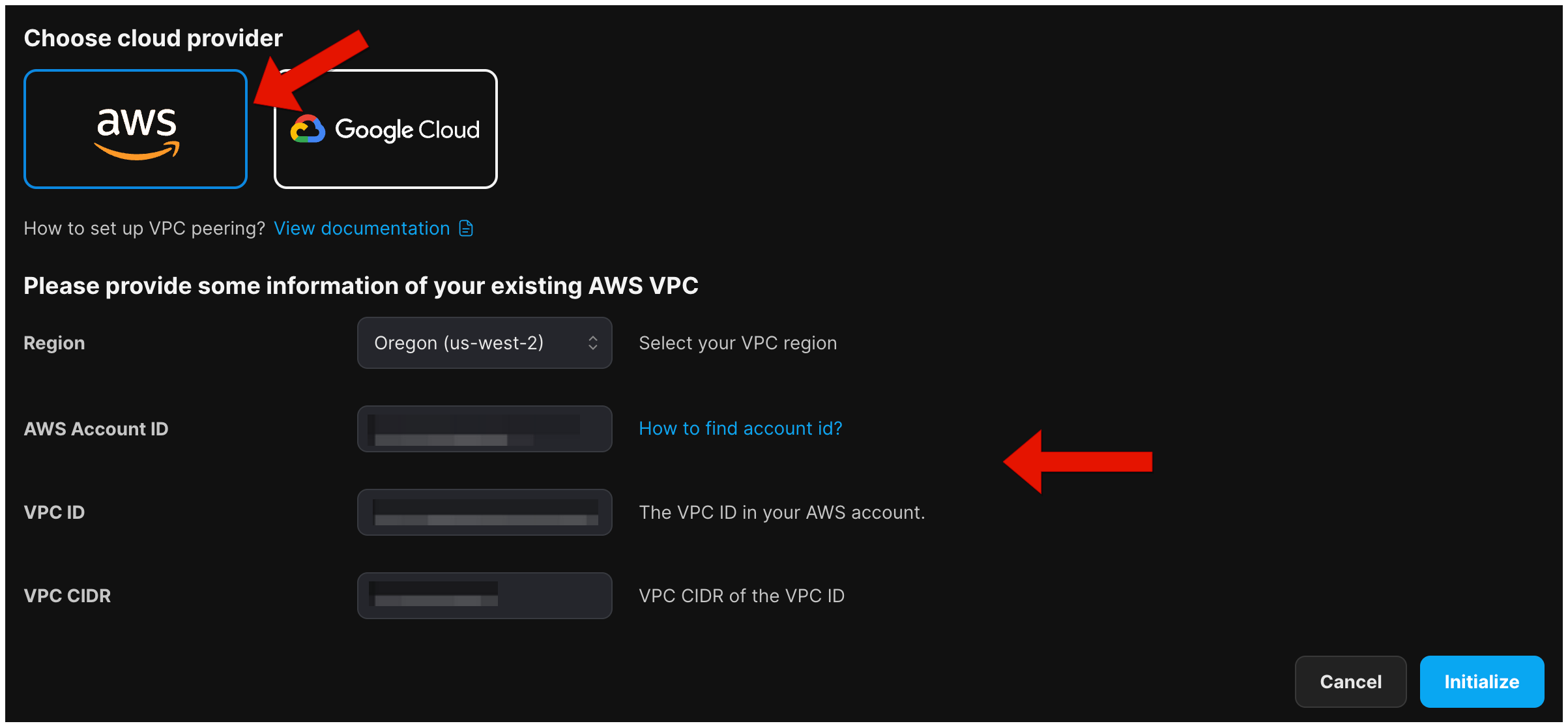
4. Choose AWS as the Cloud provider, and then provide the information of your existing AWS VPC. (TiDB Cloud only supports VPC peering in the same region for the same project)
3. On the `Project Settings` page of your project, click `Network Access` in the left navigation pane, and then click the `Project CIDR` tab,then click `Add`.
4. Choose AWS as the Cloud provider, and then provide the information of your existing AWS VPC. (TiDB Cloud only supports VPC peering in the same region for the same project)
 5. Click `Done`.
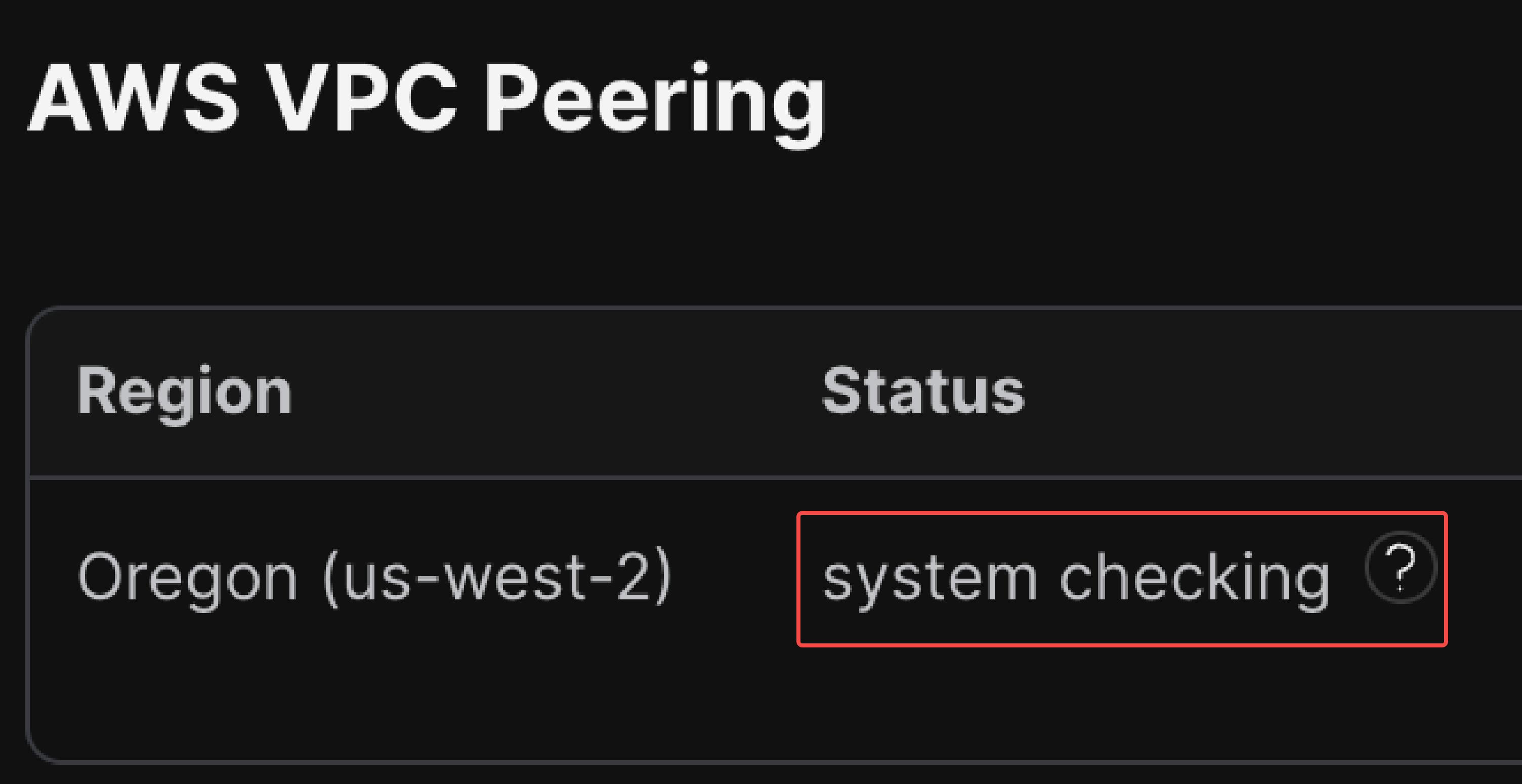
 6. On the `AWS VPC Peerings` section, verify the `AWS VPC Peerings` state is `system checking`.
 7. On your AWS console, open the `Peering Connections` page, you will find a peering connection is in the `Pending acceptance` status.
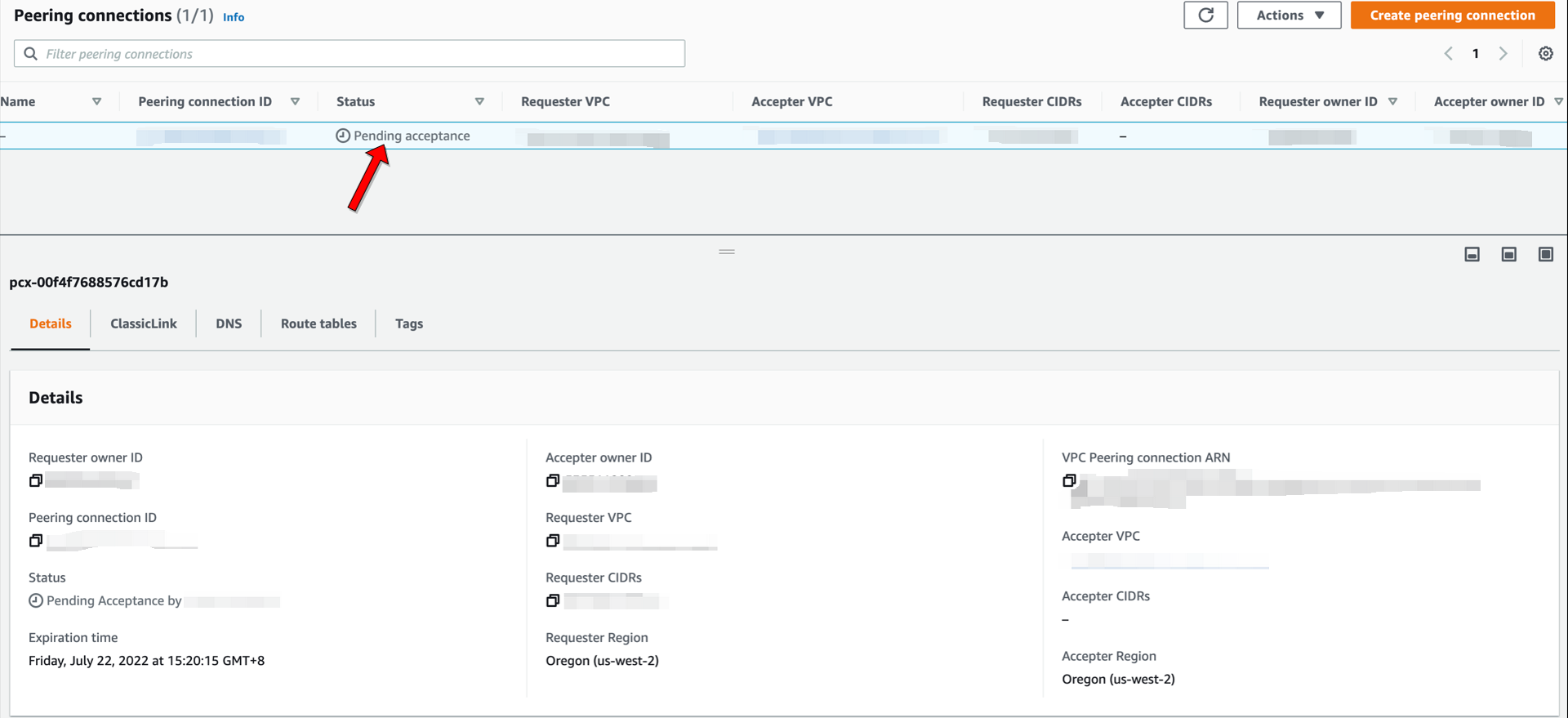 8. Make sure that the requester owner is TiDB Cloud and click `Accept request`.
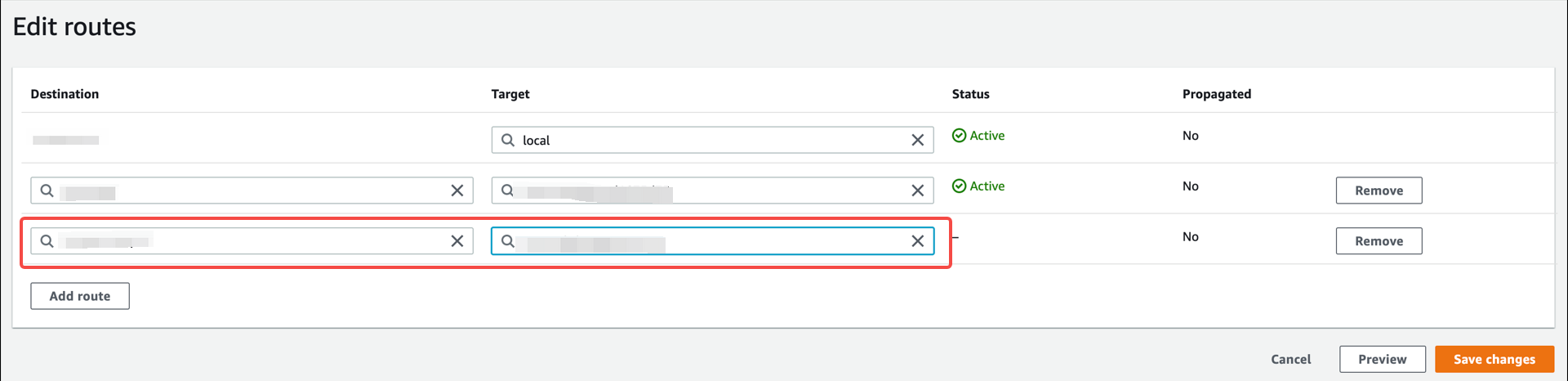
 9. Open the `Route tables` page and add the `Destination` and `Target`.
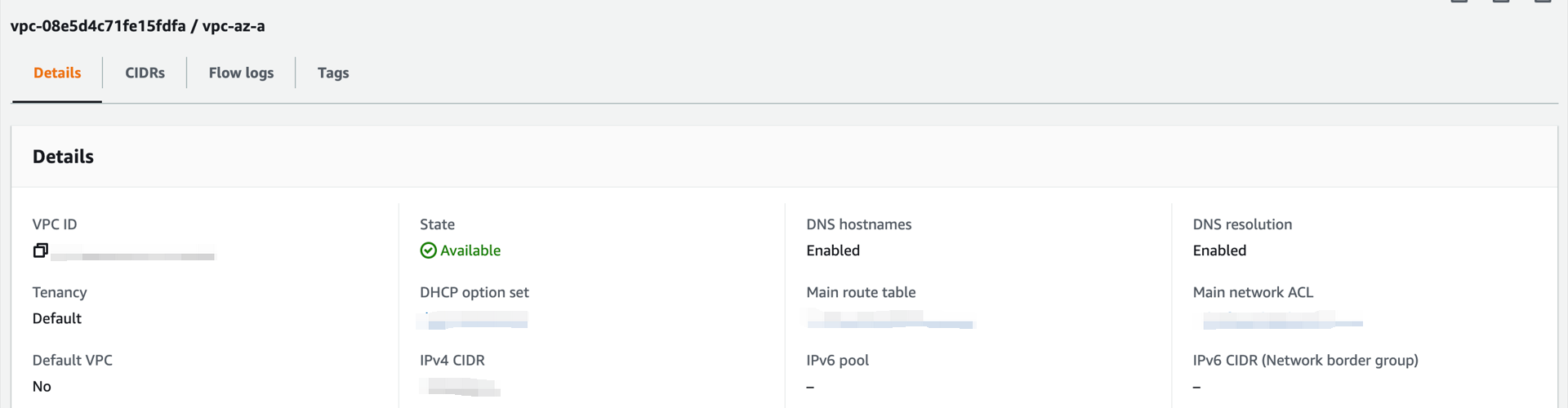
 10. Make sure you have enabled private DNS hosted zone support for your VPC.
 11. On the TiDB Cloud console, on the `Clusters` page, click the name of the cluster to enter the `Overview` page of the cluster.
 12. On the `Overview` page, click `Connect` in the upper-right corner.
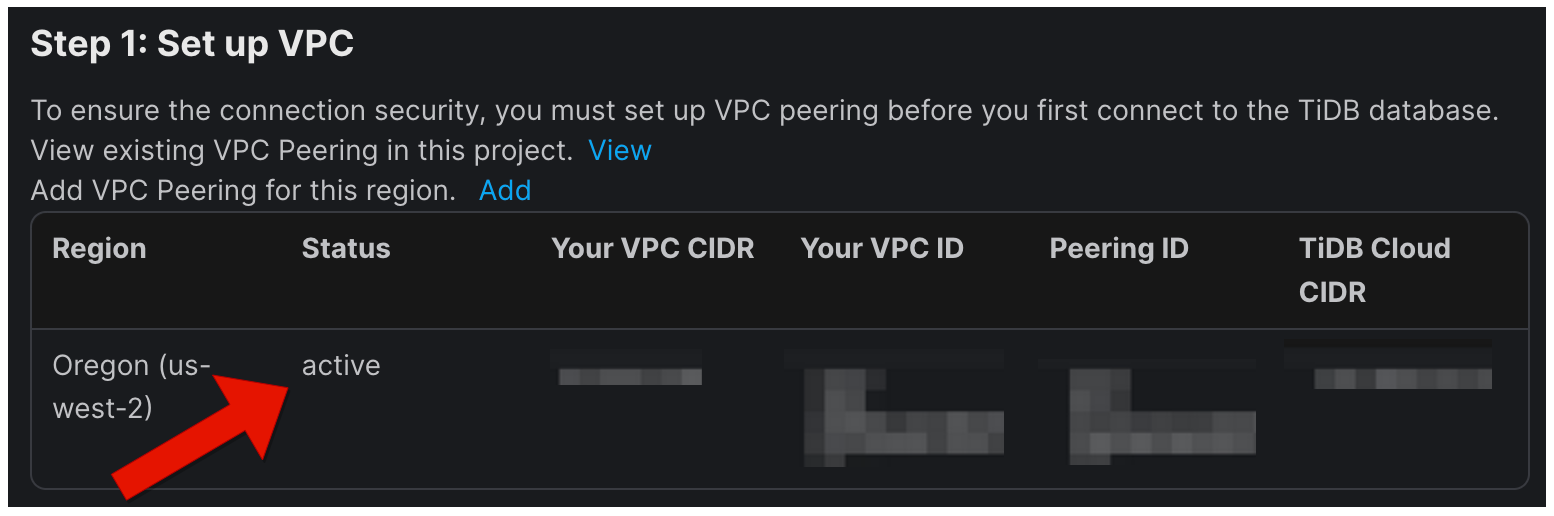
13. In the Connect setting window, select the `VPC Peering`. You could see the `Status` of the VPC peering is `active`.
12. On the `Overview` page, click `Connect` in the upper-right corner.
13. In the Connect setting window, select the `VPC Peering`. You could see the `Status` of the VPC peering is `active`.
 14. Use a SQL client to connect to TiDB.