# Exercise 2-3: Connecting to TiDB Cloud Cluster by Private Endpoint
## Overview
+ In this exercise, you connect to TiDB Cloud cluster through `Private Endpoint`.
## Duration
+ This exercise should take you approximately 15 minutes to complete.
### Assumptions
+ This task requires an active AWS account.
### Tasks
+ (a) For `TiDB Serverless` cluster
1. Create an AWS interface endpoint
2. Connect to your TiDB cluster
+ (b) For `TiDB Dedicated` cluster
1. Check the service endpoint region
2. Create an AWS interface endpoint
3. Accept the endpoint connection
4. Enable private DNS
5. Connect to your TiDB cluster
### Solution Steps
(a) For `TiDB Serverless` cluster
1. On the `Clusters` page, click the name of the cluster to enter the `Overview` page of the cluster.
 2. On the `Overview` page, click `Connect` in the upper-right corner.
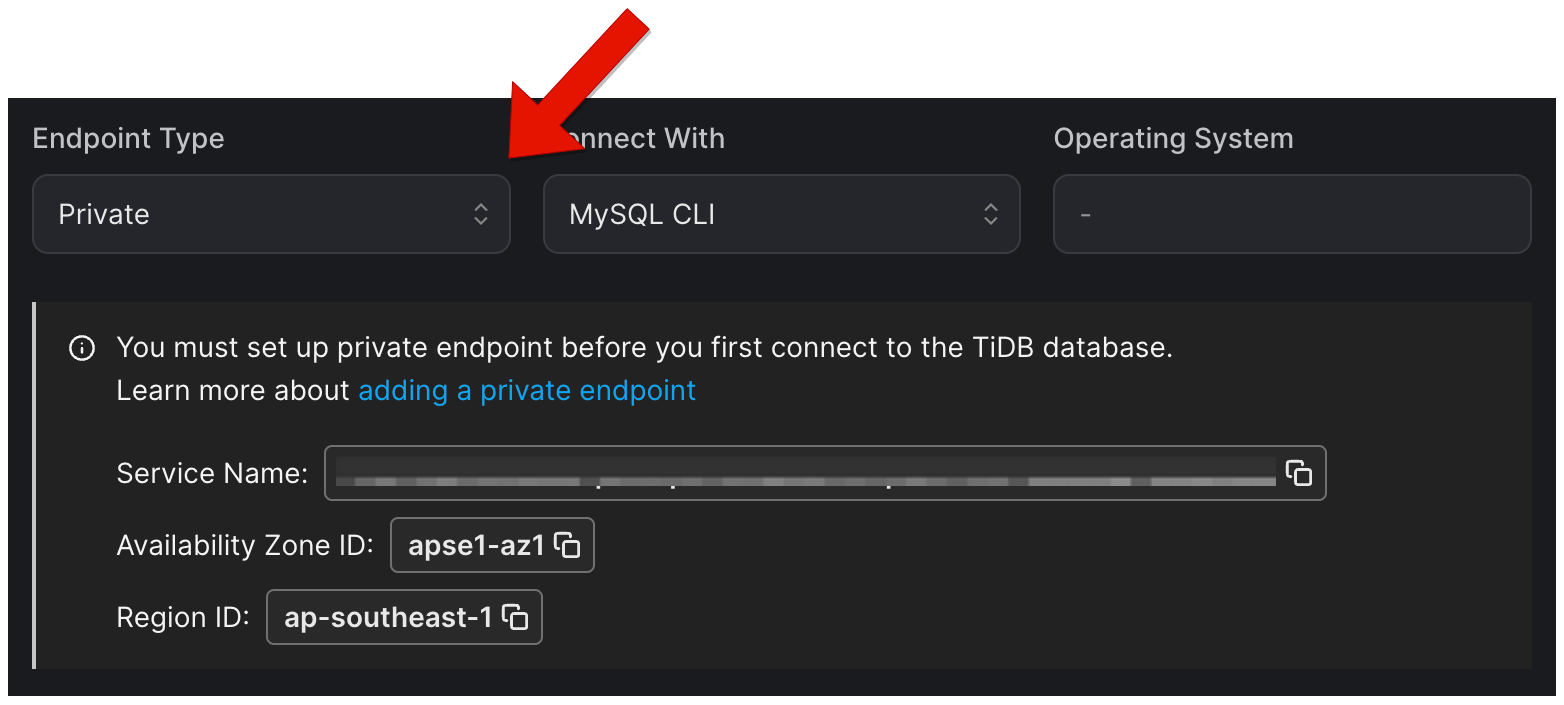
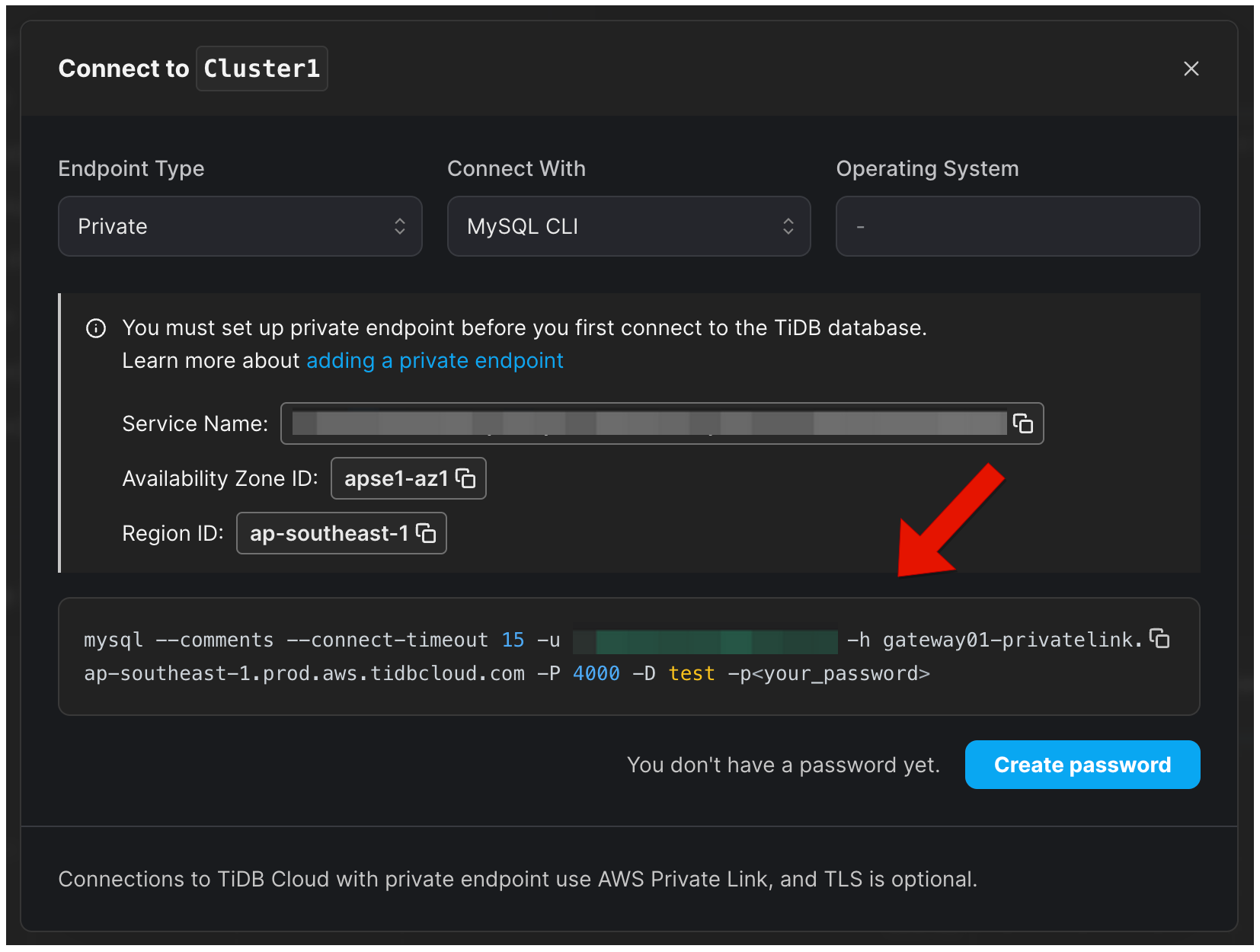
3. In the Endpoint Type drop-down list, select Private. Then take a note of Service Name, Availability Zone ID, and Region ID.
2. On the `Overview` page, click `Connect` in the upper-right corner.
3. In the Endpoint Type drop-down list, select Private. Then take a note of Service Name, Availability Zone ID, and Region ID.
 4. On your AWS console, open the `VPC dashboard`, then go to the `Endpoints` page.
5. On the `Endpoints` page, click `Create Endpoint`.
4. On your AWS console, open the `VPC dashboard`, then go to the `Endpoints` page.
5. On the `Endpoints` page, click `Create Endpoint`.
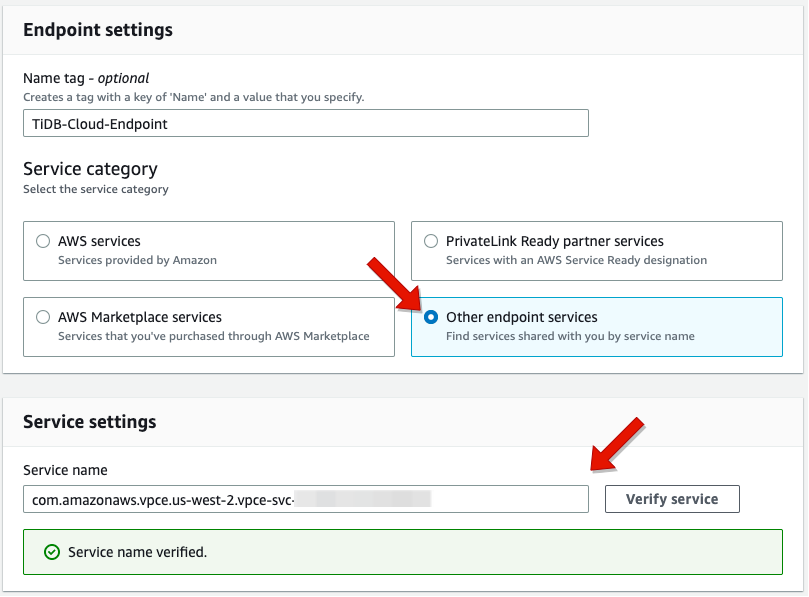
 6. On the `Create endpoint` page, select `Other endpoint services`, enter the endpoint service name on `Service settings` section, and then click `Verify service` to verify your endpoint service name,
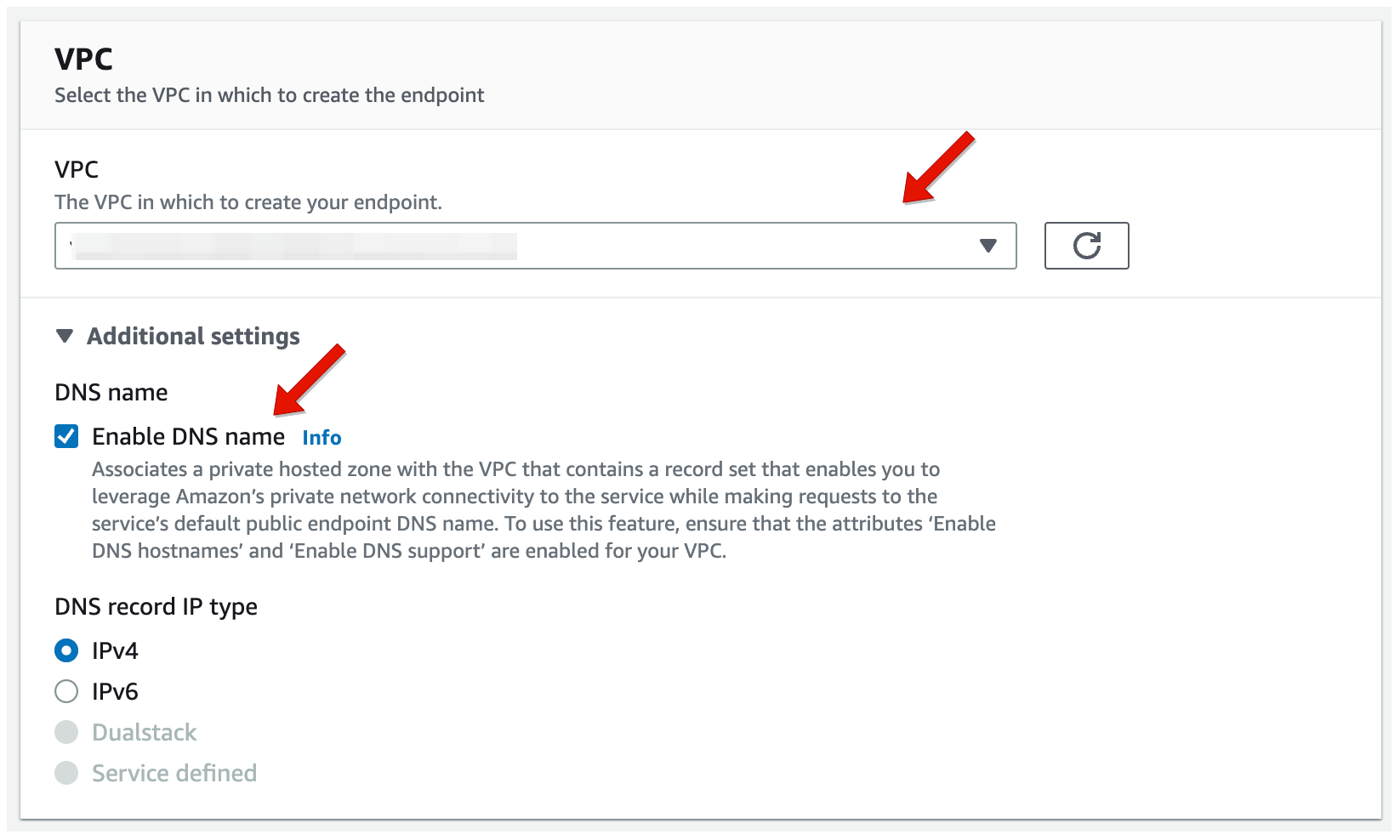
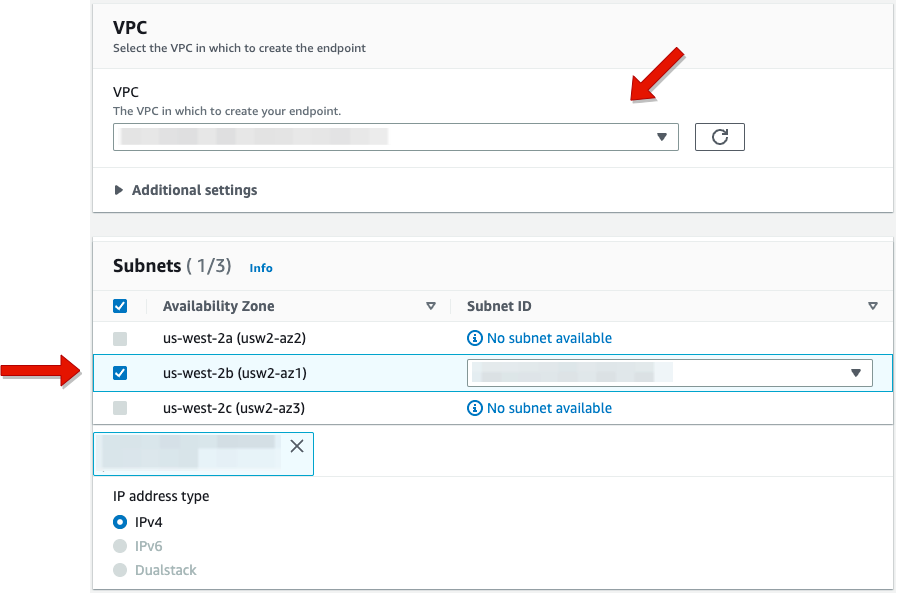
 7. On the `VPC` section, select your VPC in the drop-down list, and expand Additional settings and select the Enable DNS name checkbox.
 8. On the `Subnets` session, select the availability zones where your TiDB cluster is located .
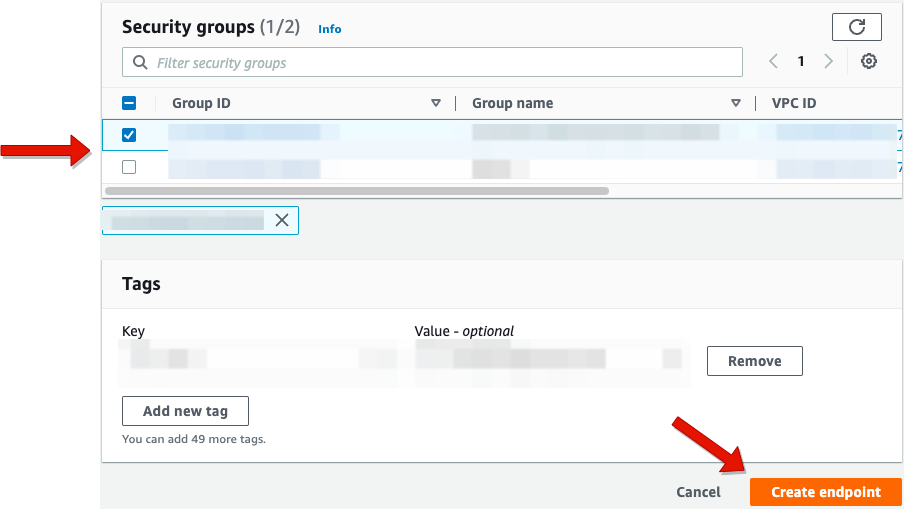
 9. On the `Security groups` section, select your security group properly, then click `Create endpoint`.
 10. Go back to the TiDB Cloud console, click the name of the cluster to enter the `Overview` page of the cluster.
11. On the `Overview` page, click `Connect` in the upper-right corner.
12. In the Endpoint Type drop-down list, select Private, and choose a connection method, and then connect to your cluster with the connection string.
10. Go back to the TiDB Cloud console, click the name of the cluster to enter the `Overview` page of the cluster.
11. On the `Overview` page, click `Connect` in the upper-right corner.
12. In the Endpoint Type drop-down list, select Private, and choose a connection method, and then connect to your cluster with the connection string.
 (b) For `TiDB Dedicated` cluster
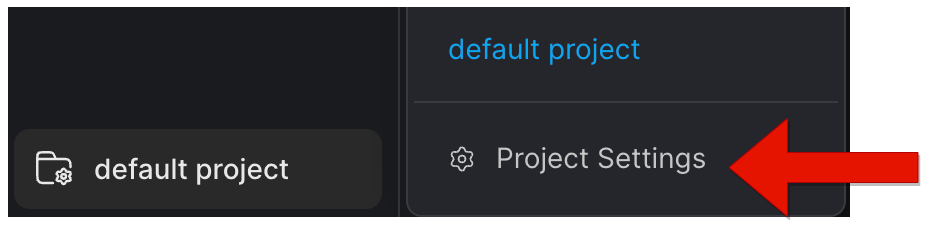
1. In the lower-left of the web console, click your project name (`default project` in our case), then switch to your target project, and click `Project Settings`.
(b) For `TiDB Dedicated` cluster
1. In the lower-left of the web console, click your project name (`default project` in our case), then switch to your target project, and click `Project Settings`.
 2. On the `Project Settings` page of your project, click `Network Access` in the left navigation pane, and then click the `Private Endpoint` tab, then click `Add`.
3. On the `Select Cluster` section, Click the drop-down list and choose an available TiDB cluster, and then click `Next`.
2. On the `Project Settings` page of your project, click `Network Access` in the left navigation pane, and then click the `Private Endpoint` tab, then click `Add`.
3. On the `Select Cluster` section, Click the drop-down list and choose an available TiDB cluster, and then click `Next`.
 4. On the `Select Region` section, the service endpoint region is selected by default. Have a quick check and click `Next`.
 5. On the `Interface Endpoint` section, TiDB Cloud begins creating an endpoint service, which takes 3 to 4 minutes. When the endpoint service is created, take a note of your endpoint service name from the command in the lower area of the console, and then click `Next`.
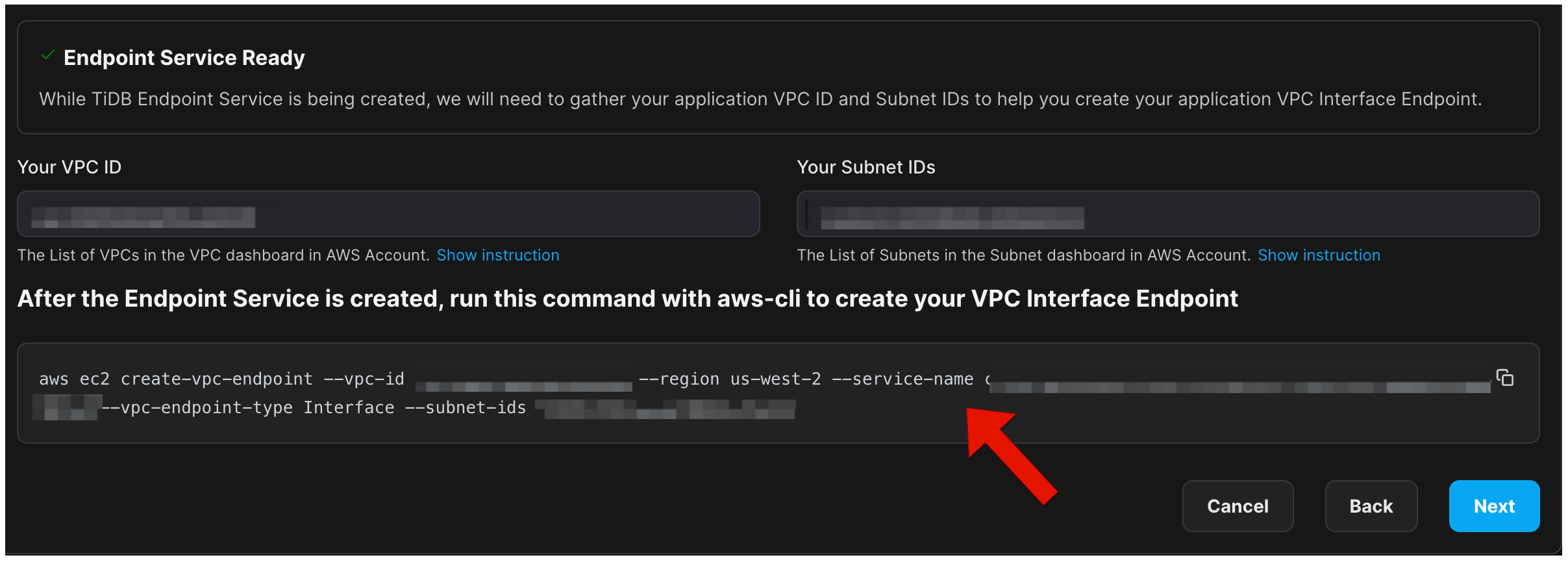 6. On your AWS console, open the `VPC dashboard`, then go to the `Endpoints` page.
7. On the `Endpoints` page, click `Create Endpoint`.
8. On the `Create endpoint` page, select `Other endpoint services`, enter the endpoint service name on `Service settings` section, and then click `Verify service` to verify your endpoint service name,
9. On the `VPC` section, select your VPC in the drop-down list, and select the availability zones where your TiDB cluster is located on the `Subnets` session.
10. On the `Security groups` section, select your security group properly, then click `Create endpoint`.
11. Get the `VPC endpoint ID` of your Endpoints. Then go back to the TiDB Cloud console, fill in the box with your `VPC endpoint ID` on the `Accept Endpoint Connection` section, and then click `Next`.
12. On your AWS console, right-click your endpoint ID and select `Modify private DNS name`.
6. On your AWS console, open the `VPC dashboard`, then go to the `Endpoints` page.
7. On the `Endpoints` page, click `Create Endpoint`.
8. On the `Create endpoint` page, select `Other endpoint services`, enter the endpoint service name on `Service settings` section, and then click `Verify service` to verify your endpoint service name,
9. On the `VPC` section, select your VPC in the drop-down list, and select the availability zones where your TiDB cluster is located on the `Subnets` session.
10. On the `Security groups` section, select your security group properly, then click `Create endpoint`.
11. Get the `VPC endpoint ID` of your Endpoints. Then go back to the TiDB Cloud console, fill in the box with your `VPC endpoint ID` on the `Accept Endpoint Connection` section, and then click `Next`.
12. On your AWS console, right-click your endpoint ID and select `Modify private DNS name`.
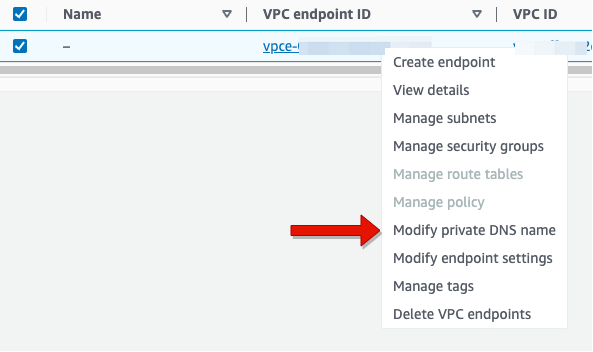 13. On the `Modify private DNS name` page, select the `Enable for this endpoint` check box, then click `Save changes`.
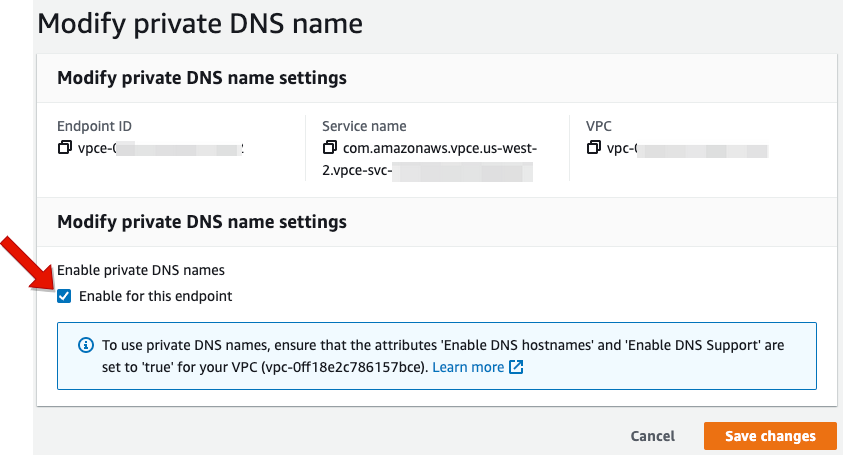 14. On TiDB Cloud console console, click `Create` on `Enable Your Endpoint Private DNS` section.
15. On the `Clusters` page, click the name of the cluster to enter the `Overview` page of the cluster.
14. On TiDB Cloud console console, click `Create` on `Enable Your Endpoint Private DNS` section.
15. On the `Clusters` page, click the name of the cluster to enter the `Overview` page of the cluster.
 16. On the `Overview` page, click `Connect` in the upper-right corner.
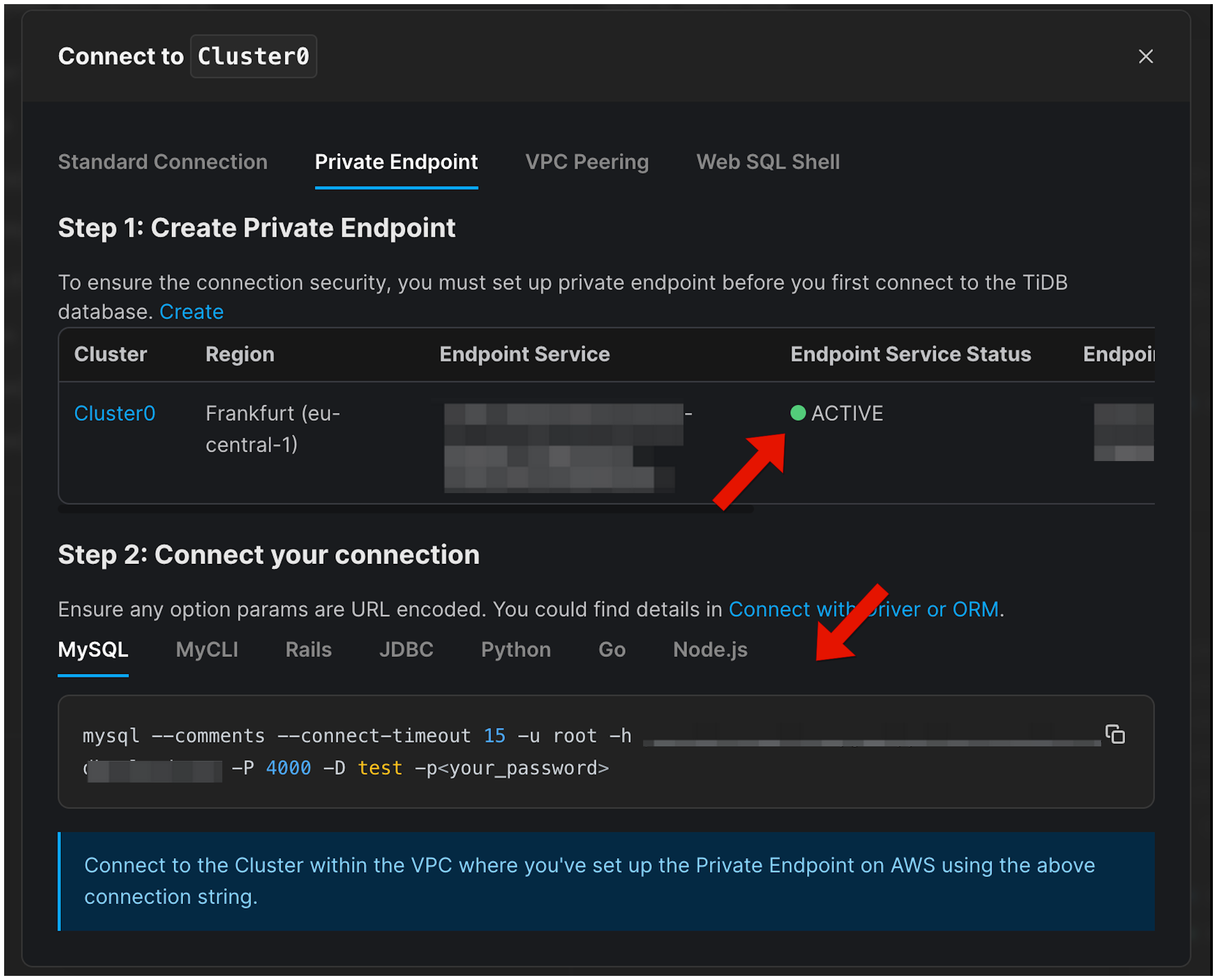
17. In the connect setting window, select the `Private Endpoint`. The private endpoint you just created is displayed under `Step 1: Create Private Endpoint`.
18. Use a SQL client to connect to TiDB.
16. On the `Overview` page, click `Connect` in the upper-right corner.
17. In the connect setting window, select the `Private Endpoint`. The private endpoint you just created is displayed under `Step 1: Create Private Endpoint`.
18. Use a SQL client to connect to TiDB.