# Exercise 3-1: Managing User Passwords
## Overview
+ In this exercise, you change the password of TiDB Cloud.
## Notes:
+ This task is only applicable to TiDB Cloud registration with email/password. If you sign up for TiDB Cloud with Google or GitHub, your password is managed by Google or GitHub and you cannot change it using the TiDB Cloud console.
## Duration
+ This exercise should take you approximately 5 minutes to complete.
## Tasks
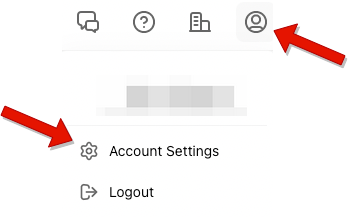
1. Click `Account` in the upper-right corner, and then click `Account Settings`.
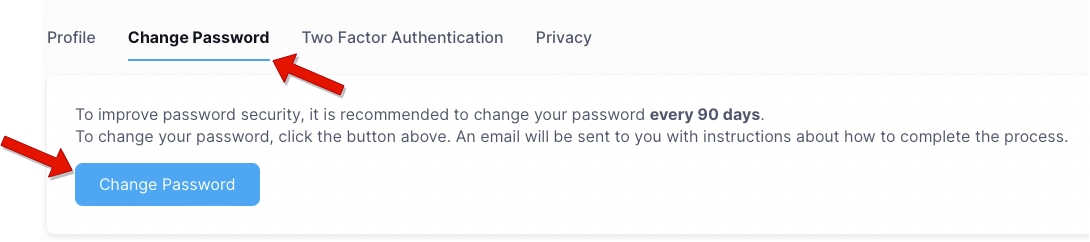
2. Select the `Change Password` tab, and then click `Change Password`, check your mailbox for the link to reset the password.
## Solution Steps
1. Click `Account` in the upper-right corner, and then click `Account Settings`.
 2. Select the `Change Password` tab, and then click `Change Password`, check your mailbox for the link to reset the password.