# Exercise 3-5: Removing Member
## Overview
+ In this exercise, you Remove members from organization or project.
## Note:
+ If you are the owner of an organization, you can invite organization members or project members. Otherwise, you may skip this task.
## Duration
+ This exercise should take you approximately 5 minutes to complete.
## Tasks
1. Click `Organization` in the upper-right corner, and then click `Organization Settings`.
2. Click `User Management`.
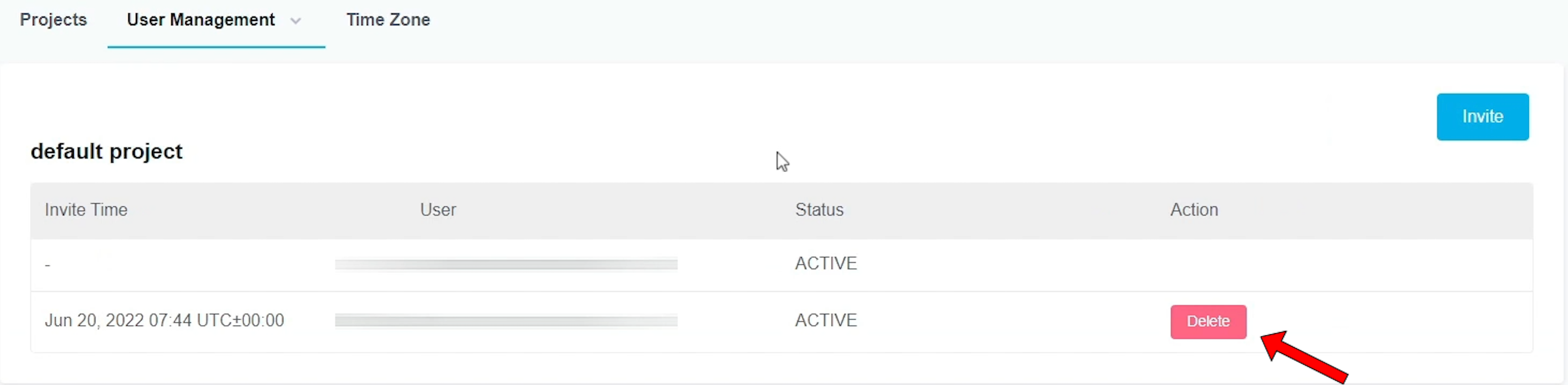
3. Click `Delete` in the user row that you want to delete.
## Solution Steps
(a) Remove the organization member
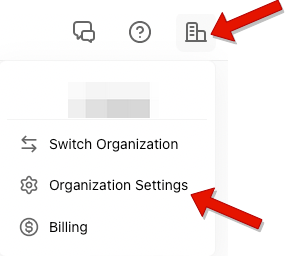
1. Click `Organization` in the upper-right corner, and then click `Organization Settings`.
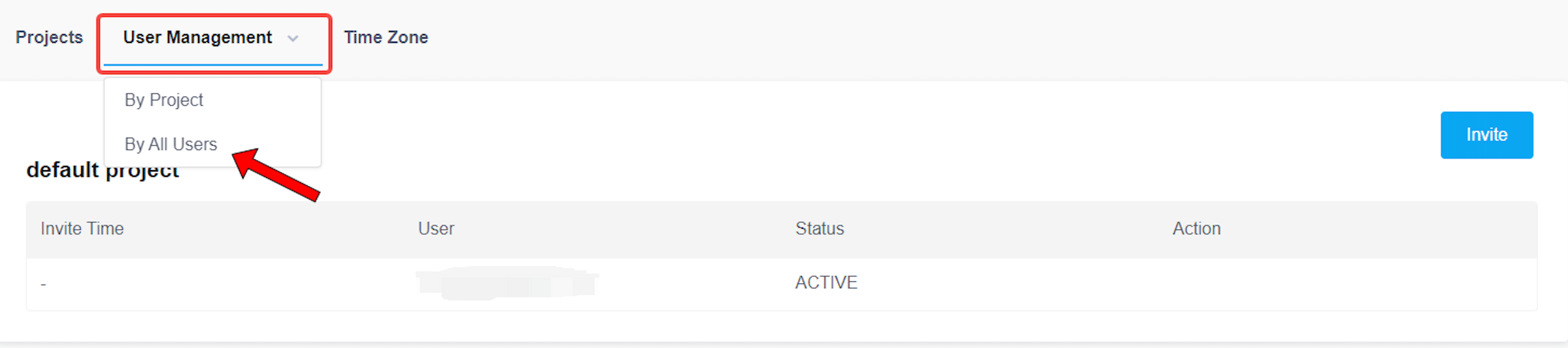
 2. Click `User Management`, and then select the `By All Users`.
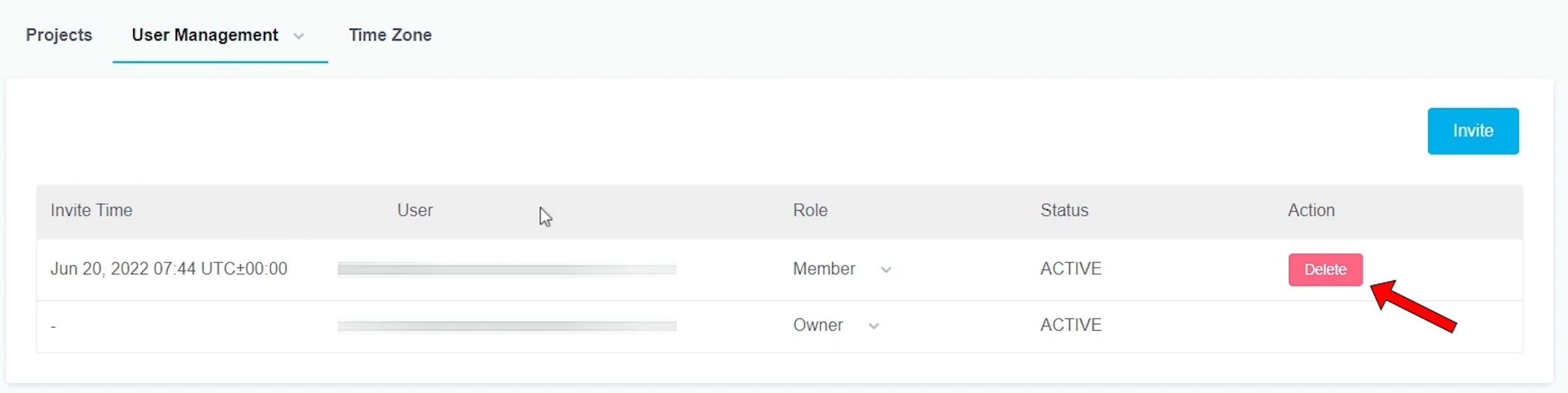
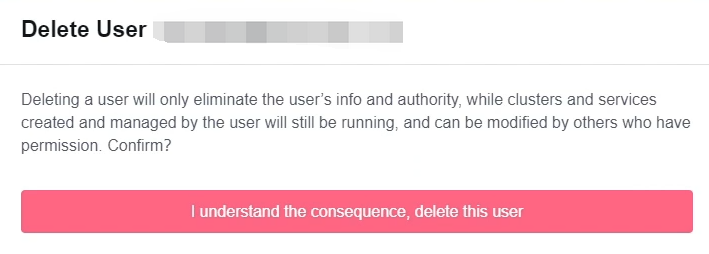
 3. Click `Delete` in the user row that you want to delete.
 (b) Remove the project member
1. Click `Organization` in the upper-right corner, and then click `Organization Settings`.
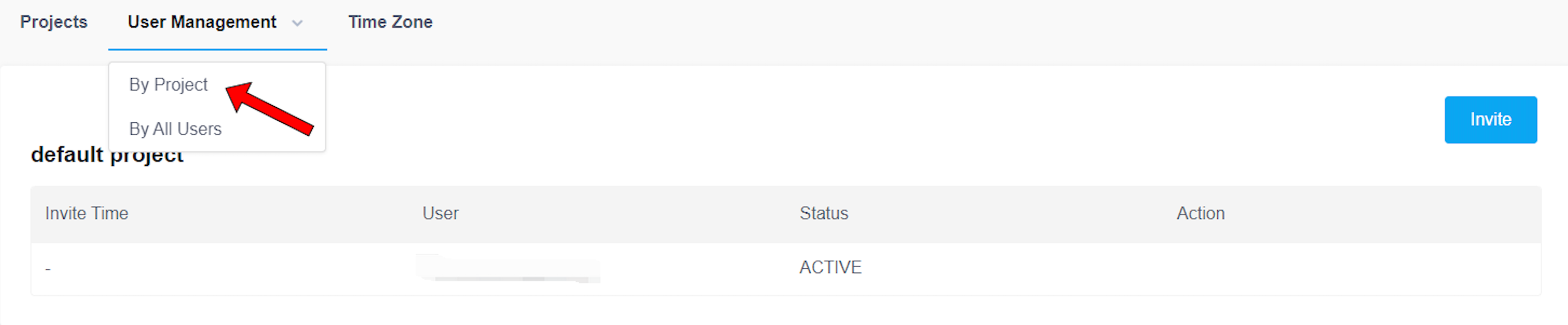
2. Click `User Management`, and then select the `By Project`.
(b) Remove the project member
1. Click `Organization` in the upper-right corner, and then click `Organization Settings`.
2. Click `User Management`, and then select the `By Project`.
 3. Click `Delete` in the user row that you want to delete.