# Exercise 3-6: Configuring Member Roles
## Overview
+ In this exercise, you configure roles for your organization members.
## Note:
+ If you are the owner of an organization, you can configure roles for your organization members:
## Duration
+ This exercise should take you approximately 5 minutes to complete.
## Tasks
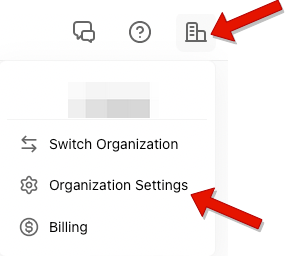
1. Click `Organization` in the upper-right corner, and then click `Organization Settings`.
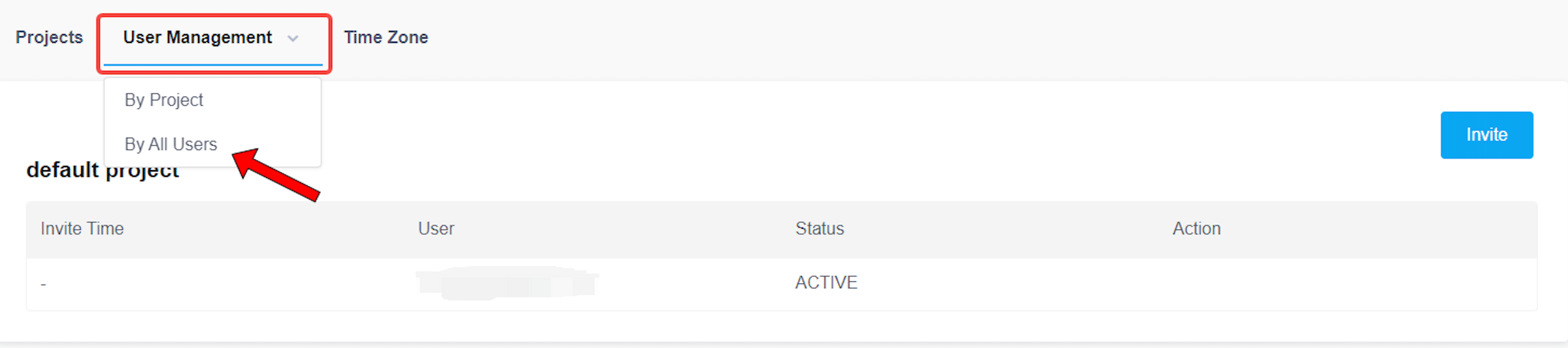
2. Click `User Management`, and then select the `By All Users`.
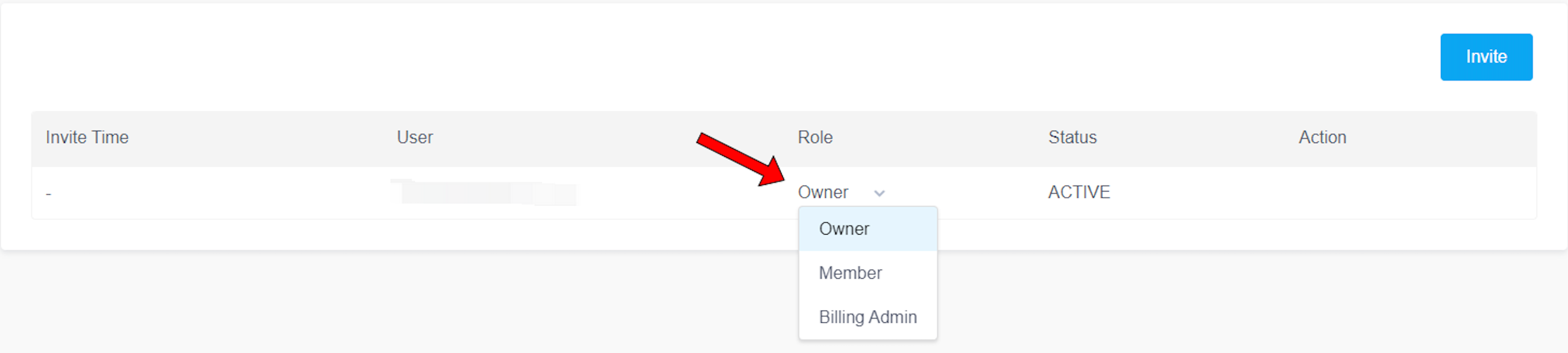
3. Click the role of the target member, and then modify the role, there are four roles in an organization.
## Solution Steps
1. Click `Organization` in the upper-right corner, and then click `Organization Settings`.
 2. Click `User Management`, and then select the `By All Users`.
 3. Click the role of the target member, and then modify the role, there are four roles in an organization. (For more information, see [Manage role access](https://docs.pingcap.com/tidbcloud/manage-user-access#manage-role-access)