# Exercise 3-1: Backing up a TiDB Cluster
## Overview
+ In this exercise, you back up your TiDB cluster on TiDB Cloud.
## Duration
+ This exercise should take you approximately 5 minutes to complete.
## Tasks
1. On the `Clusters` page, click the name of the cluster to enter the `Overview` page of the cluster.
2. Click the `Backup` in the left navigation pane.
3. Configure the backup settings, and then click `Confirm`.
## Solution Steps
(a) Automatic backup
1. On the `Clusters` page, click the name of the cluster to enter the `Overview` page of the cluster.
 2. Click the `Backup` in the left navigation pane.
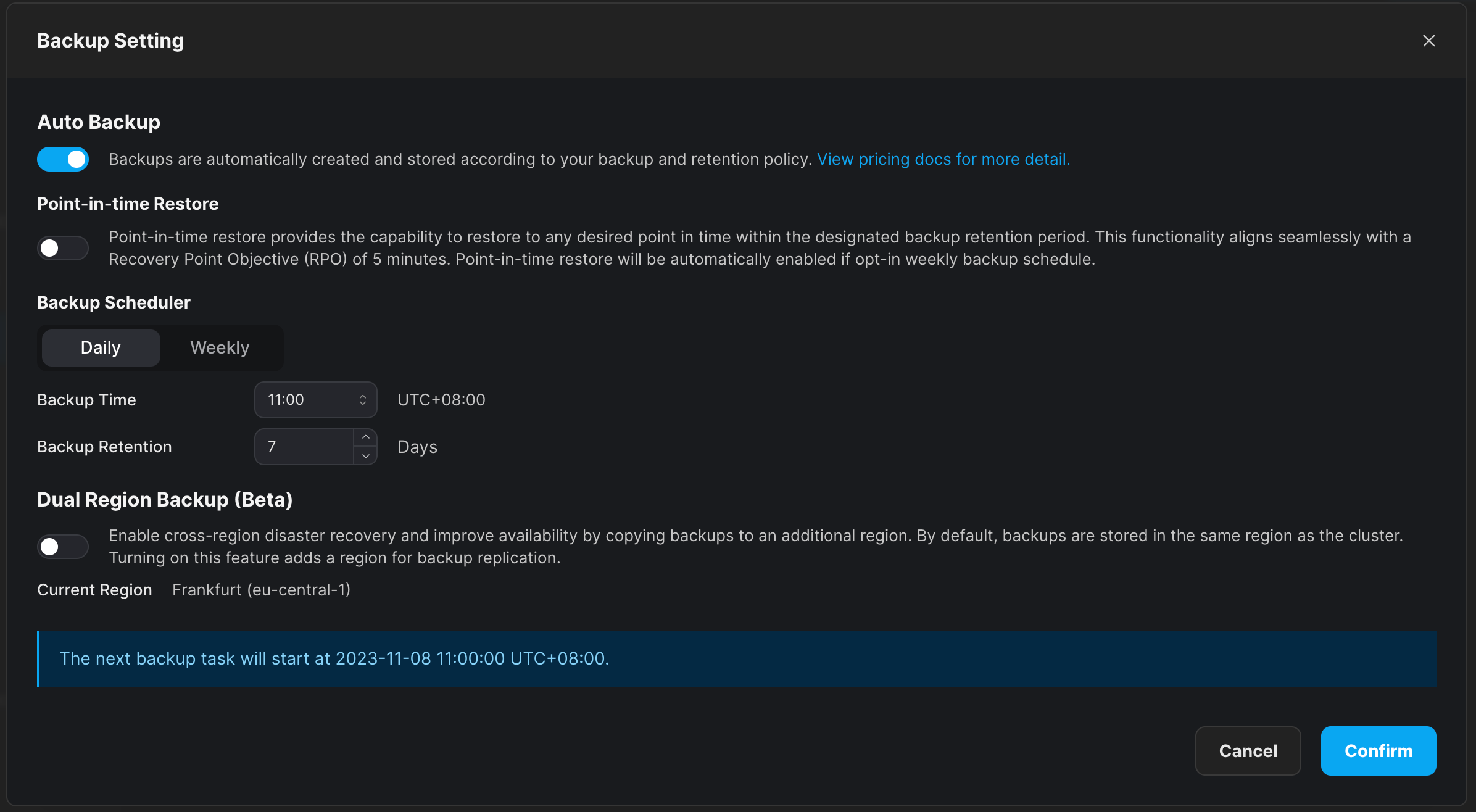
3. On the `Backup` page, click `Backup Settings`.
4. Configure the automatic backup, and then click `Confirm`.
2. Click the `Backup` in the left navigation pane.
3. On the `Backup` page, click `Backup Settings`.
4. Configure the automatic backup, and then click `Confirm`.
 (b) Manual backup
+ The Manual backup is for `TiDB Dedicated` cluster only.
1. On the `Clusters` page, click the name of the cluster to enter the `Overview` page of the cluster.
2. Click the `Backup` in the left navigation pane.
3. On the `Backup` page, click `Manual Backup`.
(b) Manual backup
+ The Manual backup is for `TiDB Dedicated` cluster only.
1. On the `Clusters` page, click the name of the cluster to enter the `Overview` page of the cluster.
2. Click the `Backup` in the left navigation pane.
3. On the `Backup` page, click `Manual Backup`.
 4. Enter the `Name`, and then click `Confirm`.
