# Exercise 3-2: Restoring a TiDB Cloud Cluster
## Overview
+ In this exercise, you restore TiDB cluster on TiDB Cloud..
## Notes:
+ This exercise is for `TiDB Dedicated` cluster only.
## Duration
+ This exercise should take you approximately 15 minutes to complete.
## Tasks
1. Enter the `Recycle Bin` or `Overview` page.
2. Select a backup of your cluster.
3. Restore your TiDB cluster.
## Solution Steps
(A)
(a) Restore a deleted cluster
1. In the lower-left of the web console, click your project name (`default project` in our case), then switch to your target project, and click `Project Settings`.
 2. On the `Project Settings` page of your project, click `Recycle Bin` in the left navigation pan.
3. Select a backup of your cluster, click `Backups`.
2. On the `Project Settings` page of your project, click `Recycle Bin` in the left navigation pan.
3. Select a backup of your cluster, click `Backups`.
 4. On the next screen click `Restore`.
 5. In the `Restore` window, edit your cluster configuration, and then click the `Confirm`.
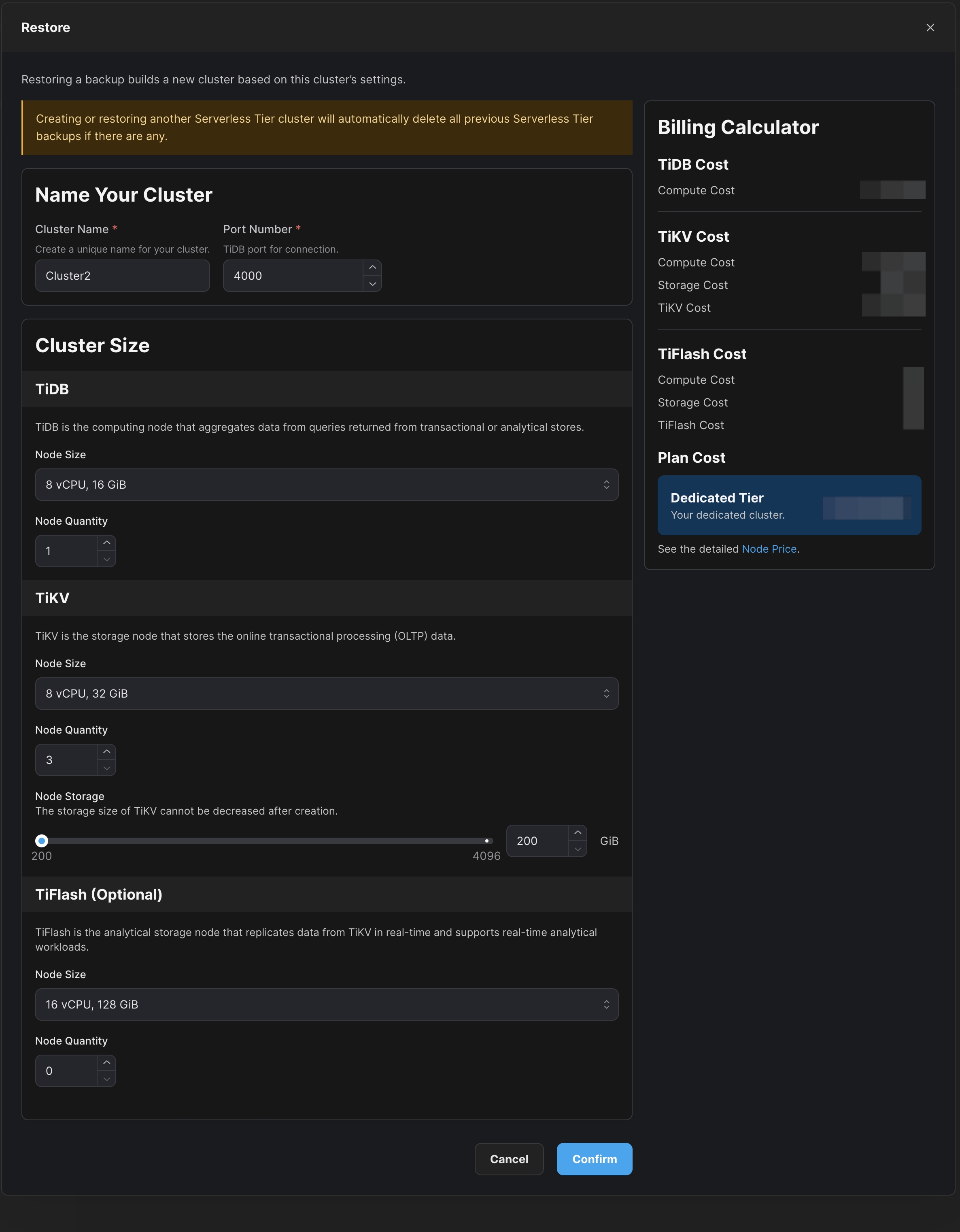 6. Wait for your TiDB Cloud cluster to be restored. (approximately 10 to 30 minutes)
(b) Restore data to a new cluster
1. On the `Clusters` page, click the name of the cluster to enter the `Overview` page of the cluster.
6. Wait for your TiDB Cloud cluster to be restored. (approximately 10 to 30 minutes)
(b) Restore data to a new cluster
1. On the `Clusters` page, click the name of the cluster to enter the `Overview` page of the cluster.
 2. Click the `Backup` in the left navigation pane.
3. On the `Backup` page, click `Restore`.
4. In `Restore Mode` section, choose to restore data of any point in time or a selected backup to a new cluster. In `Restore to Region` section, choose a region. In `Restore to New Cluster` section, enter a name and port number for your cluster. Then click `Next`.
2. Click the `Backup` in the left navigation pane.
3. On the `Backup` page, click `Restore`.
4. In `Restore Mode` section, choose to restore data of any point in time or a selected backup to a new cluster. In `Restore to Region` section, choose a region. In `Restore to New Cluster` section, enter a name and port number for your cluster. Then click `Next`.
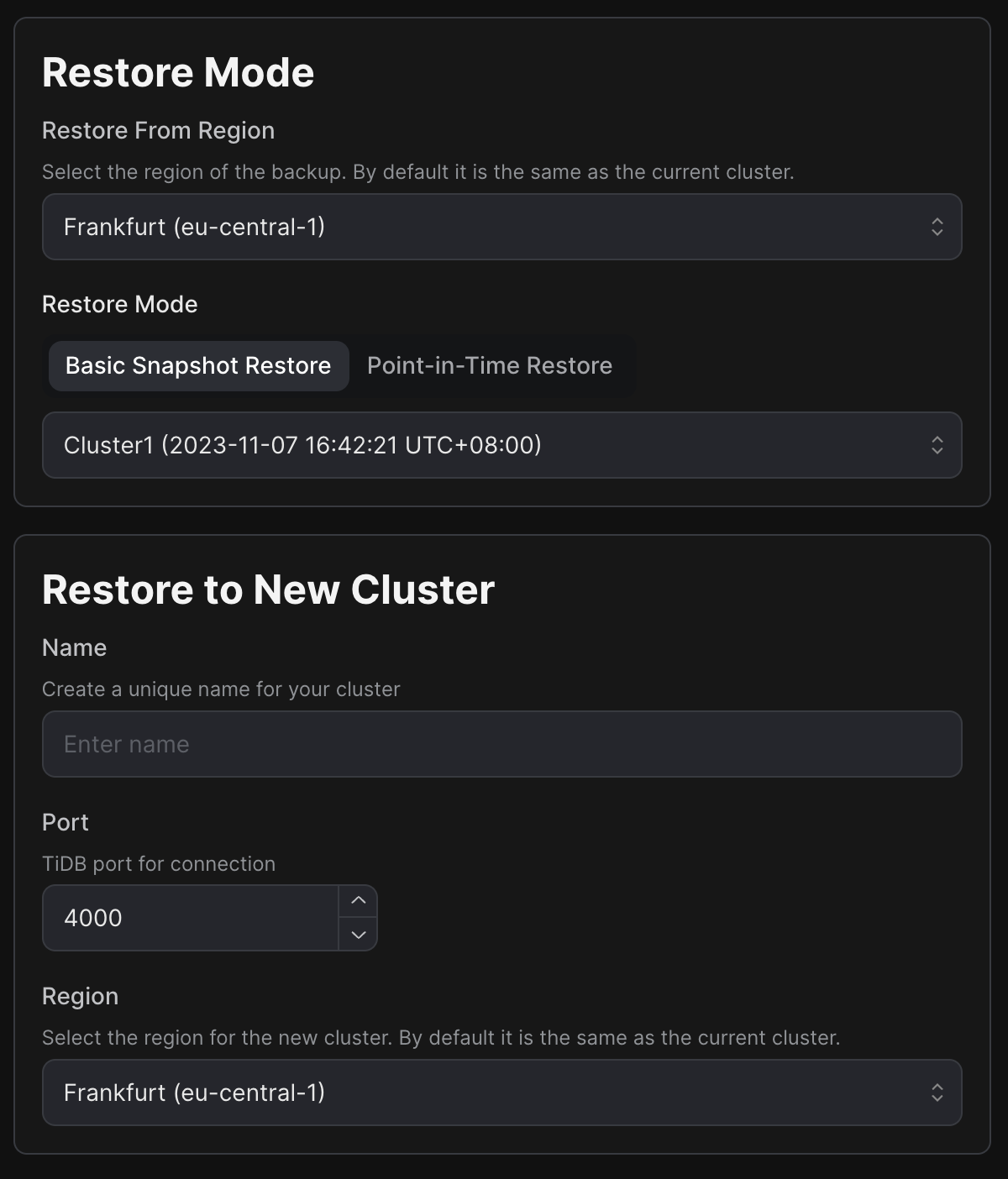 5. In the `Cluster Size` section, you can increase the node size, node quantity, and node storage for the cluster. Then click `Next`.
 6. Go through the detailed configuration of your cluster, and then click `Restore`.
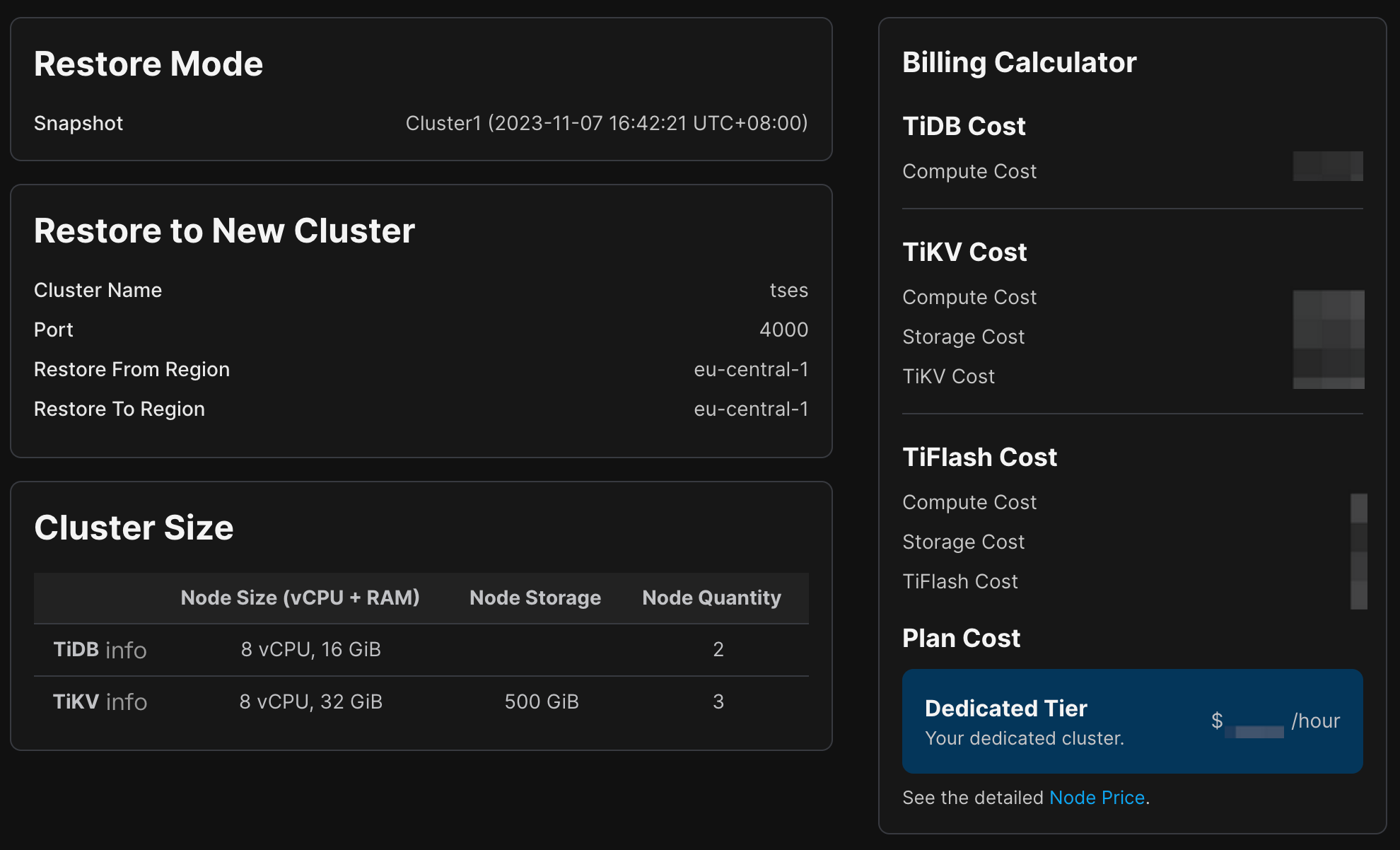 7. Wait for your TiDB Cloud cluster to be restored. (approximately 10 to 30 minutes)