# Exercise 5-2: Importing Local CSV Data into TiDB Cloud
## Overview
+ In this exercise, you import local CSV data into TiDB Cloud cluster.
## Notes
+ Before this task, make sure you have completed the activities in the exercise titled "*Exercise 7-1: Preparing Example Data*"
+ This task is for `TiDB Serverless` cluster only.
## Duration
+ This exercise should take you approximately 15 minutes to complete.
## Tasks
1. Open the Import page for your target cluster.
2. On the Import page, select and upload the target local file.
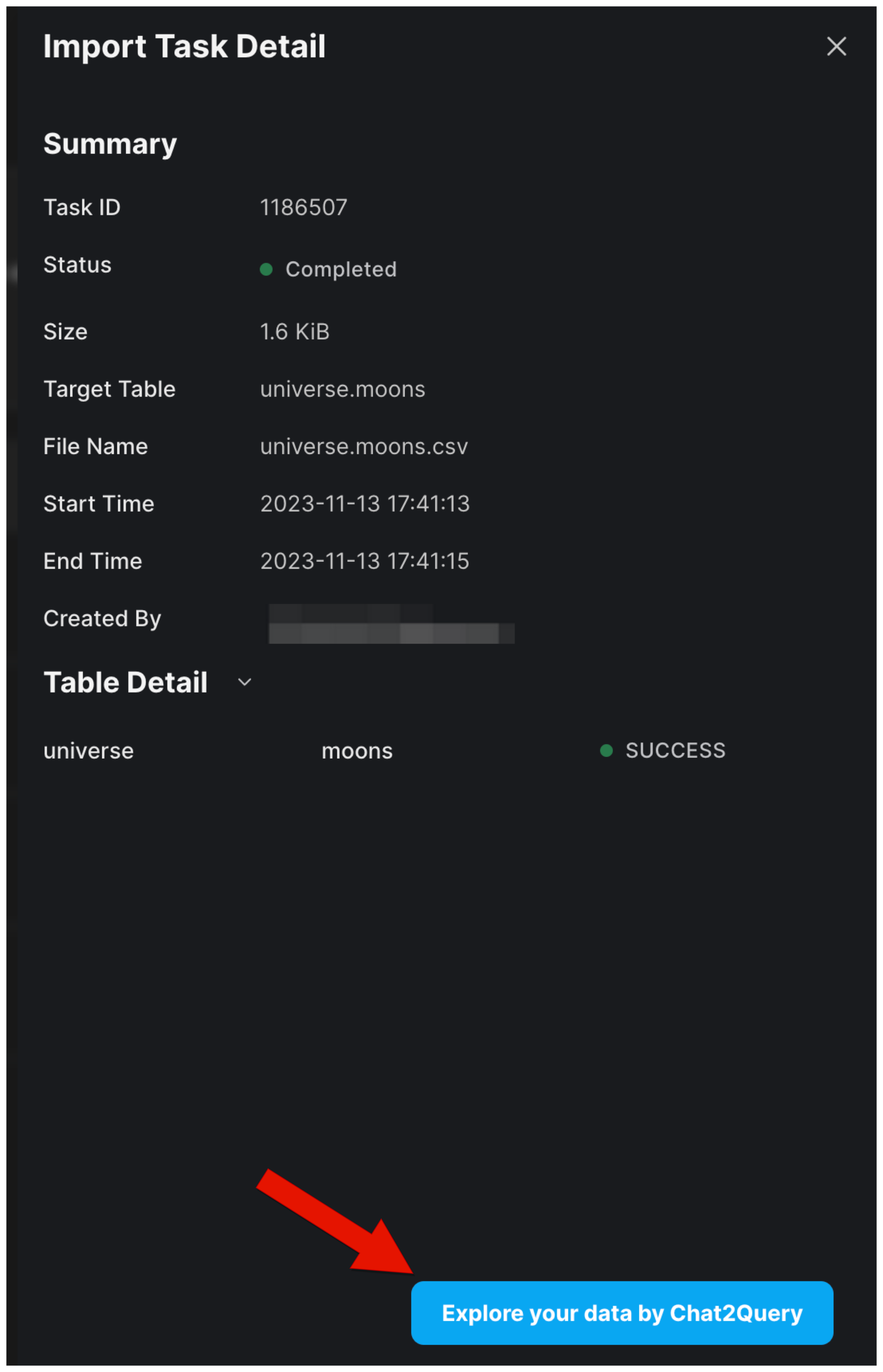
3. Click Explore your data by Chat2Query to query your imported data.
## Solution Steps
1. On the `Clusters` page, click the name of the cluster to enter the `Overview` page of the cluster.
 2. On the `Overview` page, click `Import` in the left navigation pane.
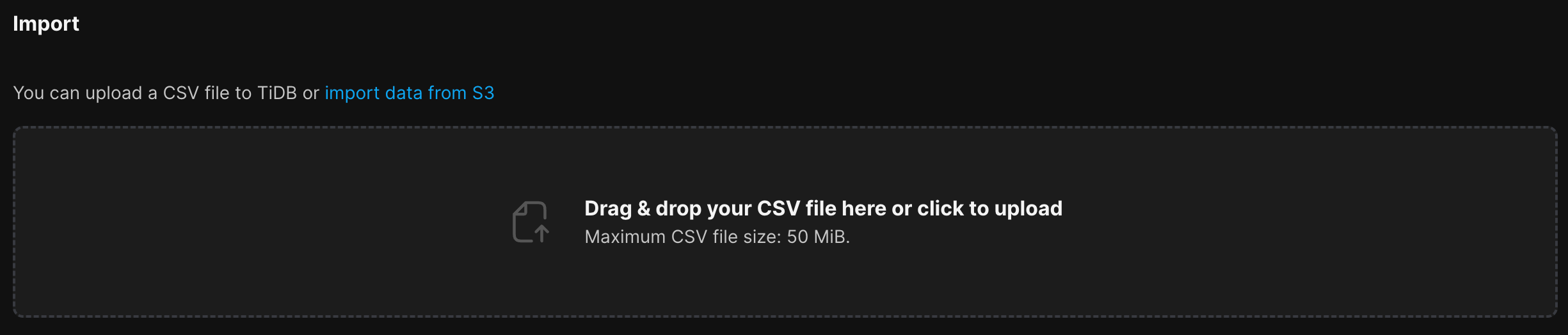
3. On the `Import` page, you can directly drag and drop your `universe.moons.csv` file to the upload area, or click the upload area to select and upload the `universe.moons.csv` file. Note that you can upload only one CSV file of less than 50 MiB for one task.
2. On the `Overview` page, click `Import` in the left navigation pane.
3. On the `Import` page, you can directly drag and drop your `universe.moons.csv` file to the upload area, or click the upload area to select and upload the `universe.moons.csv` file. Note that you can upload only one CSV file of less than 50 MiB for one task.
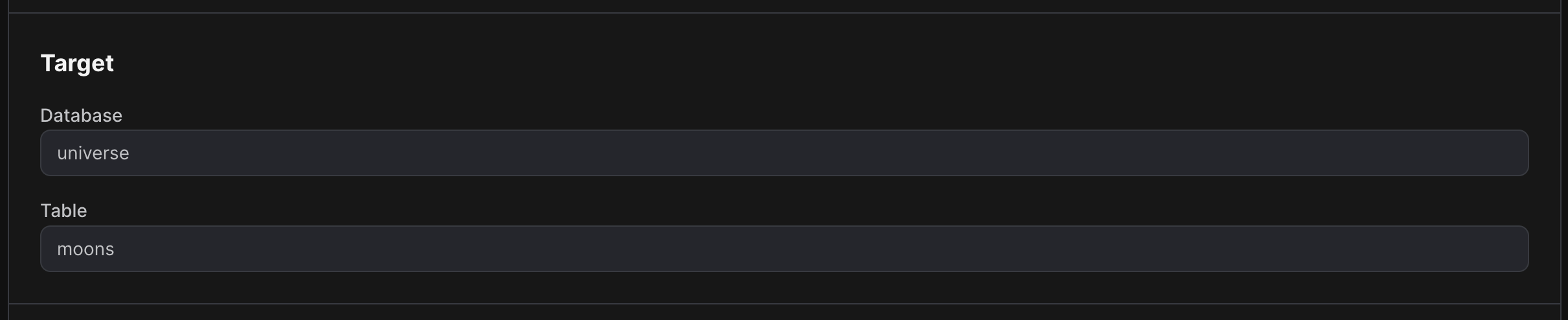
 4. In the Target area, select the target database and the target table, or enter a name directly to create a new database or a new table, and then click `Preview`.
 5. On the next page, check the table and edit the CSV configuration if needed, then click `Start Import`.
 6. Wait for the data to be imported. After the import task is completed, you can click `Explore your data by Chat2Query` to query your imported data.