# Exercise 5-3: Importing CSV Data from Amazon S3 Bucket into TiDB Cloud
## Overview
+ In this exercise, you import CSV data from Amazon S3 bucket into TiDB Cloud cluster.
## Notes:
+ Before this task, make sure you can use AWS S3 and have example CSV data files staged in the bucket.
## Duration
+ This exercise should take you approximately 15 minutes to complete.
## Tasks
1. Get the `TiDB Cloud Account ID` and `TiDB Cloud External ID`.
2. Create access policy for Amazon S3 bucket.
3. Create access role for TiDB Cloud.
4. Import CSV data to TiDB Cloud cluster
## Solution Steps
1. On the `Clusters` page, click the name of the cluster to enter the `Overview` page of the cluster.
 2. Click the `Import` in the left navigation pane.
3. On the `Import` page. If your cluster is `TiDB Dedicated`, click `Import Data`, If your cluster is `TiDB Serverless`, click `Import Data`.
4. Choose the `AWS Role ARN`, and click `Guide for getting the required Role-ARN` to get the `TiDB Cloud account ID` and `TiDB Cloud External ID` of your cluster.
2. Click the `Import` in the left navigation pane.
3. On the `Import` page. If your cluster is `TiDB Dedicated`, click `Import Data`, If your cluster is `TiDB Serverless`, click `Import Data`.
4. Choose the `AWS Role ARN`, and click `Guide for getting the required Role-ARN` to get the `TiDB Cloud account ID` and `TiDB Cloud External ID` of your cluster.
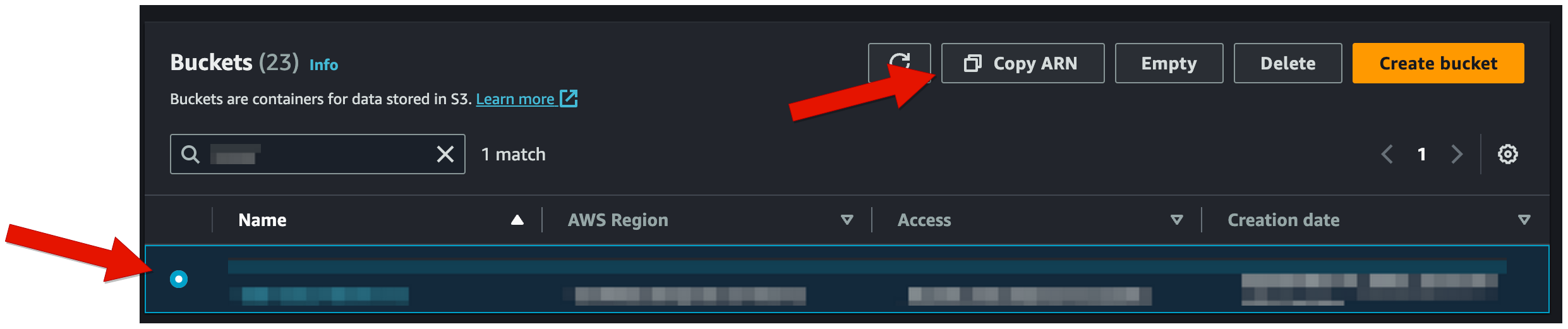
 5. Open the [Amazon S3 console](https://console.aws.amazon.com/s3/) and then click `Buckets`.
6. Click `Copy ARN` to get your S3 bucket ARN.
5. Open the [Amazon S3 console](https://console.aws.amazon.com/s3/) and then click `Buckets`.
6. Click `Copy ARN` to get your S3 bucket ARN.
 7. Open the [IAM console](https://console.aws.amazon.com/iam/) and then click `Policies`.
8. Click `Create Policy`.
9. On the `Create policy` page, you can choose to click the `Visual editor` tab or click the `JSON` tab.
7. Open the [IAM console](https://console.aws.amazon.com/iam/) and then click `Policies`.
8. Click `Create Policy`.
9. On the `Create policy` page, you can choose to click the `Visual editor` tab or click the `JSON` tab.
 If you choose the `JSON` tab to create an access policy, you can refer to the following template.
 ```
{
"Version": "2012-10-17",
"Statement": [
{
"Sid": "VisualEditor0",
"Effect": "Allow",
"Action": [
"s3:GetObject",
"s3:GetObjectVersion"
],
"Resource": "/universe-csv/*"
},
{
"Sid": "VisualEditor1",
"Effect": "Allow",
"Action": [
"s3:ListBucket",
"s3:GetBucketLocation"
],
"Resource": ""
}
]
}
```
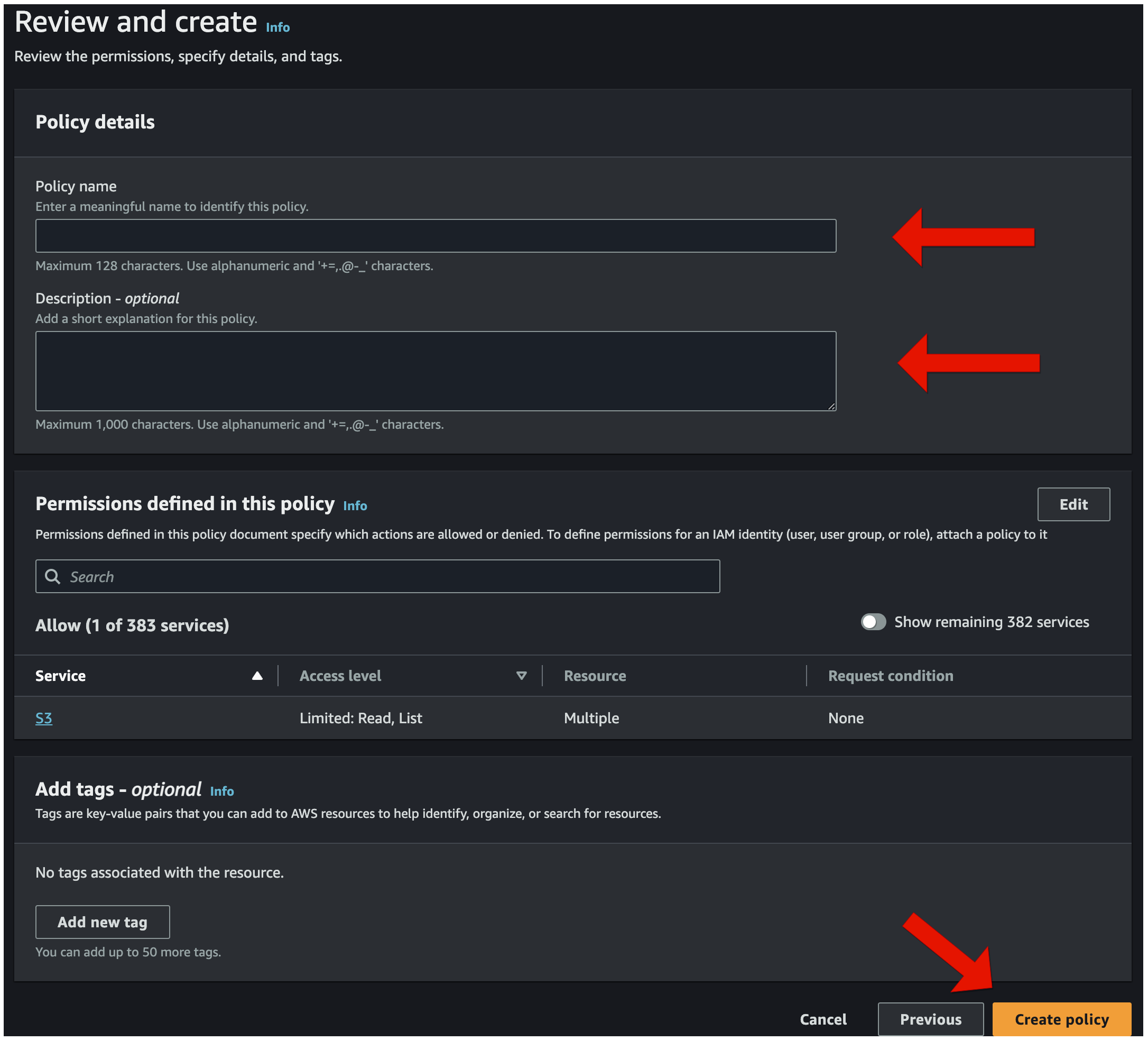
10. On the next page set the policy `Name` and `Description`, and then click `Create policy`.
```
{
"Version": "2012-10-17",
"Statement": [
{
"Sid": "VisualEditor0",
"Effect": "Allow",
"Action": [
"s3:GetObject",
"s3:GetObjectVersion"
],
"Resource": "/universe-csv/*"
},
{
"Sid": "VisualEditor1",
"Effect": "Allow",
"Action": [
"s3:ListBucket",
"s3:GetBucketLocation"
],
"Resource": ""
}
]
}
```
10. On the next page set the policy `Name` and `Description`, and then click `Create policy`.
 11. Open the [IAM console](https://console.aws.amazon.com/iam/), and then click `Roles`.
12. Click `Create role`.
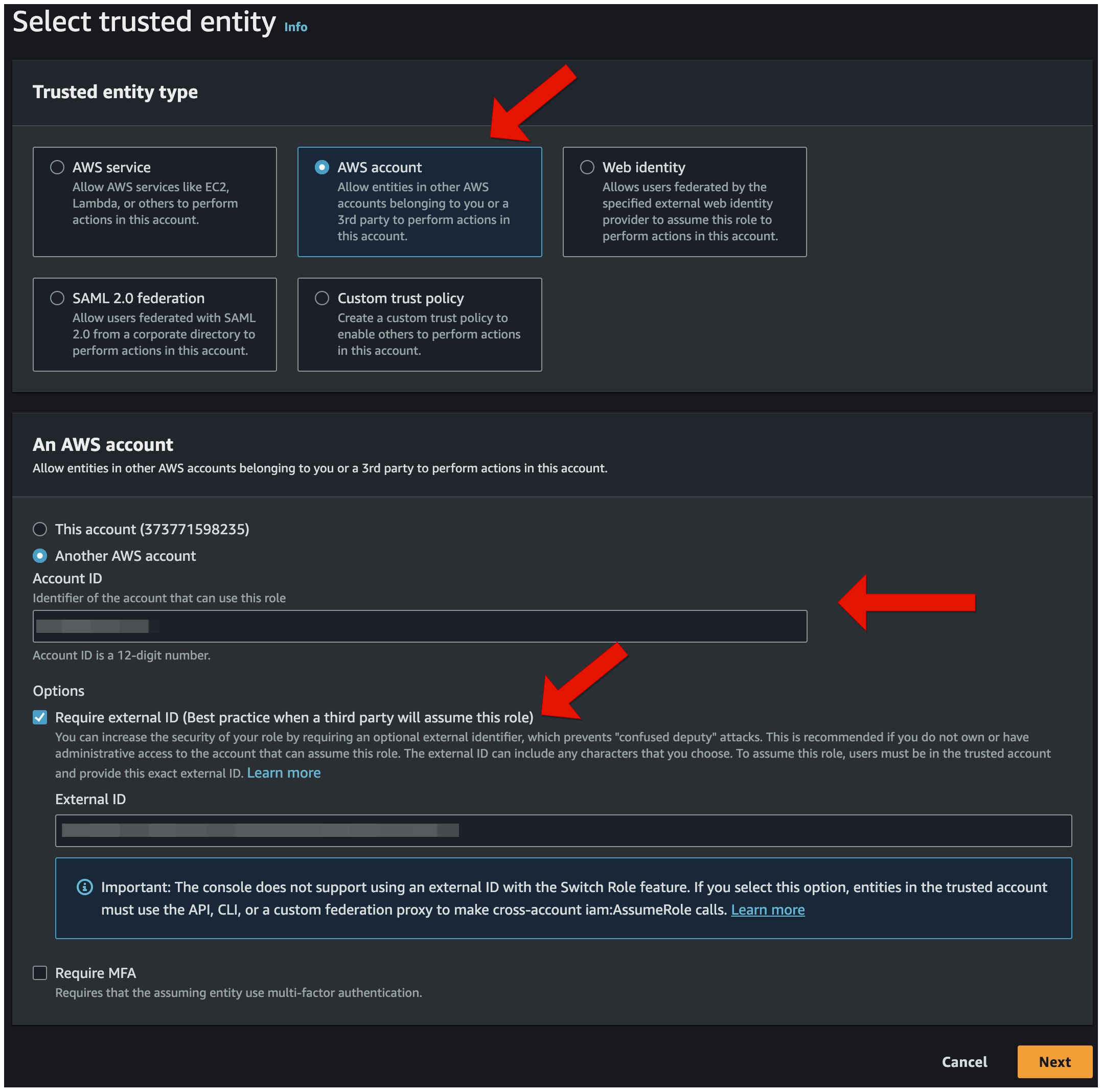
13. In the `Trusted entity type` section, choose `AWS account`. Next, in the `An AWS account` section, choose `Another AWS account`, then input the `TiDB Cloud account ID` in `Account ID`. In the `Options` section, click `Require external ID (Best practice when a third party will assume this role)` and then input the `TiDB Cloud External ID` in `External ID`. Click `Next`.
11. Open the [IAM console](https://console.aws.amazon.com/iam/), and then click `Roles`.
12. Click `Create role`.
13. In the `Trusted entity type` section, choose `AWS account`. Next, in the `An AWS account` section, choose `Another AWS account`, then input the `TiDB Cloud account ID` in `Account ID`. In the `Options` section, click `Require external ID (Best practice when a third party will assume this role)` and then input the `TiDB Cloud External ID` in `External ID`. Click `Next`.
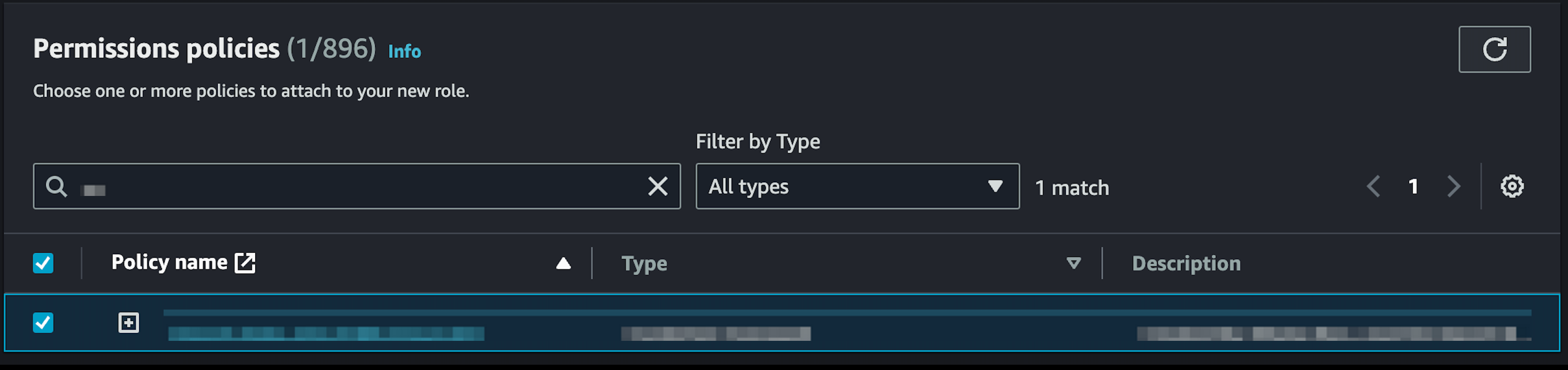
 14. Choose the policy for the role, and then click `Next`.
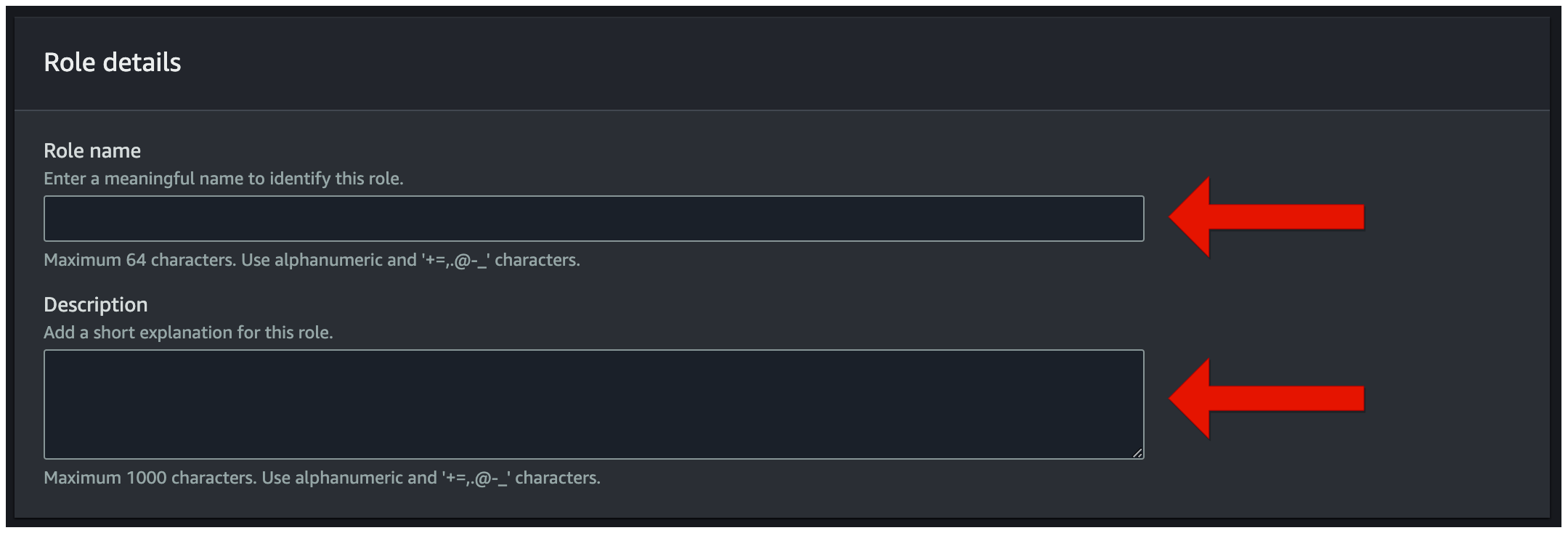
 15. In the `Role details` section, set the `Role name` and `Description`, and then click `Create role`.
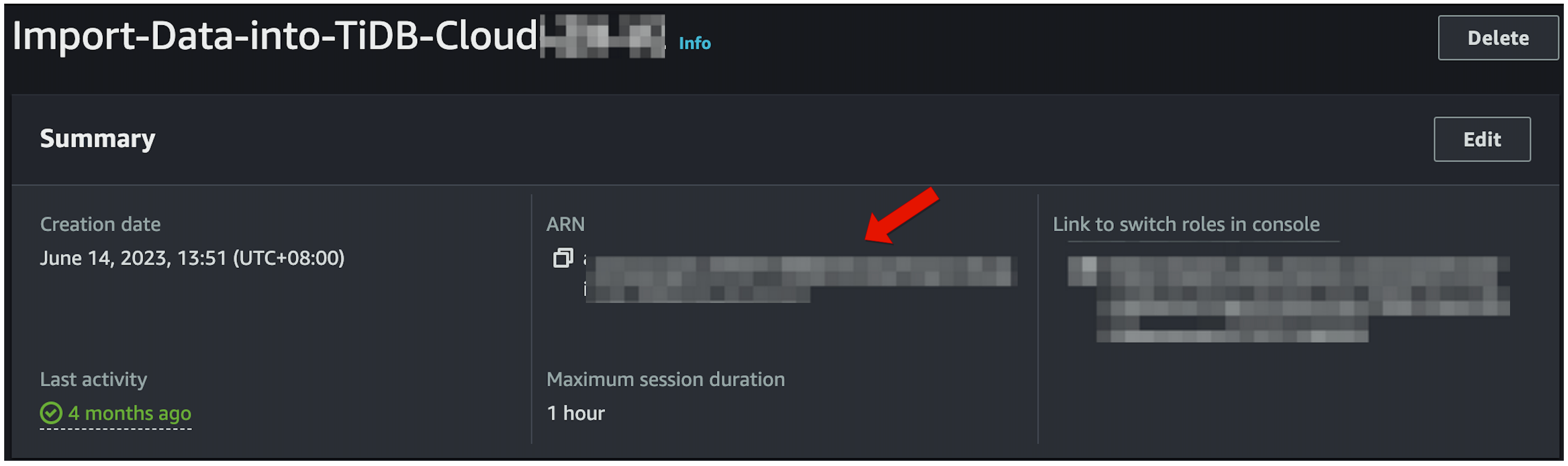
 16. On the `Roles` page, click the name of the role that you just created.
 17. Note the value for `ARN`. Write this down, you will need it later.
 18. Go back to the [TiDB Cloud Console](https://tidbcloud.com/console/clusters), click the name of the cluster to enter the `Overview` page of the cluster.
19. Click the `Import` in the left navigation pane.
20. On the `Import` page. If your cluster is `TiDB Dedicated`, click `Import Data`; If your cluster is `TiDB Serverless`, click `import data from S3`.
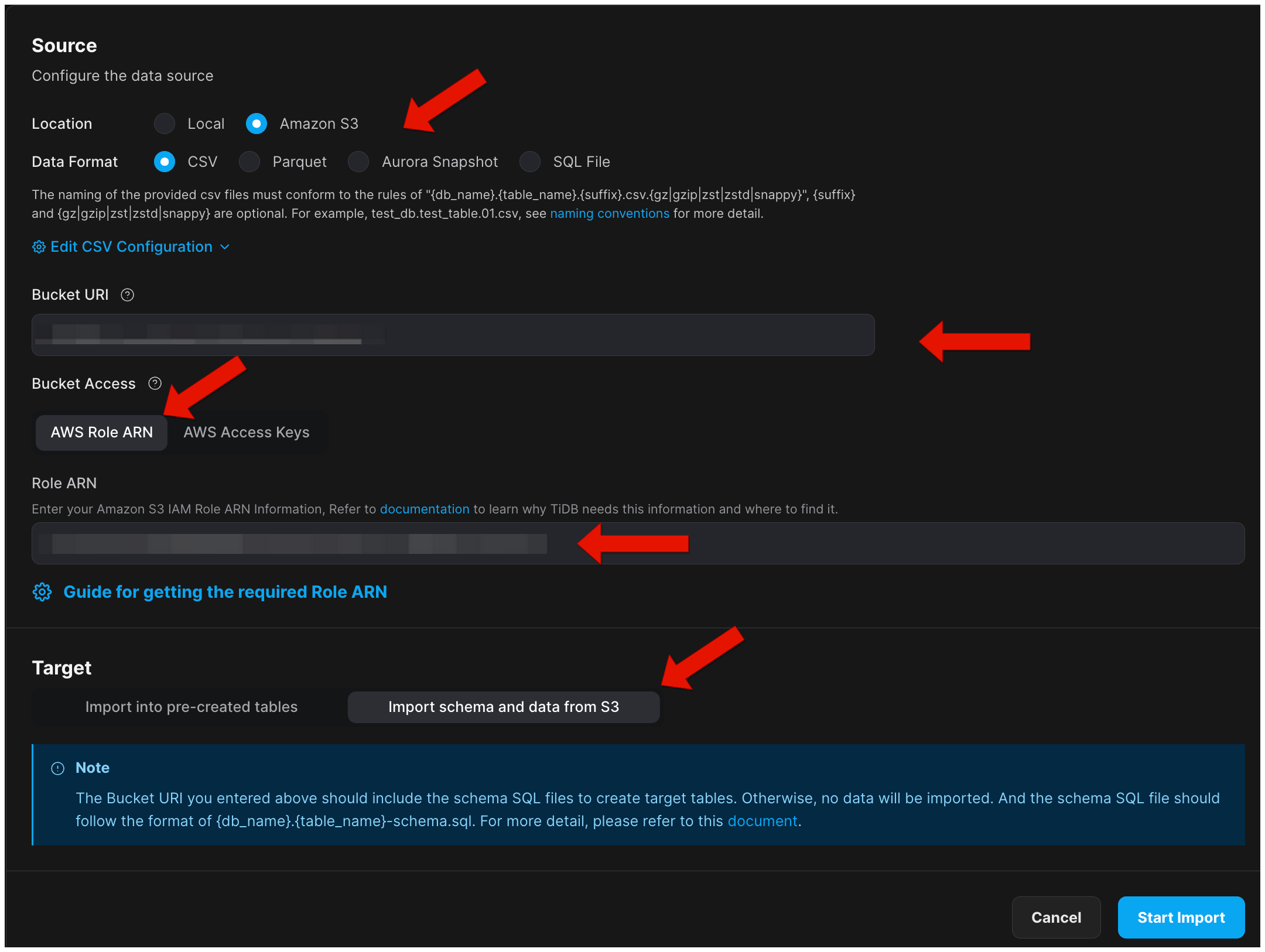
21. In the `Source` session, select `CSV` in the `Data format` section and fill in the `Bucket URI` of your example CSV data. In the `Bucket Access` session, choose `AWS Role ARN`, then enter the `Role ARN` you just got. Click `Start Import`.
18. Go back to the [TiDB Cloud Console](https://tidbcloud.com/console/clusters), click the name of the cluster to enter the `Overview` page of the cluster.
19. Click the `Import` in the left navigation pane.
20. On the `Import` page. If your cluster is `TiDB Dedicated`, click `Import Data`; If your cluster is `TiDB Serverless`, click `import data from S3`.
21. In the `Source` session, select `CSV` in the `Data format` section and fill in the `Bucket URI` of your example CSV data. In the `Bucket Access` session, choose `AWS Role ARN`, then enter the `Role ARN` you just got. Click `Start Import`.
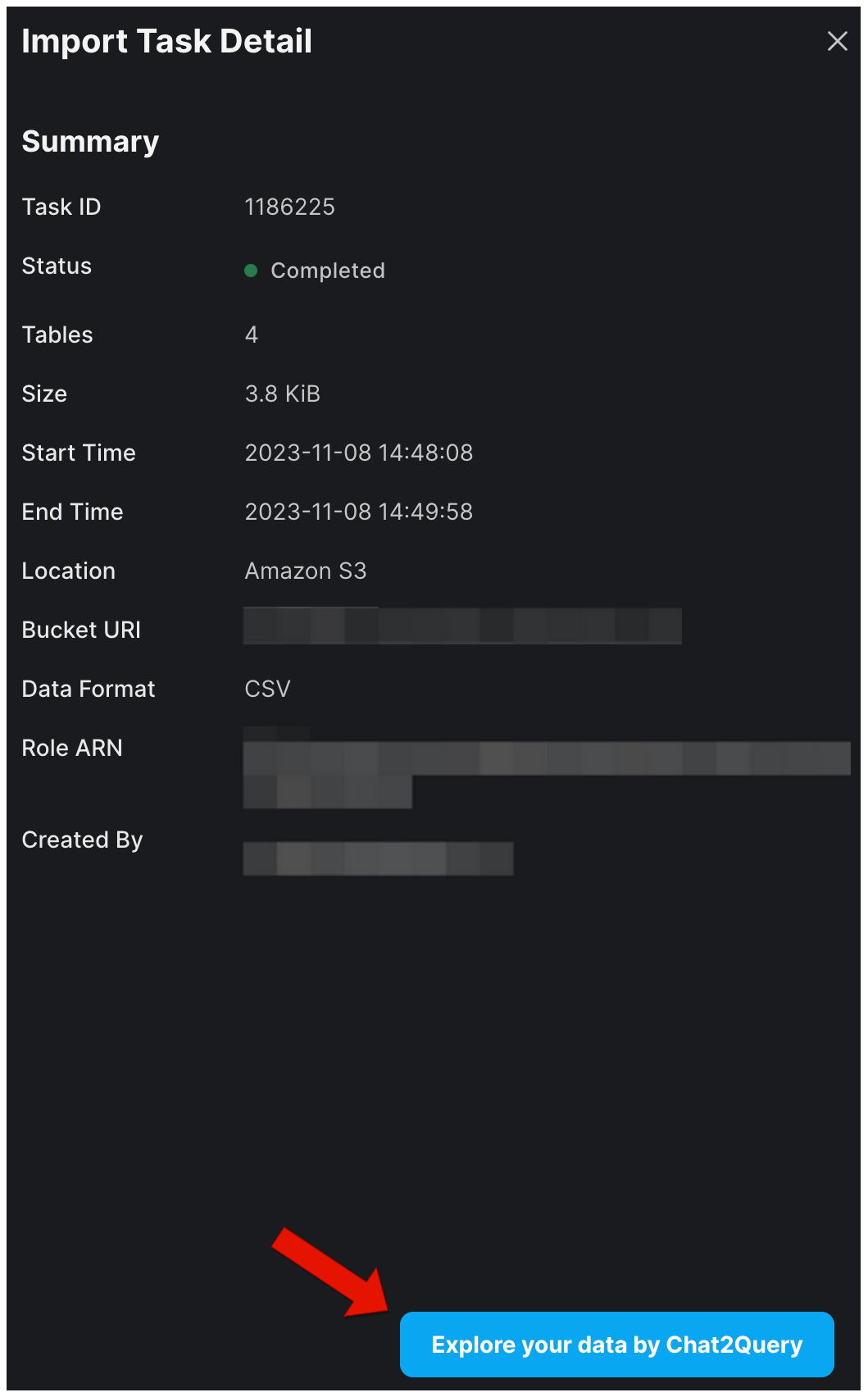
 22. Wait for your data import to finish. After the import task is completed, you can click `Explore your data by Chat2Query` to query your imported data.